
4 new ways to go from idea to product with AI tools




AI tools are changing how teams build products—from where they start to what carries through to production. Here's what that shift looks like across four organizations.
Share 4 new ways to go from idea to product with AI tools
Hero illustration by Lina Müller
Product teams are rapidly adapting to the new way of working in the AI era. They're prototyping early A growing number of product managers are finding that the fastest way to clarity is to build. Inside Figma Make, they’re pressure-testing assumptions early, building momentum, and rallying teams around something tangible.
Prototypes are the new PRDs


Learn more about finding the right workflow for your team—and how to balance speed with intention.
1. Testing constraints in code

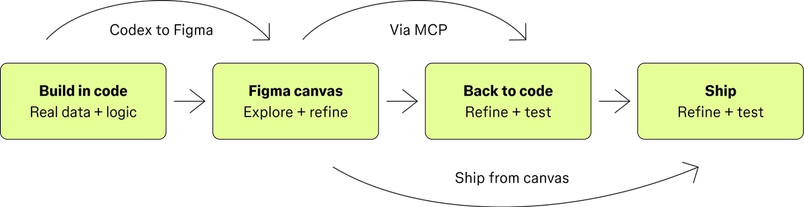
Testing an idea against intricate constraints—things like multi-step flows where one action triggers the next, or interfaces that behave differently depending on the data behind them—used to require significant developer investment. Today, AI coding tools have made it possible for more people on a product team to quickly build and test these kinds of interactions before committing to a direction. That’s opened up a new workflow. A product builder can create a working prototype in code, then move it onto the Figma canvas using Codex to Figma With Codex to Figma, teams can bring real, running interfaces into Figma to explore, refine, and make decisions together, then bring it back to Codex with design context intact.
Building frontend UIs with Codex and Figma
How FloQast tested a complex workflow in code
FloQast builds software that helps accounting teams manage real-world complexity—tasks that can't move forward until other tasks are finished, records that need to match up between places like a payment processor and a bank account, and sign-offs that are stalled until everything else has been reviewed.
The challenge
Recently, the team needed to rethink one of their standard workflows, one where users had to jump between multiple pages just to track down a single discrepancy. For example, an accountant who spotted an issue in an account might have to go to one page to see the problem, navigate to a different page to investigate it, then come back to the first page to resolve it. The team wanted to consolidate all of that into a single page where users could see their tasks, track what was blocked, and act on everything without leaving the screen.
An early prototype had shown promise, but the page had too many interconnected steps—each dependent on real data and logic—for the team to evaluate from a mockup alone.
The unlock
Benjamin Ellis, UX manager at FloQast, built a working prototype in an AI coding tool with a simulated backend and realistic data based on an actual customer's workflows. The code-backed prototype let the team click through real scenarios where completing one step triggered the next, and see whether the whole page actually held together. They immediately spotted flows that looked right on the surface but fell apart in practice—the kind of problems that only show up when you're working with real data and logic.
The impact
By the time Benjamin’s team and the designer committed to a direction, they'd already pressure-tested it in code against real scenarios and caught the kinds of interaction problems that a design file alone wouldn't have surfaced. That meant fewer surprises later and more confidence in what they were building.
Try this when:
- The UI behaves differently depending on conditions you can't evaluate in a mockup, like user permissions or multi-step flows where one action affects the next
- You need to make a smaller fix and it's faster to change it directly in code than round-trip through design
- A designer and developer need to scope out a complex experience together, and having something working makes that conversation easier
2. Exploring with AI on the canvas
Teams have always explored on the canvas, but AI has changed how far that exploration can go. With Figma’s AI agent Starting today, work with an agent that is built for Figma—directly on the canvas. While everyone’s talking about “tokenmaxxing,” we’ve compiled seven best practices to help you build smarter—without prompting more—in Figma Make.The Figma design agent is here

7 tips for using Figma Make credits more efficiently
How Merkle went wide before going deep
Easton Thomas, associate creative director of UX at Merkle, was rethinking how his telecommunications client organized and displayed its products on its website—an information architecture challenge that required exploring a lot of different approaches before landing on the right one.
When to use Figma’s AI agent on the canvas:
During exploration: Generate layout variations or try different content approaches without leaving the file. Instead of manually mocking up five directions, ask Figma and react to what it gives you.
After pulling code onto the canvas: Ask Figma to check the build against your design system that got introduced in code.
When refining a direction: Ask Figma to apply your design system across the file. It can also write realistic placeholder content so stakeholders can give more useful feedback.
When narrowing down: Ask Figma to gut-check a direction. It can flag what’s missing or point out patterns that don’t match the rest of the experience
The challenge
The work called for extensive exploration. Easton needed to test many different layouts and content approaches before he could feel confident in a direction, and with limited content on the existing site, he couldn’t easily evaluate whether any of them would hold up with real products on the page.
The unlock
Easton started on the canvas, designing out seven loose layout directions to explore different approaches. He then asked Figma's AI agent to generate 10 variations on one of his layouts, then 10 more, until he’d generated about 50. By that point, the agent had exhausted every combination it could find, and Easton could pull the strongest ideas and keep designing from there.
Once he had a direction, he continued to use Figma’s agent to refine the details. He used it to:
- Generate realistic placeholder copy so the page didn't feel abstract to stakeholders
- Write developer spec annotations directly into his annotation cards
- Review the finished work and flag gaps, like screen reader accessibility considerations he might have missed
From there, he moved into Figma Make to prototype the search page with real interactions, generating all the different states for things like filtering menus so he could see how the page actually behaved. He pulled those screens back onto the canvas for developer handoff.
The impact
The production work that would have taken days was compressed into hours. But the real benefit was the depth of exploration that Figma’s AI agent made possible. Instead of committing to one of seven layouts and hoping it was the right one, Easton could exhaust the entire option space—50 variations—before making a decision. By the time the work reached developers, he'd put it through more rounds of exploration and caught gaps he might not have had time to look for otherwise—which meant he could commit to a direction with more confidence.
Try this when:
- You’re building a new surface and need to explore a lot of directions before committing
- You need to rapidly generate and test multiple states and edge cases for a complex flow
- You want to spec out detailed interactions grounded in your design system before handing off to developers
3. Starting with a prototype


Tools like Figma Make let teams build a working prototype in hours—before anyone has written a single requirement. Instead of starting with a spec and hoping stakeholders can picture the vision, teams are building something real first and letting that shape what comes next. From there, they can move the prototype onto the canvas for refinement, into a presentation for stakeholder review, or into code through MCP.
How Accor used Figma Make to build conviction around a new vision
Accor is a global hospitality group with dozens of hotel brands. Recently, Accor’s design team was exploring how AI could elevate the web experience for one of its luxury brands.
The challenge
The challenge was figuring out what that AI experience should actually look like. A generic approach—like dropping a chatbot onto the site—wouldn't reflect the brand's identity or meet the expectations of its guest base. Justine Grave, lead brand designer at Accor, needed to deliver something that captured the emotional tone and personality that makes the brand recognizable.
The key moment
Justine opened Figma Make and prototyped something she wouldn't have had time to build by hand—a webpage that reorganizes itself based on what the user types. Search for “golf” and the page reshapes around properties with golf courses, curated outings, and relevant experiences. Make handled the micro-interactions and transitions, and the Figma MCP server kept everything connected to the brand's design system. Within days, she had a working prototype ambitious enough to show leadership what was possible—and concrete enough to start a real conversation about what to build next.
The impact
Justine and her team are now taking the prototype to brand and marketing stakeholders, giving them something concrete to react to and align around instead of a slide deck.
Try this when:
- You need to align stakeholders around a vision that doesn't exist yet
- The idea is too nuanced to communicate through a document or slide deck
- You want to test whether an idea has legs before investing design and engineering time
4. Doubling down on your design system


Make kits do for Figma Make what MCP does for AI-generated code. By bringing your design system into Figma Make, prototypes use your actual components and styles from the first prompt.
Make attachments let you add project-specific context like data, brand guidelines, or screenshots so the output reflects how your product actually works.
When work moves from design into code, it's important that the implementation pulls from your actual design system As AI reshapes how we make products, design systems are evolving from libraries of reusable parts into living frameworks that scale taste and craft. We spoke with product leaders and practitioners about the shifts they’re seeing in how design systems are built, used, and maintained. Figma’s MCP server brings your design decisions into the tools where code gets written—so what gets built actually matches what was designed. Here’s what that unlocks for everyone who builds products.
5 shifts redefining design systems in the AI era

The TL;DR on MCP: Why context matters and how to put it to work
How Affirm preserved design context from canvas to code
Affirm builds financial products that let customers split purchases into payment plans at checkout. The checkout experience lives across desktop, mobile web, Android, and iOS—and keeping those experiences consistent is an ongoing challenge.
The challenge
The team wanted to add badges to their payment plans to help customers find the right option faster, like flagging which plan has 0% interest or which would be paid off soonest. But there were a lot of combinations to work through: which badge to show to which customer, on which checkout, on which device. Every variation needed to stay true to the design system across all of those surfaces, and getting even a simple change from idea to production used to take around six weeks.
The unlock
A PM prototyped the badge variations in Figma Make—going from idea to working prototype in two days instead of the usual six weeks. Designers refined the winning direction on the canvas, and when the team was ready to move that design into production, they loaded the design artifacts into the Figma MCP server and connected it to Cursor. MCP passed the components, tokens, and layout structure directly into the coding environment, where an AI agent generated the front-end implementation. Developers used that as their starting point, building production code that already reflected the designs instead of reinterpreting them from scratch.
The impact
The prototyping alone went from six weeks to a couple of days. But more importantly, because MCP carried the design context through the whole process, developers didn't have to reinterpret the designs or rebuild components from scratch. What shipped matched what the designers intended.
Try this when:
- You’re moving a design into production and want the implementation to stay true to your design system
- You need to keep multiple surfaces or platforms consistent with the same design
- Your design systems team is rolling out changes and wants those updates to automatically flow through to every engineer's coding environment so new code reflects the current system from the start
The teams that are shipping great products today aren't locked into one tool or one sequence—they're choosing where to start based on the question they need to answer, and moving between surfaces as the work evolves. Learn more about the new workflows shaping products in the AI era.

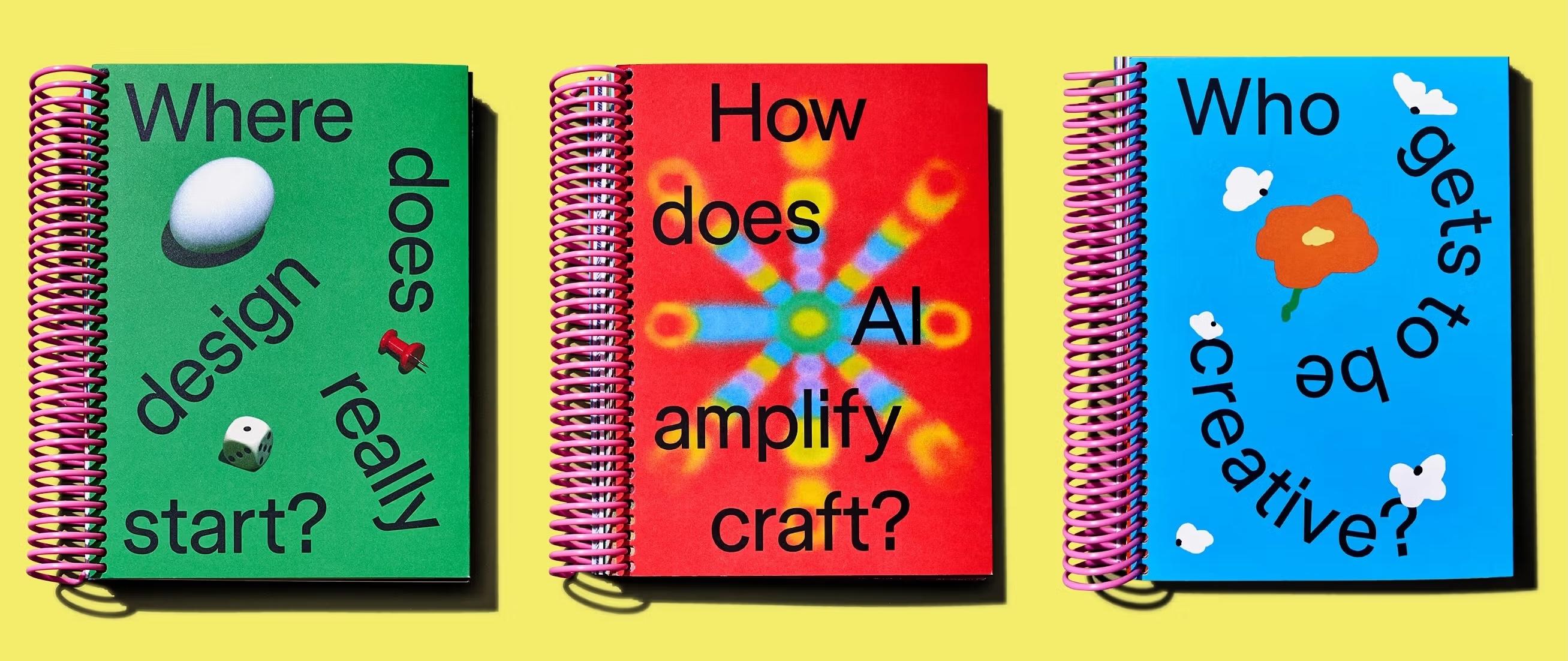
This article was featured in our annual print magazine, Start Anywhere. Explore the digital version, or purchase a copy.
Emma Webster is a writer and editor on Figma’s Story Studio team. Previously, she’s worked as a writer at Faire and Audley Travel.