Show don't tell: Embed Make prototypes everywhere you work in Figma



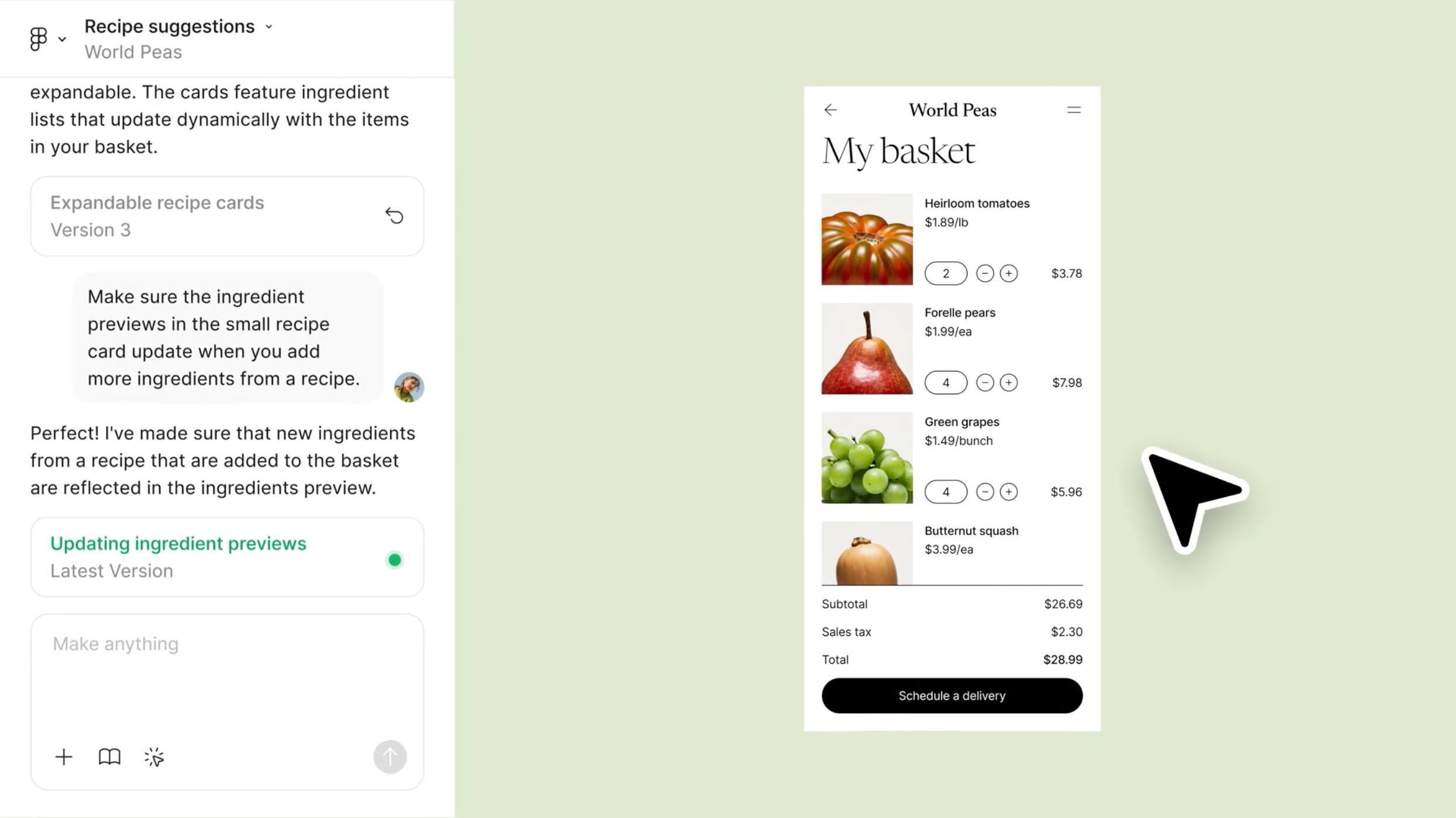
Today, we’re introducing the ability to embed Figma Make prototypes into Figma Design, FigJam, and Figma Slides, along with new editing tools that help you build and share your best ideas.
Share Show don't tell: Embed Make prototypes everywhere you work in Figma
Figma Make Today, all Figma AI features and products are moving out of beta, including Figma Make—which is now available for everyone to try. Here’s how teams are using the prompt-to-app tool to dream bigger, move faster, and work better together.
Prompt, prototype, perfect: Figma Make is now available to all users
Embed prototypes where work happens
Whether you’re exploring early ideas in FigJam, reviewing work in Figma Design, or presenting to stakeholders in Figma Slides Today, we’re announcing new features in Figma Slides that unlock high-fidelity design and cross-functional collaboration.

How teams tap into the power of design with Figma Slides
Align on early ideas in FigJam
In FigJam, you can now embed a Figma Make prototype directly into your board and use it as the center of alignment discussions. Instead of talking through ideas with screenshots or abstract summaries, clicking through the real experience together grounds the conversation and helps you realistically prioritize features and proactively spot gaps in the user journey.
Bring interaction to your reviews in Figma Design
Once work moves into design review, embedding a prototype directly into Figma Design lets your collaborators experience how details like UI, copy, and interaction will actually behave in the product. You can also compare design iterations side by side and see which option looks best in practice. The result is more concrete feedback you can take straight back into Figma Make and implement without guesswork.
Ground Figma Slides presentations in the user experience
When it comes time to present your work to stakeholders, bringing prototypes directly into a presentation in Figma Slides allows reviewers to experience a concept as a user would. You can even use the voting tool in Figma Slides to quickly gather input, then return to Figma Make to make updates while the discussion is still fresh.
Refine details with greater precision
As Figma Make From redrawing product roadmaps to building starter templates, these Figma Make ideas from Maven Clinic, Pendo, ServiceNow, and LinkedIn show how designers can prompt a path forward.

4 ways for design teams to chart new territory with Figma Make
Edit text and elements directly
Now, you can edit text directly in your prototype, making it easier to quickly riff on different content options and refine copy based on stakeholder feedback.
Once you’ve landed on the content, Figma Make’s point and edit tool lets you fine-tune details like color, spacing, and text styling directly within your prototype.
You can also delete specific nodes in your prototype while preserving the rest of the structure as you apply feedback or experiment with variations. Together, these updates give you more control as prototypes evolve, letting you rapidly respond to feedback and keep building as ideas take shape. And, if you need to roll something back, Command+Z lets you undo a deletion and keep moving.
Review and edit the model’s approach
As ideas expand and feedback rolls in, prototypes naturally grow more complex. Visibility into how the model is building the prototype helps you course-correct as ideas take shape. Now, Figma Make will generate an editable to-do list for complex prompts that breaks the request into clear steps before execution begins, giving you a chance to review and refine the plan up front. As work progresses, you can track completed steps and see what the model is working on next, allowing you to guide changes before small issues turn into bigger rework.
You can also continue to chat with Figma Make as the work unfolds. If a prompt requires clarification, Make can now ask follow-up questions, help brainstorm options, or pause to confirm direction before moving forward.
Navigate multi-page prototypes
Today we’re introducing a new navigation bar in Figma Make that lets you jump directly to a specific screen in your prototype, helping you move through a complex prototype more smoothly. In addition, you can return to your home page at any time by typing /home, helping you quickly reorient in complex flows.
As more teams rely on Figma Make to iterate, refine, and share ideas, we’re excited to find more ways to plug into your existing workflows, helping you move faster and stay aligned. These updates to Figma Make will be rolling out over the next week. Visit the help center to learn more.