
Better code, fewer tokens: The benefits of Code Connect in MCP



When going from design to code, agents lack the context of your production components. With Code Connect in Figma’s MCP, they get that context. We measured its impact on token usage, task duration, and code quality.
Share Better code, fewer tokens: The benefits of Code Connect in MCP
Illustrations by Pete Gamlen
Coding agents are getting much better at turning designs into code. But without the right context As developers increasingly use agentic coding tools, the structure and clarity of design files matters more than ever. By thoughtfully organizing your work, you can help your developer counterparts build more efficiently and accurately.
Why you should care about design context
When agents work with the Figma MCP server, Code Connect can provide them with additional context by connecting Figma components to real components in your codebase. If Code Connect is set up, agents receive production-relevant code snippets in the MCP response, instead of only a React representation of the visual design.

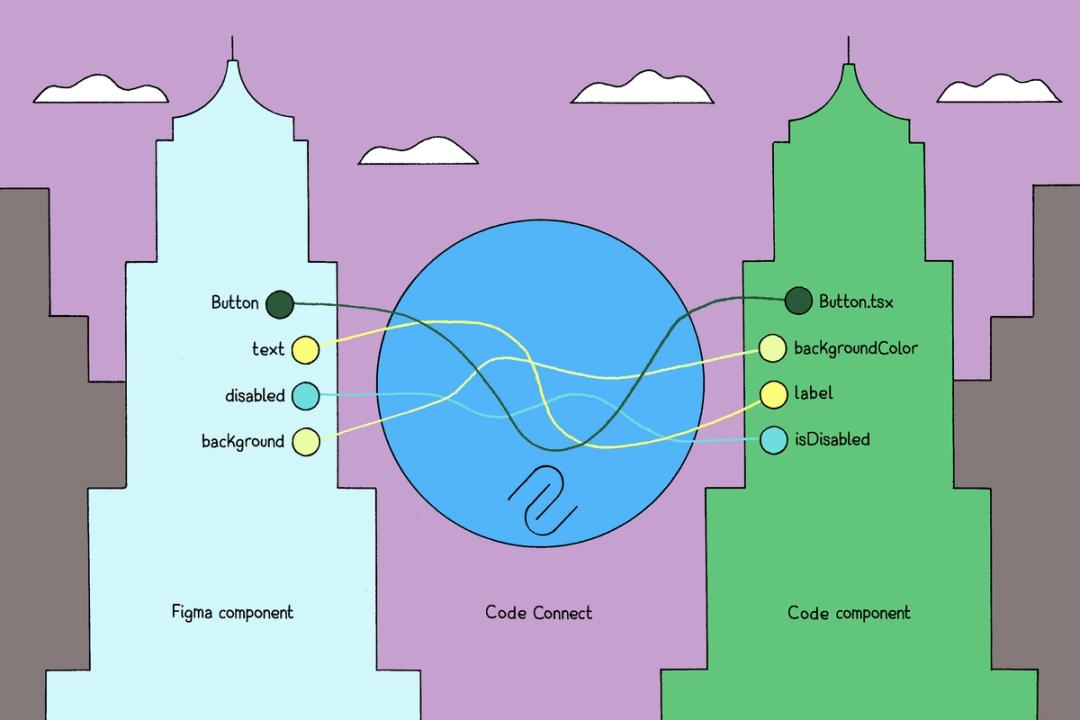
We originally built Code Connect to improve the design-to-code process for human developers. But today many teams and role types are doing this kind of work with coding agents. So we set out to measure whether, and how much, Code Connect improves agents’ performance.
In our evals, we found that just like with human developers, Code Connect helps agents adhere to a company’s design systems and produce better outputs, faster. We tested design-to-code tasks with agents using Figma’s MCP server, both with and without Code Connect templates set up.
We found that with Code Connect:
- The median task duration was reduced by 19.6%
- Code quality increased by a full point on a Likert scale of 1–4
- Token usage for the median task was reduced by 29.5%
This post walks through how Code Connect provides context for agents, how we ran the evals, and what we learned along the way.
How Code Connect enriches Figma’s MCP server response
Case study: Coinbase
The Coinbase Design Systems (CDS) team architects and maintains the core design components, tokens, and infrastructure that drive consistency and efficiency across Coinbase's largest consumer products. As the engineers moved to agent-driven development, they invested in Code Connect so agents build with the right components instead of reinventing them.
To measure the impact, Frontend Engineer Erich Kuerschner ran the same design, prompt, and model with and without Code Connect. “Without Code Connect, the agent would sometimes fabricate its own version of components: say, build a stepper out of progress bars,” says Erich. “With it, the agent sees accurate representations of the design as code and literal import statements pointing directly to the correct CDS components to use, so the output code quality vastly improved and we saved tokens at the same time.”
Figma’s MCP server Figma’s MCP server brings your design decisions into the tools where code gets written—so what gets built actually matches what was designed. Here’s what that unlocks for everyone who builds products.

The TL;DR on MCP: Why context matters and how to put it to work
get_design_context, gives the agent a code description in React of what is on the canvas. The output is visually correct, but because the agent doesn’t know how this maps to components in your codebase, three things tend to happen:
- The agent makes up a new component from scratch.
- The agent picks the wrong component from your design system.
- The agent finds the correct component eventually, but does unnecessary work in the process, which uses extra tokens.
When Code Connect templates have been set up, the Figma MCP server substitutes parts of the generated React with production-accurate code snippets. Instead of guessing, the agent now has real code to use from your codebase. It’s told exactly which component to import, and which property values to pass in.
Here’s an example of the difference in practice. With no Code Connect, Figma’s MCP will pass the coding agent React like this:
<div role="tablist" className="flex gap-1 rounded-md bg-gray-100">
  <button className="bg-white shadow rounded">Design</button>
  <button className="text-gray-600">Code</button>
</div>
With Code Connect, the coding agent receives an accurate snippet of code that draws from your existing design system, and all it needs to do is use it in the correct place:
<SegmentedControl value="design" options={["Design", "Code"]} />How we measured the impact of Code Connect
We built an eval harness that runs the same set of design-to-code tasks in two ways: one with no Code Connect, and one with Code Connect templates. For each of our 27 test cases we measured code quality, token usage, and duration.
We tested two design systems, both React-based: Simple Design System (SDS), Figma’s example design system, and Figma Pattern Library (FPL), our larger and more complex internal design system. SDS is very well Code Connected; on average, the MCP responses we tested consisted of 20% Code Connect snippets. FPL is an example of a realistic design system with more patchy Code Connect coverage, where Code Connect made up around 6% of the responses.
The LLM judges tested the end result against snippets of code we know to be accurate, and what we’d like the agent to produce in the ideal case. These were scored against the following rubric of code quality metrics:
Correctness: Does the implementation correctly fulfill the task requirements? Are there bugs, logic errors, or missing functionality?Code Quality: Is the code clean, idiomatic, and well-organized? Does it follow conventions for the language/framework being used?Maintainability: Is the code readable, well-structured, and easy to modify? Are variable/function names descriptive? Is complexity managed well?Completeness: Does the implementation cover all aspects of the task? Are edge cases handled appropriately?Best Practices: Proper error handling, type safety, performance considerations, accessibility, and security? No unnecessary complexity or dead code?
The end score was a 1–4 Likert scale:
Broken: The code has syntax errors, crashes, or completely fails to implement the task.Poor: The code partially works but has significant issues—bad patterns, missing error handling, poor structure, or major correctness problems.Good: Solid implementation with minor issues—slight style inconsistencies, small missed edge cases, or minor redundancies.Excellent: Clean, idiomatic, well-structured code that correctly implements the task and follows best practices.
Some of these runs contained complex designs to implement. End-to-end, some runs (including running all variants multiple times, to discount any outlier cases) took over 24 hours to complete. On the model side, we tested both Claude Sonnet 4.5 and Claude Opus 4.7.
The results
Compared to the baseline without Code Connect, the tasks using Code Connect templates delivered these median results in terms of the end-to-end agent run, when using get_design_context:
- Code quality: +1, on a 1–4 Likert scale
- Token usage: -29.5%
- Duration: -19.6%
Given these are median numbers, they do hide some of the trends we saw between different cases. The single biggest factor that moved numbers was Code Connect coverage—this is a mix of how much of the handoff designs are comprised of design system components, and how many of those components are Code Connected. The higher these two things are, the greater the proportion of Code Connect snippets rather than plain React in the get_design_context tool response, and in turn the better the results looked.
It’s also worth noting that Simple Design System is an easier case for an LLM. Because it’s our example design system, things already match up well between design and code in terms of component and property names. Even with that being true, we saw greater improvements than with our FPL design system, because Code Connect coverage was higher in SDS. In the SDS case we’ve Code Connected almost all of the components.
When Code Connect coverage is high, agents tend to make fewer exploratory tool calls and spend less time grepping for component and icon names. In the FPL example below, the runs without Code Connect inspected node_modules, ran broad greps for icon names, and in several runs hand-built the tab bar from scratch and churned on custom CSS. With Code Connect, the agent reached straight for the real Tabs and Button components, finishing in ~77% of the time and ~62% of the tokens.

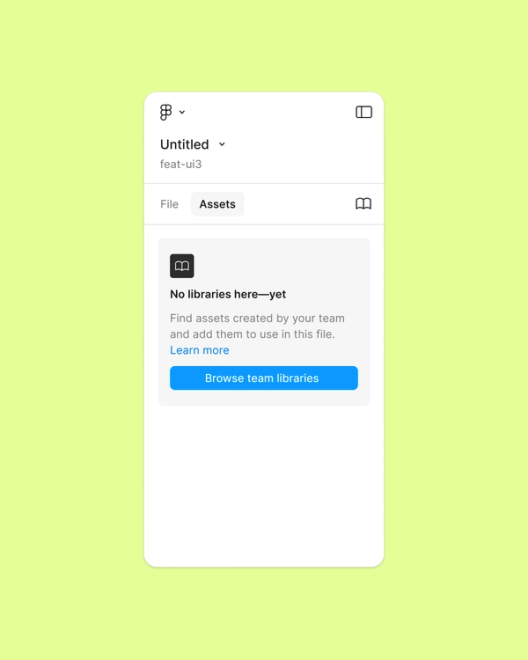

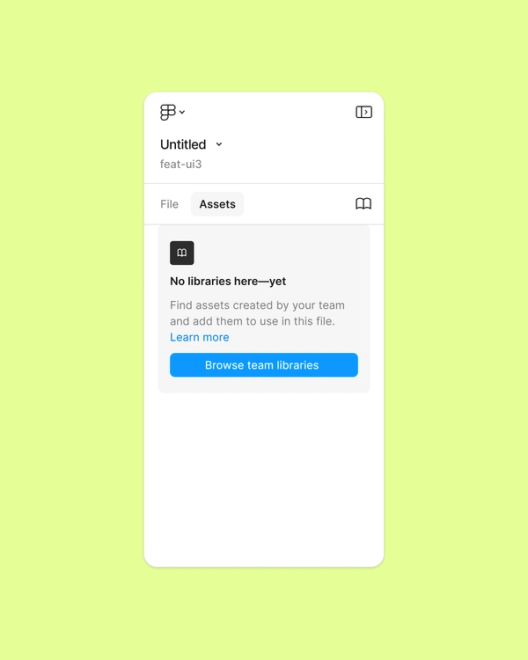

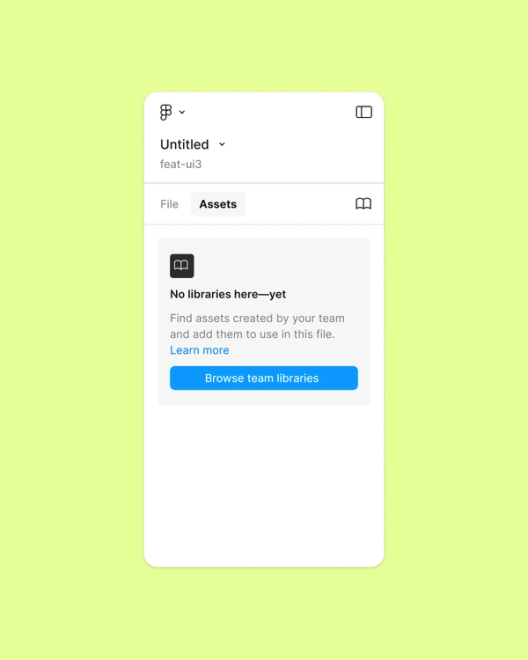
The code quality results are just as interesting. Without Code Connect, the coding agent hand-built the tabs and buttons as raw React code and CSS. Even though it looks visually close, it’s not even functional—the tabs aren’t interactive, but instead hardcoded to look like the designs, including the selected state! Also, note the slight differences between icons and padding, details that are critical to a high-quality product; the runs with Code Connect got much closer to the original.
Here is an example code snippet from the result without Code Connect:
{/* Plain divs for the tabs */}
<div className="lv-tabs">
  <div className="lv-tab lv-tab-inactive"><span className="lv-tab-text-inactive">File</span></div>
  <div className="lv-tab lv-tab-active"><span className="lv-tab-text-active">Assets</span></div>
</div>

…


{/* Raw button element */}
<button className="lv-browse-btn">
  <span className="lv-browse-btn-text">Browse team libraries</span>
</button>

…

/* CSS: ~300 more lines*/
.lv-tab { display: flex; align-items: center; gap: 4px; height: 24px; padding: 0 8px; border-radius: var(--radius-medium, 5px); }
.lv-tab-inactive { background: var(--color-bg, white); }
With Code Connect, the coding agent correctly imported and used design system components, producing more succinct, higher-quality code:
{/* Usage of the FPL tab component */}
const [tabPropsMap, tabPanelPropsMap, tabManager] = Tabs.useTabs<'firstTab' | 'secondTab'>(
  { firstTab: true, secondTab: true },
  { defaultActive: 'secondTab' },
)

<Tabs.TabStrip manager={tabManager}>
  <Tabs.Tab {...tabPropsMap.firstTab}>File</Tabs.Tab>
  <Tabs.Tab {...tabPropsMap.secondTab}>Assets</Tabs.Tab>
</Tabs.TabStrip>

…


{/* Usage of the FPL Button component */}
<Button variant="primary" width="fill" onClick={() => {}}>
  Browse team libraries
</Button>
Takeaways for anyone building with LLMs
Agents do not automatically know what “good” code means inside your company—you have to give them the correct context. Left to their own devices, they’ll spend time and tokens looking for the right components in your design system, or they’ll happily rebuild them from scratch. The result might look correct visually, but the code might not be what you’d want committed to your codebase. To do a good job, agents need more explicit, structured context—in this case, a real code snippet for how to implement the component in your codebase.
We're hiring engineers!
Learn more about life at Figma, and browse our open roles.
If you’re already using the Figma MCP server, you can Code Connect more of your design system to get from design to code faster, at lower cost, and with a higher-quality output. You can follow the guide here.
Tom is a software engineer on the Code Connect team at Figma. Before Figma, he worked on the mobile apps for WhatsApp and Instagram, and built award-winning apps for Universal Music and Disney.