Workflow lab: Expanding the canvas with Figma MCP


As teams build faster, design and code can drift apart just as quickly. This workflow shows how to close that gap—bringing real product states onto the canvas so designers can shape what actually ships.
Share Workflow lab: Expanding the canvas with Figma MCP
Hero illustration by Marine Buffard
Workflow fact sheet:
Figma products: Figma Design, Dev Mode
Tools: Figma MCP server, use_figma, generate_figma_design
Skills: /sync-figma-token
Team: Designer and developer
Question to solve: What if the canvas could interact with everything happening in the build?
Welcome to Workflow Lab, where we present a sample workflow A workflow to try—bringing together precise image editing, Vectorize, and interactive prototypes to move from concept to crit to completion faster.Workflow lab: AI image tooling and interactive prototyping in Figma
The team at Astra, a fictional AI-powered video creation and editing platform, ships features weekly using agentic coding tools. This speed is an asset, but it comes with a downside—decisions multiply in code that never touch the canvas, creating blind spots for design. At best, this widens the gap between intent and implementation. At worst, incomplete solutions ship when the team can't apply their expertise to the full experience.
In this example, a simple export video flow sets the initial direction, but as it evolves in code, it quickly becomes more complex. Follow along as a designer and developer at Astra use the Figma MCP server Figma’s MCP server brings your design decisions into the tools where code gets written—so what gets built actually matches what was designed. Here’s what that unlocks for everyone who builds products.
The TL;DR on MCP: Why context matters and how to put it to work
The problem
The designer lays out an export video flow: The user selects a sequence, chooses a format, confirms settings, and exports. This is enough to set direction and start building. But at Astra's pace, new states begin to emerge as the build progresses: encoding errors, render status, empty selections, and unsupported format edge cases. These aren't states the designer missed or forgot to design; they're issues that became clear once the feature hit real code and data. Every one of them is a design decision waiting to be made.
When the canvas only captures part of the picture, designers can only work on part of the product. But what if the canvas could interact with the build? With Figma MCP, an agent can read code and write to the canvas Starting today, you can use AI agents to design directly on the Figma canvas. And with skills, you can guide agents with context about your team’s decisions and intent.
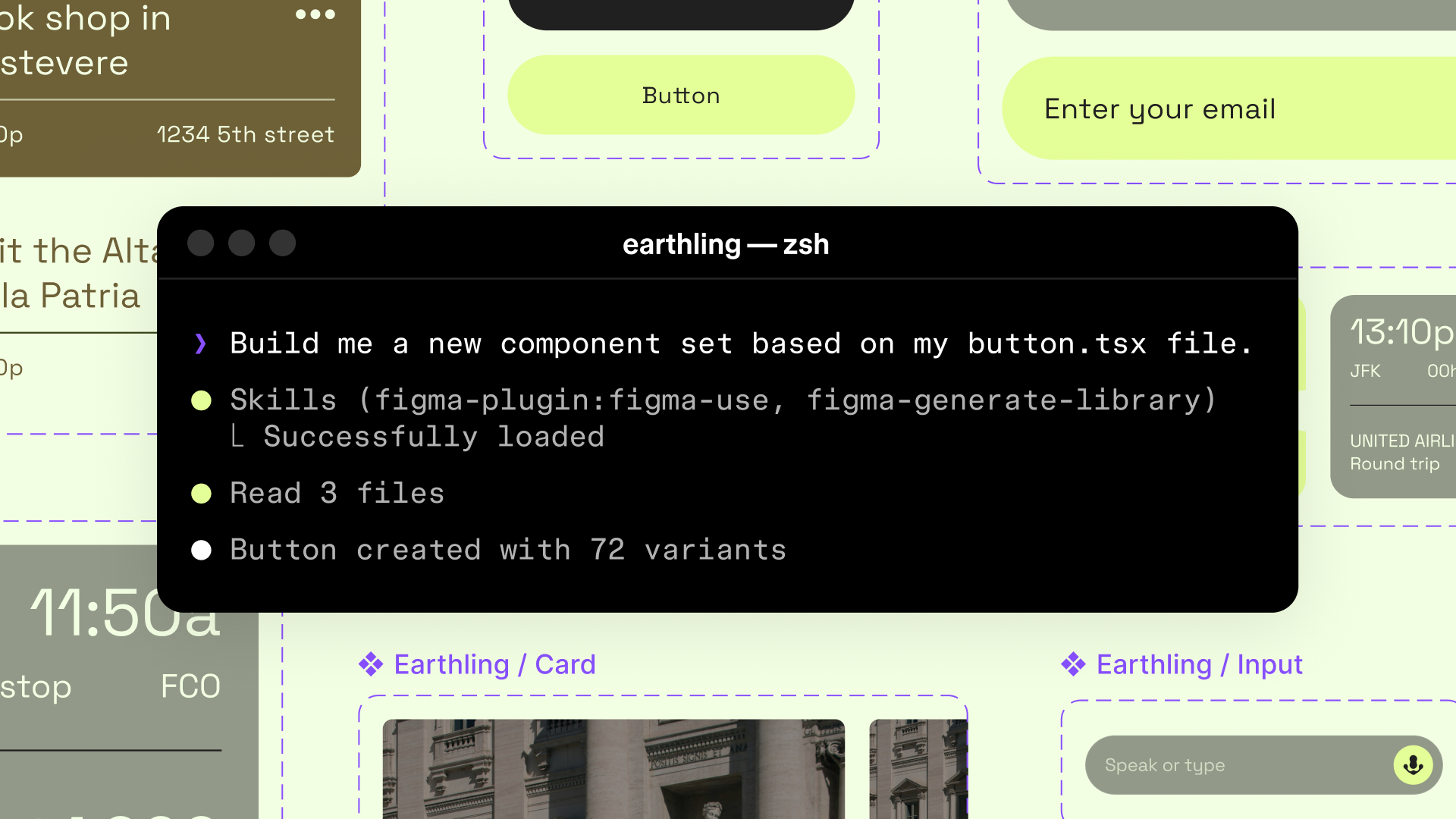
Agents, meet the Figma canvas
The canvas expands
The agent reads the coded export flow and identifies every state the developer handled. For each one, it generates an editable, designable frame on the canvas using Astra's design system components via use_figma. And the designer's canvas goes from four frames to fourteen.
Zoom out
Designers can now use Figma MCP to bring the full reality of the build onto the canvas. Instead of a feedback loop of tasks or tickets, the workflow becomes a conversation between design and code with the agent connecting the two.
The encoding error state has no recovery path, just a red message, so the designer adds guidance: what went wrong, what to try next, and how to find a way back. The loading state during render is a spinner with no context, so the designer adds a progress indicator and time estimate. The empty selection state is blank, so the designer gives it copy and personality to drive feature adoption.
The canvas gives immediate visibility into states that emerge as the build progresses, surfacing new areas where designers can apply their expertise. Instead of uncovering these moments through time-consuming discovery sessions, this workflow shortens the feedback loop, shifting time away from requirements discussions and toward designing and building actual features.

Something looks different
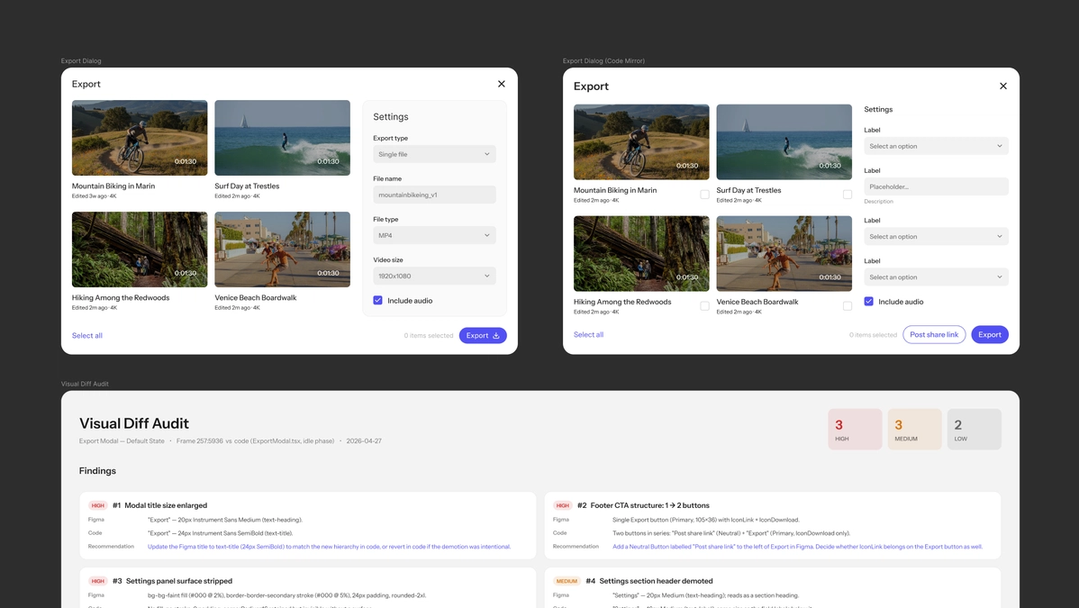
While reviewing the states, the designer notices the export confirmation screen looks different in code than what’s in Figma. Color values are slightly off and the spacing is tighter. Is it using the design system? There appears to be some drift between Figma and code. The designer puts the agent to work to remove any ambiguity. Using the Starting today, you can use AI agents to design directly on the Figma canvas. And with skills, you can guide agents with context about your team’s decisions and intent./sync-figma-token skill with the use_figmaAgents, meet the Figma canvas
Now there’s token parity, but not everything is resolved. A structural problem comes into focus: The button hierarchy has shifted, the applied font styles are not right, and a secondary button was added. Rather than squinting at a deployed build and a Figma frame side by side, annotating screenshots, or describing necessary changes in a dev ticket, the designer asks the agent to document it directly. The agent replicates the coded version as a Figma frame With Codex to Figma, teams can bring real, running interfaces into Figma to explore, refine, and make decisions together, then bring it back to Codex with design context intact.
Building frontend UIs with Codex and Figma
generate_figma_design tool, places it next to the original design, and annotates the differences: the hierarchy shift, the type styles, the new action.
Zoom out
The artifact isn't a bug report. It's a shared reference for a design conversation.
Some of these changes—like the secondary action—may be improvements the developer decided to make in context. Some may be unintentional oversights. Now the designer and developer can have a specific conversation about each one. Should the design update to match? Should the code revert? Should they meet in the middle?
Through this more integrated workflow, questions like "Why doesn't it match the design?" evolve from an alignment exercise to collaborative refinement.
A moment worth redesigning
The export flow works. The build is solid. But looking at the full state map on the canvas, the designer notices something: The export success screen is purely functional. "Export complete. View file." Done.
Zoom out
This is what the canvas is for: exploration without commitment, in a space where nothing is too precious.
It ships, it works. But on the canvas, the designer might focus on something more nuanced: What if this is a missed opportunity to have a bigger brand moment? Astra knows that they're building a dedicated community because their product is not only easy but fun to use. Finding the right brand moments are critical to building that creative connection. The designer believes that exporting a final sequence is a meaningful moment to celebrate.
In code, every direction is an engineering investment. Hard to throw away, easy to settle on "good enough." On the canvas, ideas stay cheap. You can explore without commitment, throw away freely, and only carry forward what earns it.
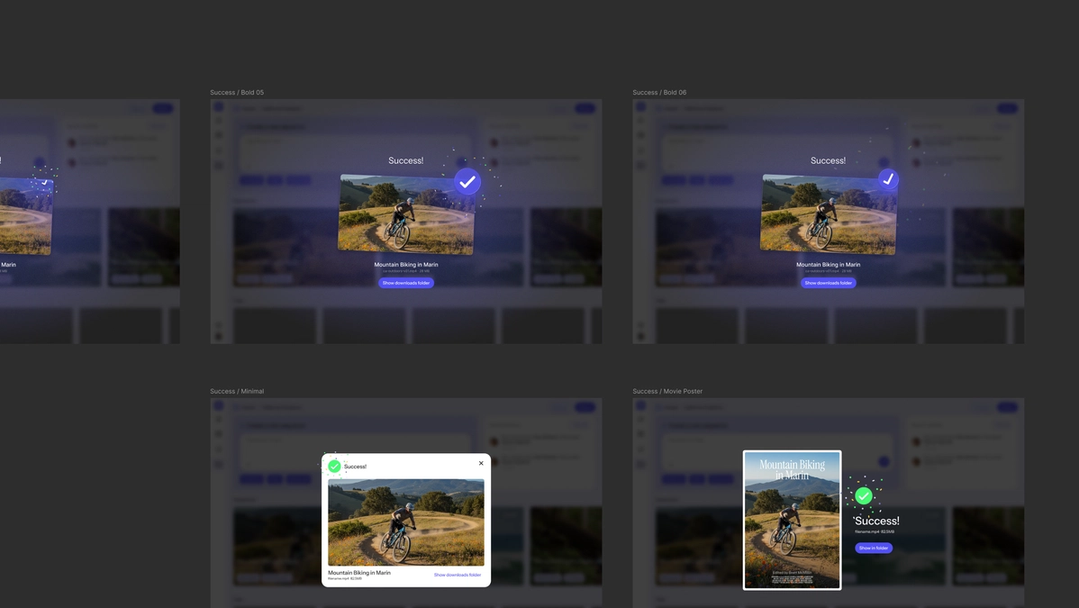
The developer quickly adds a playful transition when the render finishes that shows a preview of the exported clip. The motion works but the brand tone isn't fully captured. So the developer sends the key animation states to the canvas, and the designer takes it from there. They create a version that's bold and expressive, a version that's minimal and elegant, and a version that's unexpected and delightful. Three directions in less than an hour, none of which are bound to tokens or committed to code.
The designer decides the bold and expressive option is right for the moment. Now it's ready for the design system: tokens, components, and specs.

The full picture
Zoom out
With Figma MCP, the canvas expands into territory it couldn't reach before.
Let’s follow the thread from canvas to code and back. The designer started with four frames but by the end of the sprint:
- Fourteen states landed on the canvas, and the designer pushed each one further.
- The team documented and resolved drift between design and code through a shared visual artifact.
- By exploring freely on the canvas before committing to code, the team turned a functional success screen into an expressive brand moment.
None of this required the designer to learn the codebase. None of it required the developer to learn Figma. The agent translated between the two, and the designer's judgment was applied at every step.
Path to production
From here, the refined states move back into Dev Mode Advocating for Dev Mode changed my team’s workflow. Here’s how you can do the same.
Why devs should play an active role in design
A different kind of source of truth
The source of truth used to be a single artifact—canvas, codebase, PRD. But that framing breaks down the moment a team moves fast enough for all three to diverge. What the Figma MCP server makes possible is something different: not a single artifact everyone defers to, but a system of artifacts that stay connected. The canvas talks to the code. The code writes back to the canvas. The designer's judgment moves through both. That's a different kind of source of truth—not a file, but a living connection between the canvas, the codebase, and the team building with both.
To see a similar workflow demoed live, watch the recording of our livestream event. Read our guide to the Figma MCP server for an overview of supported clients and capabilities, and dive into our developer docs for detailed instructions on using MCP tools like generate_figma_design and use_figma.