AI usability testing guide: Modern workflow and tools
Share AI usability testing guide: Modern workflow and tools
Explore more from
Building with AI


The pace of product development is faster than ever, yet traditional research often lags behind. By the time your usability study results come in, your team has already moved on. Designers and project teams know this curse all too well, but some have integrated AI usability testing into their workflows to address it. In fact, according to Figma’s 2025 AI report, 24% of designers and 40% of developers are already using AI during testing.
Read on to learn:
- How AI is changing research from a post-design phase to a real-time loop
- How to build AI into your testing workflow
- 7 AI tools to help you validate your designs
How AI is changing usability testing
AI automates parts of the traditionally slow post-design phase, changing how designers work. It addresses the need to ship fast while also ensuring you don’t send out a product nobody can use.
Traditional prototyping involves PRDs (product requirement documents) and tedious analysis of user session data. These can take time, cost money, and result in decisions made too late, after users have already hit the wall. AI represents a practical fix to these problems.
AI-supported usability testing handles routine tasks that don’t require creative thought. These include tasks such as recruiting, transcriptions, tagging, and reporting, which are all automated so they don’t slow the loop down with busywork. This means you can focus more on design that really works for your users.
How to build AI into your testing workflow
An effective AI usability testing workflow should include three steps: prototyping, predicting, and validating. Here’s how you get started:
Step 1: Create interactive prototypes
Interactive prototyping helps simulate the user experience before development starts. This helps you test multiple directions at once, rather than discovering one problem at a time mid-development.
Figma Make helps designers test these variations simultaneously without a developer. Designers can ask the AI tool to automatically connect buttons, links, and forms, reducing the need for manual wireframing. It can also help designers generate designs and layouts in a few simple words, enabling them to test usability changes in minutes, similar to AI product design.
Best of all, because the work happens in Figma, the prototype stays connected to your team’s broader workflow. Feedback, refinements, and next iterations all happen in the same place, so there’s no confusion across departments on what’s going on.
Streamline your usability testing with Figma Make
Turn your ideas into functional prototypes in minutes.
Step 2: Run predictive audits
AI-assisted review workflows automate UX testing and spot some of the more obvious usability issues within minutes. By using these external tools to run simpler AI audits, you can focus human usability testing on more complex issues that require human judgment.
AI is great at auditing these three areas:
- Accessibility: Includes contrast ratios, text sizing, and screen reader compatibility to ensure it meets the needs of people with disabilities.
- Visual hierarchy: Includes five-second tests, heatmaps, and first-click testing to ensure users can easily see the most important information.
- Logic gaps: Links that lead to dead ends and error states that test whether the UI is actually working and makes sense.
Where AI is great at identifying basic issues, it’s not so good at nuance. Skilled UX designers understand how product psychology makes the experience click for users. Once these patterns are clear, teams can return to the Figma prototype to adjust the experience and prepare for the next round.
Step 3: Analyze user sessions
AI tools can automatically review and synthesize qualitative data from user testing to get clear findings in minutes. It generates a per-session summary that flags confusion, drop-offs, and unexpected behavior, allowing designers to move past the “what” behind issues and focus on the “why.”
When using AI tools for design and usability, it’s important to prompt it to surface screen-specific findings. For instance, “users found the navigation confusing” is less helpful than “seven of ten users tried to use the back button in section three, where no button exists.”
The real power of this analysis is that it closes the feedback loop. Rather than waiting for a research report, you can take those AI-generated insights, jump back into Figma, and iterate immediately. By keeping your decision-making and design work in the same place, you can move from an early test artifact to a validated product much faster.
9 AI usability testing tools to try
Different AI usability testing tools are ideal for different steps of the process. Here’s a quick breakdown:
| AI tool | Ideal for | Key features |
|---|---|---|
| Figma Make | Rapid prototyping | Prompt-to-app generation, multiplayer collaboration, seamless integration with Figma products |
| Maze | Prototype validation apps and designs | All-in-one research stack, automated reporting, expert guidance |
| UserTesting | Video-based user validation | Video-based human insights, broad test coverage, template library |
| Lyssna | Psychographic participant filtering | Broad research methods, global research panel, templates and solution flows |
| Hotjar | Live website and app testing | Validation from realistic staging environments, targeted customer journey questions, automated user research processes |
| Attention Insight | AI-generated heatmaps | Highlights priority areas, measures visual clarity, spots low-contrast areas |
| Useberry | Quick, repeatable validation loops | Broad methodology library, ready-made scenarios, collaborative workspace |
| Lookback | Moderated user interviews | Real-time interactions, side-by-side video, automated transcription |
| UserZoom | Enterprise benchmarking | Competitive QXscoring, multi-method studies, automated data synthesis |
H3: 1. Figma Make

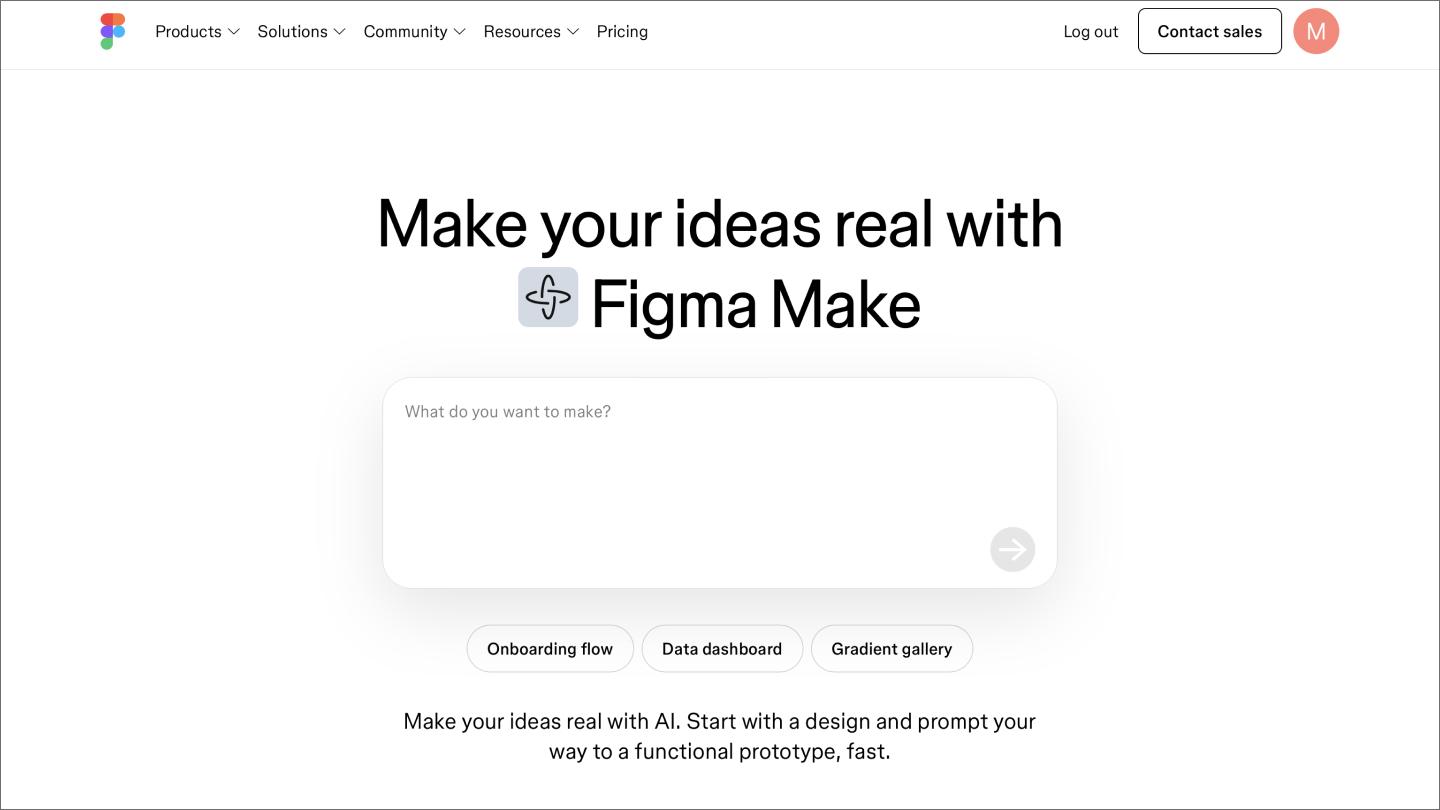
Ideal for: Rapid prototyping
Figma Make is a prompt-to-code tool that lets anyone create high-fidelity prototypes regardless of their coding abilities. Product teams and designers can use it to translate ideas into an interactive experience using natural language prompts. These teams can then automate testing to identify usability issues and misalignment between team members before development even starts.
When working through all three steps of usability testing, Figma Make supports prototyping, prediction, and validation. It offers built-in interactive prototyping to create clickable interfaces with animations and hotspots to simulate a real product. Designers can then share the view via view-only links with testers so they don’t need a Figma account to interact or leave feedback. Observers can then use FigJam to watch users interact with the prototype in real time and brainstorm new design ideas.
Figma Make integrates with third-party testing tools like Maze, Helio, and Zigpoll to capture analytics, user recordings, and heatmaps, helping designers understand what to change. It also works with new AI simulation tools like Behavr, which can use simulated AI users to generate heatmaps and flow analysis.
In other words, Figma Make works alongside your other testing tools rather than replacing them, giving you one place to build, iterate, and act on what you learn. With AI-supported prototyping and multi-variant testing, Figma Make can be the center of your usability testing workflow.
Key features:
- Prompt-to-app generation. Create a functional linkframe of a fully designed app with a simple prompt and make changes through an integrated chat interface.
- Multiplayer collaboration. Work simultaneously with UX team members on a single interface to make collaboration effortless.
- Seamless integration with Figma products. Imports design information and other data from Figma’s entire line of products to make your design and early-stage development process easy.
2. Maze

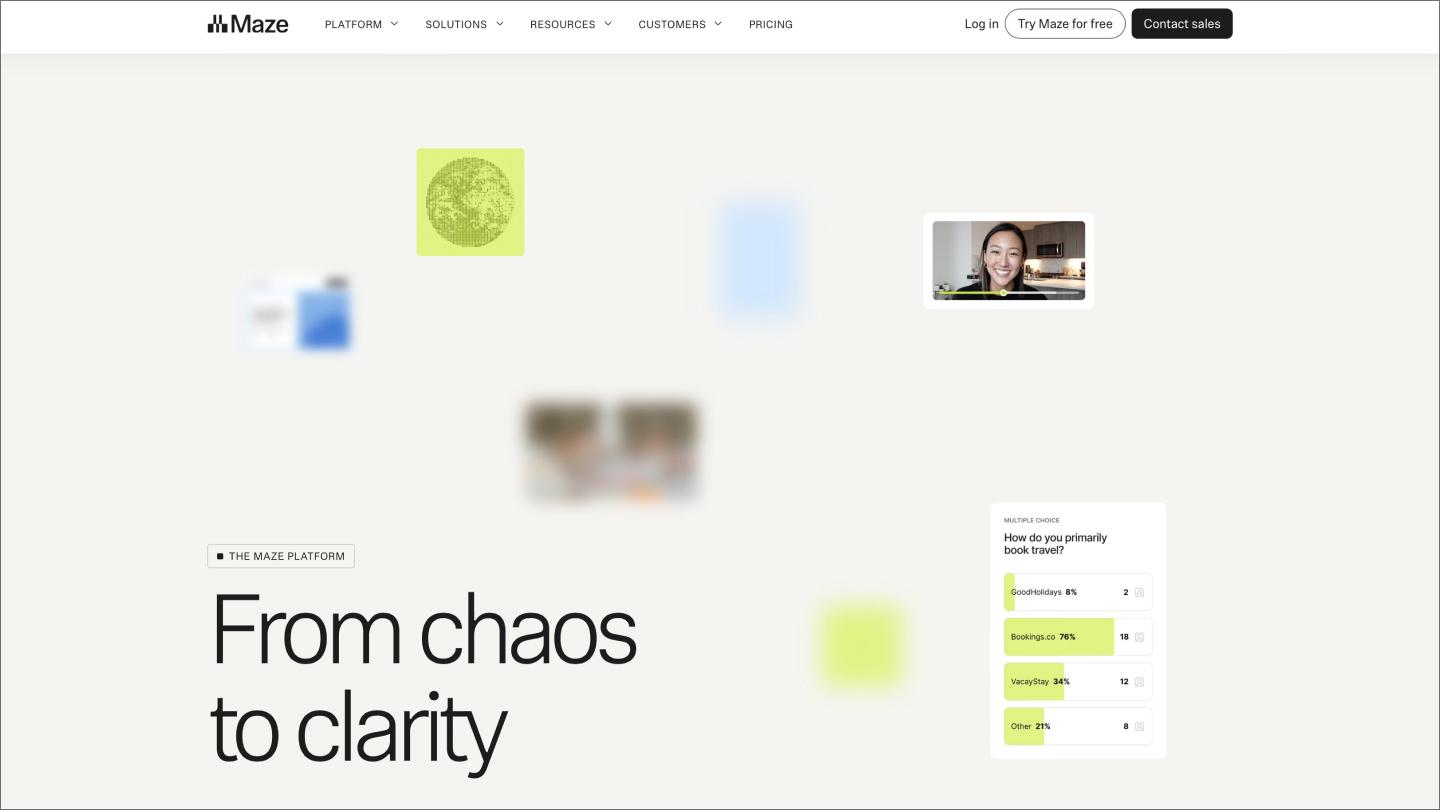
Ideal for: Prototype validation apps and designs
Maze is a product research platform that tests prototypes and live websites. You can recruit participants, run studies, and analyze AI-generated results through one platform to understand how product changes and new designs meet user needs, automating data collection during UX testing.
It supports a panel of over 5 million participants across diverse demographics, enabling researchers to target groups that match their user base. They can also save and share working templates to make testing easier across different teams. Maze even connects with Figma to help test product prototypes or live websites.
Key features:
- All-in-one research stack. Recruit participants, run studies, and analyze your results from a single platform.
- Automated reporting. Generate visually-rich reports automatically to share them with stakeholders quickly.
- Expert guidance. Get research support from Maze’s customer service team to help make your data more useful.
3. UserTesting

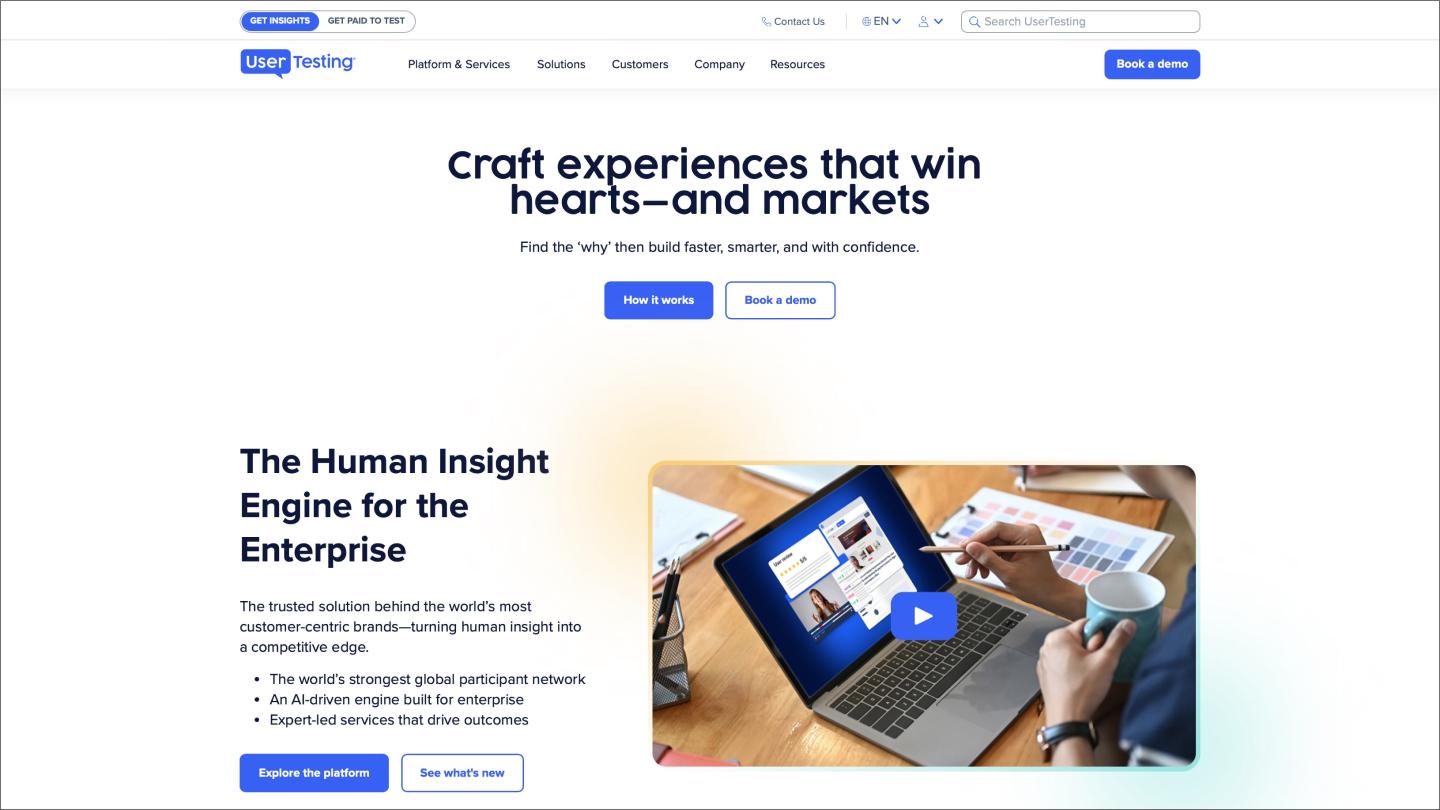
Ideal for: Video-based user validation
UserTesting is an on-demand video-based feedback tool that helps companies refine prototypes and websites with user feedback. It provides a central platform for launching tests, recruiting participants, and capturing screen data to understand how customers interact with your product. It collects click data throughout UX testing to automate this process.
The tool provides interactive journey visualizations across different apps or website paths, using think-aloud user videos to understand how users feel about your product. Users can share this data across teams using tags and notes, making it easier to share video clips that highlight the most important points.
Key features:
- Video-based human insights. Captures think-aloud video of people interacting with sites, apps, and even physical storefronts.
- Broad test coverage. Supports concepts, prototypes, marketing materials, and other usability tests to see how customers may feel about your product.
- Template library. A library of over 100 pre-built test and survey templates to help users get started quickly.
4. Lyssna

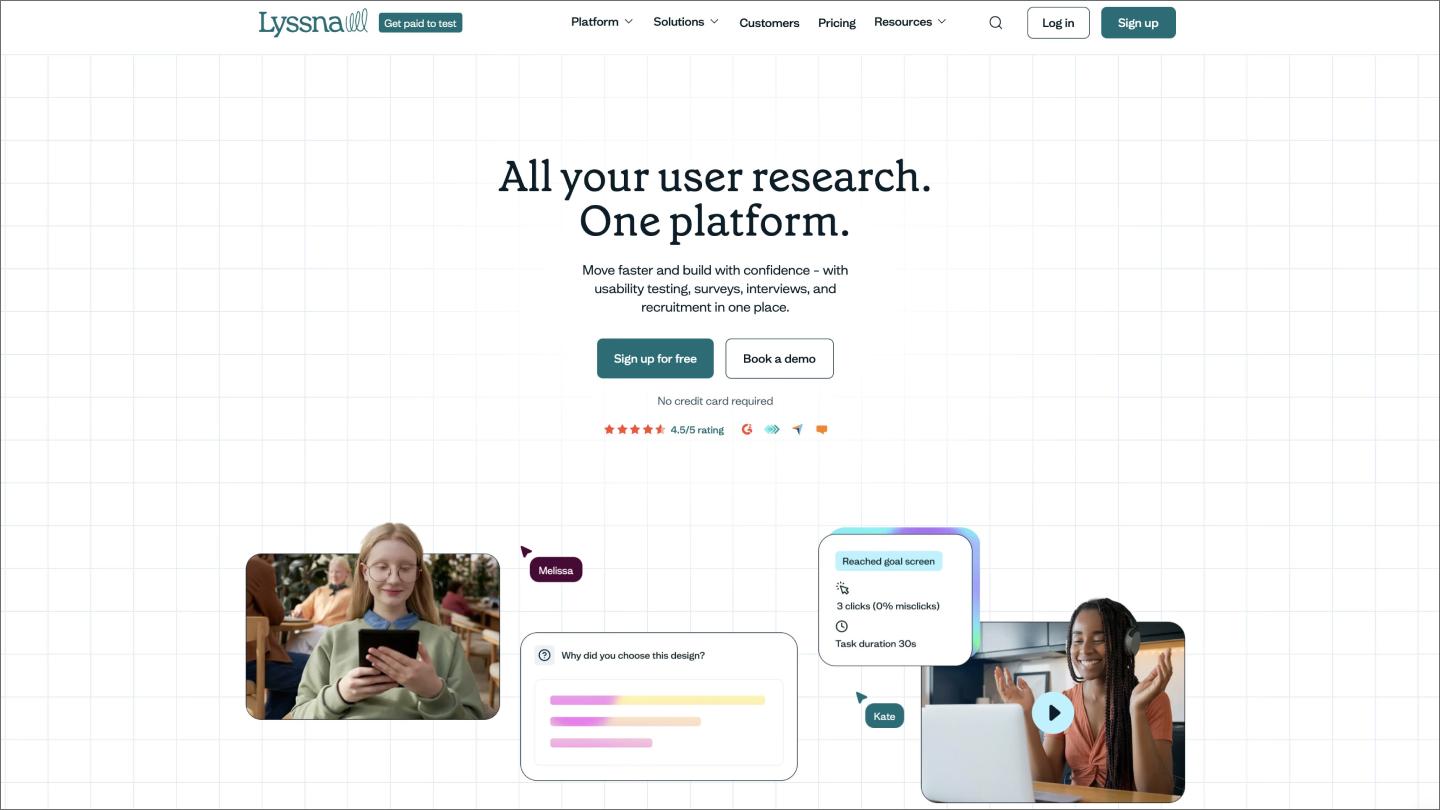
Ideal for: Psychographic participant filtering
Lyssna is a prototyping and validation platform that covers a wide range of targeted participants using over 395 demographic and psychographic filters. The tool’s research panel provides access to over 690,000 panelists across more than 120 countries for surveys, usability tests, and interviews.
Lyssna’s AI tools track users throughout the interview process and automatically generate follow-up questions when responses are too short. This ensures that surveys contain qualitative data that AI can filter, enabling Lyssna to generate summaries from a larger body of data. Users can also connect Lyssna directly to Figma to evaluate prototypes with ease.
Key features:
- Broad research methods. Run card sorting, tree testing, first-click tests, five-second tests, and many more from a single platform to provide a broad range of options.
- Global research panel. Access a panel of over 690,000 participants across 120 countries to target a wide range of customer data.
- Templates and solution flows. Ready-made templates to help standardize studies and make it easier for non-researchers to run tests.
5. Hotjar by Contentsquare


Ideal for: Live website and app testing
Hotjar is a product experience insights platform that combines behavioral analytics, like heatmaps, with user feedback to help product teams understand why users take certain actions. Since becoming part of Contentsquare, Hotjar combines behavioral and Web data from tools like Google Analytics to help companies gain user insights.
Complementing traditional analytics tools, Hotjar provides journey-level analytics to help see where users drop off during checkouts or sign-ups. It can then connect those drop-offs to actual screen recordings and user feedback for context. Its AI tools can then automatically generate reports to help understand that feedback, highlighting notable findings and supporting quotes, and providing recommendations for next steps.
Key features:
- Observe. Validates data from realistic staging environments or working websites and apps to understand where users click and how they get stuck before and after changes.
- Ask. Link surveys that let you ask targeted questions at any point in the customer journey to understand objections and motivations.
- Engage. Automates user research processes, including recruitment and scheduling, enabling researchers to run more frequent studies.
6. Attention Insight

Ideal for: AI-generated heatmaps
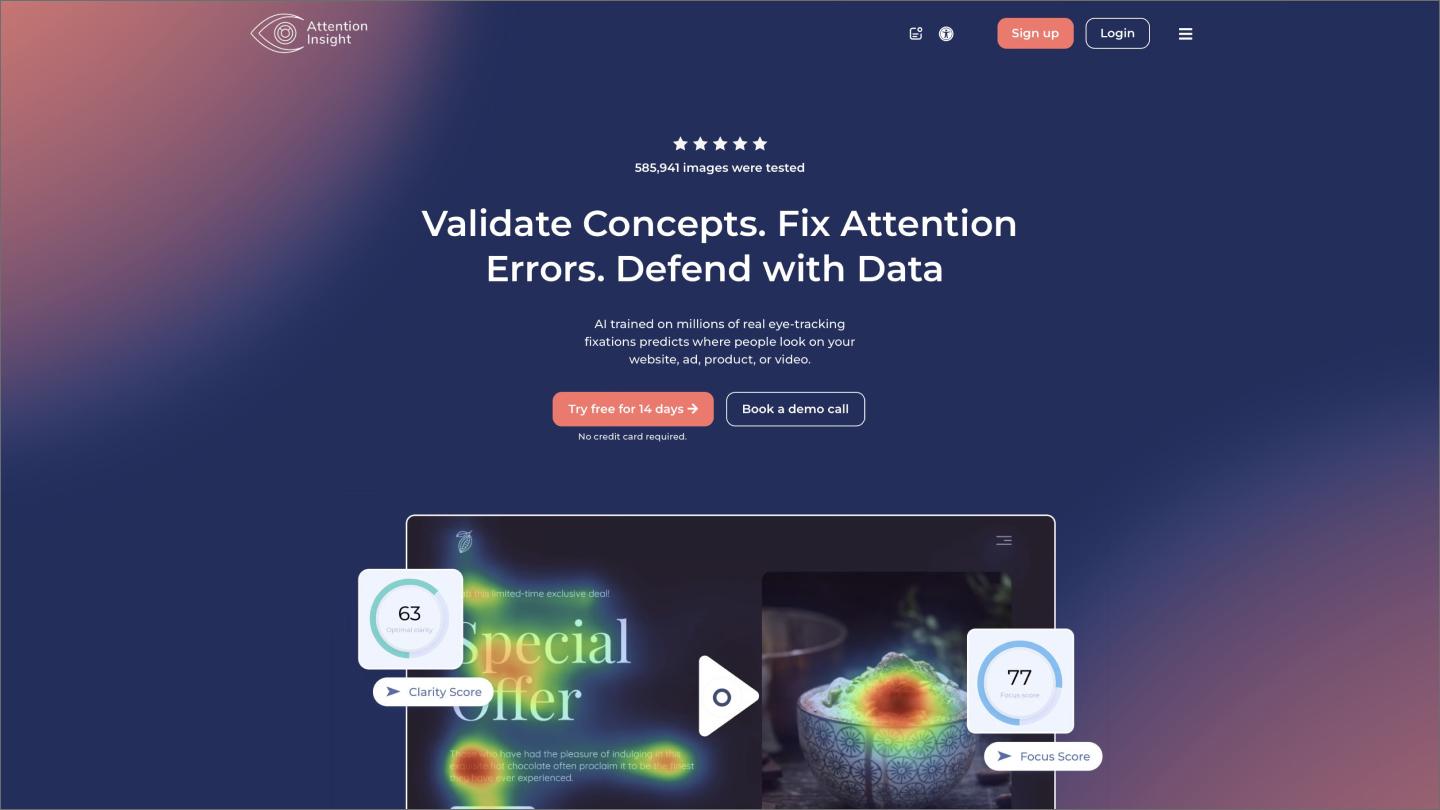
Attention Insight is an AI-powered predictive eye-tracking platform that simulates where users are most likely to look on your Web page, ads, product packaging, and more. Product marketers and designers can use the platform to understand what will capture attention before a product or site goes live.
Attention Insight claims its heatmaps reach up to 96% accuracy compared to traditional eye-tracking studies. It then suggests how to improve your design to get more conversions by adjusting color, contrast, and hierarchy. Users can even use its Figma integration to test designs before release.
Key features:
- Areas of Interest (AOI). Detects CTA buttons as AOIs and lets you draw additional AOIs with side-by-side comparison of variant designs to see the view percentage for each.
- Clarity Score and Focus Map. Measures how visually clear your designs are and which elements are most likely to be noticed within the first few seconds.
- Contrast Map and accessibility checks. Assigns color zones to your designs to help spot low-contrast areas and improve visibility and accessibility.
7. Useberry

Ideal for: Quick, repeatable validation loops
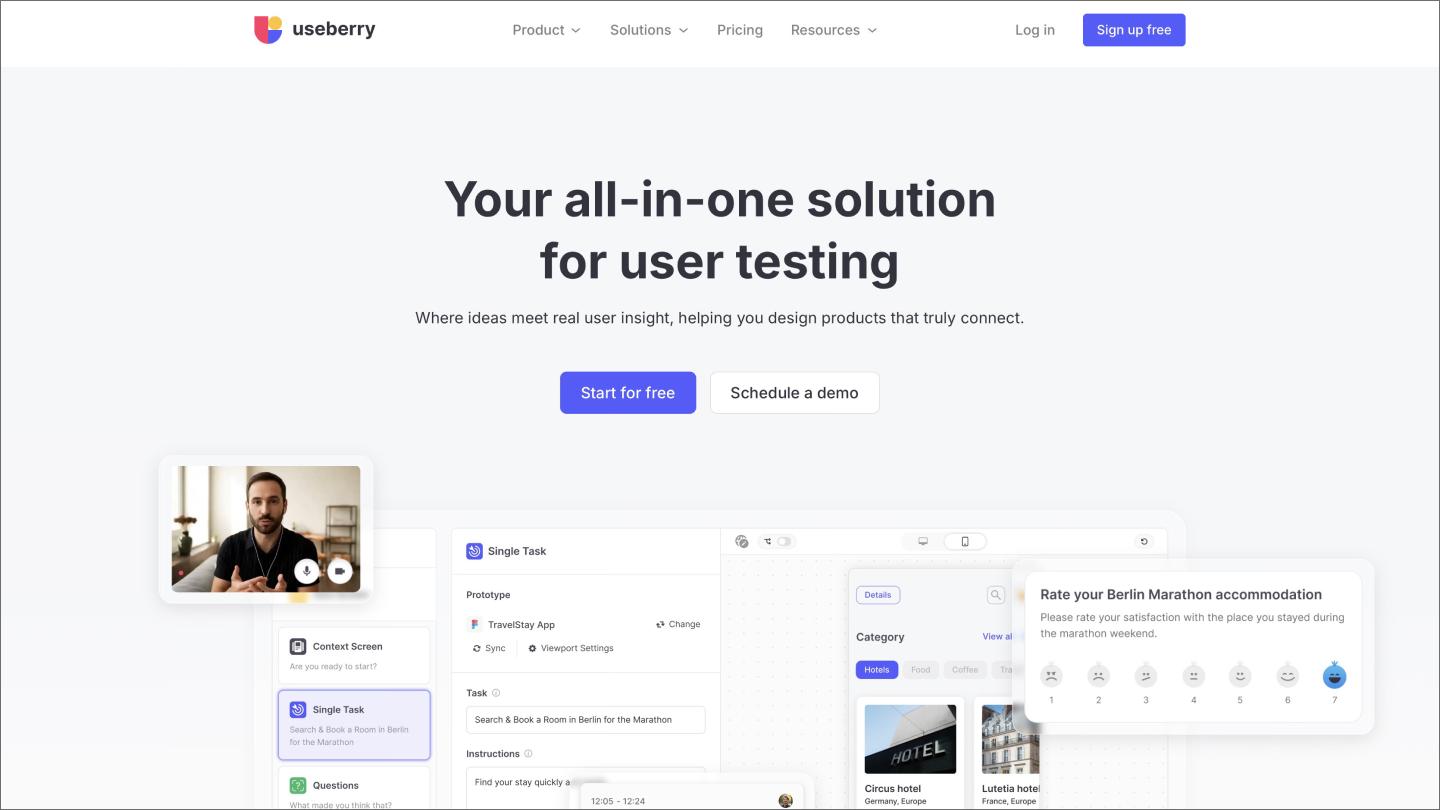
Useberry is a remote UX research and testing tool that helps product teams and Web designers gather usability data. It specializes in unmoderated usability testing, making it most useful for observing how visitors might interact with your website without a guide.
AI automations through Useberry analyze user interactions, where users click, and provide feedback to summarize data and sentiment results in open-ended survey questions. It also uses AI to randomly assign participants to design variations in A/B tests to help reduce bias.
Key features:
- Broad methodology library. Built-in research methods include first-click tests, card sorting, tree sorting, and single-task usability tests for different kinds of research.
- Ready-made scenarios. A library of templates for navigation, pricing-page standard, and content clarity so teams can launch studies in minutes.
- Collaborative workspace. Organized workspaces for teams with stakeholder-facing links so anyone can view dashboards and insights on testing.
8. Lookback

Ideal for: Moderated user interviews
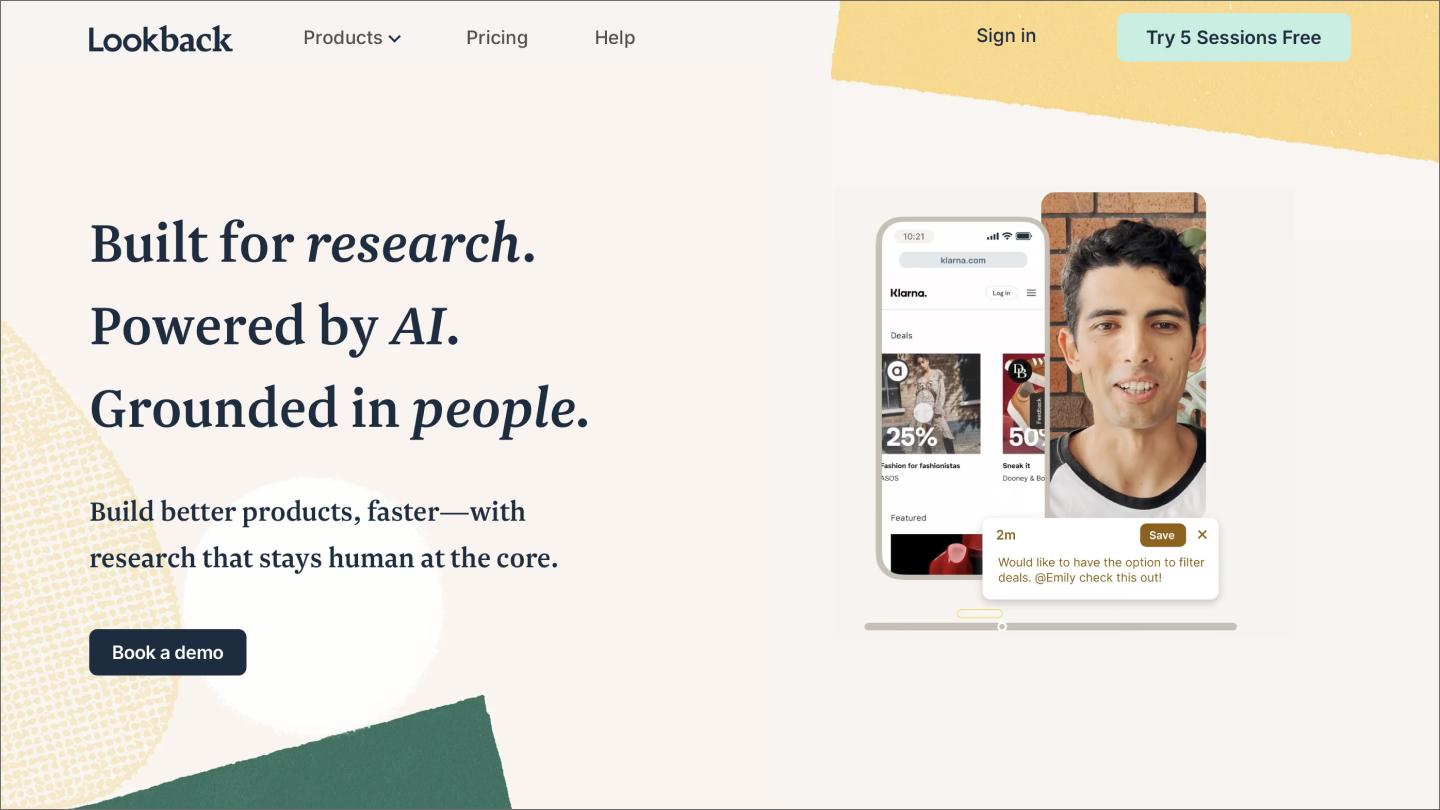
Lookback records your participant’s face and voice while they navigate your Figma prototype. Syncing the user’s camera feed with their navigation on the canvas helps you observe real time reactions during a moderated session, giving you context for every hesitation or click.
The AI assistant, Eureka, transcribes the session and surfaces key themes while you stay focused on the conversation. It creates searchable headlines and flags important moments, giving you a clear list of insights to bring back to your design file for the next iteration.
Key features:
- Live session participation. Remote observers can join calls to take notes or chat with the moderator without distracting the participant.
- Eureka AI assistant. Automated transcription and sentiment tagging that identify significant moments in your interview footage.
- Instant highlight reels. Tools to clip and share video segments with stakeholders to show the exact moment a design failed or succeeded.
9. UserZoom

Ideal for: Enterprise benchmarking
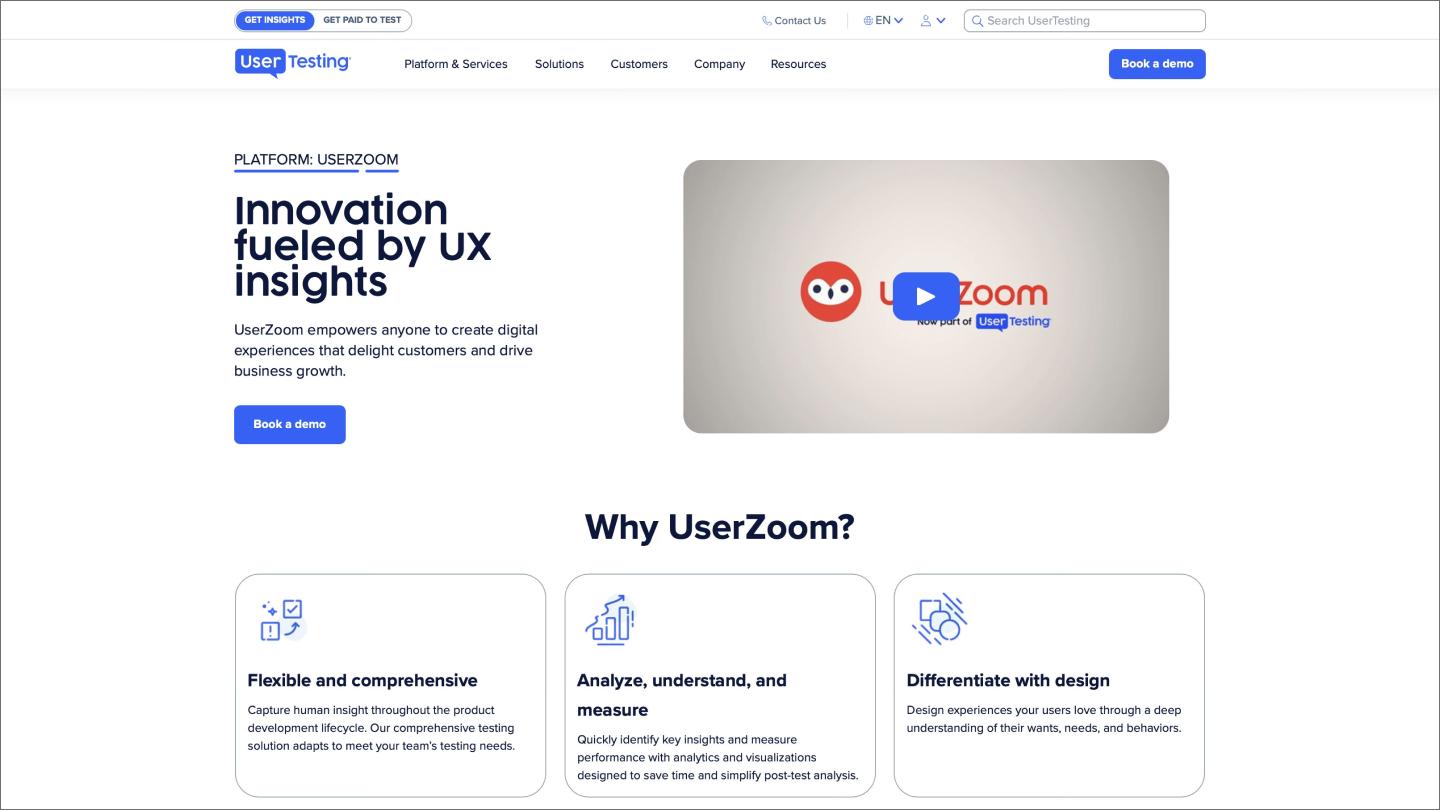
UserZoom takes over when you’re running complex studies that cover a lot of ground across a large product. The AI benchmarks your designs against industry standards or earlier versions, which gives you a data-backed view of how the work is performing at scale.
You can use the QXscore to pull a single usability metric that actually makes sense to stakeholders. It helps justify bigger structural changes.
Key features:
- QXscore. A single metric that combines behavioral and attitudinal data to track user experience quality over time.
- AI-driven reports. Automated summaries that turn huge amounts of qualitative and quantitative data into clear findings.
- Mixed-method studies. Support for various research types, like tree testing and card sorting, to get a full view of the user journey.
Frequently asked questions
Can AI usability testing fully replace human participants?
No. While AI can identify simple problems like broken logic flows and unclear content, it can’t bring genuine human habits and context to usability testing. These limitations require genuine human experience, something AI can’t replicate.
How does AI handle sensitive prototype data and privacy?
Each AI platform is different, but security-focused AI platforms anonymize prototype data before testing. Through Figma, you can choose to opt out of having your data used to train its AI from your account settings. If using other platforms, check their data retention policies to see how they secure your sensitive demo data.
Can I use synthetic users instead of real people?
Yes, synthetic users can be helpful for early directional feedback of the most standout parts of your website. However, they can’t mirror human behavior, such as genuine emotional responses to your website copy and design. Consider a blended approach, relying on synthetic tests to catch structural issues, followed by a small study with real participants to save money while capturing valuable data.
What if the AI gives me biased or incorrect insights?
If AI surfaces insights that seem biased or off, validate them with real user testing. Then, train the AI using those insights, pushing it to provide screen-specific guidance. For instance, “Users clicked a home button on page 8” is a finding that you can use to build on what people are actually doing on your site, so following a format like this can help.
Build and validate faster with Figma
AI usability testing isn’t a replacement for real human testing. Instead, it automates some of the more tedious steps and could save you money in the early stages by identifying simple issues.
Each tool we’ve featured today is a cog in the machine that keeps your workflow moving. But Figma Make is the hub that brings it all together.
Here’s how to power your research with Figma:
- Use FigJam to map out your user personas and research questions before you start building.
- Bring your prototypes to Figma Design to refine the UI.
- Once your design is validated, use Dev Mode to verify the final build matches your design.
Ready to streamline your research?
Try Figma Make today to learn why design and product teams use it to transform ideas into real, working prototypes in minutes, not days.


What is user experience (UX) design? Process + principles explained
UX design is the creation of digital products around user needs and expectations. Learn key principles, skills, and how to use Figma for UX design.


6 stages of the product development process
Learn how to master the stages of the product development process, from concept to launch, and how FigJam can help in this step-by-step guide.