Figma’s design agent, now with custom tools and greater context





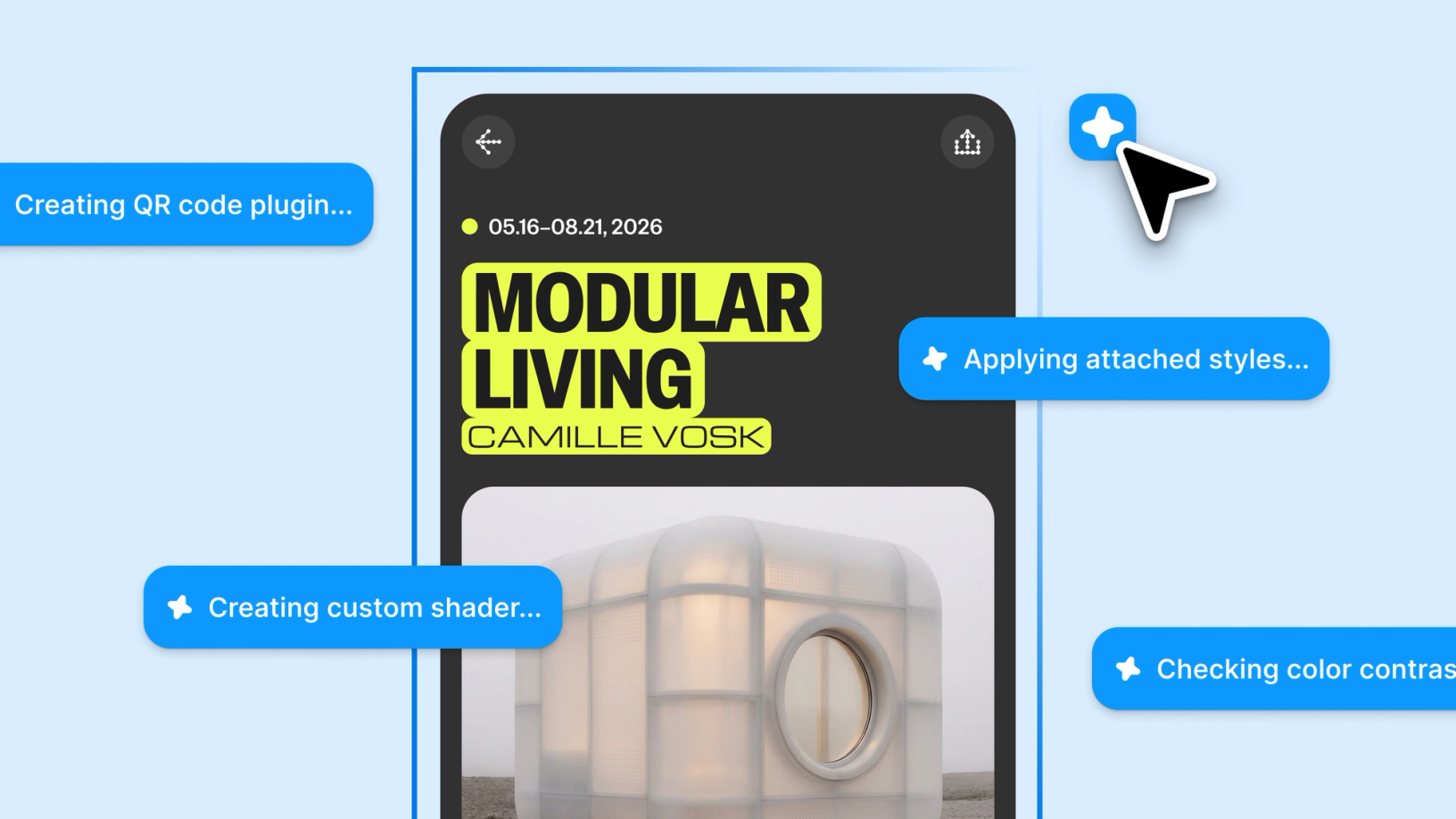
Prompting gets you started. Custom tools, real context, and skills take the design agent further—so what ends up on the canvas actually looks like you.
Share Figma’s design agent, now with custom tools and greater context
Explore our playground files for the agent and custom tools.
The difference between an agent that helps you work more efficiently and one that actually understands how you work is context. When an agent knows your team's way of working it can do more than produce. It can collaborate.
Where that collaboration gets interesting is on the Figma canvas itself—creating tools, effects, and experiences that wouldn’t have been possible before. The Figma design agent Starting today, work with an agent that is built for Figma—directly on the canvas.The Figma design agent is here
Build your own tools
Customer snapshot: Edward Chechique
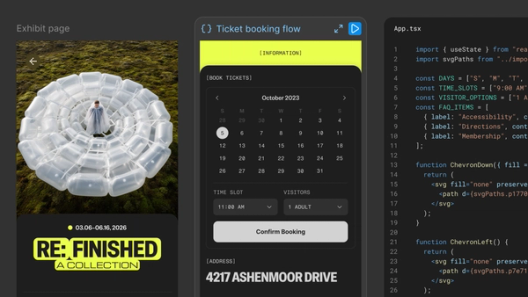
Product designer Edward Chechique’s generative plugins import HTML to the canvas, create dashboard layouts, and visualize data. Before, building them was a frustrating process. “I would need to ask a favor from a developer who may not have time to help me,” says Edward. “Later, AI tools made it possible, but I still had to switch between different tools and workflows. Now with the agent in Figma, it’s much faster and easier because I can just ask for what I want directly. I’ve gone from zero possibilities to great possibilities.”
Everyone works differently, but design tools are often one-size-fits-all. Layouts, textures, and effects are all determined by what's supported natively in your design tool. Starting today, you can shape your tools just as you shape your designs. That opens up more room to experiment visually and share what you build with your team.
Generative plugins
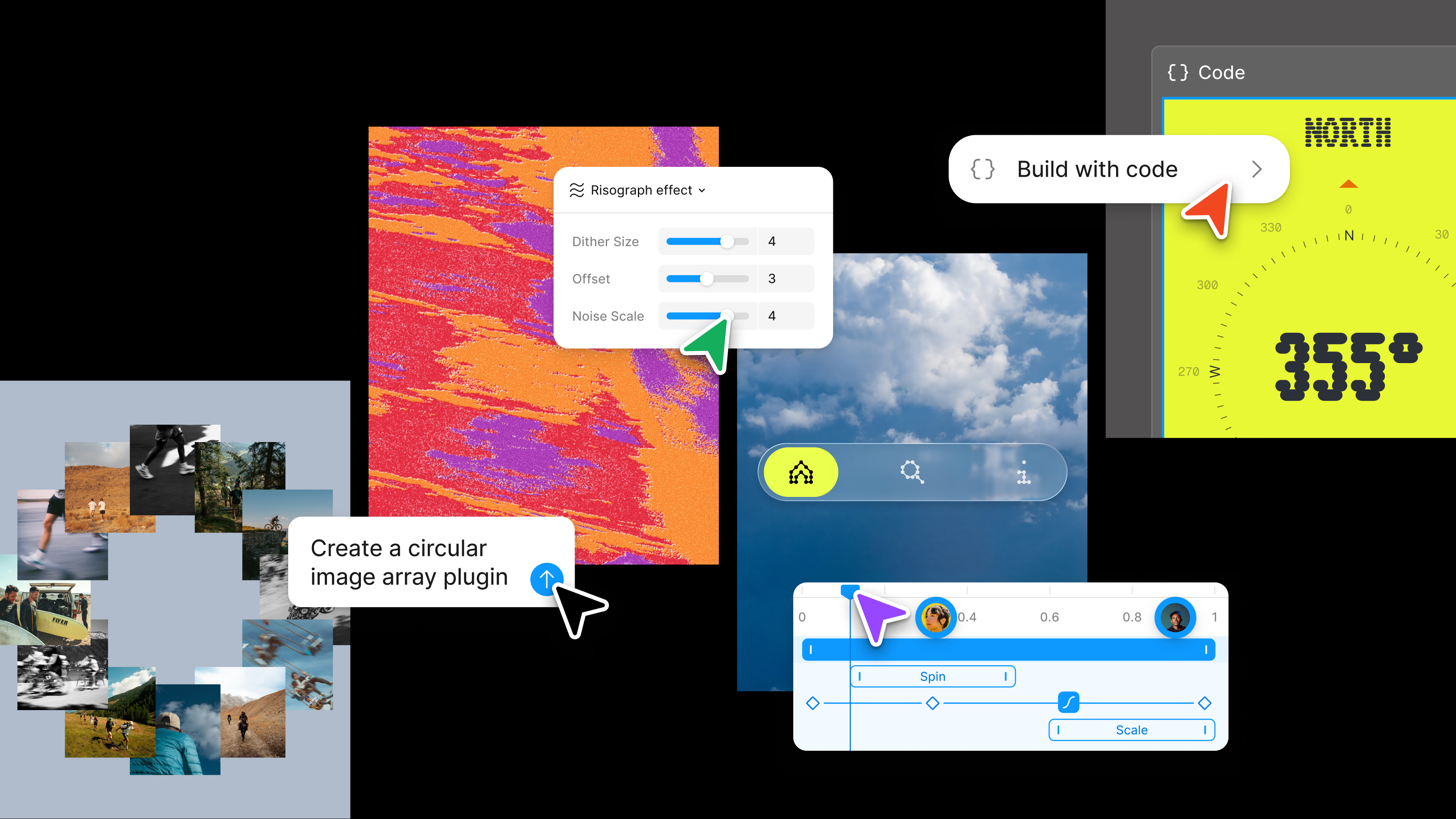
A plugin extends what's possible on the Figma canvas—but building one has always required technical skills and a dev setup that many designers don't have. Now you can prompt the design agent to build reusable plugins.
Because they use PropsKit, these generative plugins look and feel native to Figma. And because they live on the canvas, they give you more direct control as you iterate. For anything that reaches outside Figma Design, like AI services or third-party APIs, still use classic plugins.
The agent suggested ways to solve issues. That was magic for me because it talked to me like a developer who wanted to help me.
Shader effects and fills
Customer snapshot: Anna Zhang
Creative technologist Anna Zhang built her own shaders to remix her own photography with collage, marbling, light leak, metal emboss, and prism effects. “It’s a way to compound what I’ve been doing in the past or build a reusable workflow,” she says. “There’s a lot of expressive potential from a single starting point.”
Anna focused on the functionality while letting the agent handle the UI: “It was a back-and-forth dialogue between me and the agent, and what it was outputting would shape the parameters I would add down the line. It was like a negotiation.”
The agent can also build shaders—small, customizable programs powered by WebGPU We’ve updated our renderer to use WebGPU, unlocking new performance optimization opportunities. Here’s how we did it.Figma rendering: Powered by WebGPU
- Shader effects are like native Figma effects, but built entirely by you—like particle stretch, lens distortion, color outline, and more. You can stack them, adjust the properties, and couple them with native effects for the result you want.
Using any plugin or shader—whether you built it, a teammate shared it, or you found it in the Community—is always free and available on all plans. Prompting the agent to build plugins or shaders requires access to the Figma design agent and will cost AI credits once it's generally available.
- Shader fills are dynamic and generative—going far beyond solid colors and gradients, including watercolor, moiré, pattern grids, and more.

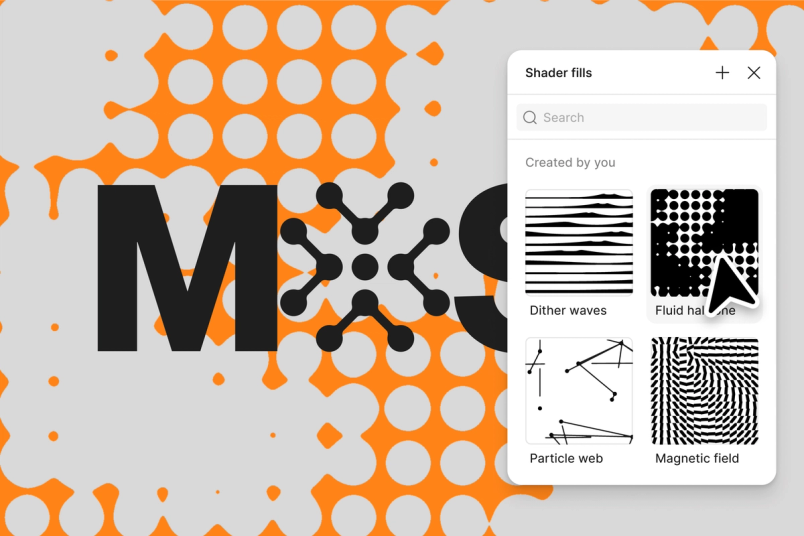
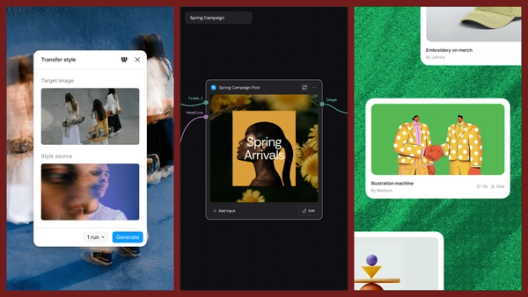
Shaders and generative plugins live in a new Tools tab alongside classic plugins, Weave tools Today, we’re announcing new ways your Weave creative workflows can live alongside your Figma frames.
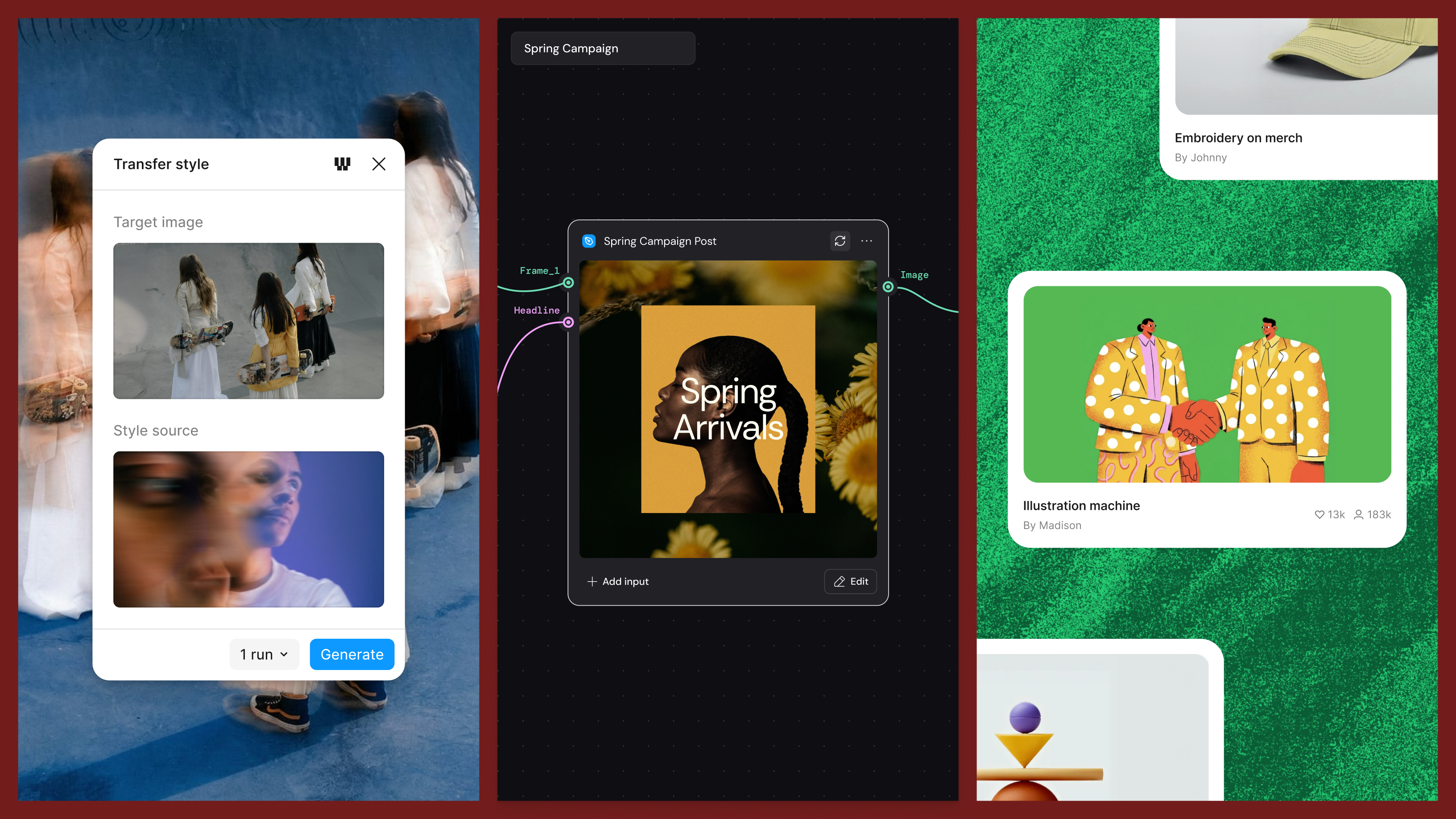
Connecting Figma and Weave
When creating via the design agent, you decide the kind of shader you want to build and which properties you need to manipulate, and the agent builds it for you. But what the agent can do on the canvas is only as good as what you give it to work with.

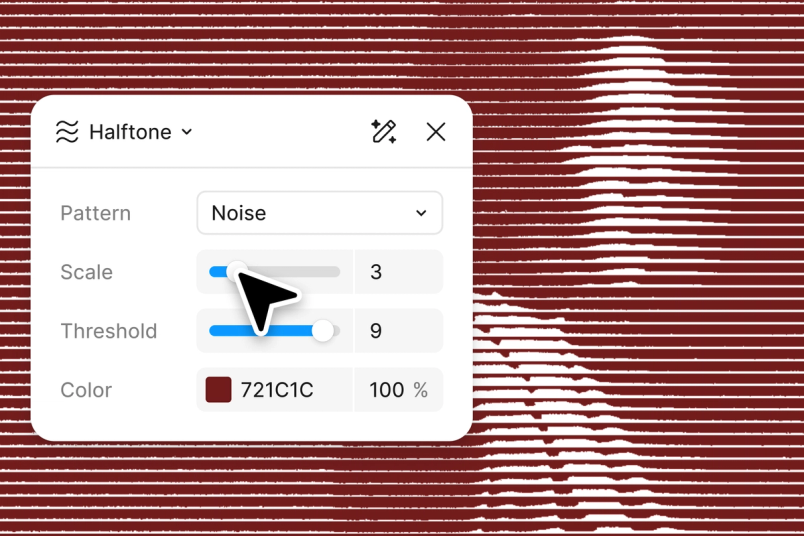

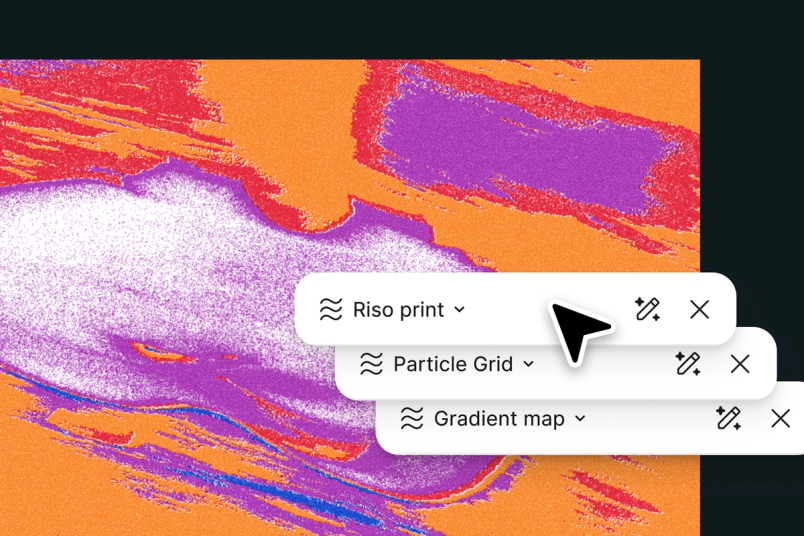
Being able to author your own tools allows you to have control—every one carries a worldview about what should be possible.
Bring more context to every conversation
Good context doesn't just inform the agent—it shapes what it makes. The closer the agent is to your project, your brand, and your ways of working, the more accurate the output will be.
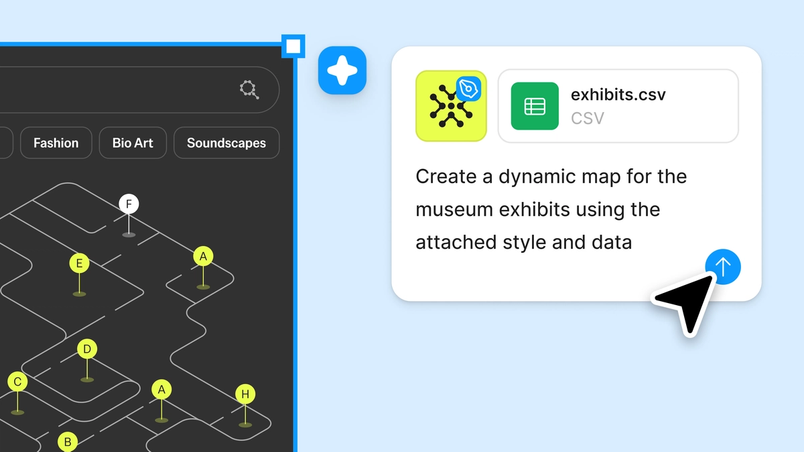
- Attach files directly: Drop files like a user interview, UX copy doc, or data report into the agent chat. The agent uses it as reference throughout the conversation, so the work reflects your project context and direction.
- Reference other Figma files: When you paste a Figma file link, the agent gets the full structure—components, tokens, layout, and styles—and can understand and reproduce design patterns, not just approximate them from a flat image.
- Search the web: The agent can pull in live data without leaving Figma, like real restaurant names and photos for a listing, current UX patterns from competitors, and up-to-date content for realistic mockups.
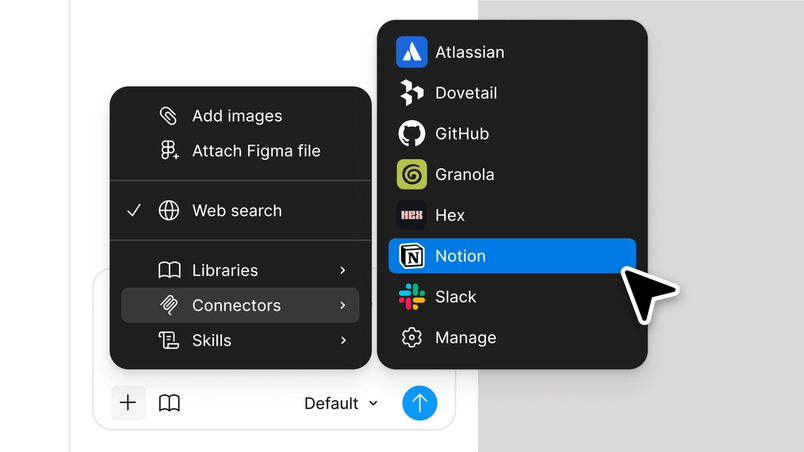
- Connect your tools: MCP connectors bring context from GitHub, Atlassian, Slack, and other tools directly into the agent—and can post updates back. Pull product tickets from Linear to inform a design, or reference data from Hex without copy-pasting.


Scale your point of view
Good prompts carry a point of view. Skills let you save that thinking, share it with your team, and put your creative direction to work beyond your own files.
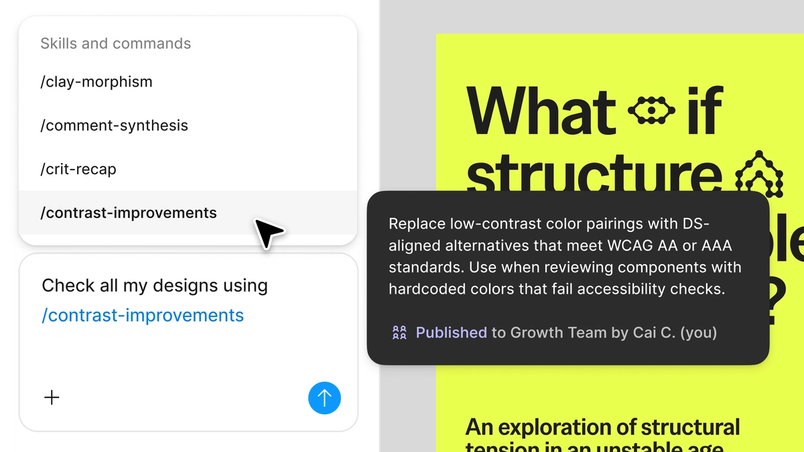
- Create custom skills: Skills turn the prompts you keep coming back to into reusable slash commands—whether that's applying a specific aesthetic, reviewing designs, or automating something you’ve already figured out.
- Publish skills to your team: Share a skill and your thinking becomes part of how the whole team works. A design philosophy, a signature aesthetic, a feedback lens—turned into something any teammate can implement, learn from, and build on.
- See your collaborators' prompts: The iteration history isn't just a log—it's a window into how someone thinks. Agent conversations are visible to your file collaborators by default, turning the process into a shared resource. Make them private whenever you need to.

The best moment in design is when what's in your head appears on screen. Today, you have more ways to bring that idea to life. Your code, your plugins, your shaders, your context—all on the Figma canvas. That's what the Figma design agent unlocks.
The Figma design agent is available in open beta for Full seat users on Professional, Organization, and Enterprise plans. Collab, Dev, and View seats can use the agent in their drafts. The agent is free to use during beta. Play around in the agent playground file or learn practical ways to use AI in your design workflow. Read more about the Figma agent and generative plugins and shaders in our help center.

Read Figma CEO and Co-founder Dylan Field’s recap of Config.
Georgia leads Creation Engine at Figma, focused on empowering creative technologists, designers, and artists doing beautiful work on the canvas. Before Figma, she held roles at Abstract and GitHub building tools for designers and developers. Outside of work, Georgia makes wine under her own label, skis whenever she can, and spends the rest of her time with her two Australian Shepherds.
Rodrigo is a product manager at Figma, working on agents. Before Figma, Rodrigo led AI product management at Asana.