Connecting Figma and Weave



Today, we’re announcing new ways your Weave creative workflows can live alongside your Figma frames.
Share Connecting Figma and Weave

Customer snapshot: OutSystems
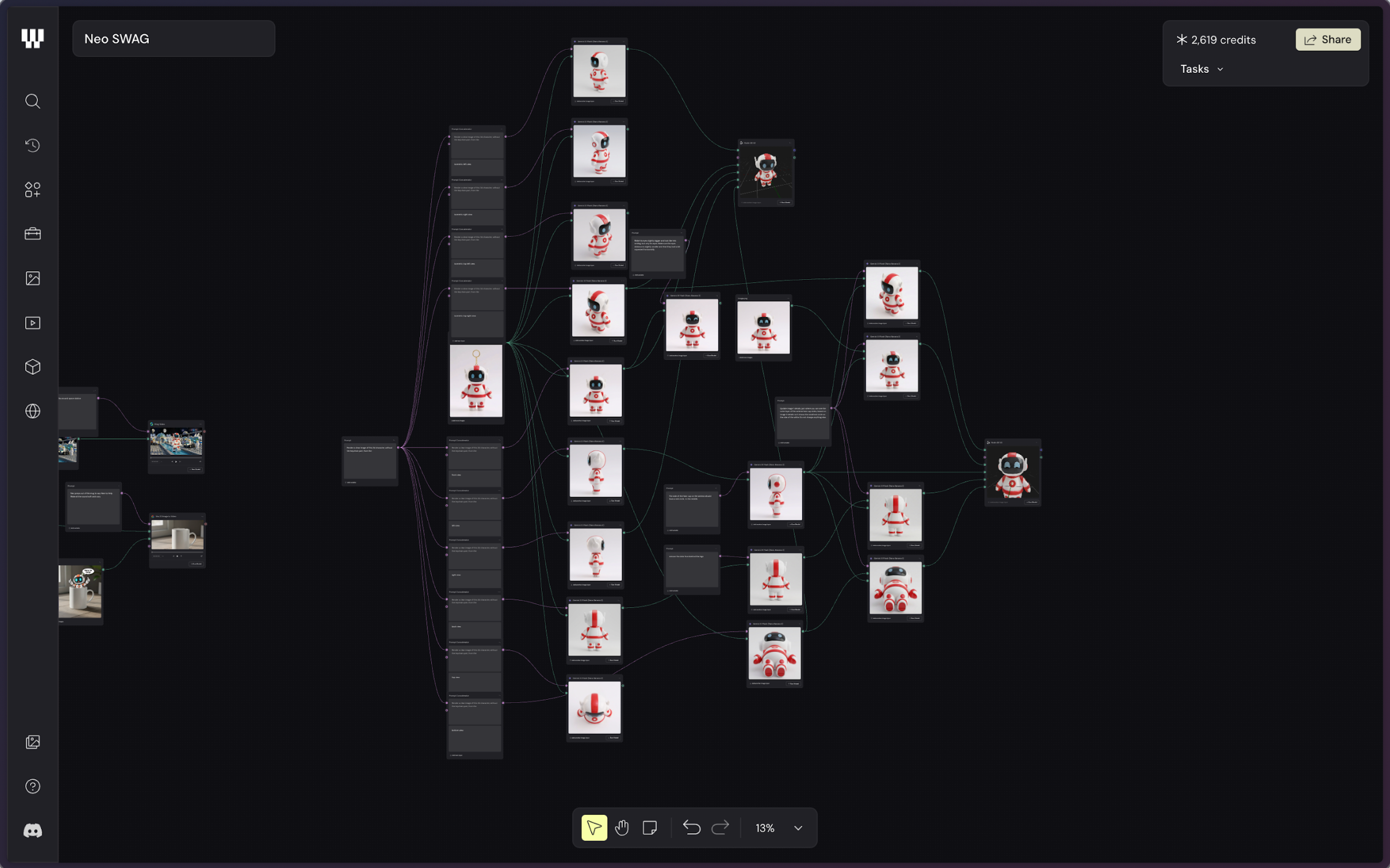
Bruno Figueiredo, lead designer on the brand team at OutSystems, uses Weave to create everything from presentation visuals, to animations, to event graphics, to swag. When the team created a key chain plushie based on their mascot, Neo, Bruno generated a 3D model to give to the manufacturer instead of relying on an outside specialist.
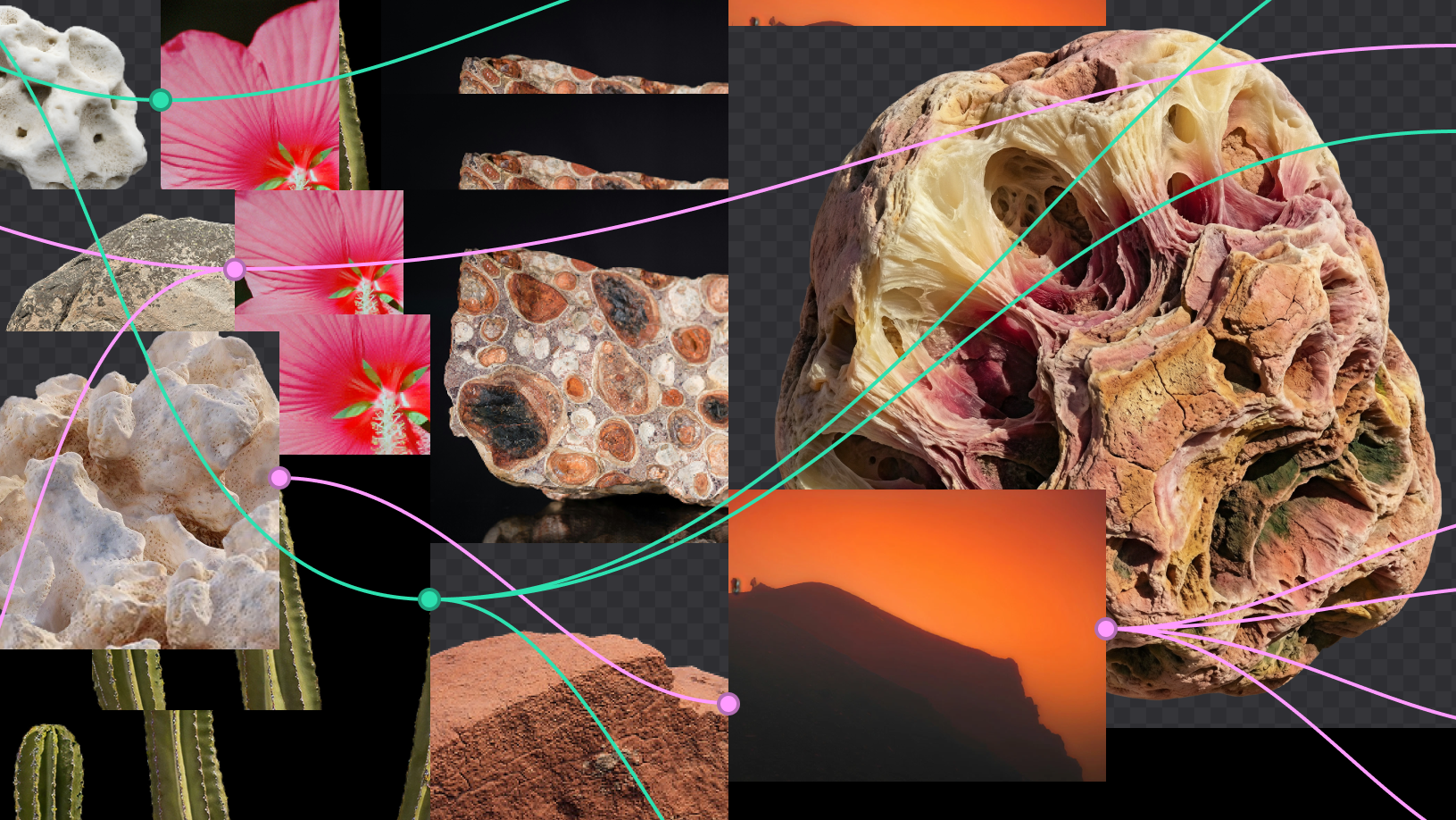
Now, he’s using Weave to evolve Neo himself. “Weave is powerful for exploratory processes because I can use multiple models and see how things evolve,” says Bruno. The node-based workflow allows him to tweak details like illustration style, costume colors, and body proportions. “I couldn’t have reached this level of detail before. I can have seven flows running at the same time and come back when I’m ready to pick them up.”
At Figma, we believe the best work always happens in the open—on the canvas, where the process becomes not just visible, but shared. Our acquisition of Weavy Figma has acquired Weavy, a platform that brings generative AI and professional editing tools into the open canvas. As Figma Weave, the company will help build out image, video, animation, motion design, and VFX media generation and editing capability on the Figma platform. To build upon a visual language with AI, you need to harness the logic behind each prompt—building, editing, and directing how visuals come to life. Here, we share five creative workflows that show the breadth of what the Figma Weave canvas can do.Introducing Figma Weave: The next generation of AI-native creation at Figma

Turning prompts into five scalable workflows with Figma Weave
Today, we're bringing Weave tools onto the Figma canvas and Weave workflows to the Figma Community—and with the Figma node in Weave soon to come, you’ll do less translating between design and creative production, and more fine-tuning of your vision.
Weave tools in Figma
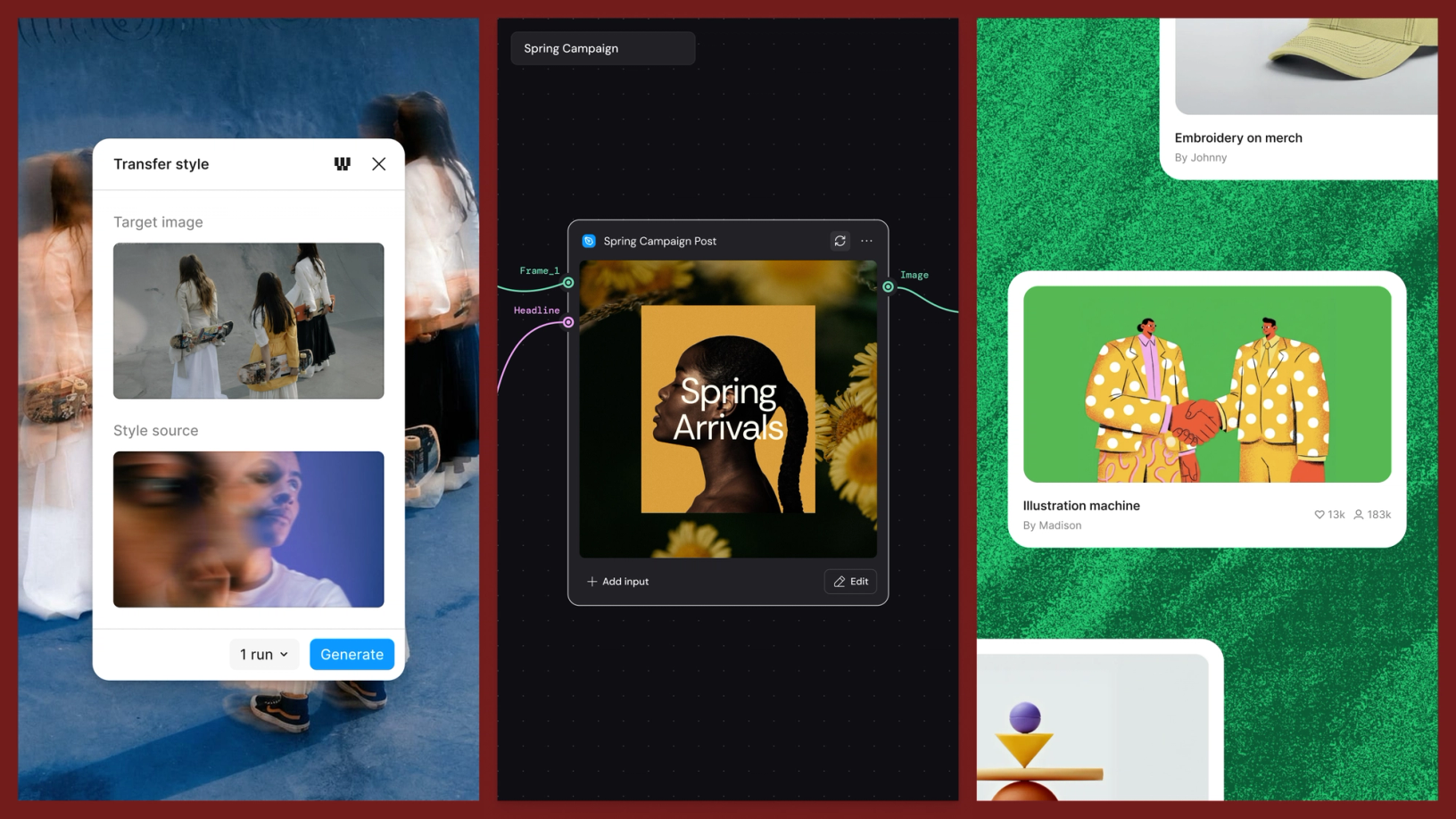
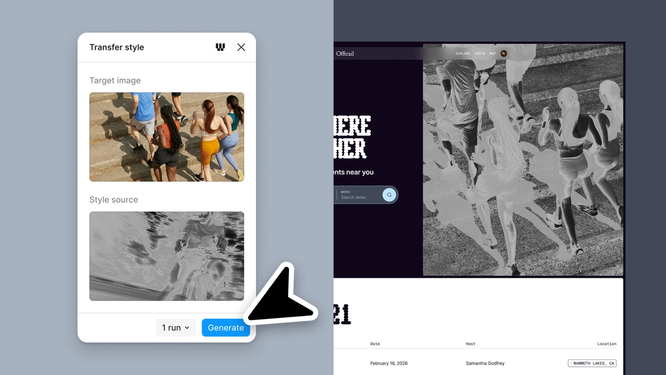
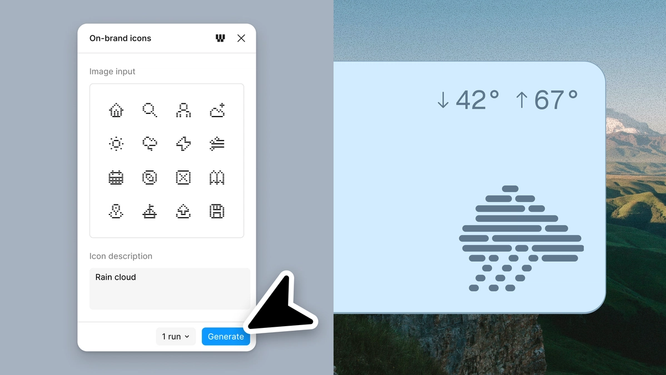
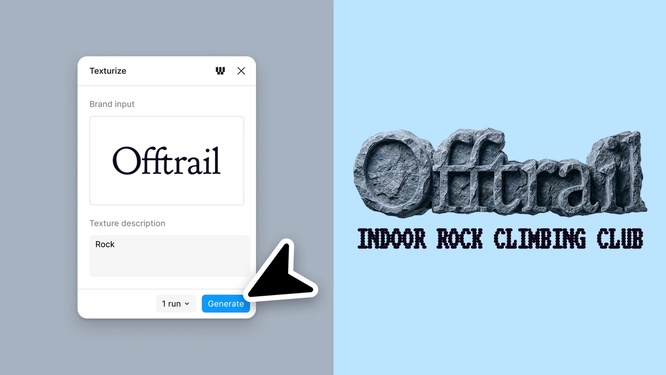
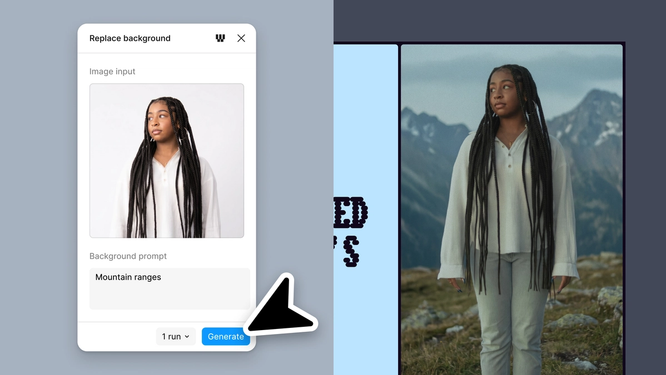
The first way Weave is coming to Figma starts where most designers spend their time—on our design canvas, moving work forward. Starting today, 20+ AI image tasks are accessible directly from Figma Design's left panel as Weave tools. Each Weave tool is a pre-built Weave workflow, packaged into a simple UI in Figma Design—style transfers, product shoots, material extraction, and art direction across a dozen visual languages. Think of it as Weave's power and creative range, set up for you.
With Weave you can branch ideas, remix outputs, compare approaches, and refine work across models. New to Weave? Start here.
Need to change an aspect ratio, generate an e-commerce shoot, or render a photo in Art Nouveau? Pick the tool, add your inputs, get production-quality output—without having to write a freeform prompt yourself. Running a Weave tool delivers a consistent result every time, so you can repeatedly tackle common use cases in just a few clicks. You bring the creative direction and the workflow handles the execution.
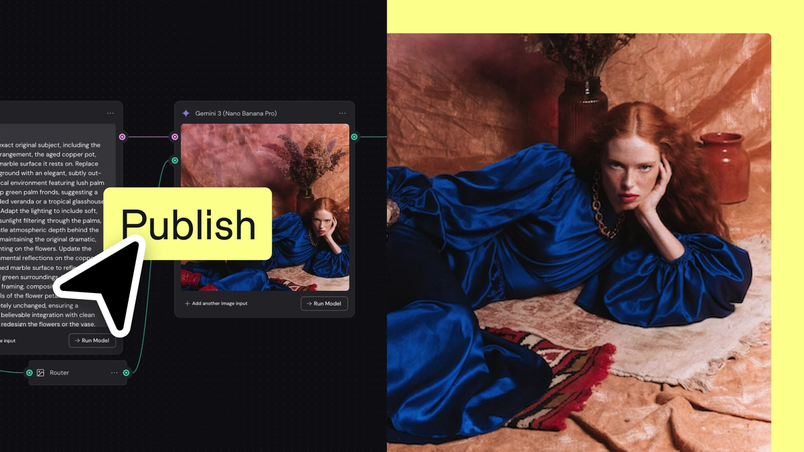
Not everyone needs to build a workflow from scratch—but when someone on your team does, it should travel further. Soon, any designer will be able to publish their own workflows as Weave tools directly in Figma. Define the logic once, share it with your team, or the world, and everyone benefits from the thinking behind it.
It’s great having Weave tools in Figma. They can help us expand our existing photography and illustration to develop new brand guidelines or generate mockups in the styles we need.




Weave workflows in the Figma Community

Customer snapshot: Taxi Studio
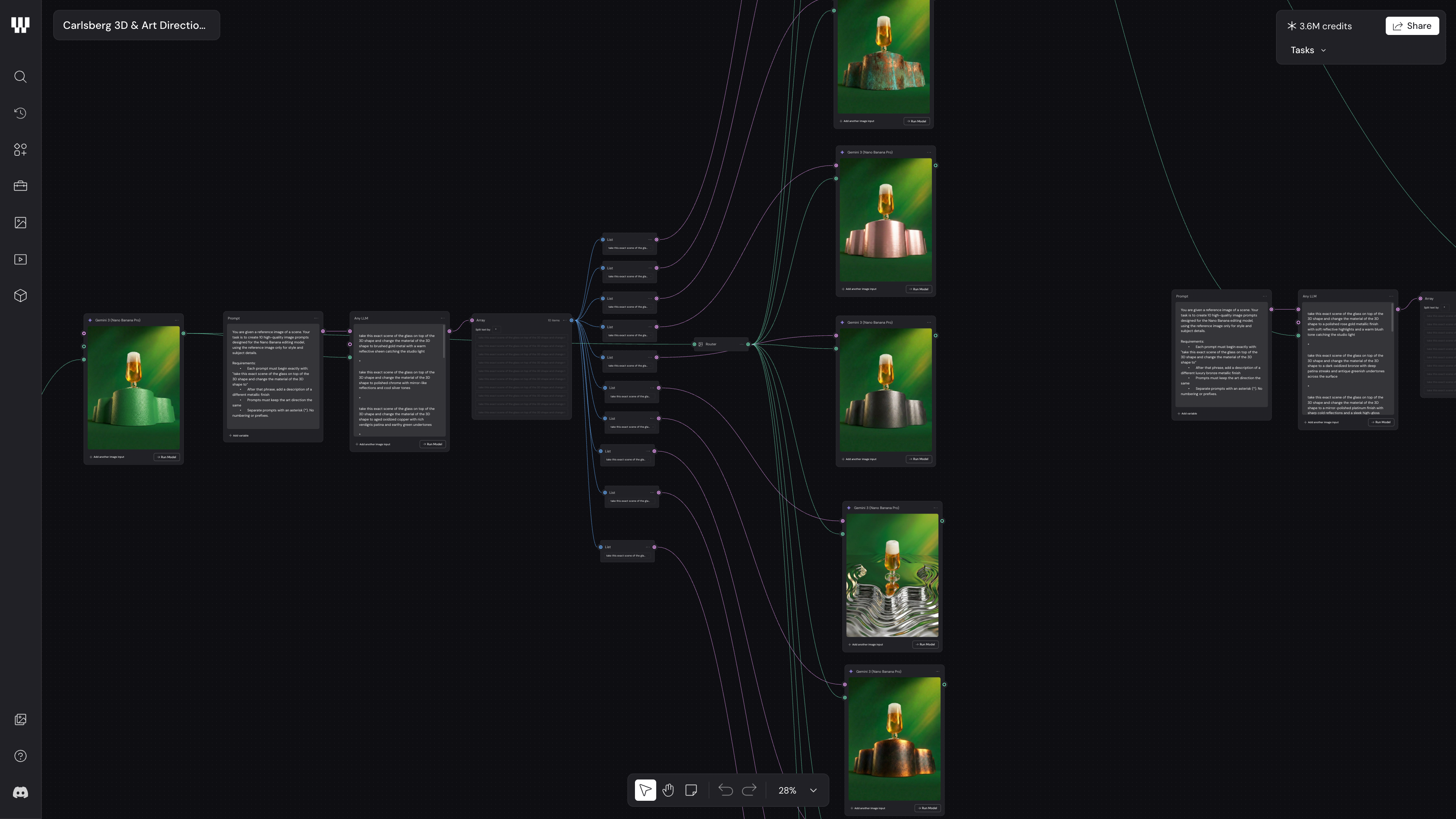
Taxi Studio, a brand design agency based in Bristol, England, set up a Weave workflow to generate 3D renders for a design presentation with their client, Carlsberg.
Using three simple inputs—a beer glass, a hop leaf, and a background—they created a starting point for brand imagery and could further refine lighting, camera angle, and texture. “All of this took a day, whereas it would have taken a 3D specialist weeks and tens of thousands to ideate through these elements,” says Midweight Designer Jack Goozee. “It’s such a great way to elevate and add richness to the work, while staying very much in control.”
When you've built your workflow, publishing it takes just a few steps:
1. Open the Share menu in Weave
2. Select “Publish to Figma Community”
3. Add a title, description, and category
4. Upload a thumbnail
5. Publish your public template
The best thing one designer can share with another isn't the finished piece—it's the process that made it possible. Through the Figma Community, you can now publish and discover Weave workflows—the sequences of steps and decisions behind creative output. A workflow shared on Community becomes a resource the way a component library does: something others can open, understand, adapt, and build on. Automated ads, multi-angle product shots, social motion systems, fashion visualizers, character design sheets—all there to build on.
Create a workflow that solves a problem you keep running into. Publish it. Let the community run it, make it theirs. Your creative logic becomes the starting point for someone else's.

With Weave, you can put much more time into thinking about your vision of the brand. It gives you the ability to freely explore and zone in on the thing you want.
Customer snapshot: NBBJ
At architecture firm NBBJ, Weave helps designers visualize abstract concepts, generate 3D renders, and create graphics and diagrams. “The ramp-up speed is wild by comparison to other tools,” says Design Technology Integration Leader Simon Manning. “Consistently, new users of Weave brought up to speed on Wednesday can produce content with it by Friday. They’re having no issues because it’s similar enough to other workflows where they can transfer their skillset, and it’s also really easy for other people on the team to share workflows.”
The Figma node in practice
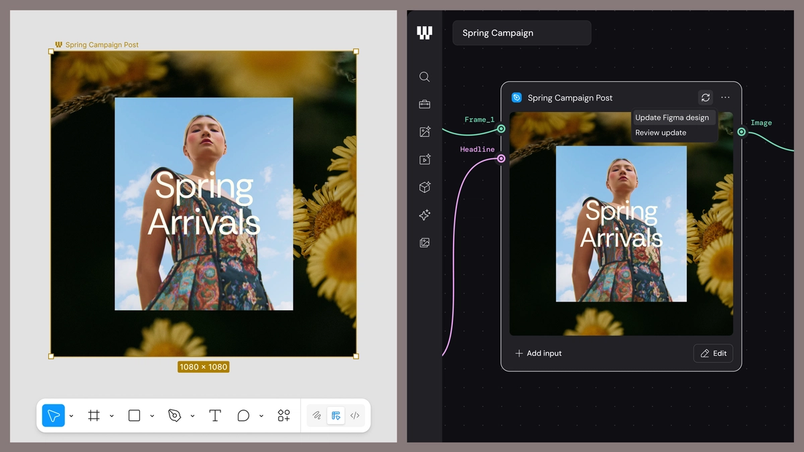
Take for example a brand layout in Figma—typography locked, grid set, visual direction fully in your control. When brought into Weave as a Figma node, it connects to a CSV of translated copy and generates a localized version for every region. One design, dozens of outputs, none drifting from the standard you built.
Figma node in Weave
Weave tools bring AI creative workflows to your canvas. The Figma node works in the other direction—it brings your Figma frames into Weave.
At Config, we're giving a first look at what's coming: Paste any Figma frame directly onto the Weave canvas as a Figma node. Connect it to upstream and downstream nodes in your workflow, and any edits you make to the frame in Figma will reflect in real time across your Weave workflow. Your design and your creative pipeline move together.
This changes what a Figma frame can be. Not just a finished artifact, but a live input—a product layout that feeds directly into a campaign, a brand frame that powers AI output at scale.
Weave handles the generation. Figma holds the design.

Ultimately, the client gets a much better product because we were able to investigate more options, more deeply, than we’d been able to do before in the same amount of time.
With Weave tools, sharable workflows, and the upcoming Figma node, we're a few steps closer to a world where all your design files and node-based decisions will live side-by-side.
Weave tools are in open beta and will be free to use throughout the duration of the beta. Once generally available, Weave tools in Figma will consume Figma AI credits. Weave workflows are live on the Figma Community today for you to explore—or, try publishing your own. Keep an eye out for the Figma node in Weave, which is expected to launch later this summer.

Read Figma CEO and Co-founder Dylan Field’s recap of Config.