

Reference images on canvas
Add images or existing designs to your canvas so the agent can reference them, removing backgrounds to match the style and structure you're working in.
Skip to main content
Cut out subjects, create transparent layers, and clean up images with AI—directly in Figma Design. No round trips to a separate editor, no exporting and reimporting files.











Figma's agent handles the tedious cutout work so you can focus on the design decisions that actually matter.


Figma's agent works as an AI background remover right on your canvas, so you can isolate subjects and create transparent layers without exporting to another tool and importing the result back into your file.

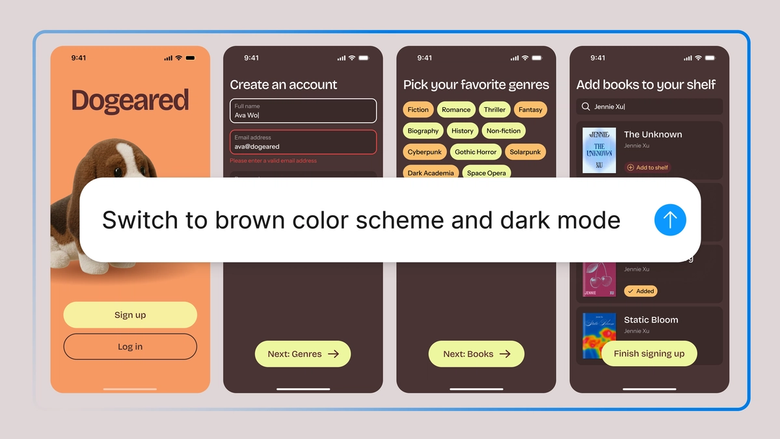
Hand off repetitive background removal—product shots, headshots, batch processing—and keep your focus on layout, composition, and the design decisions that really matter.

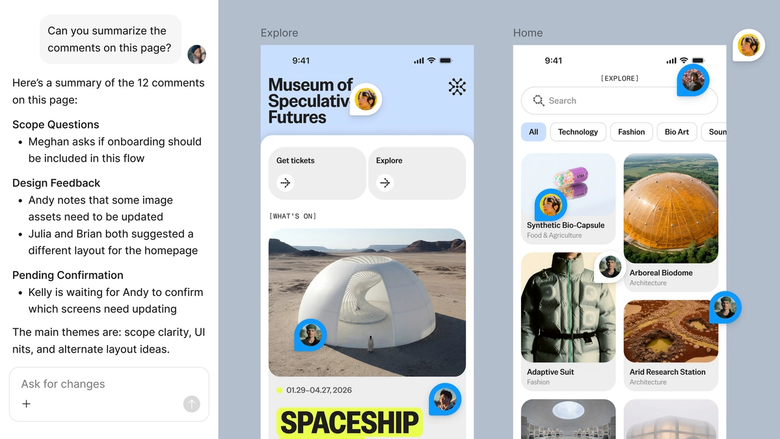
Edits happen in the same file your team works in, so everyone sees the latest cutouts and can build on them right away. Nothing gets lost in an export or version mismatch.
A closer look at what sets Figma's agent apart, built for the way design teams actually work.
Add images or existing designs to your canvas so the agent can reference them, removing backgrounds to match the style and structure you're working in.


Edge not quite clean? Adjust with another prompt in the same thread, or open a parallel one to try a different approach without losing your progress.


Share a thread and your team sees the full prompt, context, and iteration history behind any cutout. No separate handoff or explanation needed.


Every background removal lands on your canvas as editable layers with transparency intact, so you can keep refining by hand—nothing gets flattened.
Figma feels like a natural extension of my hand. I do my design ideation on the canvas, and now the agent takes it the last mile. With my design libraries connected, I can move from design to code faster than ever before.
Andy Madrick
Product Designer, Notion

Drop the image you want to edit onto your canvas in Figma Design, or select one that's already in your file.
Tell the agent to remove the background. Add details if needed—keep the shadow, preserve hair edges, isolate just the subject.
Check the result on your canvas. Not quite clean? Refine in the same thread or try a different approach in a parallel one.
Everything stays editable on the canvas with transparency preserved, so you can fine-tune edges by hand or prompt again until it's perfect.
Watch Figma's AI Agent in action and see how to put it to work in your own workflows.


Hands-on playground to explore Figma agent's capabilities — from bulk edits to feedback implementation — with step-by-step guidance built right in.
Learn how to use Figma agent in your design workflows with a step-by-step tutorial from the Figma team.
An AI background remover automatically detects and isolates subjects in an image, cutting away the background to create a transparent layer. With Figma's agent, this happens directly on your design canvas—no exporting to a separate editor. The result stays fully editable so you can refine edges or composite the cutout into your layout immediately.
AI analyzes the image to distinguish foreground subjects from the background, using machine learning to detect edges, hair, and complex boundaries. Figma's agent applies this directly to images on your canvas, preserving transparency and keeping layers editable. You can refine results with follow-up prompts if the first pass needs adjustment.
The key is working with your original image rather than a compressed export. In Figma Design, the agent removes backgrounds from images already on your canvas, preserving the original resolution and keeping layers editable. You avoid the quality loss that comes from exporting, editing externally, and reimporting.
AI handles most backgrounds well, including those with similar colors to the subject. Complex edges like hair or fur may need refinement. Figma's agent lets you prompt again in the same thread to clean up tricky areas, or you can fine-tune edges manually since everything stays editable on your canvas.
Figma's agent is available on all paid Figma plans. You'll find it in the left navigation bar in Figma Design. During the current open beta, it doesn't consume AI credits—so it's a good time to explore, experiment, and share your feedback with us.
Build faster with Figma's agent


