

Connect a design library
The agent references your existing components and interaction patterns, so prototypes stay consistent with your design system from the start.
Skip to main content
Describe the interactions you need, and Figma's agent converts your static mockups into clickable prototypes—right on your canvas. No tedious wiring, no context switching.











Figma's agent handles the repetitive wiring so you can focus on refining the experience and testing what matters.

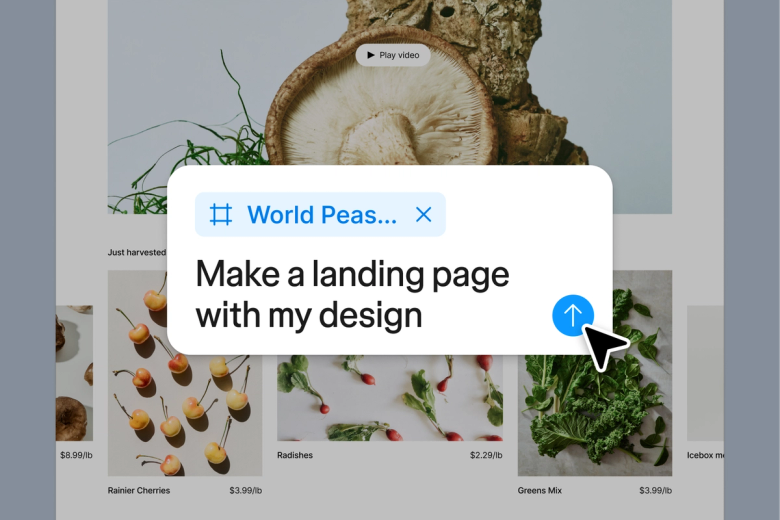
Tell the agent how screens connect—where users tap, what happens next—and watch it wire up the prototype on your canvas. Explore interaction patterns faster by prompting variations instead of clicking through connection after connection.

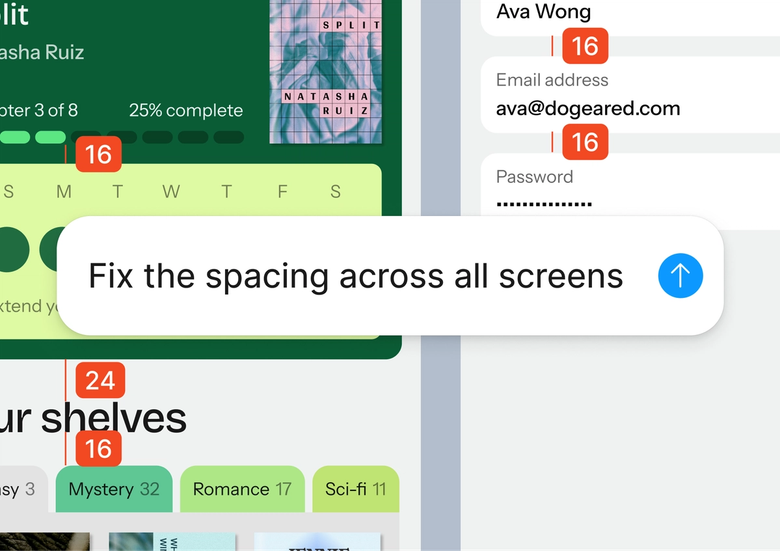
Hand off the tedious work of connecting frames and setting transitions. The agent automates prototype connections so you keep your focus on the design decisions and user experience, not the mechanics of making things click.

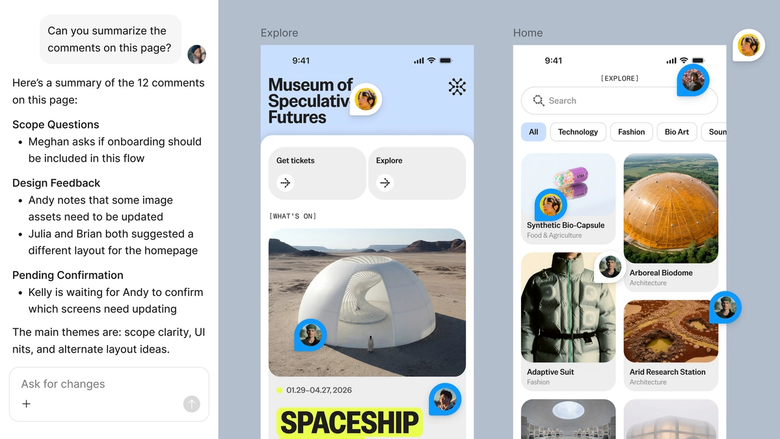
Prototypes live in the same file your team works in, so everyone can experience the flow firsthand. No exports, no separate preview links—just shared context that keeps feedback grounded in what users will actually see.
A closer look at what sets Figma's agent apart, built for the way design teams actually work.
The agent references your existing components and interaction patterns, so prototypes stay consistent with your design system from the start.


Explore multiple interaction approaches at once—test a swipe transition in one thread, a tap-through in another—without losing progress on either.


Share your prompt thread and your team sees the full context—what you asked for, how the prototype evolved, and why it works the way it does.


Prototype not quite right? Adjust timing, swap transitions, or add screens in the same thread—or branch off to try a completely different approach.
Figma feels like a natural extension of my hand. I do my design ideation on the canvas, and now the agent takes it the last mile. With my design libraries connected, I can move from design to code faster than ever before.
Andy Madrick
Product Designer, Notion

Open your file in Figma Design with your static mockups on the canvas. Organize frames in the order users will navigate through them.
Tell the agent how screens connect—which elements are tappable, where they lead, what transitions to use. Be specific about entry points and user paths.
Play through the connected prototype on your canvas. Not quite right? Refine in the same thread or start a parallel one to explore a different interaction pattern.
Everything stays editable. Adjust connections by hand, prompt again to add new flows, or extend the prototype as your mockups evolve.
Watch Figma's AI Agent in action and see how to put it to work in your own workflows.


Hands-on playground to explore Figma agent's capabilities — from bulk edits to feedback implementation — with step-by-step guidance built right in.
Learn how to use Figma agent in your design workflows with a step-by-step tutorial from the Figma team.
A mockup to prototype converter takes static design screens and turns them into interactive, clickable experiences. With Figma's agent, you describe how frames should connect—tap targets, transitions, navigation flows—and the agent wires up the prototype directly on your canvas. No manual connection work required.
In Figma Design, select your mockup frames and open the agent. Describe the interactions you need—which elements are tappable, where they navigate to, what transitions should feel like. The agent applies the connections, and you can refine with follow-up prompts until the flow feels right.
A mockup is a static visual representation of a design—it shows what screens look like but doesn't respond to interaction. A prototype adds interactivity, letting users tap, swipe, and navigate between screens to experience the intended flow. Figma's agent helps you bridge this gap by converting your static mockups into working prototypes.
Figma's agent understands your design context and natural language descriptions. When you describe how screens should connect—entry points, tap targets, transitions—it applies those interactions directly to your frames. This automates the repetitive wiring work so you can focus on refining the user experience.
Figma's agent is available on all paid Figma plans. You'll find it in the left navigation bar in Figma Design. During the current open beta, it doesn't consume AI credits—so it's a good time to explore, experiment, and share your feedback with us.
Build faster with Figma's agent


