

Connect a design library
Point the agent to your design library so every generated navbar uses your real components, icons, and spacing tokens—not generic placeholders.
Skip to main content
Build navbars, menus, and navigation components with AI—directly in Figma Design using your real design system. Describe what you need and see it built in seconds, ready to refine.











The agent generates real navbar components on your canvas using your design library, so every option is production-ready from the start.

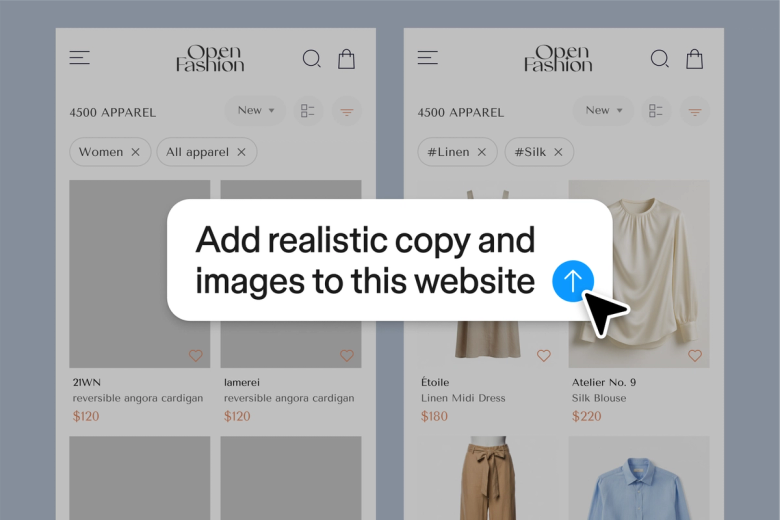
Figma's agent builds navigation bars using your actual components, tokens, and variables—not placeholder UI you'll have to rebuild. Every generated navbar matches your design system from the first prompt.

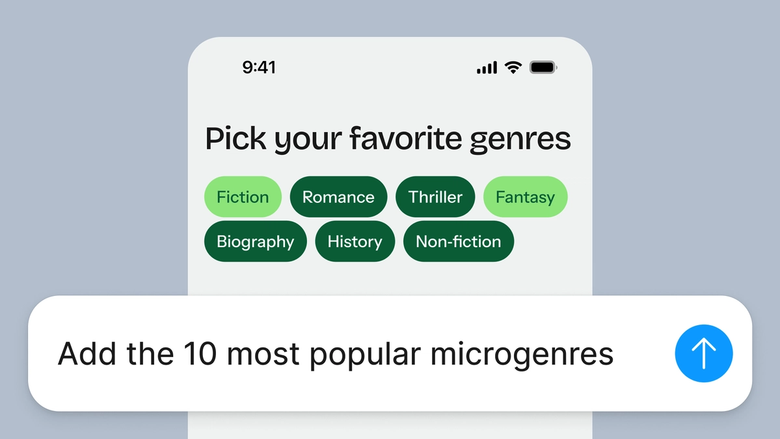
Skip the tedious setup of aligning icons, spacing links, and configuring dropdowns by hand. Describe the navigation structure you need and let the agent scaffold it while you focus on the bigger decisions.

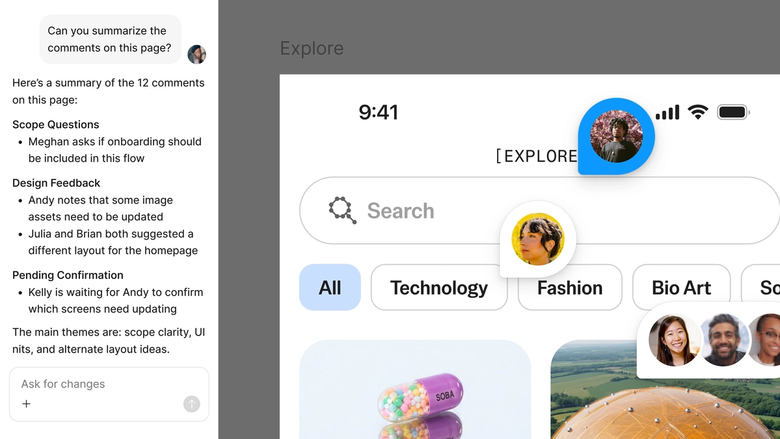
Generated navbars live in your shared file, so developers and stakeholders see the same thing you do. Nothing gets lost in export—everyone builds from the same source of truth.
A closer look at what sets Figma's agent apart, built for the way design teams actually work.
Point the agent to your design library so every generated navbar uses your real components, icons, and spacing tokens—not generic placeholders.


Explore a sticky header, a hamburger menu, and a mega nav all at once. Run multiple prompts simultaneously to compare directions without waiting.


Share a thread and your team sees the full prompt, context, and iteration history. No separate handoff—everyone understands how the navbar was built.


Turn your navbar workflow into a reusable skill. Package prompts for headers, footers, or mobile menus into commands your whole team can run.
Figma feels like a natural extension of my hand. I do my design ideation on the canvas, and now the agent takes it the last mile. With my design libraries connected, I can move from design to code faster than ever before.
Andy Madrick
Product Designer, Notion

Select Agents in the left side rail or hit CMD + Enter. Add a frame to work in, or select an existing layout that needs navigation.
Tell the agent what you need—a sticky header with logo and links, a mobile hamburger menu, a mega nav with dropdowns. Point to your design library for accurate components.
Check the generated navbar on your canvas. Refine in the same thread or start a parallel one to explore a different navigation pattern.
Prompt again to adjust spacing, add icons, or try responsive variants. Everything stays editable, so you can fine-tune by hand anytime.
Watch Figma's AI Agent in action and see how to put it to work in your own workflows.


Hands-on playground to explore Figma agent's capabilities — from bulk edits to feedback implementation — with step-by-step guidance built right in.
Learn how to use Figma agent in your design workflows with a step-by-step tutorial from the Figma team.
Figma's agent is available on all paid Figma plans. You'll find it in the left side rail in Figma Design. During the current open beta, it doesn't consume AI credits—so it's a good time to explore, experiment, and share your feedback with us.
Build faster with Figma's agent


