

Connect your design library
The agent references your real components, tokens, and variables when generating specs—so developers get accurate documentation, not placeholder values.
Skip to main content
Figma's agent helps you prepare specs, extract assets, and answer developer questions—directly on the canvas where your design already lives. Less context-switching, clearer handoffs.











Keep designers and developers aligned in one shared space, with AI handling the tedious prep work so you can focus on building.

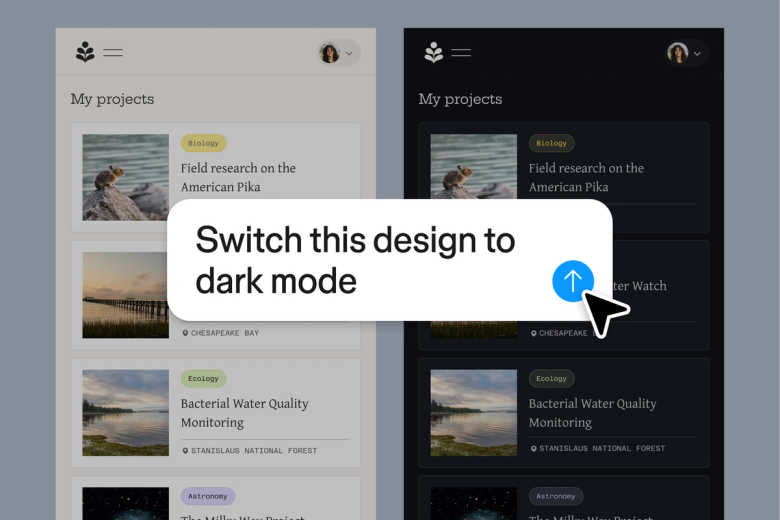
Let the agent handle repetitive handoff tasks—generating redlines, documenting spacing, listing component specs—while you stay focused on the design decisions that actually need your attention.

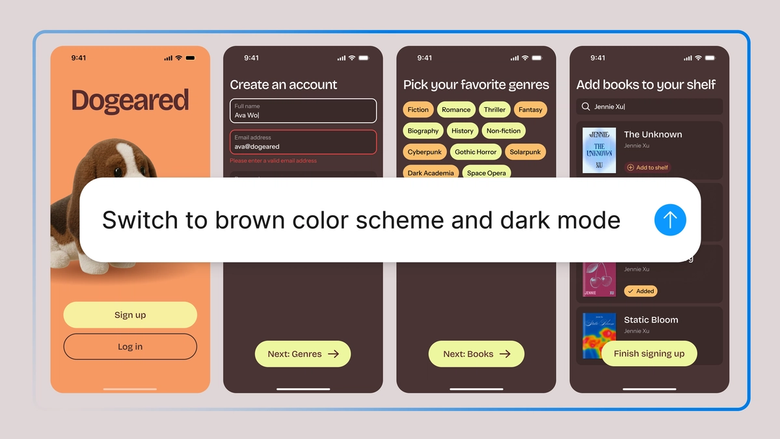
The agent surfaces context developers need: component names, style tokens, interaction notes. Fewer pings in chat, fewer misinterpretations, faster builds.

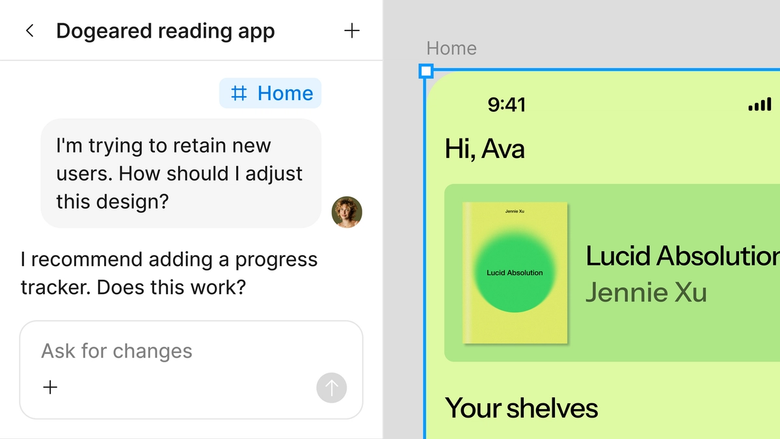
Specs, assets, and design context live alongside the work itself. Developers see the latest version, designers see what's being built—nothing gets lost in export or translation.
A closer look at what sets Figma's agent apart, built for the way design teams actually work.
The agent references your real components, tokens, and variables when generating specs—so developers get accurate documentation, not placeholder values.


Prepare multiple frames for handoff simultaneously. Document one section while extracting assets from another—no waiting between tasks.


Share a handoff thread and developers see the full prompt, context, and iteration history. Questions and answers stay attached to the work.


Need more detail on a component? Ask in the same thread. The agent remembers context so you can iterate without starting over.
Figma feels like a natural extension of my hand. I do my design ideation on the canvas, and now the agent takes it the last mile. With my design libraries connected, I can move from design to code faster than ever before.
Andy Madrick
Product Designer, Notion

Open your file in Figma Design and select the frames or components you need to prepare for development.
Tell the agent what to document—spacing specs, component names, interaction notes, exportable assets. Be specific about what context matters most.
Check the generated specs on your canvas. Refine in the same thread if something's missing, or run a parallel prompt for a different frame.
Developers access the same file with full context. Share the thread link so they see exactly what changed and why.
Watch Figma's AI Agent in action and see how to put it to work in your own workflows.


Hands-on playground to explore Figma agent's capabilities — from bulk edits to feedback implementation — with step-by-step guidance built right in.
Learn how to use Figma agent in your design workflows with a step-by-step tutorial from the Figma team.
An AI design handoff assistant automates the tedious parts of preparing designs for development—generating specs, documenting spacing and styles, and extracting assets. Figma's agent does this directly on the canvas, so everything developers need stays in the same file where the design lives. No separate handoff tools or exports required.
AI reduces the manual work of documenting designs and answering repetitive developer questions. Figma's agent can generate redlines, list component specs, and surface design tokens automatically. This means fewer misinterpretations, faster turnaround, and designers spending less time on documentation busywork.
Look for tools that keep specs alongside the actual design, reference your real design system, and let teams collaborate in one place. Figma's agent checks all three—it generates documentation using your actual components and tokens, and everything stays in the shared file where both designers and developers work.
Select the frames you want to hand off, open Figma's agent from the left side rail or hit CMD + Enter, and describe what documentation you need. The agent generates specs, extracts assets, and documents context directly on your canvas. Developers can then access everything in the same file.
Figma's agent is available on all paid Figma plans. You'll find it in the left navigation bar in Figma Design. During the current open beta, it doesn't consume AI credits—so it's a good time to explore, experiment, and share your feedback with us.
Build faster with Figma's agent


