

Audit against your library
Check components from your design system for accessibility issues, so fixes propagate everywhere the component is used.
Skip to main content
Audit contrast ratios, text legibility, touch targets, and color blindness issues with AI—directly in Figma Design. Catch problems before handoff, not after launch.











Figma's agent reviews your real designs on the canvas, flagging issues where you can fix them immediately.

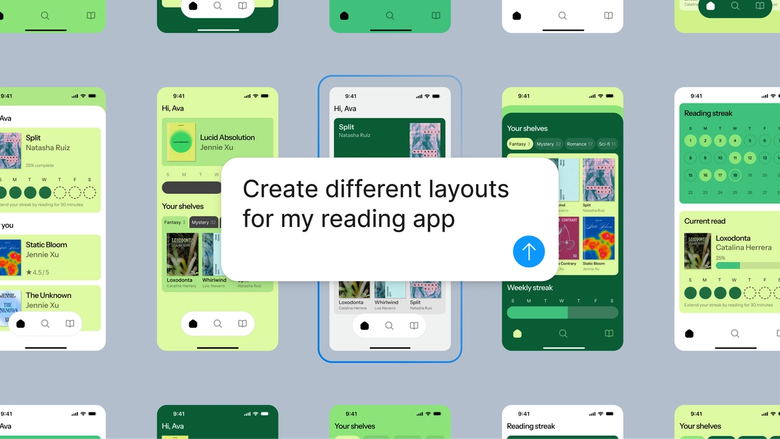
Figma's agent scans your designs for contrast failures, small touch targets, missing labels, and color combinations that don't work for colorblind users—so you find problems early, not in QA.

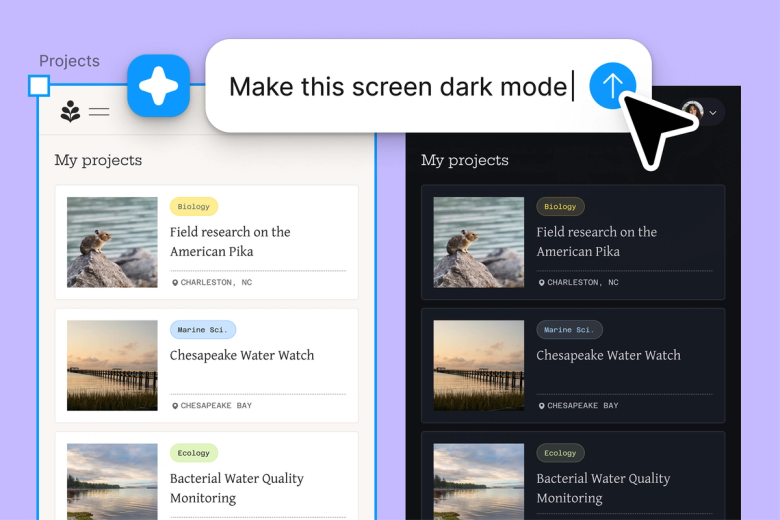
Hand off the repetitive checking—scanning every button, every text layer, every color pairing—and keep your focus on solving the problems that matter most to your users.

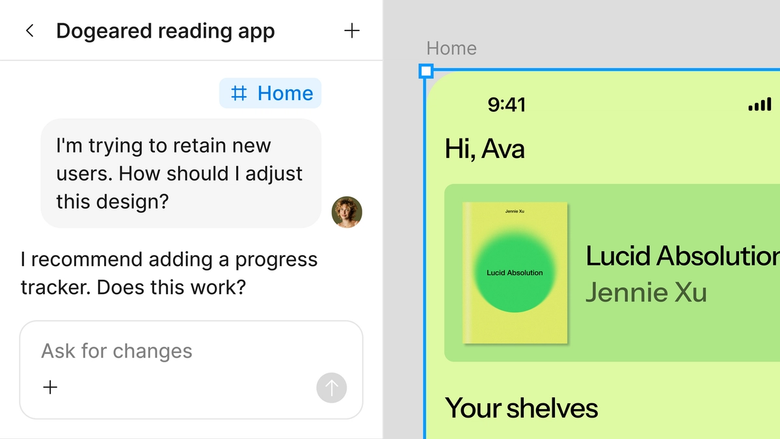
Accessibility feedback lives in the same file your team works in, so developers see exactly what needs fixing and designers can address issues before handoff.
A closer look at what sets Figma's agent apart, built for the way design teams actually work.
Check components from your design system for accessibility issues, so fixes propagate everywhere the component is used.


Audit multiple frames or flows simultaneously—get a full accessibility picture across your file without waiting.


Share an audit thread and your team sees the full context, flagged issues, and fixes applied. No separate report needed.


Ask for deeper analysis on specific issues, request alternative solutions, or narrow the audit scope with another prompt.
Figma feels like a natural extension of my hand. I do my design ideation on the canvas, and now the agent takes it the last mile. With my design libraries connected, I can move from design to code faster than ever before.
Andy Madrick
Product Designer, Notion

Open your file in Figma Design and select the frame, component, or screen you want to check for accessibility.
Tell the agent what to check—contrast ratios, touch target sizes, color blindness simulation—or ask for a general accessibility review.
The agent flags issues directly on your canvas with specific guidance. Address them in place or prompt for suggested fixes.
Run follow-up checks after making changes, or audit additional screens. Everything stays in your file for the team to reference.
Watch Figma's AI Agent in action and see how to put it to work in your own workflows.


Hands-on playground to explore Figma agent's capabilities — from bulk edits to feedback implementation — with step-by-step guidance built right in.
Learn how to use Figma agent in your design workflows with a step-by-step tutorial from the Figma team.
An AI accessibility checker automatically scans designs or interfaces for issues that could affect users with disabilities—like low contrast text, small touch targets, or color combinations that don't work for colorblind users. Figma's agent performs these checks directly on your canvas, flagging problems where you can fix them immediately instead of discovering them later in development.
Figma's agent can identify contrast ratio failures against WCAG guidelines, text that may be too small for readability, touch targets below recommended sizes, and color pairings that create problems for various types of color blindness. It can also flag missing structure that screen readers rely on. While AI catches many common issues, manual review is still valuable for context-specific accessibility concerns.
In Figma Design, select the frame or screen you want to audit and open the agent from the left side rail or by pressing CMD + Enter. Describe what you want checked—contrast, touch targets, color blindness—or ask for a general accessibility review. The agent flags issues directly on your canvas with guidance on how to address them.
AI accessibility checkers are effective at catching quantifiable issues like contrast ratios and minimum sizing, where guidelines provide clear thresholds. They're less reliable for contextual issues that require human judgment, like whether alt text is meaningful or navigation is logical. Figma's agent helps you catch the measurable problems early, but pairing AI audits with manual review gives you the most complete picture.
Figma's agent is available on all paid Figma plans. You'll find it in the left navigation bar in Figma Design. During the current open beta, it doesn't consume AI credits—so it's a good time to explore, experiment, and share your feedback with us.
Build faster with Figma's agent
Build faster with Figma's agent


