

Connect to a design library
Generate and refine using your actual components, tokens, and variables—not placeholder UI you'll have to swap out later.
Skip to main content
Recolor objects, swap entire palettes, and adjust tones with a prompt—directly in Figma Design. No manual selection of every layer, no exporting to another tool and importing back.











Figma's agent handles the tedious color work so you can focus on getting the palette right, not clicking through every layer.

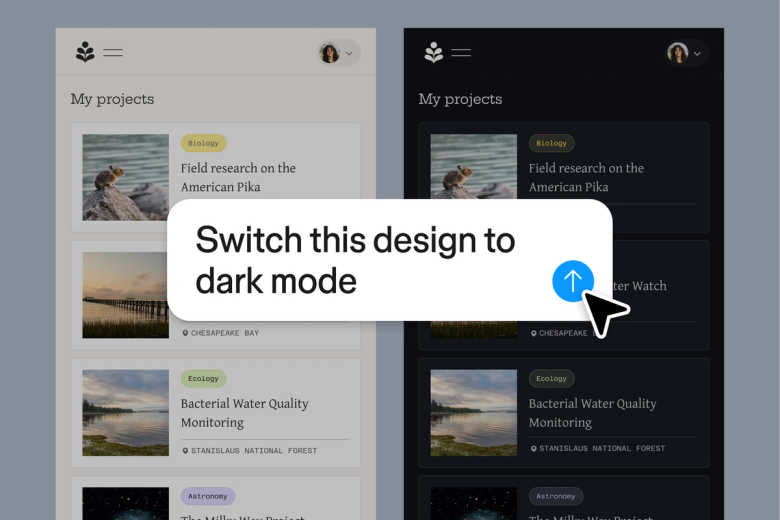
Figma's agent works as an AI color changer right on your canvas. Describe the color shift you want—warmer tones, brand palette, dark mode—and see it applied to your actual layers without leaving your file.

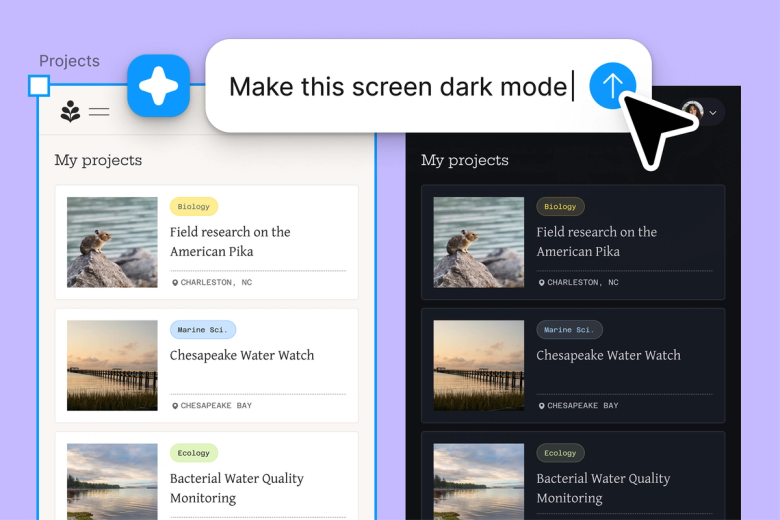
Hand off repetitive recoloring—swapping accent colors across components, adjusting entire frames, converting light to dark—and keep your focus on the design decisions that actually matter.

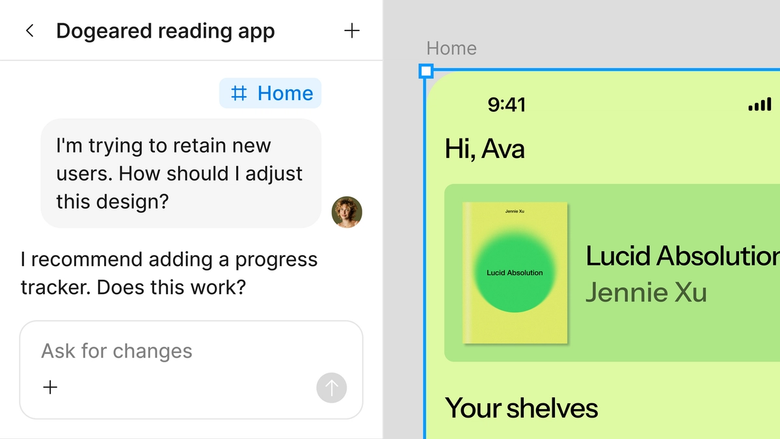
Color changes happen in the same file your team works in. Everyone sees the updated palette immediately and can build on it right away. No separate exports or version confusion.
A closer look at what sets Figma's agent apart, built for the way design teams actually work.
Generate and refine using your actual components, tokens, and variables—not placeholder UI you'll have to swap out later.


Run multiple prompts at once so you're evaluating directions in parallel, not burning time on each one in sequence.


Share a thread and your team sees the full prompt, context, and iteration history behind any design. No separate handoff needed.


Package your team's workflows and conventions into reusable /commands anyone can run on demand.
Figma feels like a natural extension of my hand. I do my design ideation on the canvas, and now the agent takes it the last mile. With my design libraries connected, I can move from design to code faster than ever before.
Andy Madrick
Product Designer, Notion

Select Agents in the left side rail or hit CMD + Enter. Add a frame to the canvas if you want a starting point to work in.
Type your prompt—a layout, a variation, a bulk edit. Point the agent to your design library so it uses your real components and styles.
Check the output directly on your canvas. Refine in the same thread or start a parallel one to explore a different direction.
Prompt again until the result is right, or fine-tune by hand. Turn repeated workflows into reusable skills for next time.
Watch Figma's AI Agent in action and see how to put it to work in your own workflows.


Hands-on playground to explore Figma agent's capabilities — from bulk edits to feedback implementation — with step-by-step guidance built right in.
Learn how to use Figma agent in your design workflows with a step-by-step tutorial from the Figma team.
Figma's agent generates vector graphics directly on your design canvas. You describe what you need—icons, illustrations, UI elements—and the agent creates scalable, editable vectors using your design system's styles and colors. Everything stays in your file, ready to refine or use immediately.
Yes. Figma's agent creates vector images from text prompts right in Figma Design. The output is fully editable—you can adjust paths, colors, and shapes just like any other vector in your file. There's no conversion step or separate tool required.
Yes. Figma's agent can resize batches of images to consistent dimensions based on your prompt. Select your images, describe the target size or aspect ratio, and the agent applies the change across all of them. The resized images remain editable on your canvas, so you can make further adjustments if needed.
Figma's agent references your connected design library when generating vectors. This means outputs use your actual colors, styles, and tokens from the start. You spend less time restyling generic assets to match your brand and more time designing.
Figma's agent is available on all paid Figma plans. You'll find it in the left side rail in Figma Design, or open it with CMD + Enter. During the current open beta, it doesn't consume AI credits—so it's a good time to explore, experiment, and share your feedback with us.
Build faster with Figma's agent


