

Connect to a design library
Generate and refine using your actual components, tokens, and variables—not placeholder UI you'll have to swap out later.
Skip to main content
Tell Figma's agent what to fix—spacing, alignment, visual hierarchy, responsiveness—and it adjusts your existing design layers directly on the canvas. Describe the problem, see it solved.











Figma's agent analyzes your design context and applies layout improvements directly to your existing frames and components.

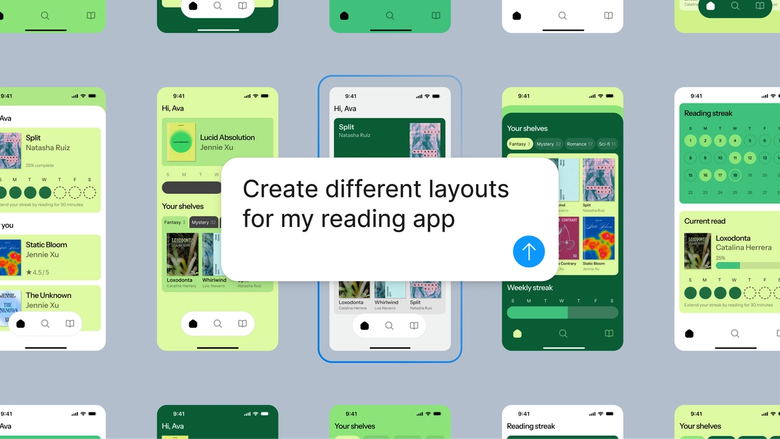
Figma's agent works as an AI layout optimizer right on your canvas, adjusting spacing, alignment, and structure on your existing layers instead of generating something new you'd have to reconstruct.

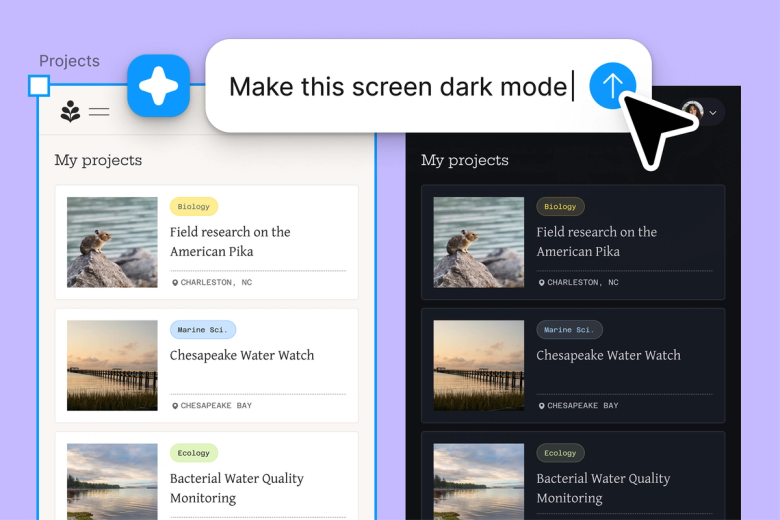
Hand off tedious alignment fixes, spacing adjustments, and responsive rebalancing to the agent. Keep your focus on the design decisions that shape the experience, not pixel-pushing.

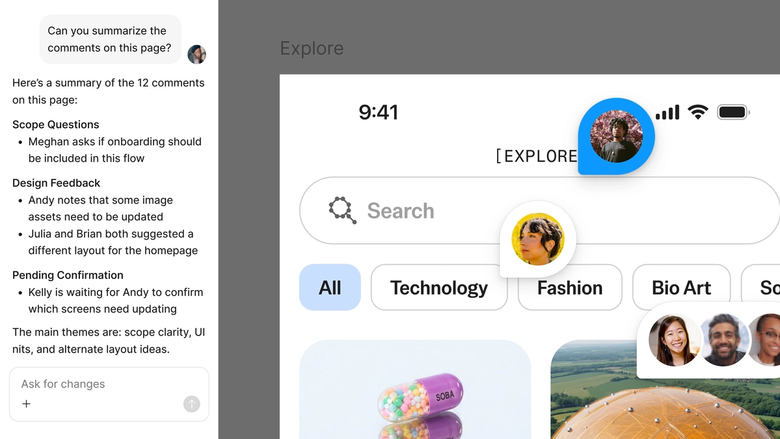
Set guardrails in your prompt—what to optimize, what to preserve—and select specific frames first. The agent edits exactly what you intend and leaves the rest untouched.
A closer look at what sets Figma's agent apart, built for the way design teams actually work.
Generate and refine using your actual components, tokens, and variables—not placeholder UI you'll have to swap out later.


Run multiple prompts at once so you're evaluating directions in parallel, not burning time on each one in sequence.


Share a thread and your team sees the full prompt, context, and iteration history behind any design. No separate handoff needed.


Package your team's workflows and conventions into reusable /commands anyone can run on demand.
Figma feels like a natural extension of my hand. I do my design ideation on the canvas, and now the agent takes it the last mile. With my design libraries connected, I can move from design to code faster than ever before.
Andy Madrick
Product Designer, Notion

Open your file in Figma Design and select the frame, section, or layout you want to improve.
Tell the agent what to fix—'balance the spacing,' 'improve visual hierarchy,' 'make this responsive'—and specify what to preserve.
Check the optimized layout on your canvas. Not quite there? Refine in the same thread or try a parallel direction.
Everything stays editable, so you can fine-tune by hand or prompt again until the layout works exactly as intended.
Watch Figma's AI Agent in action and see how to put it to work in your own workflows.


Hands-on playground to explore Figma agent's capabilities — from bulk edits to feedback implementation — with step-by-step guidance built right in.
Learn how to use Figma agent in your design workflows with a step-by-step tutorial from the Figma team.
An AI layout optimizer analyzes your existing design and suggests or applies improvements to spacing, alignment, visual hierarchy, and responsiveness. With Figma's agent, these optimizations happen directly on your canvas in Figma Design—adjusting your real layers instead of generating a separate mockup you'd need to rebuild.
Figma's agent reads the structure of your selected frame, understands the relationships between elements, and applies adjustments based on your prompt. It references your connected design library to maintain consistency with your spacing tokens, components, and established patterns. The result appears as editable layers on your canvas.
Figma's agent can generate responsive layout variants based on your prompts and design system. You specify the breakpoints and describe how content should adapt—whether elements stack vertically on mobile or expand horizontally on desktop. The agent produces multiple variants you can compare and refine, though you stay in control of the final design decisions.
AI layout optimization saves time on repetitive adjustments like spacing fixes, alignment corrections, and responsive adaptations. It lets you explore different layout approaches quickly without manual rebuilding. In Figma, these benefits happen right where your team already works, so optimizations stay connected to your shared file and design system.
Figma's agent is available on all paid Figma plans. You'll find it in the left side rail in Figma Design. During the current open beta, it doesn't consume AI credits—so it's a good time to explore, experiment, and share your feedback with us.
Build faster with Figma's agent


