

Connect to a design library
Generate and refine using your actual components, tokens, and variables—not placeholder UI you'll have to swap out later.
Skip to main content
Generate placeholder text, names, dates, and sample data that actually fits your design context—directly in Figma Design. No more lorem ipsum that breaks when the real copy arrives.











Stop designing around meaningless placeholder text. Fill your mockups with realistic content that helps you catch layout issues early and present work that actually communicates.

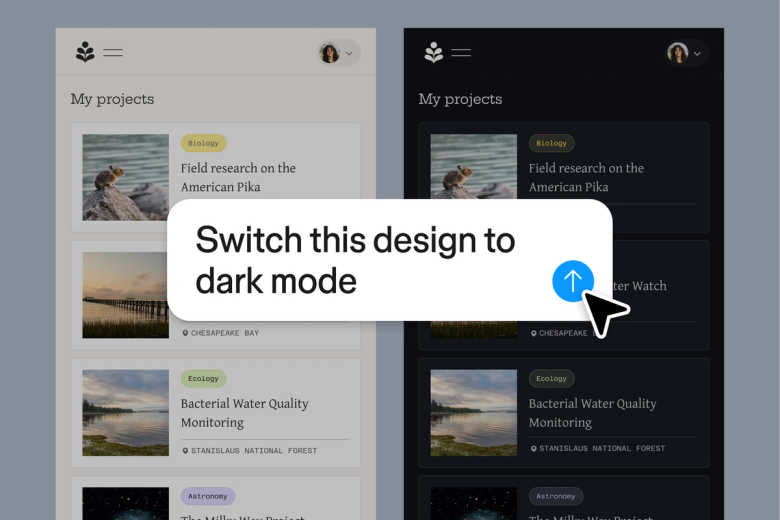
Figma's agent generates placeholder content that matches the context of your design—realistic names, addresses, product descriptions, and copy that flows naturally in your layouts instead of exposing problems only after handoff.

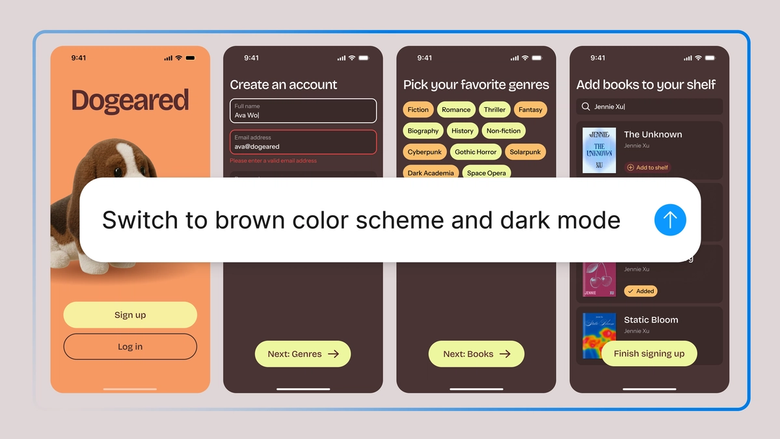
Stop hunting for sample data or writing fake content by hand. Describe what you need once—customer reviews, transaction histories, user bios—and let the agent fill multiple frames at once.

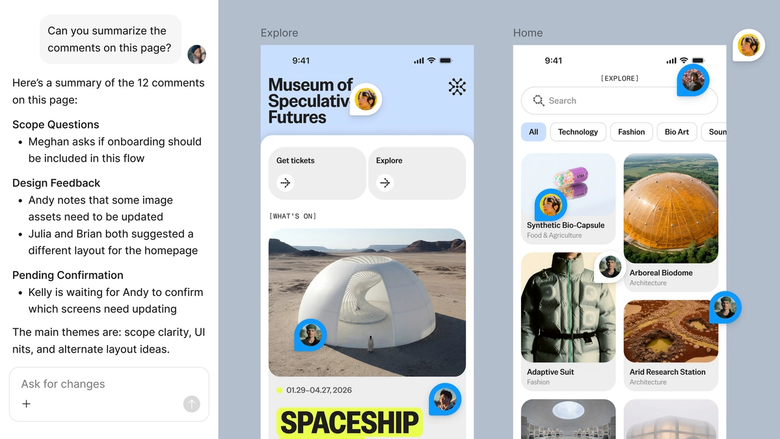
Filled content lives in the same file your team works in. Everyone sees realistic mockups during reviews, not lorem ipsum that hides spacing issues and forces imagination.
A closer look at what sets Figma's agent apart, built for the way design teams actually work.
Generate and refine using your actual components, tokens, and variables—not placeholder UI you'll have to swap out later.


Run multiple prompts at once so you're evaluating directions in parallel, not burning time on each one in sequence.


Share a thread and your team sees the full prompt, context, and iteration history behind any design. No separate handoff needed.


Package your team's workflows and conventions into reusable /commands anyone can run on demand.
Figma feels like a natural extension of my hand. I do my design ideation on the canvas, and now the agent takes it the last mile. With my design libraries connected, I can move from design to code faster than ever before.
Andy Madrick
Product Designer, Notion

Open your file in Figma Design and select the frames, text layers, or components you want to populate with content.
Tell the agent what kind of content to generate—product names, user reviews, email addresses, dates—and any constraints like character limits or tone.
Check how the generated content looks in your layout. Refine in the same thread to adjust length or style, or try a parallel prompt for different variations.
Everything stays editable on the canvas. Adjust by hand, prompt again for different examples, or regenerate specific sections until the mockup feels real.
Watch Figma's AI Agent in action and see how to put it to work in your own workflows.


Hands-on playground to explore Figma agent's capabilities — from bulk edits to feedback implementation — with step-by-step guidance built right in.
Learn how to use Figma agent in your design workflows with a step-by-step tutorial from the Figma team.
AI content filler generates realistic placeholder content for design mockups—things like names, addresses, product descriptions, and sample data. Unlike traditional lorem ipsum, AI-generated filler can match the context and tone of your actual content, helping you catch layout issues early. Figma's agent creates this content directly on your canvas, so it flows naturally into your existing frames and text layers.
Figma's agent analyzes your selected frames and text layers, then generates content that fits the context you describe. You tell it what kind of content you need—customer reviews, transaction dates, user bios—and it fills your design with realistic examples. The content respects your text styles and constraints, and you can refine with follow-up prompts until it looks right.
Lorem ipsum is generic scrambled Latin that fills space but tells you nothing about how real content will behave. AI filler text generates contextually relevant content—actual product names, realistic descriptions, plausible user data—that helps you design for real-world conditions. Figma's agent creates filler that matches your design context, so you spot issues before the real copy arrives.
In Figma Design, select the frames or text layers you want to fill, then open the agent from the left side rail or hit CMD + Enter. Describe the content you need—be specific about type, tone, and length—and the agent generates realistic examples directly in your design. Refine with follow-up prompts or try parallel directions to explore different content variations.
Figma's agent is available on all paid Figma plans. You'll find it in the left side rail in Figma Design. During the current open beta, it doesn't consume AI credits—so it's a good time to explore, experiment, and share your feedback with us.
Build faster with Figma's agent


