

Connect to a design library
Generate and refine using your actual components, tokens, and variables—not placeholder UI you'll have to swap out later.
Skip to main content
Figma's agent spins up multiple variations from one prompt—multiple layouts, themes, or responsive designs—right in the canvas your team shares. Compare real options instead of switching tabs.











A variation generator should help you explore, not just repeat. Figma's agent generates real options on your canvas so you can compare directions, cut the busywork, and keep your team aligned.

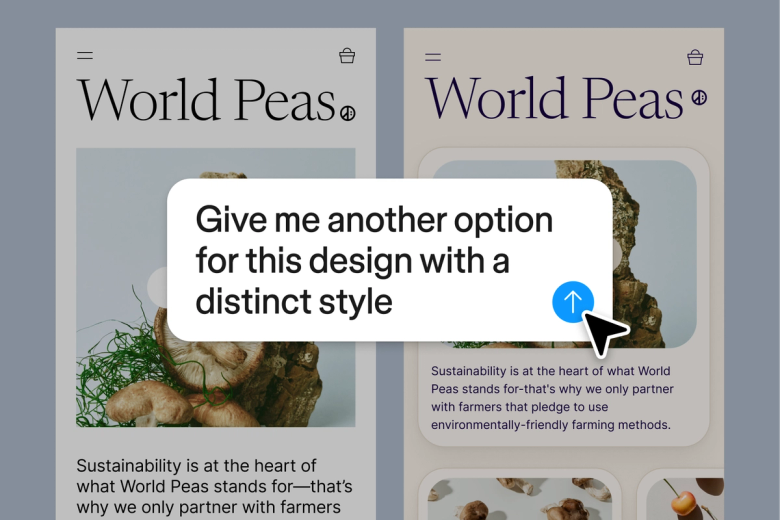
Skip rebuilding the same design five ways by hand. Generate variations in seconds and keep your focus on choosing the strongest direction.

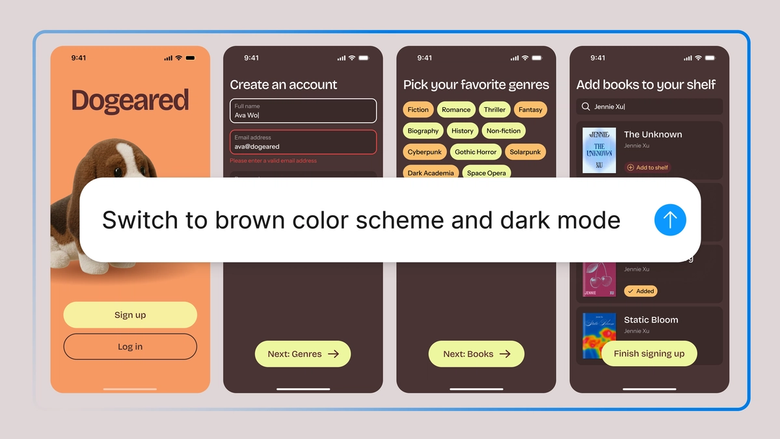
Use a variation generator that builds from your design context, so every layout, theme, or responsive option looks like your product—not a generic placeholder.

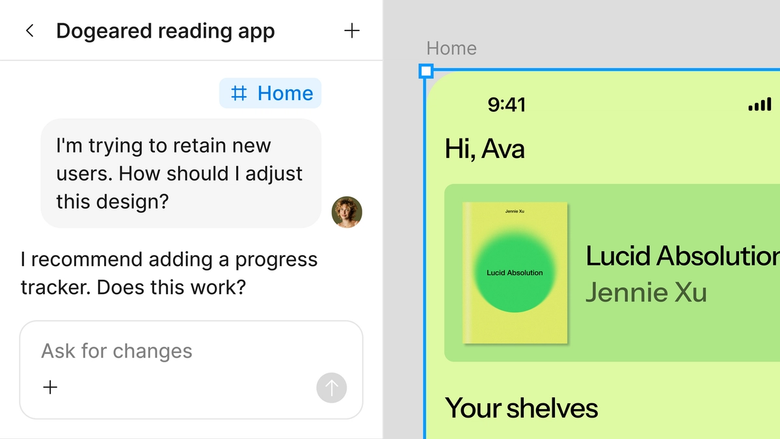
Generate options in the same file your team works in, share the thread, and let everyone weigh in on real directions instead of static screenshots.
A closer look at what sets Figma's agent apart, built for the way design teams actually work.
Generate and refine using your actual components, tokens, and variables—not placeholder UI you'll have to swap out later.


Run multiple prompts at once so you're evaluating directions in parallel, not burning time on each one in sequence.


Share a thread and your team sees the full prompt, context, and iteration history behind any design. No separate handoff needed.


Package your team's workflows and conventions into reusable /commands anyone can run on demand.
Figma feels like a natural extension of my hand. I do my design ideation on the canvas, and now the agent takes it the last mile. With my design libraries connected, I can move from design to code faster than ever before.
Andy Madrick
Product Designer, Notion

Open Figma Design and add a frame to work in. Open the agent from the left navigation bar to get started.
Tell the agent what to vary—mutliple layouts, styles and themes, responsive designs— and point it to your design library so variations stay on-brand.
Compare the variations on your canvas. Refine in the same thread, or open a parallel one to explore another direction.
Turn a recurring variation workflow into a reusable skill so the agent can run it the same way next time.
Watch Figma's AI Agent in action and see how to put it to work in your own workflows.


Hands-on playground to explore Figma agent's capabilities — from bulk edits to feedback implementation — with step-by-step guidance built right in.
Learn how to use Figma agent in your design workflows with a step-by-step tutorial from the Figma team.
A variation generator automatically produces multiple versions of an input—a design, image, layout, or set of parameters. Teams use them to explore ideas faster and skip building permutations by hand. With Figma's agent, you generate variations right on your canvas, using your real design system.
Open the agent from the left navigation bar in Figma Design, or tap the AI icon next to selected layers, then describe the variation you want. Add images or existing designs to the canvas as reference, so the agent works from real context instead of guesswork.
There's no hard cap. You can run multiple prompts in parallel threads. The more specific you are, the better. A clear prompt plus context, like a linked library or reference image, gets you closer to what you're after.
Generative AI sometimes produces results that miss the mark, and that's normal. Refine your prompt with more specific language, add a reference to the canvas, or start a fresh thread to approach it from a new angle. Treat the first output as a starting point.
Figma's agent is available on all paid Figma plans. You'll find it in the left navigation bar in Figma Design. During the current open beta, it doesn't consume AI credits—so it's a good time to explore, experiment, and share your feedback.
Build faster with Figma's agent


