

Connect your design library
Point the agent to your Figma design library so it can swap imported elements for your real components, tokens, and styles.
Skip to main content
Import your Sketch files directly into Figma Design and pick up where you left off. Layers, symbols, and styles come through so you can keep building—not rebuilding from scratch.











Figma's agent helps you convert and refine Sketch imports on your canvas, so you spend less time fixing files and more time designing.


Drop your Sketch file into Figma Design and start editing right away. Layers, groups, and basic styles transfer over so you're not starting from a blank canvas or rebuilding structure you already had.

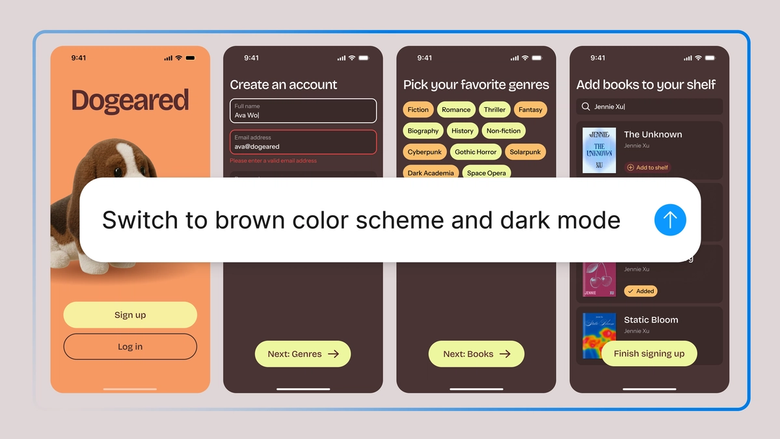
Use the agent to batch-fix inconsistencies, convert imported elements to your design system, or reorganize layers after import. Describe what needs fixing and let the agent handle the repetitive work.

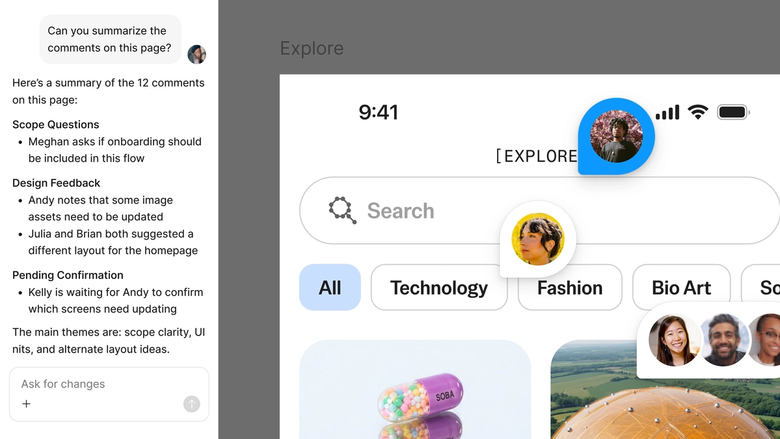
Once your Sketch files live in Figma, your whole team works from the same source of truth. No more version confusion or files scattered across different tools.
A closer look at what sets Figma's agent apart, built for the way design teams actually work.
Point the agent to your Figma design library so it can swap imported elements for your real components, tokens, and styles.


Import not quite right? Prompt the agent to fix layer naming, reorganize groups, or batch-update styles in the same thread.


Share a thread and your team sees the full prompt and context behind any cleanup or conversion decision. No separate handoff needed.


Every imported and converted element lands on your canvas as editable layers. Nothing gets flattened or locked away.
Figma feels like a natural extension of my hand. I do my design ideation on the canvas, and now the agent takes it the last mile. With my design libraries connected, I can move from design to code faster than ever before.
Andy Madrick
Product Designer, Notion

Drag and drop your Sketch file into Figma Design, or use File > Import. Figma reads the file and brings layers, groups, and symbols onto your canvas.
Check what came through. Note any symbols, fonts, or styles that need attention or conversion to your Figma library.
Open the agent and describe what needs fixing—swap symbols for components, batch-rename layers, or update colors to your design system.
Everything stays editable on your canvas. Continue prompting to polish the import, or start designing new work in the same file.
Watch Figma's AI Agent in action and see how to put it to work in your own workflows.


Hands-on playground to explore Figma agent's capabilities — from bulk edits to feedback implementation — with step-by-step guidance built right in.
Learn how to use Figma agent in your design workflows with a step-by-step tutorial from the Figma team.
Figma can import Sketch files directly. Drag and drop the file into Figma Design or use File > Import. Layers, groups, and symbols transfer over automatically. After import, the agent can help clean up inconsistencies or convert elements to match an existing Figma design library.
Yes. Figma reads Sketch files natively—no conversion tool or plugin required. Import the file directly into a Figma Design file and the structure comes through onto the canvas. From there, everything is fully editable in Figma.
Sketch symbols import as Figma components. The structure and overrides generally carry over, though some may need adjustment depending on complexity. The agent can help batch-convert imported symbols to match components in an existing Figma design library.
Font names transfer, but Figma needs access to the same fonts to render text correctly. If a font isn't available, Figma flags the missing font so it can be installed or substituted. The agent can help batch-update text styles after import.
Figma's agent is available on all paid Figma plans. You'll find it in the left navigation bar in Figma Design. During the current open beta, it doesn't consume AI credits—so it's a good time to explore, experiment, and share your feedback with us.
Build faster with Figma's agent


