

Connect your design library
Point the agent to your design system so generated code references your real tokens, variables, and component structure—not generic placeholders.
Skip to main content
Turn your Figma designs into production-ready code with AI—directly in your file. No exporting, no rebuilding in a separate tool, no broken handoffs between design and development.











Figma's agent translates your real layers, components, and styles into code developers can use—keeping everyone working in the same file.

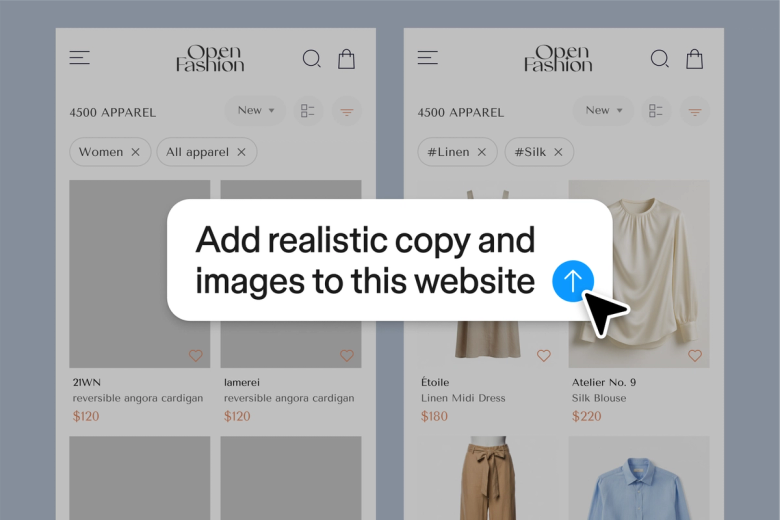
Figma's agent reads your actual layers, spacing, and components to produce code that reflects what you built—not a rough approximation that needs rebuilding from scratch.

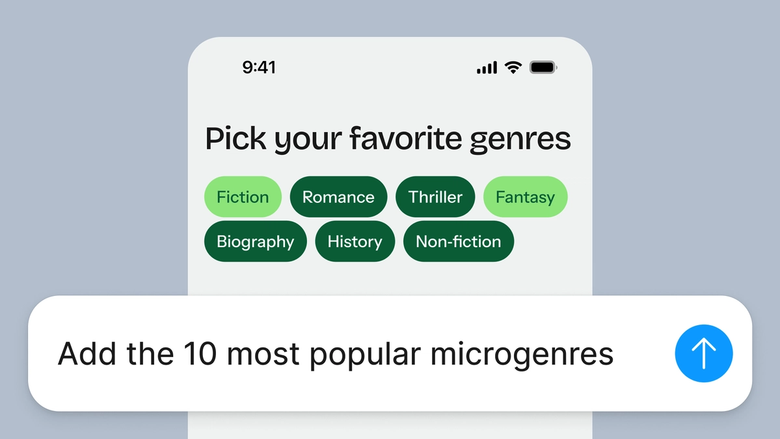
Skip the back-and-forth of exporting specs, annotating redlines, and fielding questions about padding. The agent translates your design decisions into code developers can run with.

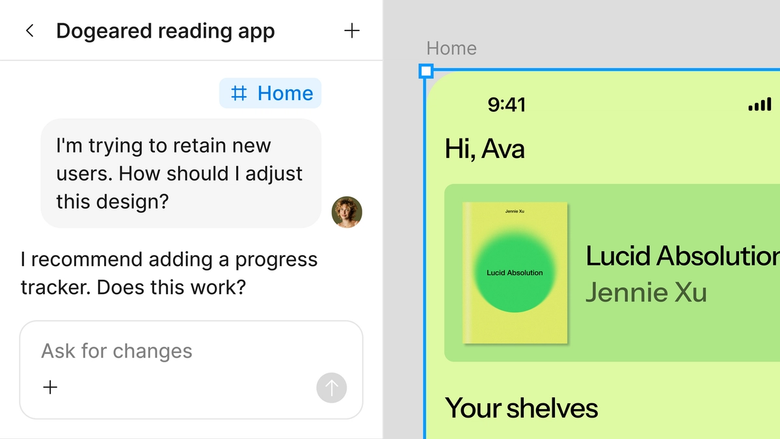
Code generation happens in the same file your team designs in, so everyone sees the source of truth. No outdated exports floating around, no confusion about which version is current.
A closer look at what sets Figma's agent apart, built for the way design teams actually work.
Point the agent to your design system so generated code references your real tokens, variables, and component structure—not generic placeholders.


Explore multiple code outputs at once—try a React version and an HTML version simultaneously, then pick the one that fits your stack.


Share a thread and your team sees the full prompt, design context, and code output. Developers get the why behind the what.


First output not quite right? Adjust in the same thread—ask for responsive breakpoints, different syntax, or cleaner naming conventions.
Figma feels like a natural extension of my hand. I do my design ideation on the canvas, and now the agent takes it the last mile. With my design libraries connected, I can move from design to code faster than ever before.
Andy Madrick
Product Designer, Notion

Open your file in Figma Design and select the frame, component, or section you want to convert to code.
Tell the agent what you need—HTML and CSS, React components, or a specific framework. Mention any conventions your team follows.
Check the generated output on your canvas. Not quite right? Refine in the same thread or try a parallel prompt for a different approach.
Share the thread with your developers. They see your design, prompt, and generated code in one place—ready to implement or iterate.
Watch Figma's AI Agent in action and see how to put it to work in your own workflows.


Hands-on playground to explore Figma agent's capabilities — from bulk edits to feedback implementation — with step-by-step guidance built right in.
Learn how to use Figma agent in your design workflows with a step-by-step tutorial from the Figma team.
A Figma to code converter translates visual designs into production-ready code—HTML, CSS, React, or other formats. Figma's agent does this directly on your canvas, reading your actual layers, components, and design tokens to generate code that matches what you built. No separate tool or export step required.
In Figma Design, select the frame or component you want to convert, then open the agent from the left side rail or press CMD + Enter. Describe what output you need—React, HTML, responsive CSS—and the agent generates code based on your actual design layers. Refine with follow-up prompts until it's ready for development.
Figma's agent can generate code from your designs when you prompt it. Select a frame, describe the output format you need, and the agent translates your layers into code. It's not fully automatic—you guide the process with prompts—but it handles the translation work so you don't have to rebuild manually.
Accuracy depends on how well-structured your design is. Figma's agent reads your real layers, spacing, and component hierarchy, so clean, organized files produce cleaner code. You can refine outputs with follow-up prompts—adjusting naming conventions, responsive behavior, or syntax—until the code matches your standards.
Figma's agent is available on all paid Figma plans. You'll find it in the left side rail in Figma Design. During the current open beta, it doesn't consume AI credits—so it's a good time to explore, experiment, and share your feedback with us.
Build faster with Figma's agent


