

Connect a design library
Point the agent to your library, and it pulls in your button styles, color tokens, and spacing—so every table matches your system from the start.
Skip to main content
Tell Figma's agent what tiers you need, and it builds a pricing table using your real components and styles—directly in Figma Design. No templates to customize, no separate tools to juggle.











From early exploration to final handoff, pricing tables that use your real tokens and stay in sync with your team.


Figma's agent generates pricing tables using your actual components, colors, and type styles—not placeholder boxes you'll have to rebuild. Explore three-tier, feature-comparison, and toggle layouts all in one prompt.

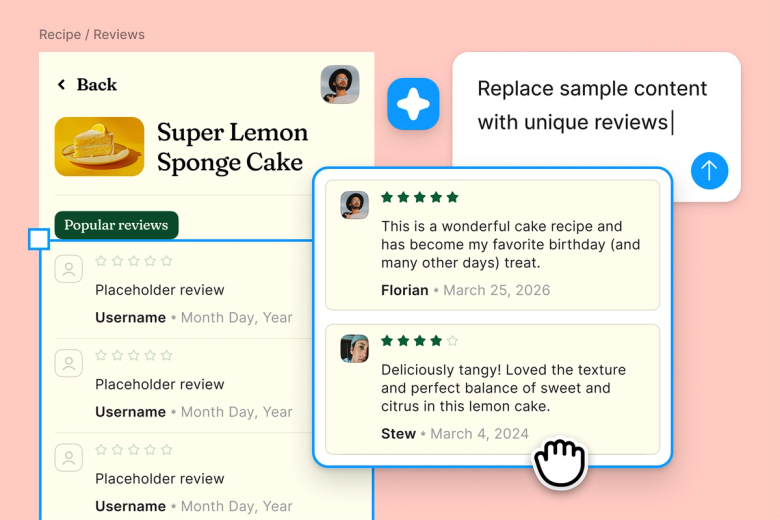
Skip the manual setup of columns, feature rows, and badge styling. Describe your tiers and let the agent scaffold the structure, so you can focus on the positioning and pricing decisions that matter.

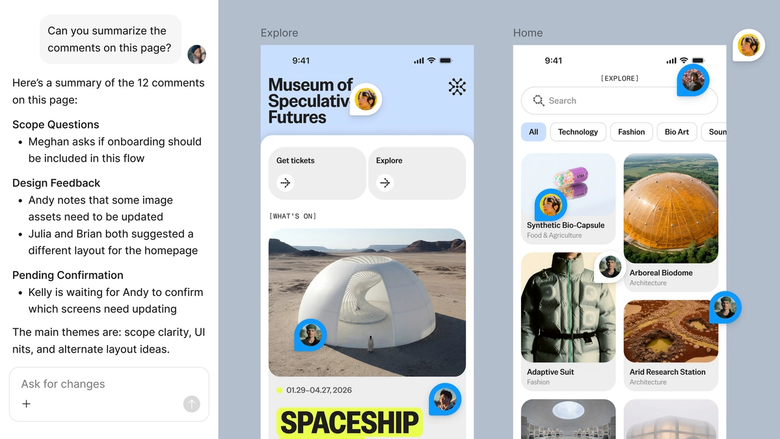
Every table lands in your shared file, ready for feedback. Stakeholders see the real design—not a screenshot—and developers can inspect tokens right away. Nothing gets lost in export.
A closer look at what sets Figma's agent apart, built for the way design teams actually work.
Point the agent to your library, and it pulls in your button styles, color tokens, and spacing—so every table matches your system from the start.


Run multiple prompts at once to explore horizontal layouts, vertical cards, and feature-comparison grids—all without waiting for one to finish.


Share a thread and your team sees the full prompt, context, and iterations behind the table. No screenshot handoffs, no lost rationale.


Package your best pricing table prompts into reusable /commands your team can run whenever a new page needs a table.
Figma feels like a natural extension of my hand. I do my design ideation on the canvas, and now the agent takes it the last mile. With my design libraries connected, I can move from design to code faster than ever before.
Andy Madrick
Product Designer, Notion

Select Agents in the left side rail or hit CMD + Enter. Add a frame to your canvas to work in.
Tell the agent how many tiers you need, what features to highlight, and point it to your design library so it uses your real components.
Check the generated table. Refine in the same thread or start a parallel one to explore a different layout direction.
Prompt again to adjust feature rows, toggle states, or highlight styles—or fine-tune by hand. Everything stays editable.
Watch Figma's AI Agent in action and see how to put it to work in your own workflows.


Hands-on playground to explore Figma agent's capabilities — from bulk edits to feedback implementation — with step-by-step guidance built right in.
Learn how to use Figma agent in your design workflows with a step-by-step tutorial from the Figma team.
An AI pricing table generator uses natural language prompts to build structured pricing layouts—columns, feature rows, badges, and CTAs—without manual setup. Figma's agent creates tables directly on your design canvas using your existing components and styles, so you start from a polished foundation instead of a blank frame.
Open Figma's agent from the left side rail or press CMD + Enter. Describe the tiers you need, the features to include, and the layout style you're aiming for. The agent generates a fully editable pricing table on your canvas using your design library, ready to refine or hand off.
Strong pricing tables clearly differentiate tiers, highlight the most popular option, list features in a scannable way, and use consistent CTAs. Figma's agent can scaffold all of these elements using your real buttons, colors, and type styles—so you focus on content and positioning rather than layout mechanics.
Yes. Every table the agent generates lands on your canvas as fully editable layers tied to your design system. You can adjust spacing, swap components, rewrite copy, or prompt again to iterate—nothing gets flattened or locked away.
Figma's agent is available on all paid Figma plans. You'll find it in the left side rail in Figma Design. During the current open beta, it doesn't consume AI credits—so it's a good time to explore, experiment, and share your feedback with us.
Build faster with Figma's agent


