Every 3D model, one canvas
Access leading AI models for 3D generation without juggling subscriptions. Test different approaches—mesh generation, text-to-3D, style transfer—in the same workflow, choosing what works best for each mark.
Skip to main content
Generate dimensional brand marks with full control over every step.

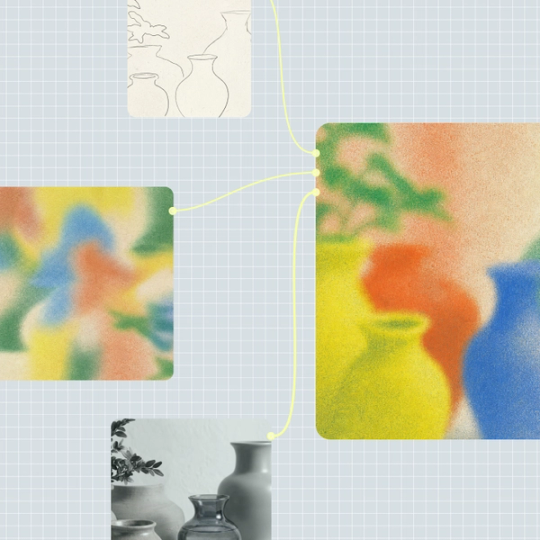
Weave connects 3D generation models to professional editing on a single canvas. Build your logo pipeline once—lighting, materials, angles—then iterate or scale without starting over.
Access leading AI models for 3D generation without juggling subscriptions. Test different approaches—mesh generation, text-to-3D, style transfer—in the same workflow, choosing what works best for each mark.

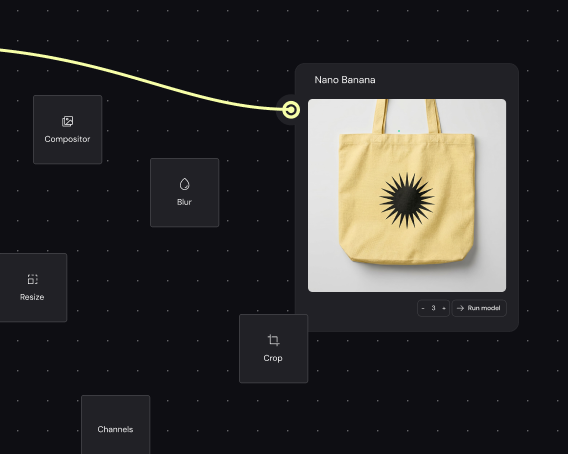
Refine your 3D logos without exporting to another tool. Adjust lighting, materials, and camera angles directly on the canvas. Color grade and composite onto brand assets—all connected to your generation pipeline.

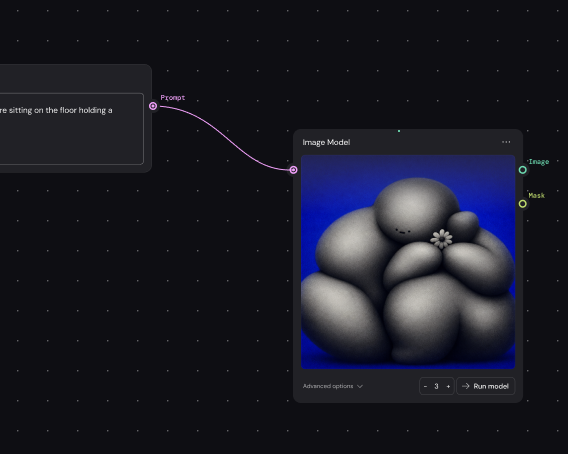
Your logo pipeline is visible as connected nodes—prompt, model, lighting, render angle. Adjust one variable without regenerating everything. Your creative direction lives in the workflow, not a black box.

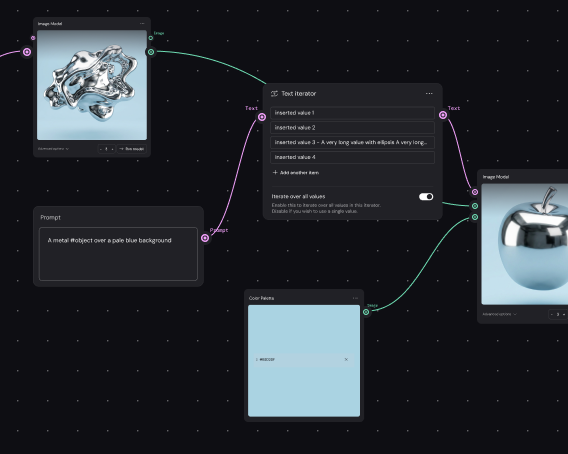
Build your 3D logo workflow once, then run it across colorways, lockups, and applications. Produce consistent dimensional marks for every touchpoint without rebuilding the process each time.
More resources
See how the Figma Community is using Figma Weave to create AI-generated images, video, and 3D.
An AI 3D logo maker uses generative models to create dimensional brand marks from text prompts or reference images. Figma Weave connects multiple 3D generation models to professional editing tools, so you can generate and refine logos in one place.
AI models interpret your text prompt or reference to create three-dimensional geometry, then apply materials and lighting. In Weave, you control each step—generation, materials, camera angle—as visible nodes in your workflow.
You can get started with Figma Weave for free. Advanced features and higher usage are available on paid plans. The free tier lets you explore 3D generation and build initial workflows.
In Weave, connect a text-to-3D model node, enter your prompt describing the logo concept, then add rendering nodes to control lighting and materials. Run the pipeline to generate your dimensional mark.
Commercial use rights depend on the specific AI models used in your workflow. Weave gives you access to multiple model providers—check each provider's terms for commercial licensing details on generated outputs.
Weave's compositing tools let you render your 3D logo with alpha transparency. Export your final mark with a transparent background ready for placement on any brand asset or application.

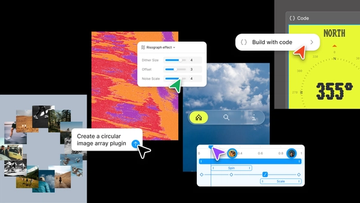
Push past what you thought was possible with code layers, Figma Motion, shaders, generative plugins and Weave tools, all on the canvas.

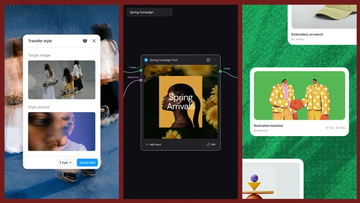
Today, we’re announcing new ways your Weave creative workflows can live alongside your Figma frames.
Aleph 2.0 brings frame-level creative direction to the Figma Weave canvas.

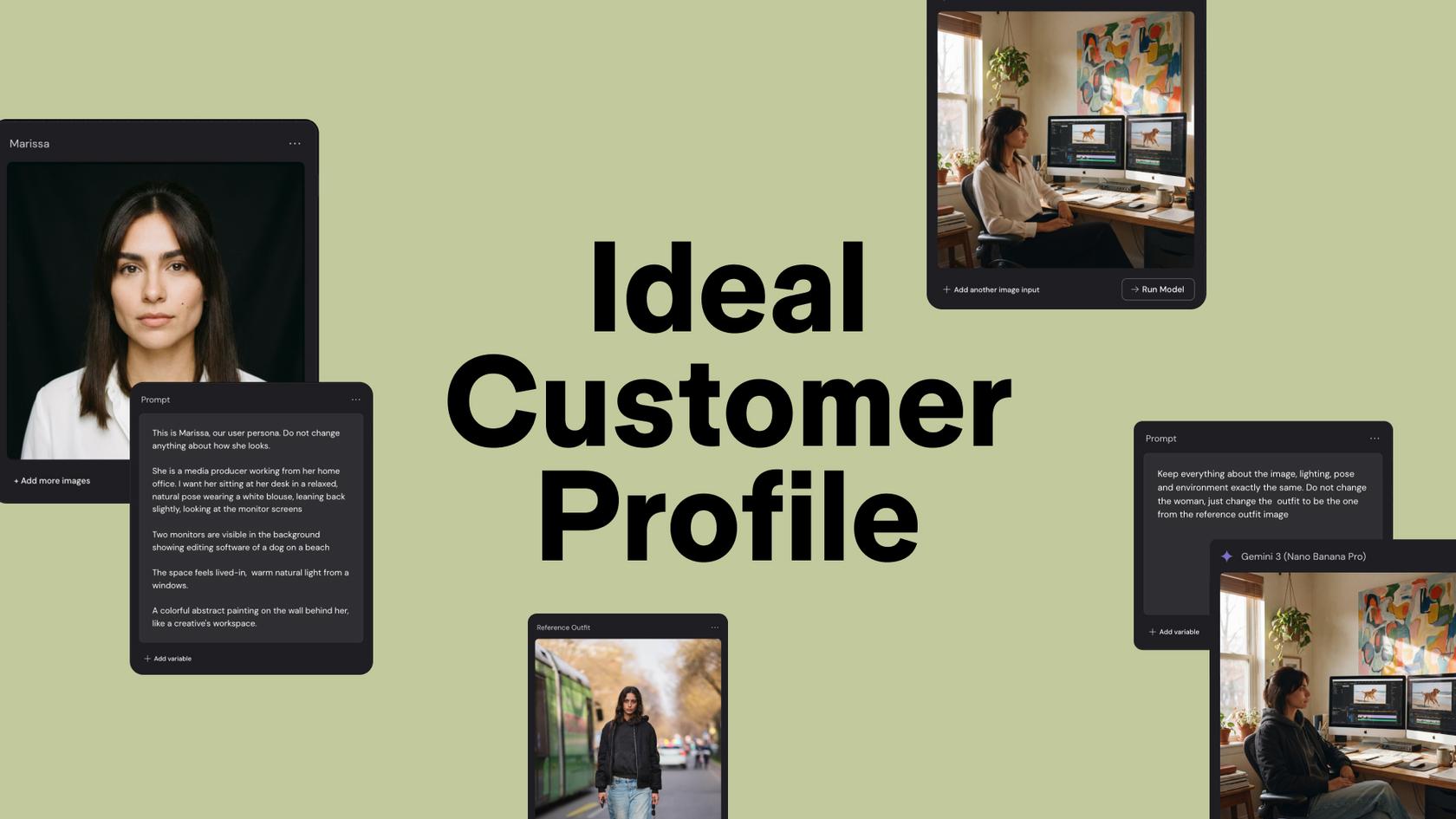
Lead Product Designer at Dropbox Sara Clayton used Figma Weave to add dimension to an Ideal Customer Profile in under two minutes. Steal her template to make your users feel real.

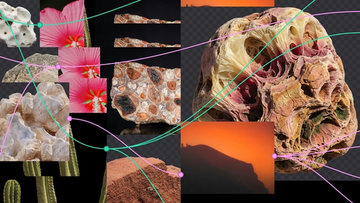
To build upon a visual language with AI, you need to harness the logic behind each prompt—building, editing, and directing how visuals come to life. Here, we share five creative workflows that show the breadth of what the Figma Weave canvas can do.
For our annual April Fun Day, we used Figma Make, Weave, and MCP to build six mini games that captured the spirit of play. Here’s what we learned.