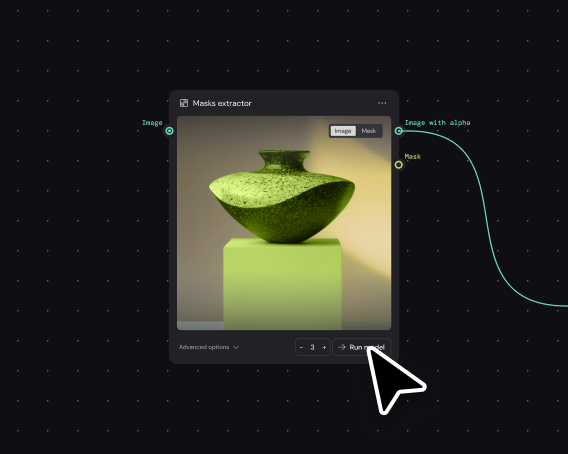
Let the team run it without rebuilding it
The expert builds the batch workflow once. Everyone else uses a simplified interface — drop in inputs, get consistent outputs. No bottleneck on one person's judgment for every production run.
Skip to main content
Run one workflow across hundreds of inputs, with every step visible and controlled.

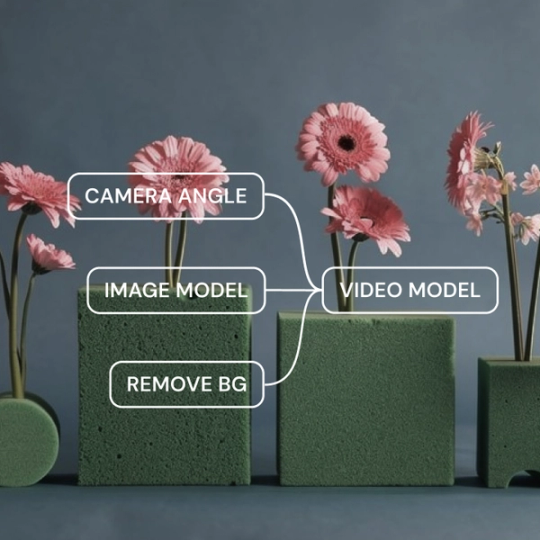
Batch processing in Weave isn't a black box. Every model, edit, and decision flows through a visible pipeline you build once and run at volume — keeping creative standards consistent across every output.
The expert builds the batch workflow once. Everyone else uses a simplified interface — drop in inputs, get consistent outputs. No bottleneck on one person's judgment for every production run.

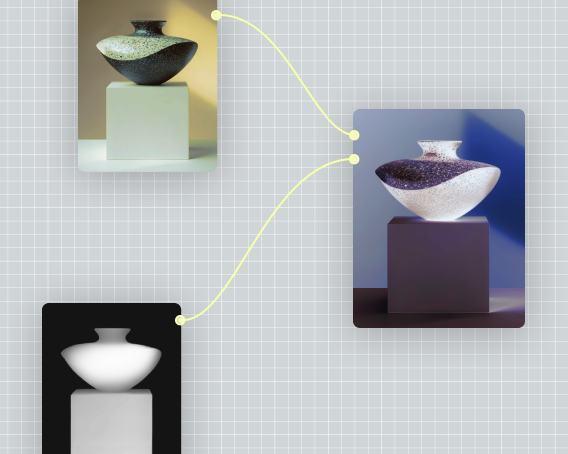
Batch processing usually hides the work. Weave's node-based canvas shows exactly how each asset moves through the pipeline — what models touch it, what edits apply, and where to adjust if something's off.

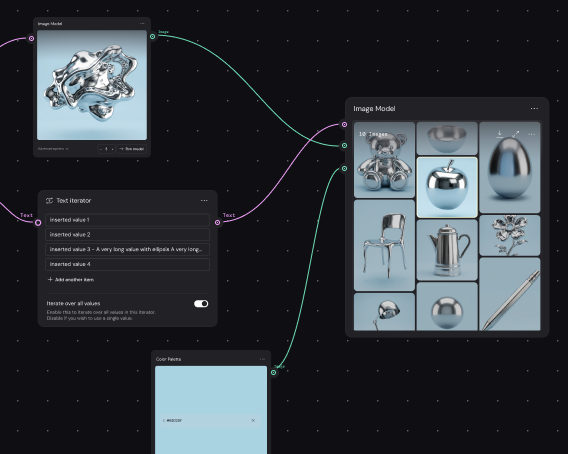
Campaign variants, regional assets, format adaptations — build the pipeline once and feed it new inputs whenever you need them. The creative logic is encoded, not rebuilt every time.

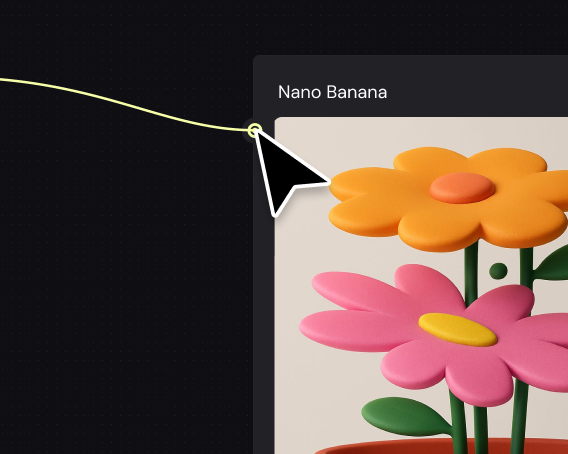
Connect image, video, audio, and 3D models from multiple providers into a single batch pipeline. No juggling subscriptions or moving files between tools — process everything through one canvas.
More resources
See how the Figma Community is using Figma Weave to create AI-generated images, video, and 3D.
AI batch processing lets you run a single workflow across many inputs at once. In Weave, this means building a node-based pipeline — choosing models, adding edits — and then processing hundreds of assets through it with consistent results.
Single-asset workflows require manual repetition for each input. Batch processing in Weave runs your entire pipeline across multiple inputs automatically, keeping every creative decision consistent while dramatically reducing the time per asset.
Figma Weave supports batch processing across image, video, audio, and 3D generation. You can mix models from different providers in the same pipeline, processing varied asset types in a single workflow.
Yes. Weave pipelines are fully adjustable between runs. Swap a model, change a color grade, or update a prompt — then run the updated workflow across your next batch without rebuilding from scratch.
Weave keeps professional editing tools inside the batch pipeline. Masking, color grading, and compositing apply consistently to every asset. The node-based canvas also lets you review exactly what happened to each output.
You can get started with Figma Weave for free. Advanced features and higher usage volumes are available on paid plans. Check the Weave pricing page for current details.

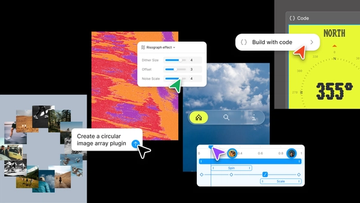
Push past what you thought was possible with code layers, Figma Motion, shaders, generative plugins and Weave tools, all on the canvas.

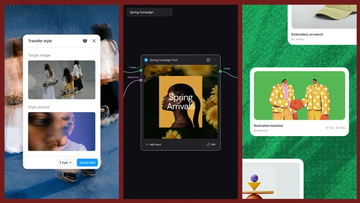
Today, we’re announcing new ways your Weave creative workflows can live alongside your Figma frames.
Aleph 2.0 brings frame-level creative direction to the Figma Weave canvas.

Lead Product Designer at Dropbox Sara Clayton used Figma Weave to add dimension to an Ideal Customer Profile in under two minutes. Steal her template to make your users feel real.

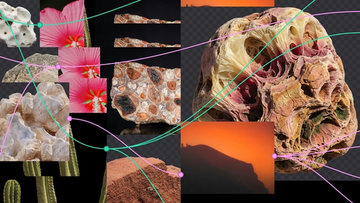
To build upon a visual language with AI, you need to harness the logic behind each prompt—building, editing, and directing how visuals come to life. Here, we share five creative workflows that show the breadth of what the Figma Weave canvas can do.
For our annual April Fun Day, we used Figma Make, Weave, and MCP to build six mini games that captured the spirit of play. Here’s what we learned.