AI outpainting tool

Extend any image seamlessly, with every model and editing tool in one canvas.

Expand images with precision and creative control

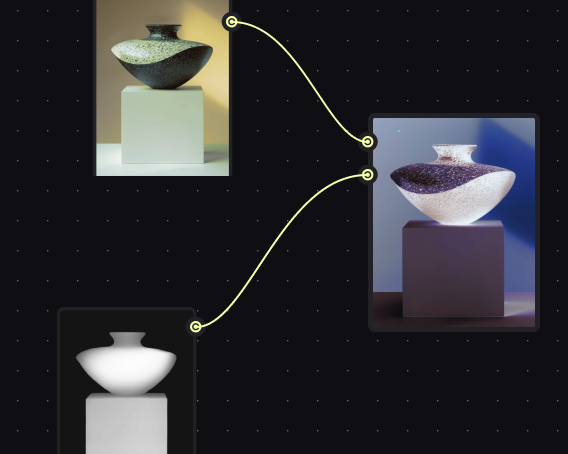
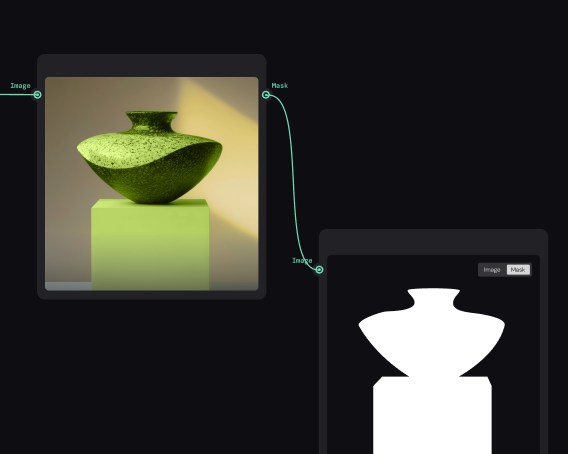
Outpainting works best when you control what happens at the edges. Weave connects AI expansion to masking, color matching, and compositing — so extended areas blend seamlessly with your original frame.

  • Blend extended areas with professional tools

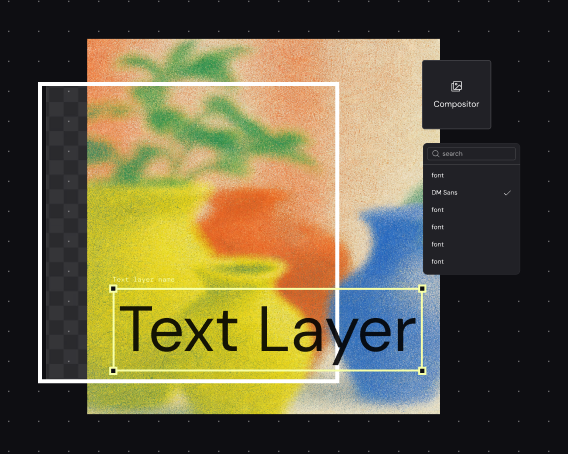
    Raw AI outpainting often needs refinement. Weave puts masking, color grading, and compositing directly in your pipeline — match lighting, fix seams, and blend new edges into your original frame without exporting anywhere.

  • Every AI model, one canvas

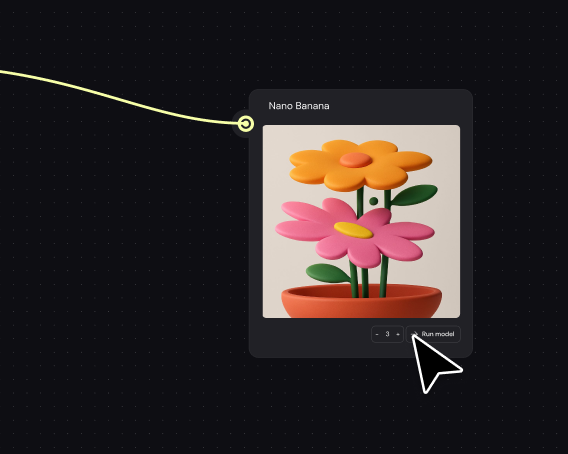
    Access leading AI models for image generation and expansion without juggling subscriptions. Test different models on the same outpaint task — some handle landscapes better, others excel at architectural detail. Find what works for your image.

  • Control every step of the expansion

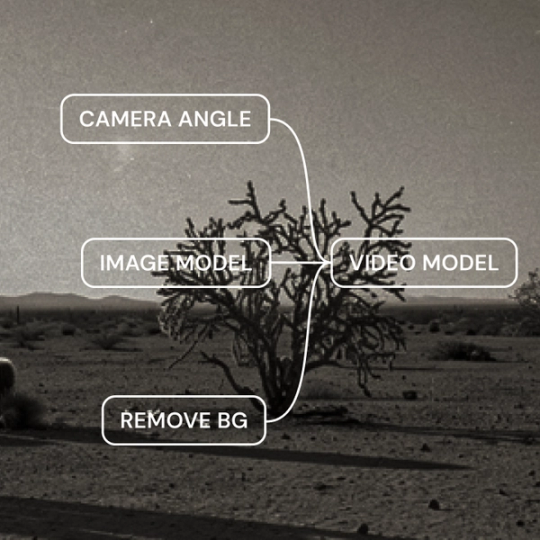
    Outpainting isn't one decision — it's direction, edge handling, and refinement. Weave makes each step a visible node you control: define expansion zones, choose models, refine edges. Your creative direction stays in the work.

  • Share expansion workflows with your team

    Build a reliable outpainting pipeline with your preferred models and finishing touches. Your team runs it through a simplified interface — upload an image, define the expansion, get a polished result without needing to understand every node.

How to extend images with AI outpainting in Figma Weave

Built by our community

See how the Figma Community is using Figma Weave to create AI-generated images, video, and 3D.

FAQ

AI outpainting extends an image beyond its original borders by generating new content that matches the existing composition. Figma Weave lets you control this process through a node-based pipeline, connecting expansion models to editing tools that help blend new areas seamlessly with your original frame.

In Figma Weave, you define the expansion area, choose an AI model suited to your image type, and run the generation. The node-based canvas lets you add refinement steps — masking, color grading, edge blending — directly in the same workflow.

Inpainting fills in or replaces content within an existing image boundary. Outpainting generates new content outside the original frame to expand the image. Figma Weave supports both techniques and lets you combine them in a single workflow for comprehensive image editing.

Yes, landscape photography is one of the strongest use cases for AI outpainting. Weave gives you access to models that handle natural environments well, plus editing tools to match lighting and color across the expanded sky, horizon, or foreground.

Weave's professional editing tools address this directly. Use masking to isolate problem areas, color grading to match tones across the seam, and compositing to blend the transition. These refinements happen in the same canvas as your generation — no exporting required.

Figma Weave is Figma's node-based canvas for AI generation and editing, including outpainting. You can get started with Figma Weave for free. Advanced features and higher usage are available on paid plans.

Become an agent expert

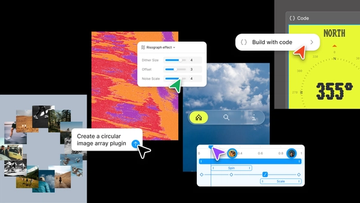
Collage-style product graphic showcasing AI-assisted design and development workflows, with plugin creation prompts, visual effect controls, code generation tools, and interactive UI components arranged across a creative workspace.Collage-style product graphic showcasing AI-assisted design and development workflows, with plugin creation prompts, visual effect controls, code generation tools, and interactive UI components arranged across a creative workspace.

Config 2026: New materials, new tools and a more expressive canvas

Push past what you thought was possible with code layers, Figma Motion, shaders, generative plugins and Weave tools, all on the canvas.

Learn more
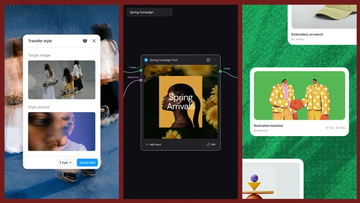
Three-panel product graphic demonstrating AI-powered style transfer. On the left, a "Transfer style" interface displays a target image of people carrying skateboards and a blurred portrait used as the style source. In the center, a workflow canvas labeled "Spring Campaign" shows a connected post-generation node producing a floral-themed social media graphic titled "Spring Arrivals." On the right, a gallery-style layout displays generated creative assets, including an illustrated handshake artwork and merchandise design cards, showing how transferred styles can be applied across a campaign.Three-panel product graphic demonstrating AI-powered style transfer. On the left, a "Transfer style" interface displays a target image of people carrying skateboards and a blurred portrait used as the style source. In the center, a workflow canvas labeled "Spring Campaign" shows a connected post-generation node producing a floral-themed social media graphic titled "Spring Arrivals." On the right, a gallery-style layout displays generated creative assets, including an illustrated handshake artwork and merchandise design cards, showing how transferred styles can be applied across a campaign.

Connecting Figma and Weave

Today, we’re announcing new ways your Weave creative workflows can live alongside your Figma frames.

Learn more

Direct every frame with Runway Aleph 2.0, now in Figma Weave

Aleph 2.0 brings frame-level creative direction to the Figma Weave canvas.

Learn more
An abstract flower with leaves turning into nodesAn abstract flower with leaves turning into nodes

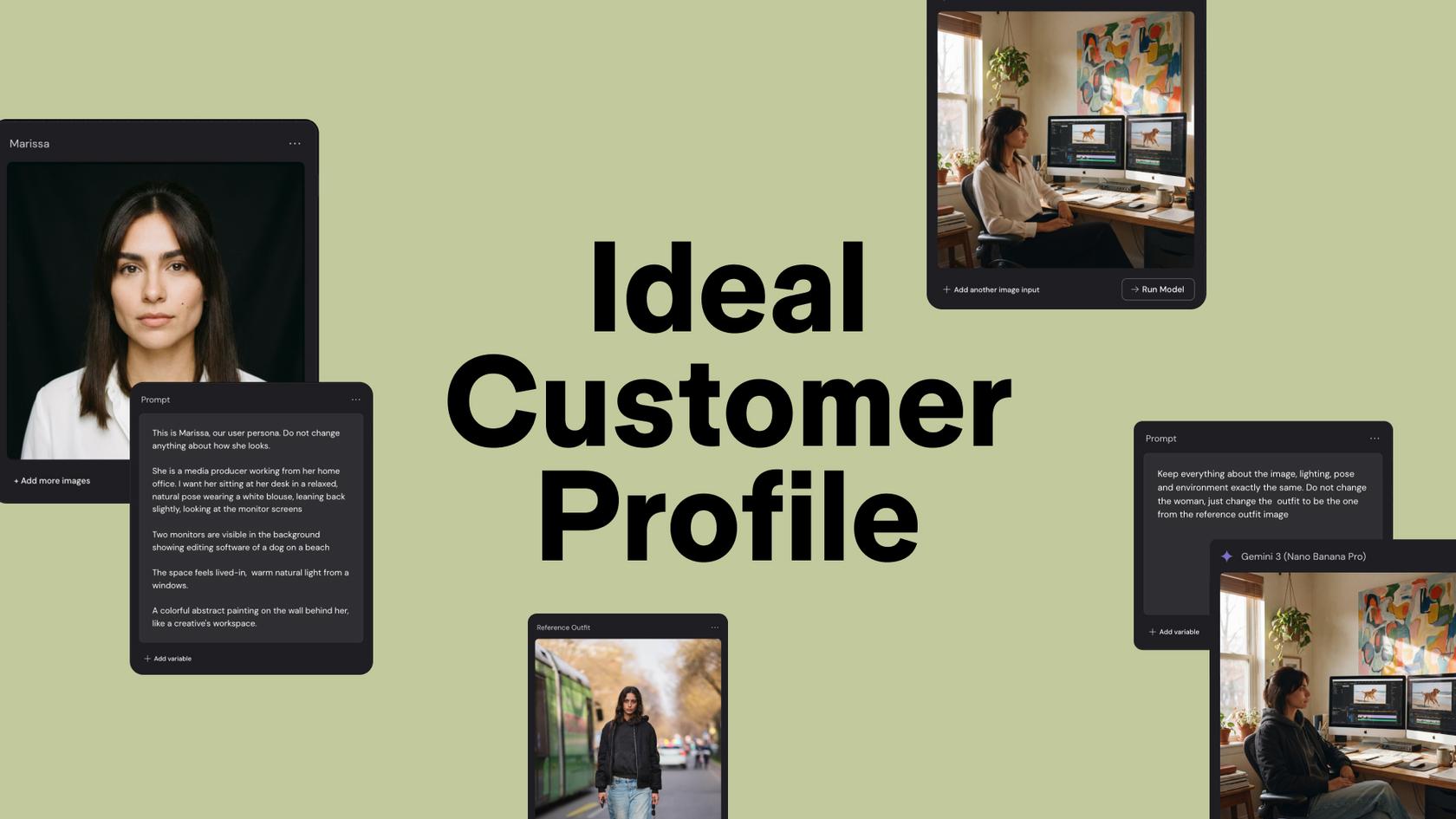
Steal this template: Bring a user persona to life with Figma Weave

Lead Product Designer at Dropbox Sara Clayton used Figma Weave to add dimension to an Ideal Customer Profile in under two minutes. Steal her template to make your users feel real.

Learn more
A collage of natural reference images—including a hibiscus flower, rock faces, cacti, and an orange desert landscape—connected by pink and teal lines with node points, representing a Figma Weave canvas linking visual assets together.A collage of natural reference images—including a hibiscus flower, rock faces, cacti, and an orange desert landscape—connected by pink and teal lines with node points, representing a Figma Weave canvas linking visual assets together.

Turning prompts into five scalable workflows with Figma Weave

To build upon a visual language with AI, you need to harness the logic behind each prompt—building, editing, and directing how visuals come to life. Here, we share five creative workflows that show the breadth of what the Figma Weave canvas can do.

Learn more

How Figma AI tools helped us bring extra delight to the canvas

For our annual April Fun Day, we used Figma Make, Weave, and MCP to build six mini games that captured the spirit of play. Here’s what we learned.

Learn more