Build comparison workflows you can revisit
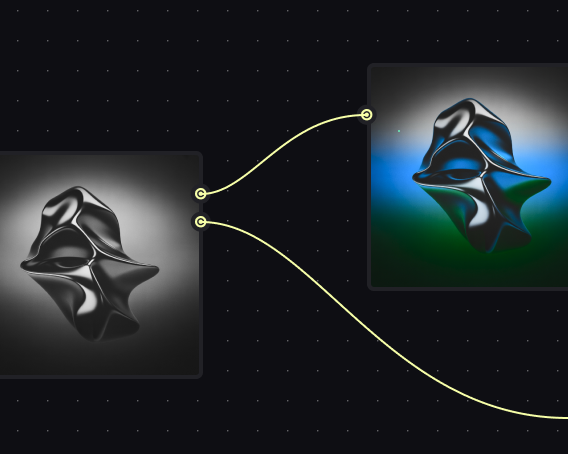
Set up a node-based pipeline that tests multiple models against the same inputs and parameters. Every variable is visible, so you know exactly what you're comparing.
Skip to main content
Test every AI image model on one canvas — no separate subscriptions or tabs.

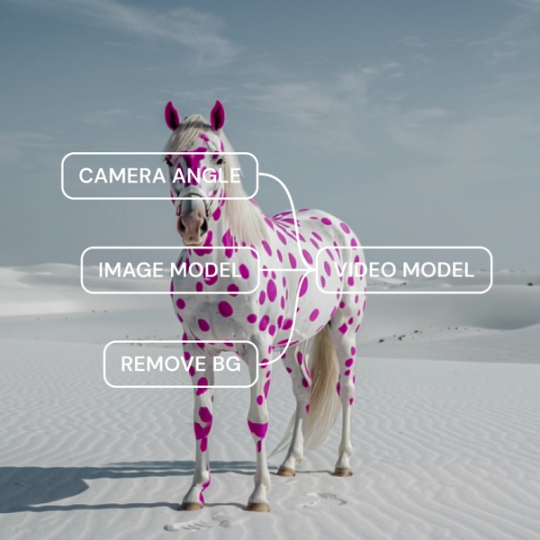
Different models excel at different tasks. Weave lets you compare outputs across providers in the same workflow, so you can choose based on results — not guesswork or limited trials.
Set up a node-based pipeline that tests multiple models against the same inputs and parameters. Every variable is visible, so you know exactly what you're comparing.

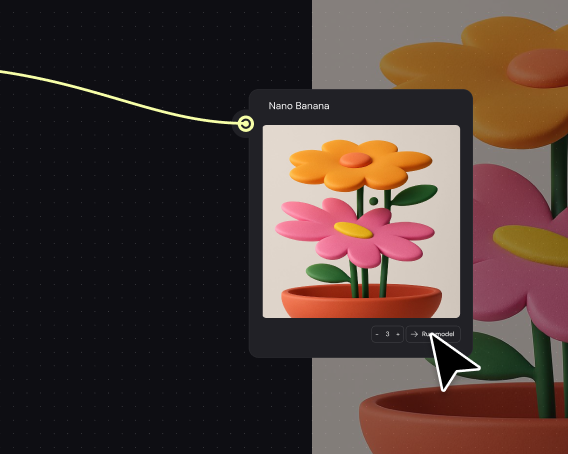
Access image models from multiple providers without juggling subscriptions or browser tabs. Run the same prompt through different models side by side and compare outputs directly on the canvas.

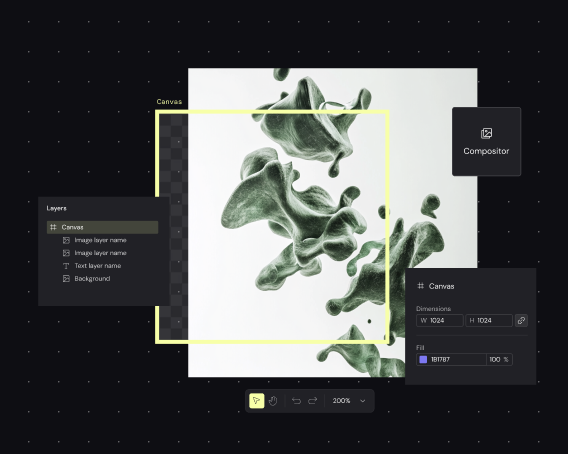
Don't stop at comparing raw outputs. Use built-in masking, color grading, and compositing to see how each model's results hold up through a real finishing workflow.

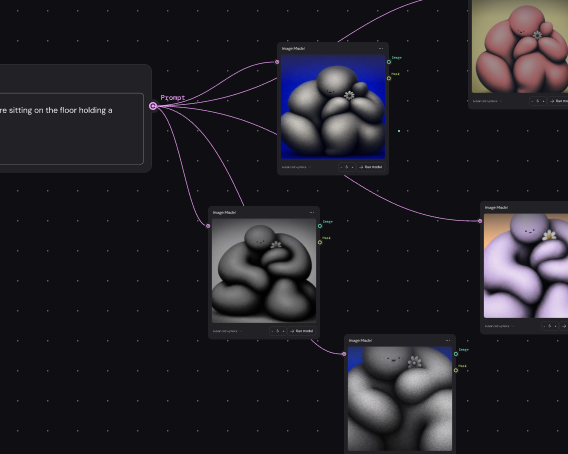
Run your comparison workflow across dozens of inputs to see how models perform on varied subjects, styles, and edge cases — not just a single cherry-picked prompt.
More resources
See how the Figma Community is using Figma Weave to create AI-generated images, video, and 3D.
An AI image model is a system trained to generate or manipulate images based on text prompts or reference inputs. Different models have different strengths — some excel at photorealism, others at illustration styles or specific subject matter. Figma Weave gives you access to multiple models so you can find the right fit for each task.
Consider output quality, style consistency, how well the model handles your specific subject matter, and how results hold up through editing. Weave lets you test all of these factors in one workflow rather than evaluating models in isolation.
Connect multiple model nodes to the same input, run your prompt, and compare outputs directly on the canvas. You can apply identical edits to each result to see how they perform through your finishing workflow.
Models vary by architecture and training data — some specialize in photorealistic imagery, others in illustration, vector graphics, or specific visual styles. Figma Weave connects to providers across these categories so you can compare options without separate subscriptions.
You can get started with Figma Weave for free. Set up a comparison workflow with the models you want to test, run your prompts, and evaluate results side by side. Advanced features and higher usage are available on paid plans.
Beyond subjective quality, consider consistency across prompts, how well outputs match your creative direction, and how results hold up through professional editing. Weave lets you test all of this in a single, repeatable workflow.

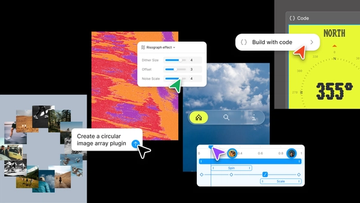
Push past what you thought was possible with code layers, Figma Motion, shaders, generative plugins and Weave tools, all on the canvas.

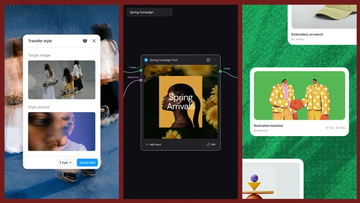
Today, we’re announcing new ways your Weave creative workflows can live alongside your Figma frames.
Aleph 2.0 brings frame-level creative direction to the Figma Weave canvas.

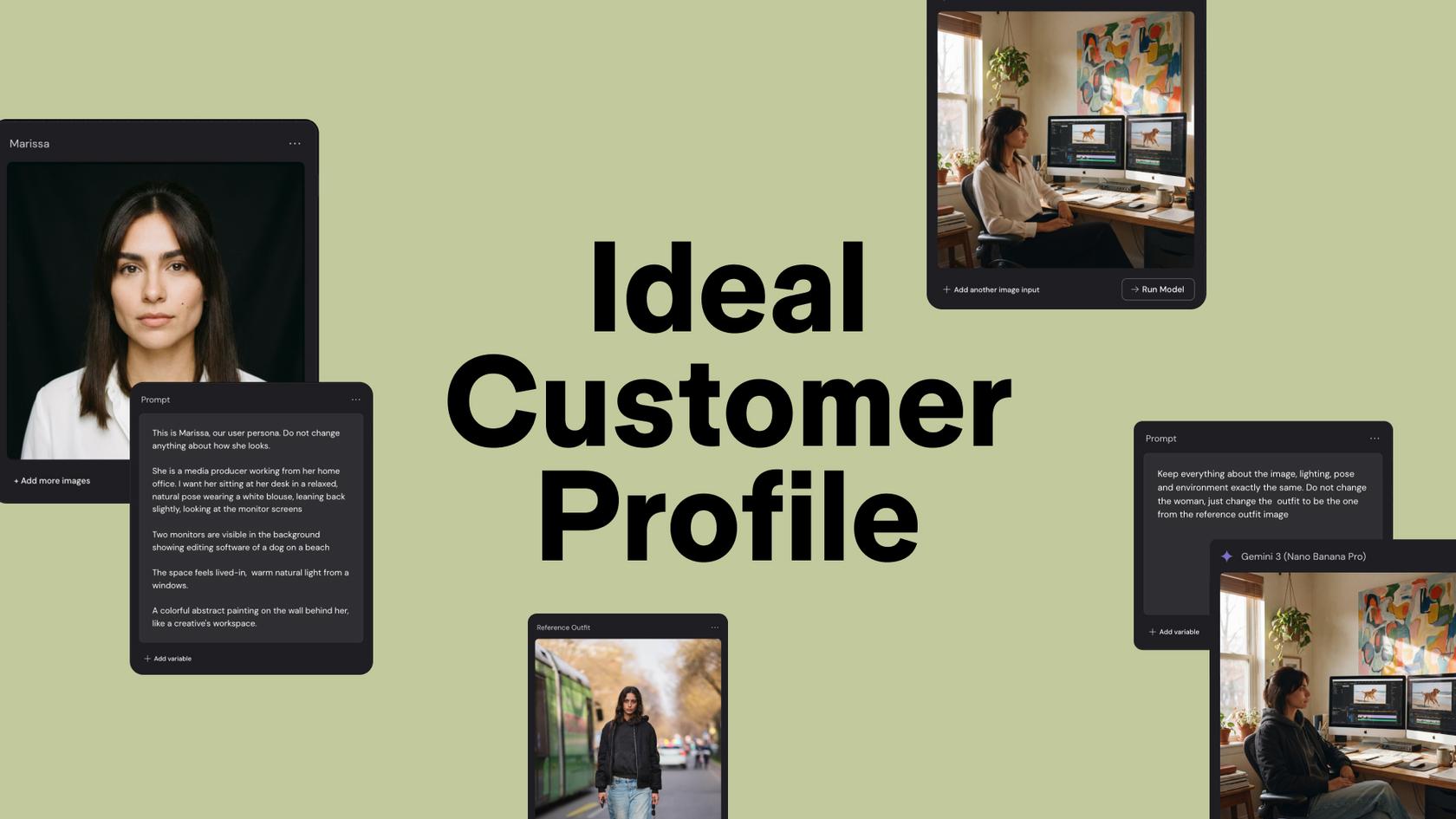
Lead Product Designer at Dropbox Sara Clayton used Figma Weave to add dimension to an Ideal Customer Profile in under two minutes. Steal her template to make your users feel real.

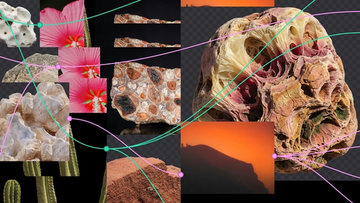
To build upon a visual language with AI, you need to harness the logic behind each prompt—building, editing, and directing how visuals come to life. Here, we share five creative workflows that show the breadth of what the Figma Weave canvas can do.
For our annual April Fun Day, we used Figma Make, Weave, and MCP to build six mini games that captured the spirit of play. Here’s what we learned.