
Design tokens: How to sync design and code in Figma
Design tokens are the shared language your team needs to scale. Learn how to build a resilient hierarchy in Figma and bridge the gap between design and code.
Skip to main content
Building with AI

Give Claude Code a clear prompt, and it can document a component library or flag design token mismatches.
According to our State of the Designer 2026 report, 89% of designers already say AI tools help them work faster. The challenge is that Claude Code doesn’t inherently know your conventions, so outputs vary depending on who’s running it and what context they include.
Claude Code Skills gives the tool persistent context, so your standards stay consistent across every session and teammate.
Read on to learn:
Claude Code Skills are reusable instruction files that live in your project and give Claude a set of standing instructions. While a prompt is session-specific, a skill’s description loads every time Claude Code starts, and Claude pulls in the full instructions whenever your work matches it.
In practice, that might look like a skill that understands your design system’s token-naming syntax and writes component annotations in the format your team expects. Or one that formats developer handoff notes the way your engineering team uses them, so output is consistent whether you’re writing or a teammate is.
Agents don’t inherently know how you, your design team, or your design system would like the work to be implemented. That’s where skills come in.
— Amy Lima, Designer Advocate, Figma
Not every workflow needs a skill. A good way to decide is to think about how often you’re giving Claude the same context and whether the outputs are consistent enough to act on.
Build a skill when:
Stick with a prompt when the task is a one-off, or the context is specific to this session and won’t repeat.
If you find yourself prompting and re-prompting the same tasks, constraints, or conventions over and over, that’s a good candidate for a skill.
— Amy Lima, Designer Advocate, Figma
Once you’ve decided a skill is the right call, adding one to your Claude Code workflow is simple. Here’s how to build one.

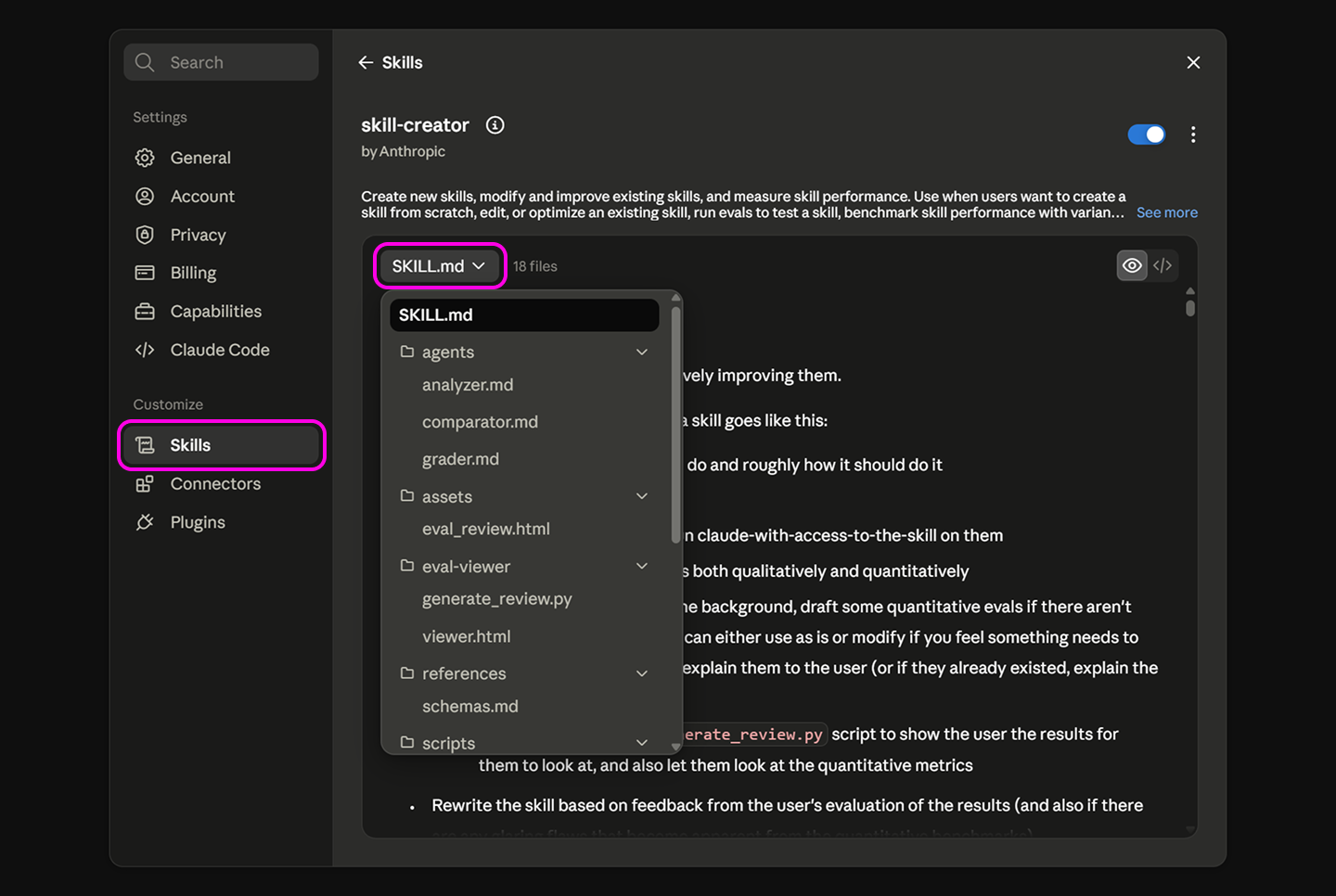
Skills live in a claude/skills folder at the root of your Claude Code project. Each skill gets its own subfolder containing a SKILL.md file. The name should reflect what the skill does. For example, a skill for formatting handoff notes might be called “handoff-notes,” and one for applying brand voice conventions might be called “brand-voice.” Once the folder is in place, Claude Code automatically picks it up.
If you’d rather not start from a blank file, Claude’s skill generator can handle the initial scaffolding. Describe what you want the skill to do, and it’ll produce a draft with the right structure that you can refine from there.

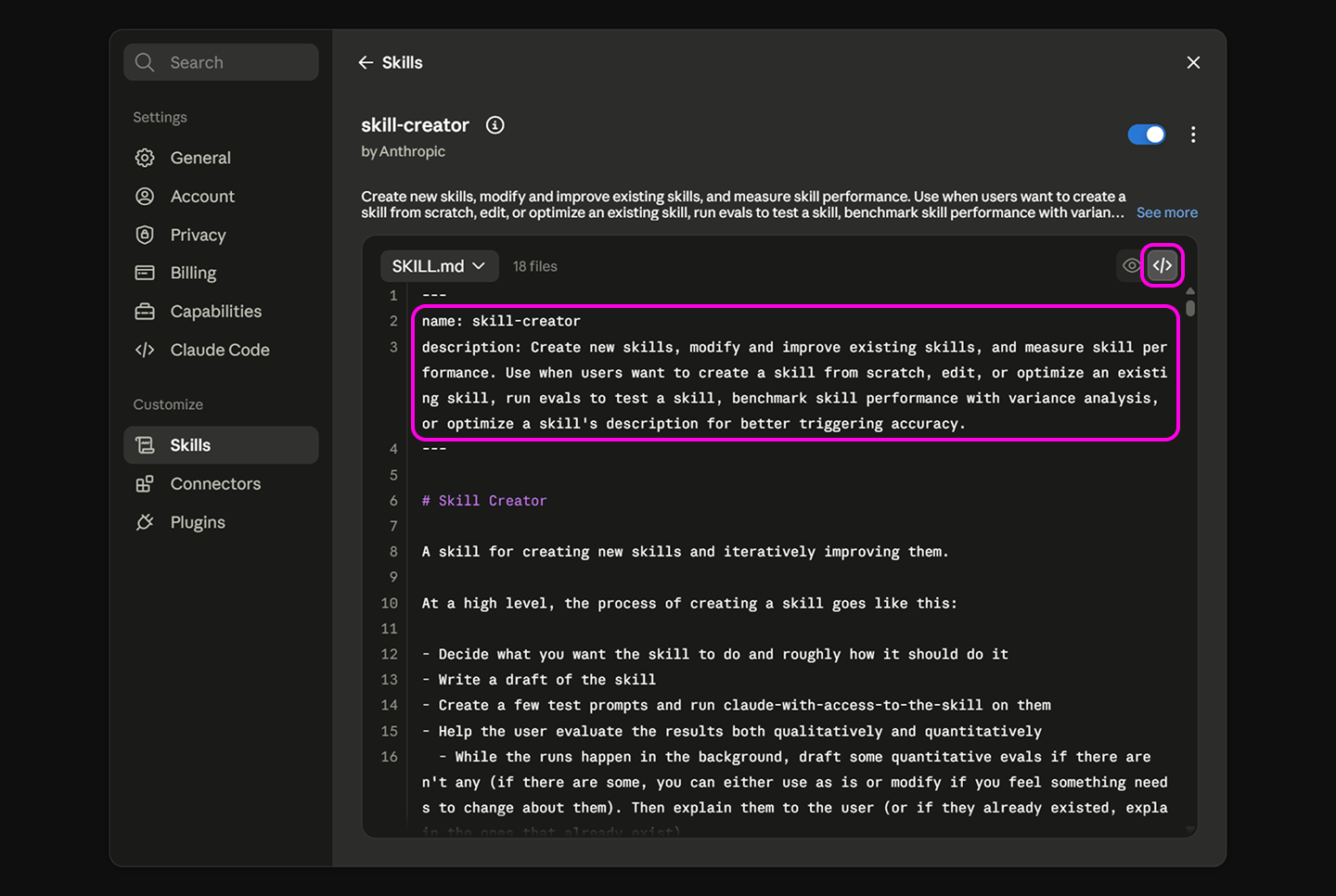
At the top of your skill file, you’ll add a short block that includes two fields: a name and a description. The name is just a label. The description is what really matters. Claude reads the description to decide whether to load your skill for a given task, so it needs to explain what the skill does and when to use it.
“Helps with writing tasks” gives Claude too little to go on. “Use this skill when writing developer handoff notes or summarizing design decisions in the team’s standard format” gives it a clear trigger.

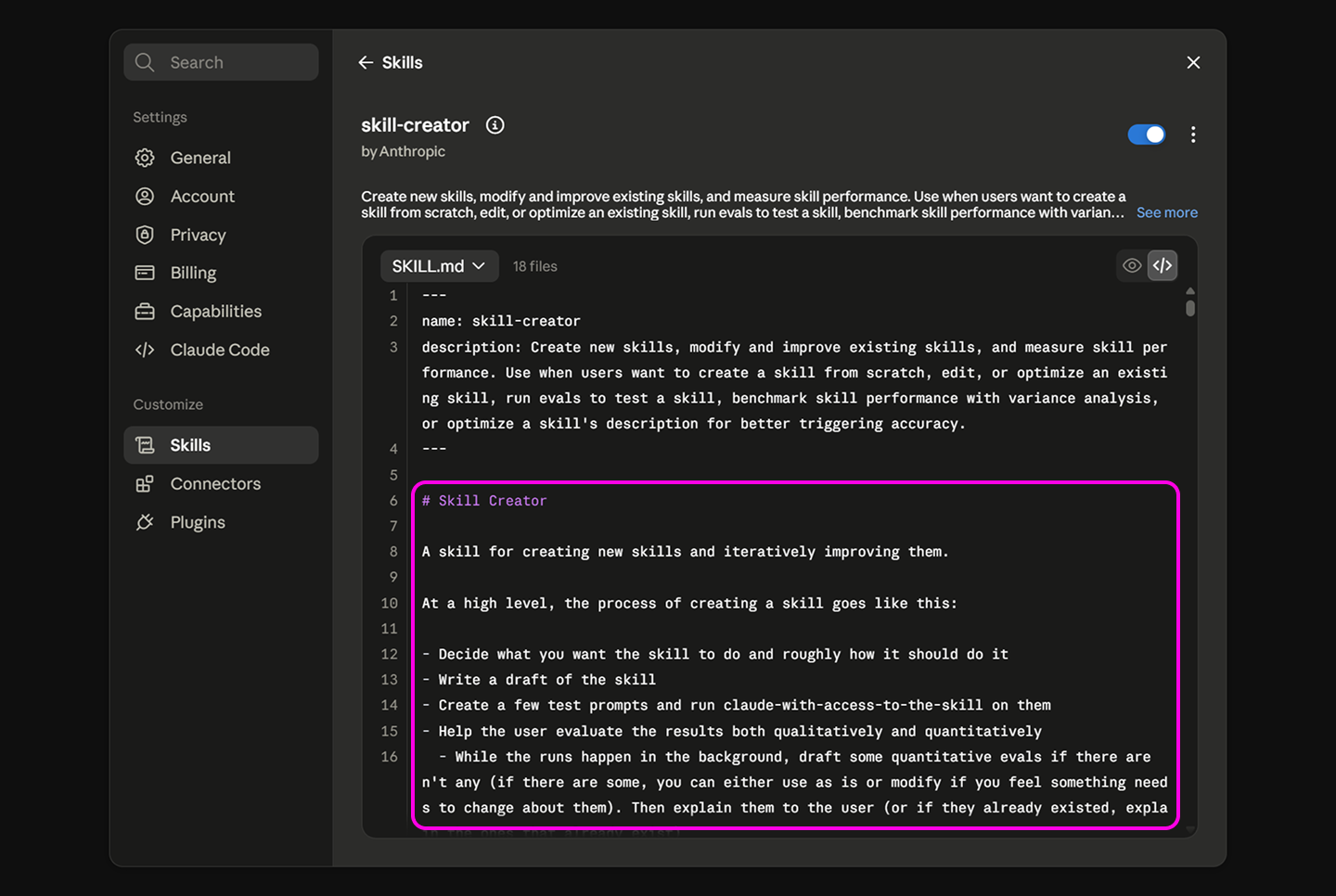
The body of the skill is where you write the instructions Claude follows. Be specific about what good output looks like and give Claude enough role context to orient itself. Claude reads this section like a system prompt, so vague language will produce vague results.
If Claude drifts from what you expected, the fix is almost always in the instruction block. Either a rule is missing, or it isn’t specific enough. Including a short example of correct output next to an incorrect one is usually all it takes.
Before you close the file, check that the markdown is valid. Broken formatting or syntax errors in the frontmatter can prevent the skill from loading. Make sure the description field isn’t empty—Claude won’t trigger the skill reliably without it.
If you’re building this for a team, make sure to save the folder to a shared repo so everyone pulls from the same version.
A quick round of testing before you share a skill can save a lot of back and forth later. Test your skill with several realistic inputs to make sure it behaves the way you expect. Here’s what to look for:
When something’s off, find where Claude deviated, trace it back to a vague or missing instruction, tighten the language, and re-test. Most skills get meaningfully better after one or two of these loops.
Connect the Figma MCP server, so Claude Code can pull directly from your Figma files, components, and design specs.
A skill that works perfectly in your hands can fall apart the moment someone else uses it. Here are a few practices that make the difference:
A skill built for a broader audience needs versioning and a changelog, full stop. When the skill gets better, your whole team gets that upgrade on next install—automatically.
— Laura Fehre, Designer Advocate, Figma
Learning how to create a skill in Claude Code is a one-time investment that pays off every session after. Figma’s tools give those skills somewhere to land, from the components in Figma Design to the specs developers work from in Dev Mode.
Here’s how to bring it all together:
Use Figma Design to build and maintain the components, tokens, and conventions your Claude Code skill is built around.
Design tokens are the shared language your team needs to scale. Learn how to build a resilient hierarchy in Figma and bridge the gap between design and code.


Explore 12 real-world vibe coding examples that show how to build apps from prompts. Learn a workflow to turn your best ideas into functional prototypes instantly.

Avoid common design system scaling mistakes. Learn how to transition from a static library to a product infrastructure that aligns design and code at scale.

Find some of the best AI design tools for 2026. Compare tool capabilities and benefits to streamline your design process and boost your creativity.

Curious how AI in design is changing the way teams work? See how tools like Figma make it easier to bring ideas to life with real-world examples.

Learn how AI in product management translates to faster prototypes and better alignment. Discover how Figma Make can support your workflow.