
How to use AI for product design
Learn how to use AI for product design in seven different ways. Turn your ideas into working prototypes faster with prompt-based design and collaborative creativity.
Skip to main content
Building with AI

A developer on your team mentions, almost in passing, that they’ve connected the Figma MCP server to their coding agent. You nod along, but you’re not totally sure what that means for you.
Does your file need to look different now? Is an AI about to start making decisions that used to be yours?
MCP for designers is a connection that determines how faithfully your design work shows up in the product that actually ships. This guide breaks it down in plain language, from a designer’s seat, not a developer’s.
Read on to learn:
Dev Mode is where design specs meet production code. With the Figma MCP server, your AI coding tools get that context automatically.
Think of Model Context Protocol (MCP) as a universal translator between your design files and the AI tools that read them. Instead of an AI guessing at your design from a screenshot, MCP gives it structured, accurate data to work from.
Anthropic introduced MCP in November 2024 as an open standard, and OpenAI, Google, and Microsoft have since adopted it too. It’s quickly becoming the common language AI tools use to talk to the software you already work in.
There are three pieces worth knowing:
By 2026, MCP became the de facto standard for connecting AI agents to tools, codebases, and development environments.
Developers usually build plugins and one-off integrations for a single platform, so each new tool requires its own custom connection. MCP flips that. You build one MCP server, and it works across any MCP-compatible AI client.
That’s why the Figma MCP server works the same whether your developer is in Claude Code, Cursor, or VS Code. Nobody has to rebuild the connection for each tool.
MCP servers for design work are multiplying fast, and not all of them serve the same purpose. This isn’t an exhaustive list, but more of a practical overview on which ones are worth your time and what each is actually good for:
Prompt-based tools are great for a quick first draft, but what holds up as your product grows is a design system with real structure, ownership, and history.
That’s the gap Figma’s MCP server was built to close.
Figma’s MCP server reads what’s actually in your file. This means it’s capable of considering component hierarchy, auto-layout rules, variants, text styles, spacing tokens, variable code syntax, Code Connect mappings, and more. When a coding agent like Claude Code or Cursor connects through it, that agent generates code against your real design instead of guessing from a picture of it.
A screenshot tells an AI what something looks like, but structured design data tells it what something is. This makes all the difference between code that resembles your design and code that matches it.
If you want the deeper version, we’ve written more about how design systems and AI work together.
The Figma MCP server now works in both directions. Developers can push rendered UIs back into Figma as editable frames, closing a loop that used to only flow one way, from design to code.

A quick note on agents: We also have our own native design agent, which works directly on the canvas inside Figma Design, generating and iterating on designs using your existing components and tokens.
That’s a different job from a third-party agent in your IDE, like Claude Code or Cursor, which uses the Figma MCP server to turn finished design work into production code. They complement each other.
For example, a common pattern is to use the Figma agent to explore and refine a design on the canvas, then hand that same file to a coding agent through MCP once it is ready to build.
If you’ve been worried about what AI means for your role, know this: MCP exposes your design data, but it doesn’t replace your design thinking.
Here’s what Figma’s MCP server can do:
But, like all MCP servers, it also has some limitations. Figma’s MCP can’t: understand why you made a design decision, replace your judgment, or guarantee accurate code if your design system is messy or inconsistent.
A button’s variants and properties can be machine-readable. Why you chose those specific variants, and when it’s right to break the pattern, is still entirely up to you. The designers getting the most out of MCP are the ones using it to spend less time on translation work and more time on the craft decisions that actually matter.
MCP is still maturing, too. Implementations vary by platform, and best practices are still being written, so treat this as the beginning of a new workflow norm rather than a finished system.
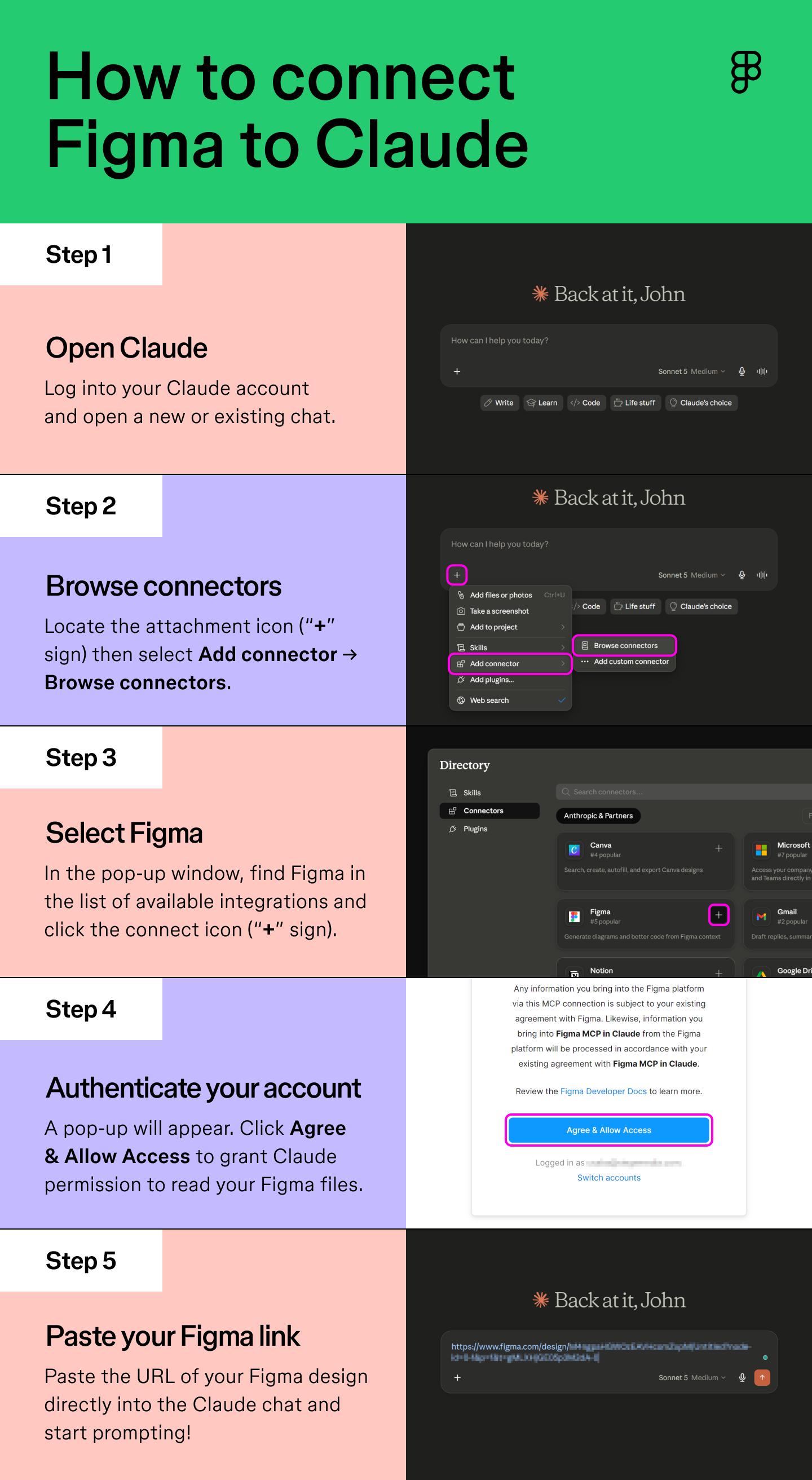
Setting this up is more approachable than it sounds. Here’s how to get started, in five steps.
The remote Figma MCP server is the easiest path for most designers. In Claude, go to Customize > Connectors, add Figma, then authenticate with your Figma account.
For other tools like Cursor or VS Code, check our Help Center for setup instructions specific to that tool.
The cleaner your file, the better MCP performs. Consistent naming conventions, clearly defined properties, and up-to-date documentation all help an AI tool read your design accurately, so it’s worth a pass before you connect anything.
If your team already has a component library in code, Code Connect maps your Figma components to their production equivalents. That way, when AI generates code, it reaches for your actual components instead of a generic guess.
Start with something specific and concrete, like building a card component from a particular Figma frame using your design system, rather than an open-ended prompt. The more context you give the AI about your component structure, the more accurate the result.
MCP works best as a shared effort between design and engineering. Talk to your developers about what they need from your files and how they’re using MCP on their end. The goal is one shared source of truth, not two workflows running in parallel.
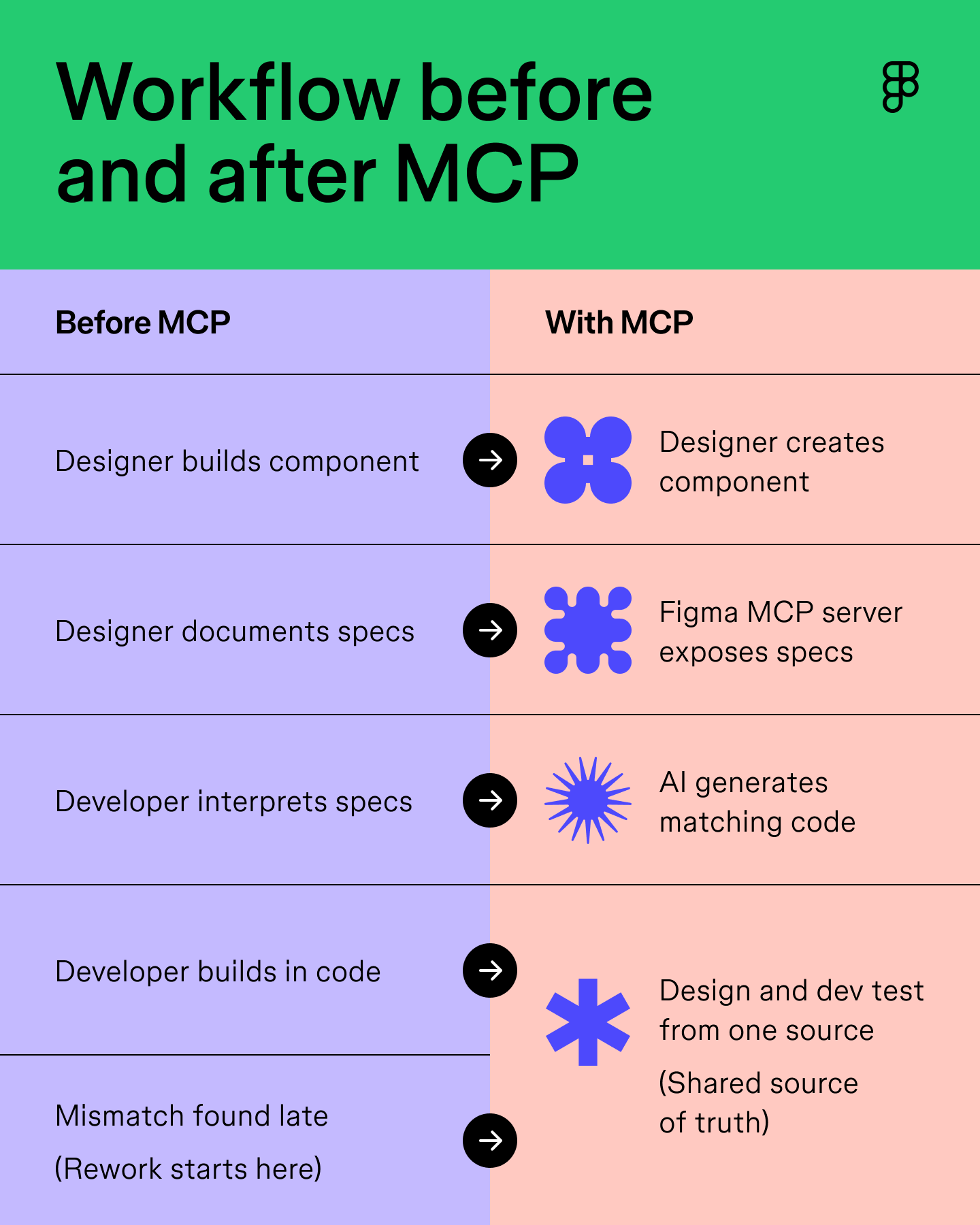
In the old design-to-dev handoff, you built components and documented specs, then handed them off to a developer who interpreted those specs and built in code. Somewhere down the line, a mismatch could turn up that costs everyone time to fix.
With MCP in the loop, the sequence looks different. You create a component, MCP exposes its specs, an AI agent generates code against the real design, and you and your developer test from the same source (instead of two separate interpretations).
That earlier alignment is where the real-time savings live—earlier feedback, fewer translation errors, and prototyping that actually behaves like your production build.
This isn’t a new philosophy for us so much as an extension of one. We’ve always built our products to keep design and development working from the same file. MCP for designers just means the same principle now reaches into AI-powered workflows, too. You can read more about how our own team uses it in 4 ways we’re using our MCP server at Figma.

A little upfront work goes a long way here. Here’s how to prepare before you connect anything:
No, you don’t need to run or configure an MCP server yourself. The Figma MCP remote server handles that connection, so you just need to authenticate and connect it to your AI tool. The more useful skill is knowing how to create a well-structured design system.
Claude (including Claude Code), Cursor, VS Code with GitHub Copilot, and Windsurf, are the most commonly used MCP-compatible clients right now.
The Figma MCP server is available to Figma users, though access details depend on your plan. Check our developer documentation and Help Center for current specifics.
Dev Mode gives developers direct access to design specs inside Figma itself. The Figma MCP server brings that same context into a developer’s own environment, like their IDE or AI coding tool, so they don’t have to switch back and forth. The two work best together, especially once you set up Code Connect.
Plugins are built for one platform at a time and need custom integration work for each. MCP is a standardized protocol, so your Figma MCP server connects to Claude Code, Cursor, VS Code, and more without a separate build for each one.
MCP for designers ultimately comes down to this: the more structure you bring to your design system, the more useful this whole workflow becomes.
We covered what MCP is, how the Figma MCP server reads your files, and where a tool like Stitch or Paper fits next to it, but none of it replaces your judgment as a designer. It just gets the busywork out of the way faster.
Here’s how to put it all together:
Dev Mode is where design and code meet, and with the Figma MCP server, your AI tools get the full picture.
Learn how to use AI for product design in seven different ways. Turn your ideas into working prototypes faster with prompt-based design and collaborative creativity.

Design tokens are the shared language your team needs to scale. Learn how to build a resilient hierarchy in Figma and bridge the gap between design and code.

Discover AI tools for UX designers in 2026 to streamline your design process, improve productivity, and enhance user experiences with cutting-edge technology.

Curious how AI in design is changing the way teams work? See how tools like Figma make it easier to bring ideas to life with real-world examples.


Find some of the best AI design tools for 2026. Compare tool capabilities and benefits to streamline your design process and boost your creativity.


Learn how to use AI to create a website from start to finish. Discover tools, tips, and strategies to design, build, and launch your site faster than ever.