
AI in design: Transforming the way we create
Curious how AI in design is changing the way teams work? See how tools like Figma make it easier to bring ideas to life with real-world examples.
Skip to main content
Building with AI

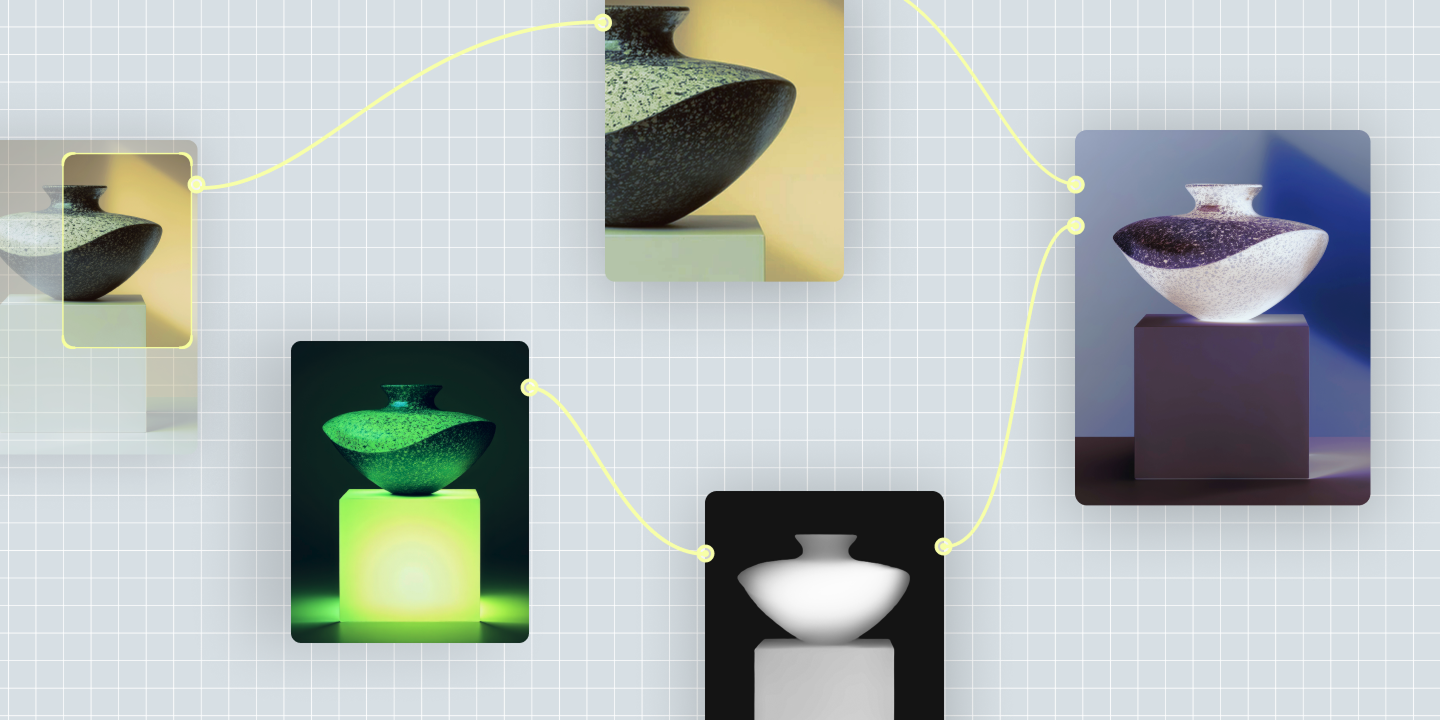
Most AI image generators do one thing well: take a prompt and return an image. That’s enough for a quick concept or a mood board reference. But for a product launch with 30 assets that all need to look like they came from the same place, it isn’t. AI tools for graphic design go further—multi-modal workflows, professional editing tools, and enough control to stay consistent across an entire campaign.
Some are built for visual exploration, others for color systems or high-volume asset generation. Below, we break down ten of the best options and where each fits in a production workflow.
Read on to learn:
This article is published by Figma. Figma Weave is included in this roundup.
| Tool | Ideal for | Key features | Workflow integration |
|---|---|---|---|
| Figma Weave | Building scalable AI creative workflows | Multi-model AI canvas, node-based workflows, professional editing tools | High—connects directly to Figma Design |
| Adobe Firefly | Generative editing within Creative Cloud files | Generative fill, text-to-image, vector recoloring | High—native to Photoshop and Illustrator |
| Midjourney | Visual concept work and brand identity exploration | Text-to-image, style control, image reference parameters | Low—outputs exported to other tools |
| Runway | Turning design assets into motion or video | Gen-4 video generation, inpainting, motion brush | Medium—API and export-based |
| Canva AI | Producing simple marketing visuals | Magic Design, AI image generator, brand kit | Medium—within Canva’s editor |
| Krea | Quick image generation and refinement | Real-time image generation, upscaling, style references | Medium—Figma plugin available |
| Magnific | Refining early-stage image concepts | Creative upscaling, prompt-based control, detail and texture generation | Low—used as a finishing step before export |
AI in graphic design touches almost every stage of the creative process. At the front end, it speeds up concept work, so you have more room to experiment with hierarchy and color. Further along, it handles production tasks like background removal and asset resizing.
Tools like Figma Weave take a different approach. Instead of treating generation as a single step, you chain models and editing tools in a sequence where every node stays adjustable. That turns a one-off prompt into a workflow you can rerun, hand off, and build on.
The graphic design AI tools below range from concept generation to color exploration to video output. Think about where your workflow needs the most support.

Ideal for: Building scalable AI creative workflows
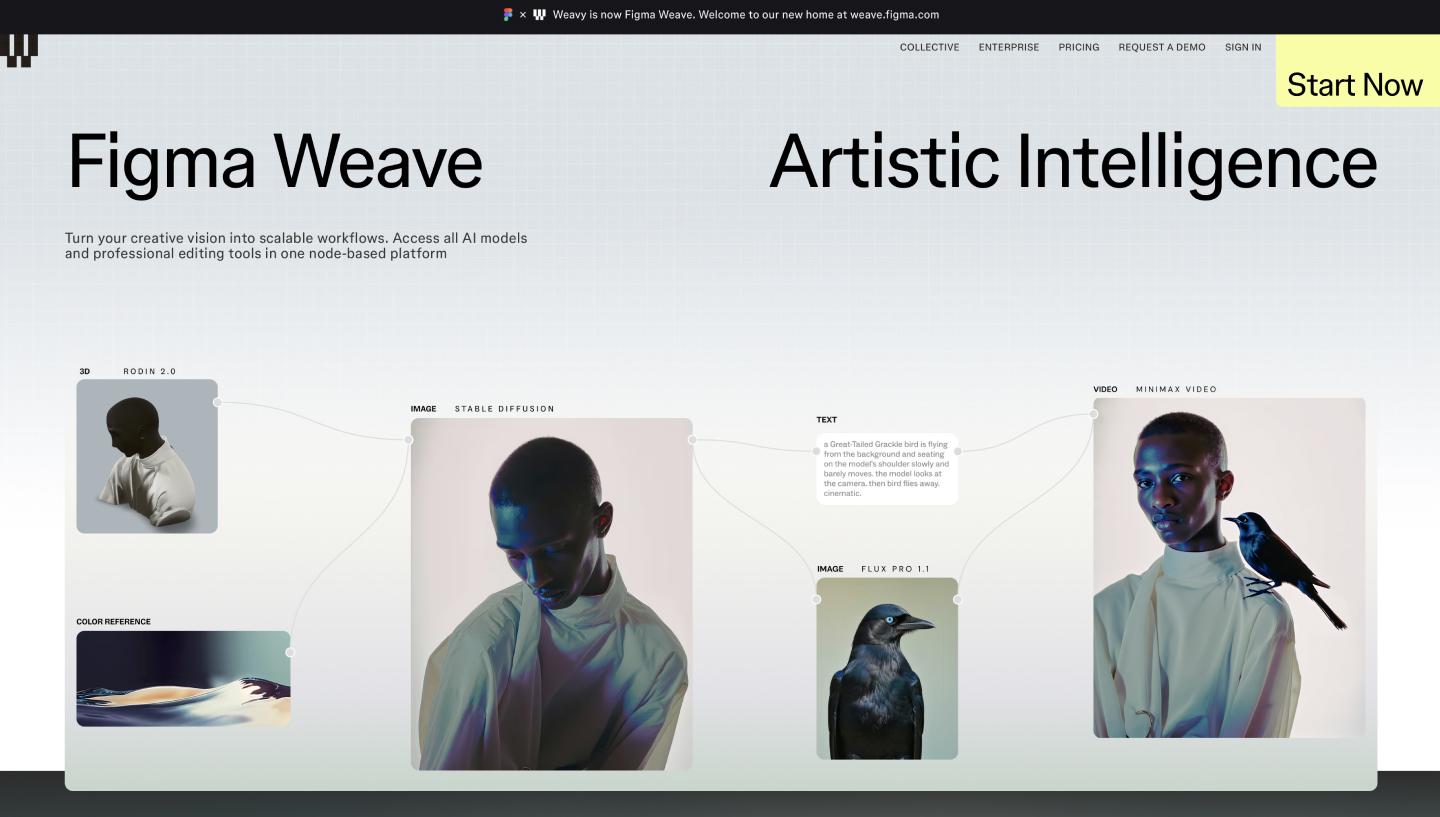
Figma Weave is a node-based AI creative workflow canvas, originally built by Weavy and now part of Figma. It connects AI generation nodes and editing tools into a sequence, each one feeding into the next. You can swap or rerun any node independently, so the whole process stays adjustable at every stage.
The canvas connects to AI models from Google, OpenAI, Runway, Black Forest Labs, Recraft, and more, all in one place. Run the same prompt across multiple models and compare outputs side by side to find the one that best fits your visual direction. Professional editing tools like inpaint, relight, upscale, and mask extractor sit alongside generation as nodes, so you refine outputs without ever leaving the canvas.
Once you’ve built a workflow, Figma Weave can auto-generate a team-facing UI designed for anyone to run it. And because Figma Weave connects with Figma Design, AI-generated assets flow directly into the design environment where teams build and ship products.
Chain AI models and editing tools together, then share your workflow with your team in one click.

Ideal for: Generative editing within Creative Cloud files
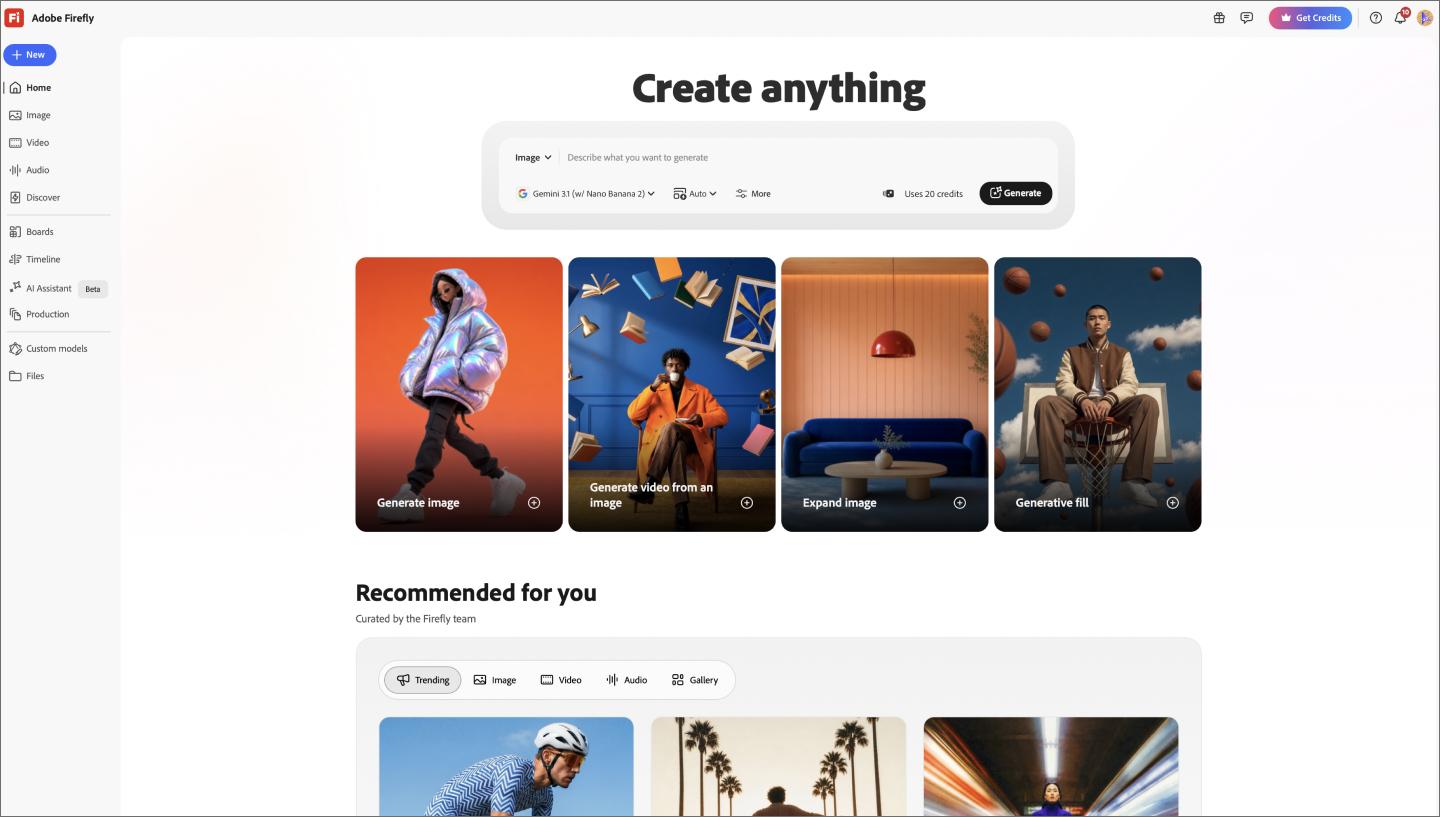
Adobe Firefly is Adobe’s native AI model, built directly into Photoshop and other Creative Cloud tools. If your team already works in Adobe, it’s an easy way to run generative edits on files you already have. Its main use case is generative editing—select a portion of an image and use a text prompt to fill, expand, or recolor it. You can also generate original images from scratch using Firefly’s text-to-image tool.

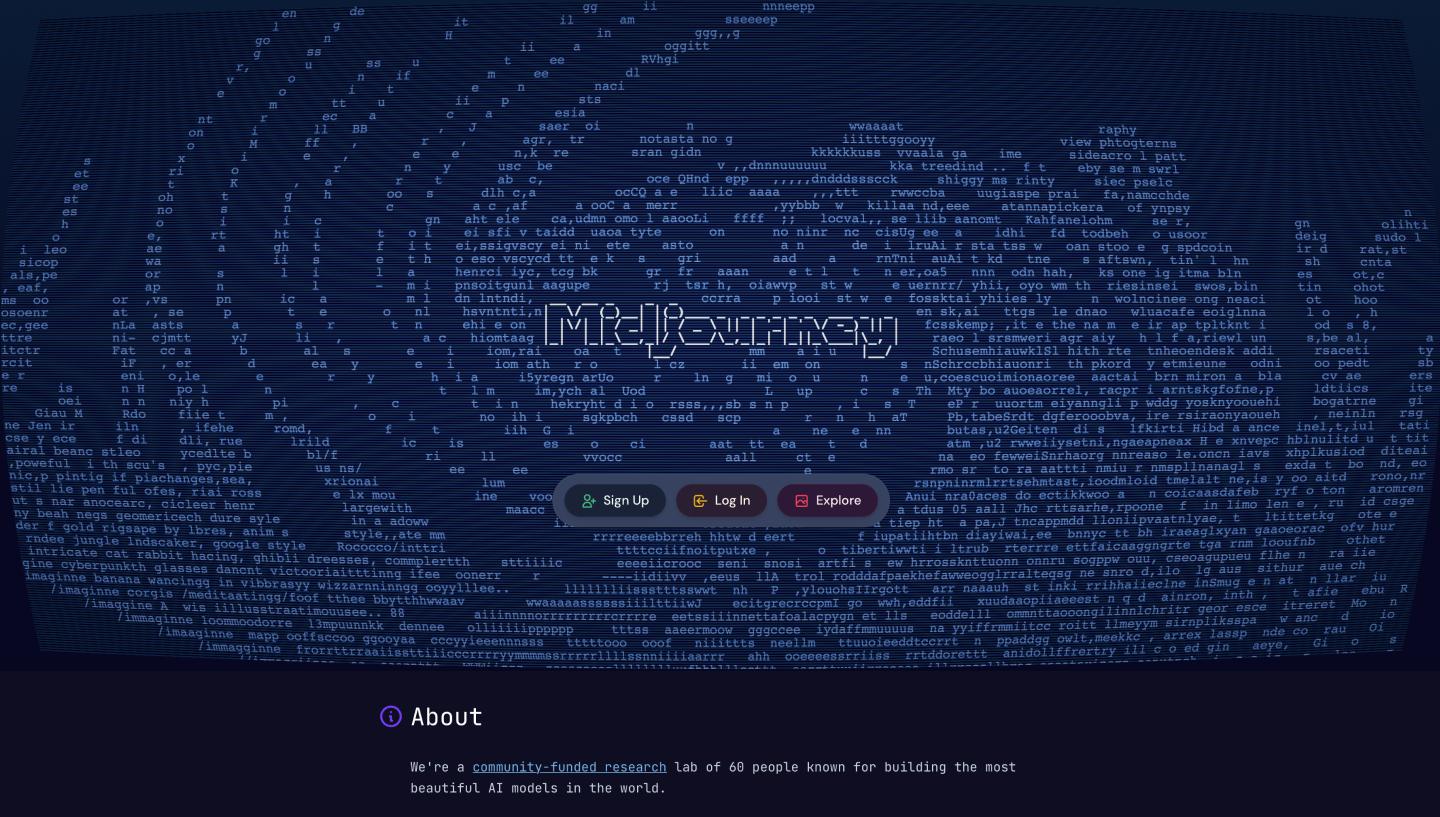
Ideal for: Visual concept work and brand identity exploration
Midjourney is one of the most widely used AI design tools, largely because its output quality is consistently high. It’s a go-to for designers exploring visual directions early in a project—to build mood boards, develop visual language, or pressure-test a brand identity.
Midjourney’s editing tools are built around refining and iterating on generated images. For layout work and production, you’ll still need to bring outputs into a separate environment.

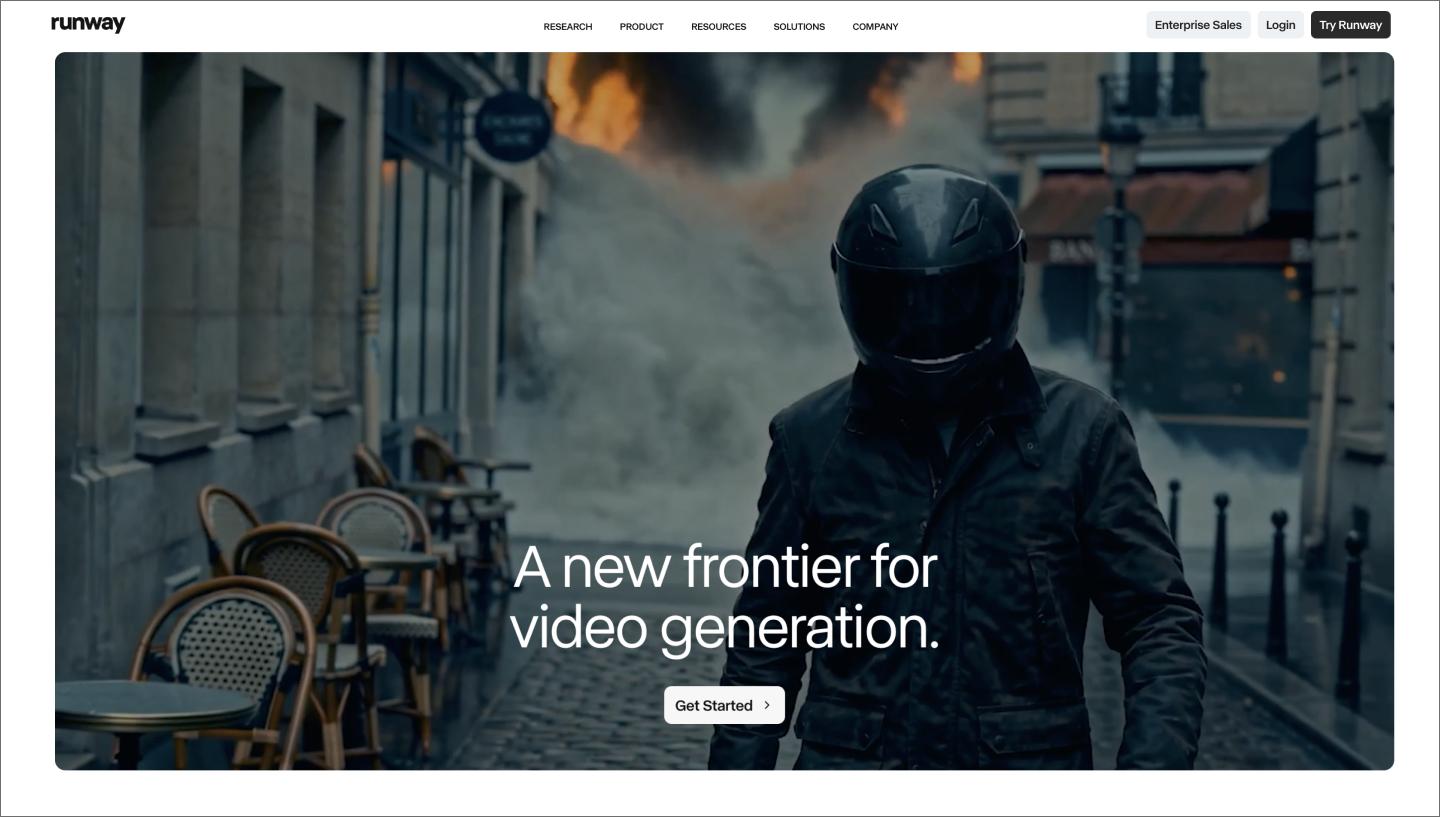
Ideal for: Turning design assets into motion and video
Runway specializes in turning static assets into motion. Its Gen-4.5 video generation model is one of the most capable for turning images into short video clips, which works well for social content and visual effects work.
The editing tools reflect that same video-first focus. Tools like motion brush and inpainting give you precise control over how a clip moves and evolves, which is useful for social content and visual effects work.

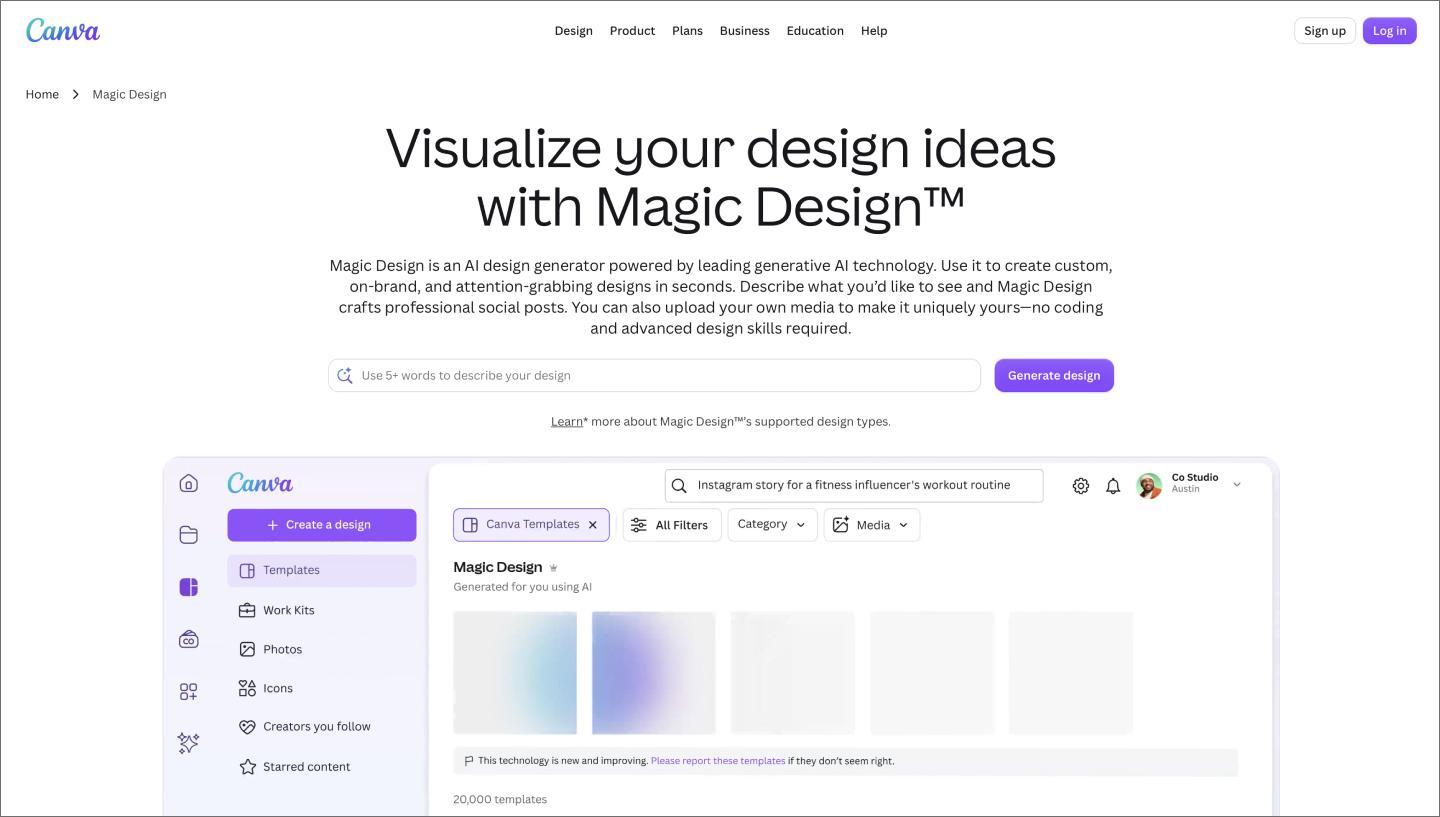
Ideal for: Producing simple marketing visuals
Canva’s Magic Design brings automated creation into its main drag-and-drop editor. Type a short prompt or upload a photo, and it builds coordinated layouts for social posts, slide decks, or flyers. It handles the formatting and font choices, so you don’t have to spend time tweaking grids or spacing rules.
This works well for marketing teams on tight timelines. With a dozen assets to ship, clearing the queue matters more than fine-tuning complex layers. It gives you a functional starting point fast. For deeper, node-by-node control, you’d reach for a different kind of tool.

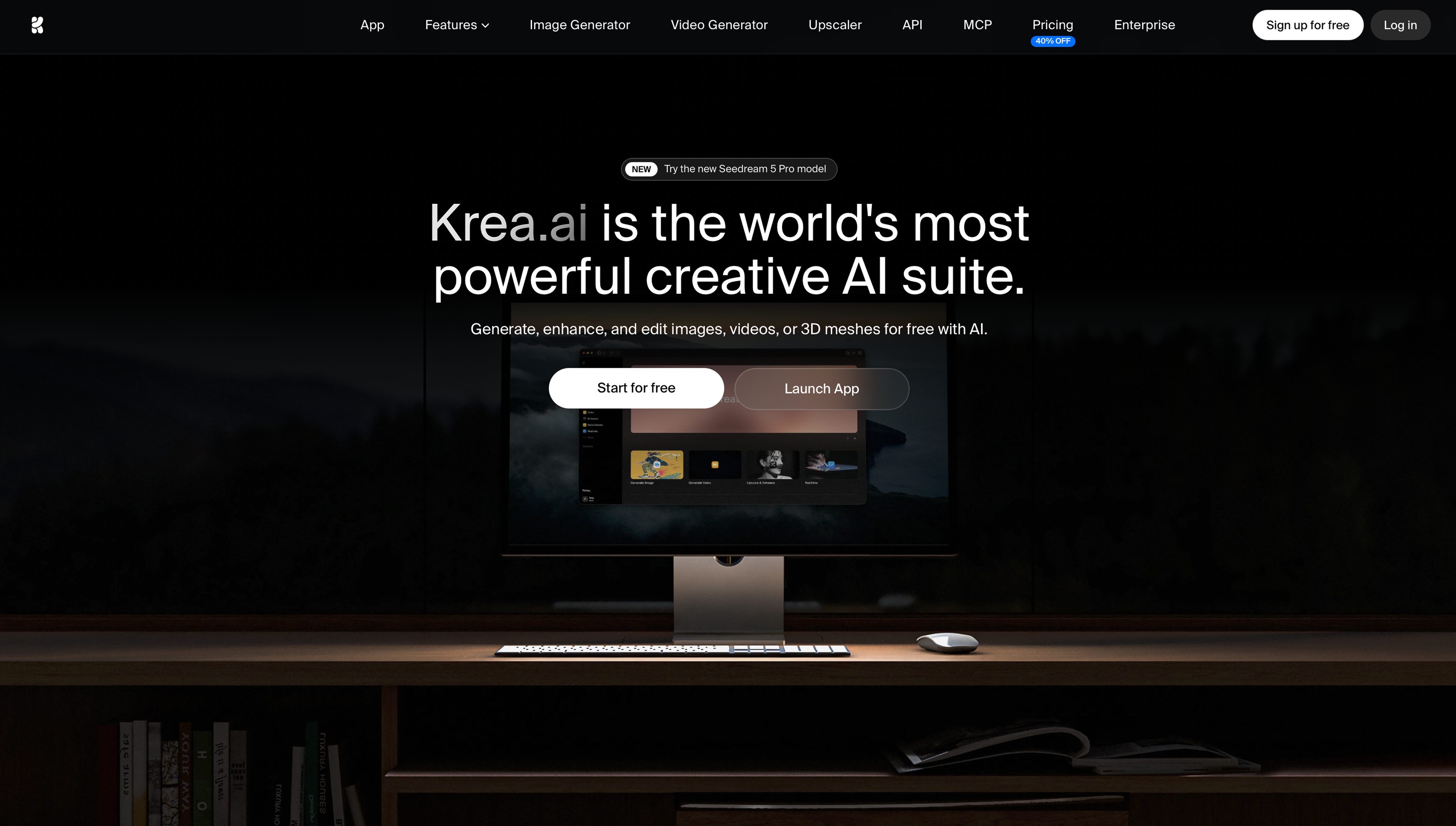
Ideal for: Quick image generation and refinement
Krea is a real-time image generator for fast visual exploration. It updates outputs as you type, so you can adjust direction on the fly without starting a new generation each time.
This works well for shaping early concepts before moving into production. You can iterate on visuals, compare options, and export selected assets into your design environment for more refinement. The tradeoff is that outputs usually need more refinement before they’re production-ready.

Ideal for: Refining early-stage image concepts
Magnific specializes in upscaling and adding detail to existing outputs. Feed it a rough concept or early-stage image, and it increases resolution while sharpening detail and texture, helping you take a promising visual further without regenerating from scratch.
It fits later in the creative process, after a team has set a direction and needs a stronger version for presentations or production. You can also use text prompts to guide how Magnific refines an image, giving you control over the final look. That said, the tool works from what’s already in the image, so the quality of the output depends on the quality of what you start with.
The short answer is no. AI in design helps speed up tasks like image generation and repetitive production work, but the judgment and craft behind great design still come from people.
An AI image generator takes a prompt and returns an image. AI tools for graphic designers support more of the production process—multi-model workflows, professional editing tools, color systems, vector generation. The right choice depends on what you’re trying to produce and how much control you need over the output.
It depends on the role. Brand designers tend to use it for concept exploration and asset generation, while motion designers lean on it for video and visual effects work. Production tasks like background removal and resizing are the most common entry points, and the best AI for graphic design tends to grow from there.
AI tools for graphic design have come a long way from single-model image generators. The ones worth using fit into a real production process with more control over output and consistency at scale. With Figma Weave, you connect AI generation and professional editing in one place, so the whole process stays adjustable from start to finish.
Pair it with the rest of the Figma ecosystem to take ideas from brief to final asset:
Figma Weave is a node-based canvas where you chain AI models and editing tools together to produce consistent creative output at scale.
Curious how AI in design is changing the way teams work? See how tools like Figma make it easier to bring ideas to life with real-world examples.

Graphic design focuses on creating visuals to convey a message or story. Read on to learn about graphic design and how Figma can help.

Explore 60+ Web design statistics for 2026. From AI and bounce rates to UX and accessibility, discover how to keep up with the shifting digital landscape.

Learn the 13 core graphic design principles, how to apply them, and how Figma can help elevate your designs in this guide.

Explore 12 inspiring design system examples from top companies and the Figma Community. See how teams build consistency, scale, and collaborate effectively.

Discover design thinking, a human-centered approach blending empathy, creativity, and cutting-edge AI to solve problems. Learn how to apply it with Figma tools.