
11 of the best AI design tools
Find some of the best AI design tools for 2026. Compare tool capabilities and benefits to streamline your design process and boost your creativity.
Skip to main content
Building with AI

Ask an AI agent to build a settings screen, and it’ll build one. Fast. The layout will look reasonable, but it probably won’t touch a single component from your library.
That’s the moment a lot of design system teams are running into right now. You’ve spent months building a design token hierarchy and a component library that is supposed to be your source of truth.
Then an agent like Claude Code shows up, generates a card with hardcoded hex values and a freshly invented button, and your entire system gets skipped. Not because the agent can’t find your library, but because nobody told it the rules.
That gap is exactly what a Claude Skill design system setup is built to close, and it all starts with a single markdown file.
Read on to learn:

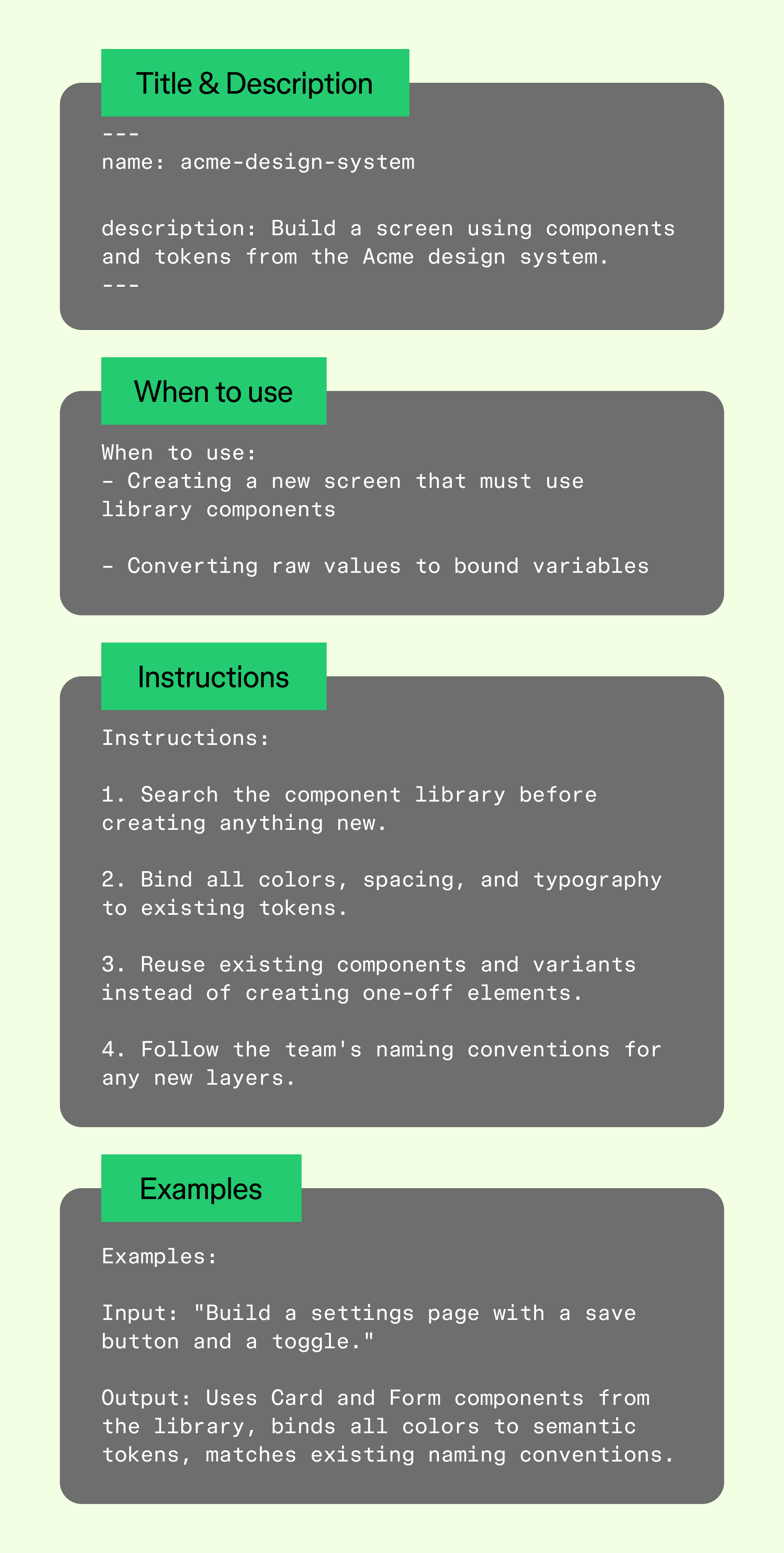
A Claude Skill is a set of markdown instructions that teaches an AI agent, like Claude Code or Cursor, how to complete a specific task the way your team actually does it. The file is called SKILL.md. There’s no server to run and no API to configure.
You write the instructions once, save the file, and the agent loads it into context when the task calls for it. That’s a different job than an MCP tool. Tools give an agent the ability to do something, like read a Figma file or write to the canvas. A skill tells the agent how and when to do that well.
The Figma MCP server hands an agent the keys to your files, and a design system skill hands it the driving instructions.
For design system teams, that distinction matters. Instead of re-explaining your conventions every session, a skill gives the agent a stable set of rules to follow. It knows to check your library first, bind values to tokens, and reach for an existing component before inventing a new one.
Skills work in Claude Code, Cursor, and other MCP-compatible clients that support the Figma MCP server.
Here’s the failure mode most teams hit first: You ask an agent to build a card component, and it does. It looks fine at a glance. But click into any layer, and your token system is nowhere to be found. Spacing is hardcoded. Colors are raw hex values. The component is a one-off that has nothing to do with your library.
Capability isn’t the issue here. The agent knows how to call the Figma API and bind a variable. But it doesn’t know that, on your team, it has to. Nobody wrote that rule down anywhere the agent could read it.
Our research backs up why this matters. In Figma’s 2025 AI report, more than 80% of designers and developers said learning to work with AI will be essential to their future success.
But adoption without guardrails compounds fast. A team that spent months building a token hierarchy and component library can watch every AI-generated screen bypass it entirely, screen after screen, until the system stops being a source of truth at all.
Before writing anything custom, start with the skills Figma already publishes for the Figma MCP server. They’re free to use, available on GitHub, and they cover the most common canvas workflows:
These Claude Skills for design systems also double as references. If you want to build something specific to your team, they’re a solid pattern to learn from and adapt.
You can invoke them straight from your MCP client. In Claude Code, that looks like typing a command such as /figma-generate-library in chat.
Figma Design is where teams create, maintain, and publish the component libraries that power your AI-assisted workflows.
Once you’ve worked with Figma's built-in skills, the next move is usually a custom one. This is where you teach an agent your token names, your do’s and don’ts, and your component naming conventions.
A SKILL.md file follows a consistent structure. Here’s how to build one for your design system:
Some teams split skills into project skills that live in the shared repo and personal skills for individual workflows. Either one can include an assets folder for reusable templates, naming maps, or example output structures.
Your component library and variable collections in Figma Design are the source of truth that your skill will point back to. The cleaner that library is, the better the skill performs.

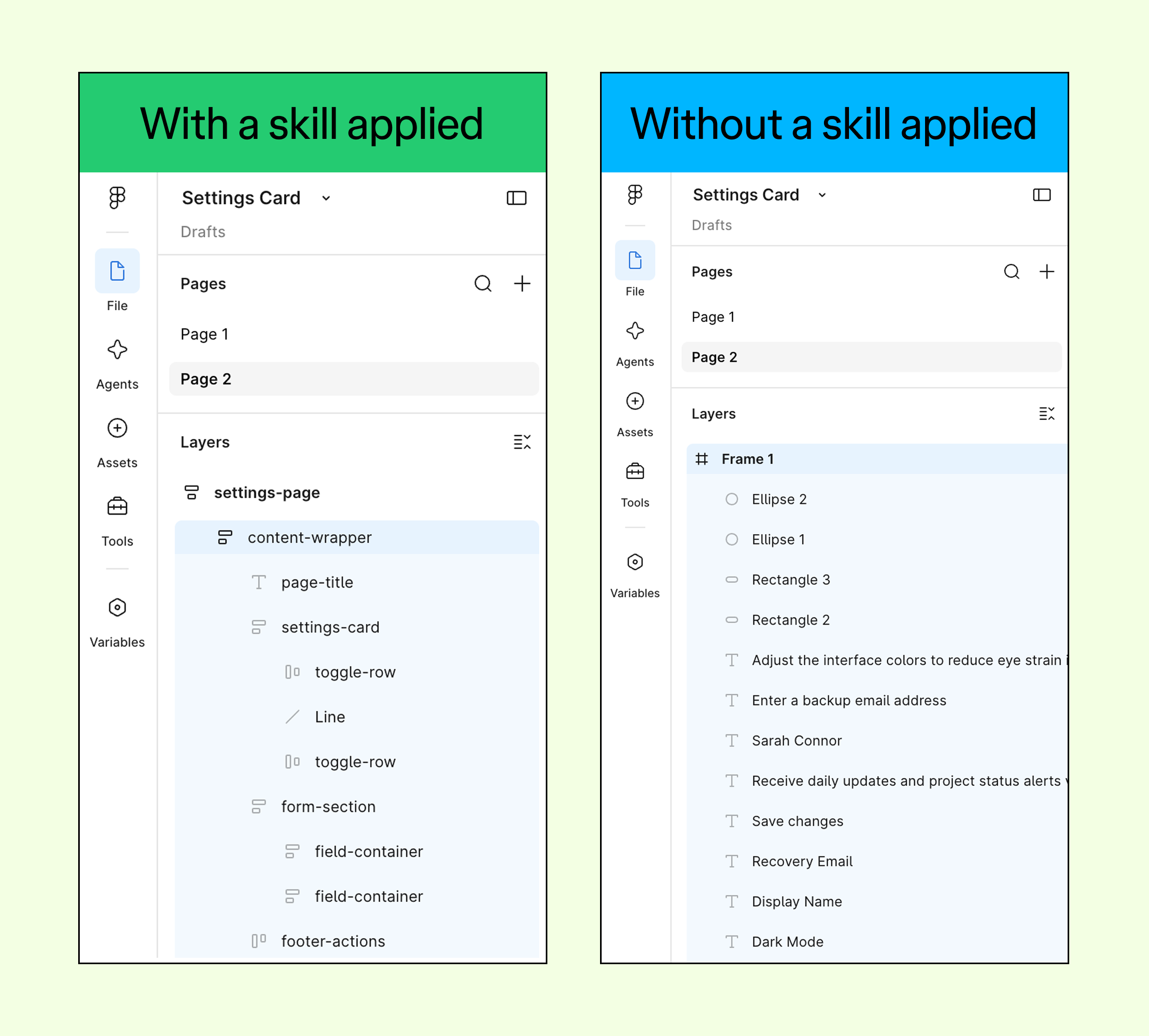
Say you’re a product designer on a team with an established design system, and you need to build a settings page. Without a skill, the agent produces a screen that looks plausible at first glance but uses hardcoded values that don’t match your system.
With a well-written skill, the agent checks your published library first, finds the Card and Form components already in use, binds every color to a semantic token, and assembles the screen section by section, naming conventions intact.
Then, once the screen lands in Figma Design, your development team can pick up the implementation in Dev Mode. Code Connect keeps components mapped to production code so there’s no manual handoff conversation required to explain what got built and why.
In this livestream, Brett McMillin, designer advocate at Figma, and Thariq Shihipar, member of the technical staff at Anthropic, walked through roundtrip workflows between Claude Code and Figma. Here’s their advice for writing a design system skill and linking it to Figma’s built-in skills:
Brett and Thariq also shared a concrete example from the session. Imagine you have a local folder of JSON files defining your design tokens, including naming and light and dark values, and you ask Claude to generate the corresponding Figma variables.
Same prompt, same files—the only difference was the skill.
Brett and Thariq pointed to vague prompts, like “make this look prettier” or “implement this design,” as the most common mistake teams make. Vague prompts force Claude to infer intent, and that's where things can go wrong. Be specific, or explicitly tell Claude to ask you questions rather than guess.
But giving Claude too many rigid rules can backfire too, they noted. Stay flexible and curious, and treat unexpected output as a signal to investigate why, not just a reason to add more constraints. If you know a specific Figma skill applies, name it explicitly rather than hoping Claude finds it on its own.
Dev Mode bridges the gap between design and code, so developers get accurate specs and production-ready snippets directly from your Figma files.
No. A skill is a markdown file made of structured text, and writing one doesn’t require programming. The instructions are plain language, and the examples use natural language prompts. If you already write documentation for your design system, you’re well-positioned to write a skill.
The Figma MCP server gives an agent access to your Figma files, so it can read components, variables, styles, and more. A skill adds the rules for how to use that access. Together, they let an agent build screens or update components using your actual design system instead of generic defaults. Figma also publishes official skills, like figma-use and figma-generate-library, as a starting point.
Start with your highest-leverage rules: which components to reach for in common scenarios, how your tokens are named and structured, and any do’s and don’ts pulled from existing documentation. Accessibility requirements and migration guidance between library versions are strong additions, too. Think of it as the onboarding doc you would hand a new developer, written for an agent instead.
Figma’s published skills cover the most common canvas workflows well, but they don’t know your specific token names, component variants, or naming conventions. A custom skill fills that gap. It sits alongside Figma’s skills and adds the system-specific context an agent needs to produce on-spec output every time, not just the first time.
A Claude Skill design system setup is really a way of writing your rules down once, so an AI agent stops guessing at them. Generic AI output misses your system because nothing tells it otherwise. Figma’s built-in skills give you a foundation, and a custom SKILL.md file fills in everything specific to your team. Skills are how your design system earns its authority with AI agents, prompt after prompt.
For teams exploring vibe coding alongside design system work, or looking at how design systems and MCP servers fit together more broadly, a skill is the piece that keeps AI-assisted work on your rails instead of off them.
Here’s how to put it all together:
Figma Design is where your component libraries, variables, and tokens live, creating the foundation every Claude Skill builds on.
Find some of the best AI design tools for 2026. Compare tool capabilities and benefits to streamline your design process and boost your creativity.

Curious how AI in design is changing the way teams work? See how tools like Figma make it easier to bring ideas to life with real-world examples.

Avoid common design system scaling mistakes. Learn how to transition from a static library to a product infrastructure that aligns design and code at scale.

Learn how to use AI for product design 7 different ways. Turn your ideas into working prototypes faster with prompt-based design and collaborative creativity.


Build a powerful AI product design stack with these 5 specialized tools. Unify your workflow, from concept art to code, for maximum speed and efficiency.

Learn how AI for product managers can transform your daily processes. Discover top tools + tips for using AI to streamline roadmapping and user research.