
AI in design: Transforming the way we create
See how AI in design is changing the way teams work and how Figma tools make it easier to bring ideas to life.
Skip to main content
Building with AI


You open your AI tool of choice, type a prompt, and 15 directions land in your lap before your coffee’s even done brewing. What took days a year ago now takes minutes. That’s the upside of AI in product design, but it also means the real work has moved. AI makes it easier than ever to generate ideas. It also creates more options to sort through.
That shift is at the center of how we think about AI at Figma. The AI creative process now lives in the space between generation and decision. Our 2025 AI report backs that up, noting that 23% of designers and developers say most of their work runs through AI-powered tools, up from 17% the year before.
Read on to learn:
For most of design history, the creative process was bottlenecked by the number of ideas one person or team could physically produce. That constraint shaped everything from how briefs got written to how much time got budgeted for exploration. AI has flipped that constraint on its head.
A single prompt can now generate a dozen visual directions, three different layouts, or five ways to structure a flow. Figma’s State of the Designer 2026 report confirms how fast this shift is moving: 72% of designers now use generative AI in their day-to-day work, and 91% say it’s actually improving the quality and the speed of what they ship.
The bottleneck is now judgment, or knowing which of those directions actually deserves pursuing and why.
This is the new shape of an AI creative workflow, and it changes what an AI design process actually looks like day to day. Teams need a clear way to evaluate options fast without losing sight of what the product actually needs to do.
It’s a big enough shift to look at how AI in design has changed the broader workflow, not just the creative process.
When AI can produce 20 directions in the time it used to take to sketch two, the skill that separates good teams from great ones is taste. Knowing which direction solves the actual user problem, fits the brand, and holds up under scrutiny takes product intuition that no model can fully replace.
In practice, this shows up as a different kind of friction. Blank-page paralysis used to be the enemy. Now it’s decision fatigue, with too many plausible options and not enough shared criteria to pick one. That’s not a reason to worry about AI replacing designers. The conversation around AI and creativity is about creative energy moving downstream, from producing options to refining and choosing them.
The data shows this is true. In our State of the Designer 2026 report, 87% of designers say having a say in decisions boosts their performance, and creative freedom ranks as the single biggest driver of job satisfaction. Generation might be automated. Judgment still isn’t, and designers know it.
“We filter the AI’s directions by stress-testing them against our primary user research metrics, like whether a layout actually drives user progress or retention,” says Rachel Platt, Education Designer at Figma. “We look for structural frameworks that provide a strong foundation, then jump onto the canvas to iterate.”
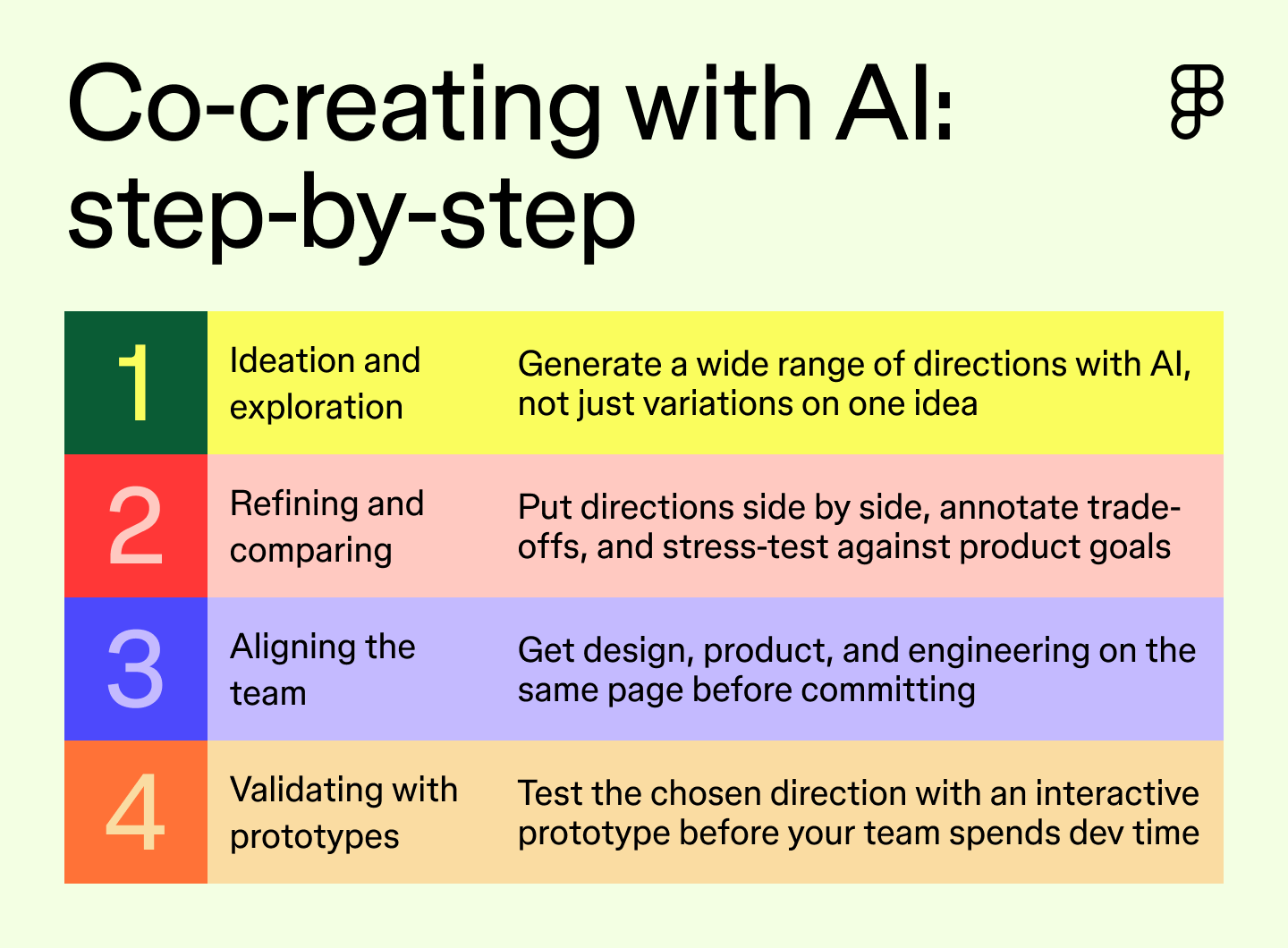
An AI-assisted creative process plays out across four phases: exploring options, narrowing them down, aligning the team, and validating the direction you land on. It’s the same rhythm that shows up across the broader product development process your team already follows.
Each phase has its own AI-assisted tools, and its own way to go wrong if you skip the judgment part. Here’s how AI fits into each phase, plus what to try and what to watch out for.

This is where the volume happens, and where teams find the most creative ways to use AI in their workflow. AI can turn one prompt into a dozen directions, several layout options, or a handful of tones to test.
With Figma AI design agent, teams can explore and pressure-test those directions right on a shared canvas, so nobody’s toggling between five tabs to compare them.
According to Platt, the best results come from connecting a team’s design system right away, so the directions AI generates use real components and variables instead of throwaway shapes someone has to rebuild from scratch.
Figma Weave adds another layer here for visual exploration. It lets teams run multiple AI models and editing tools in one workflow, so generating and iterating on visual directions doesn’t mean jumping between separate apps.
Keeping everything in one place, instead of scattered across tools, makes the selection process easier for the whole team, not just the person who ran the prompt.
Try this: Instead of asking for more directions, ask for range. A prompt like “give me three directions that solve this differently, not three variations on the same idea” pushes the tool toward genuinely distinct options.
Watch for this: Volume can feel like progress even when it isn’t. Ten directions that all look the same aren’t ten options—they’re one option repeated nine times. Push for range before you push for quantity.
Once you’ve got a set of options worth taking seriously, the work shifts to comparing directions side by side, annotating what’s working, and stress-testing each one against the actual product goals. This is where many teams waste time, bouncing feedback across Slack threads, screenshots, and separate decks.
Figma’s multiplayer canvas is built for this part of the job. The whole team can be in the file together, reacting to directions in real time instead of waiting for a summary email.
“Having multiple AI-generated directions living natively on a shared canvas keeps the feedback loop incredibly visual and centralized,” says Platt. “Teams can leave targeted comments directly on the frames and use the agent to instantly synthesize that feedback into prioritized next steps.”
Try this: Annotate each option with its unique advantage: what does this option get right that the others don’t? That single question keeps the comparison focused on trade-offs rather than a vague thumbs-up or down.
Watch for this: Comparing on gut feel alone. Without a shared question or checklist, the loudest opinion in the room can decide the direction just because it spoke first.
Figma Design is where teams come together to explore, iterate, and bring digital products to life on one shared canvas.
Alignment is where a lot of momentum quietly dies. Your team picks a direction in one meeting, then re-litigates it in the next because half the team wasn't in the room. This is often where product managers feel the most pressure, since AI in product management now means deciding what warrants building, not just tracking what’s already in progress.
Working in a shared canvas helps here, since everyone can see the same file, comments, and version updates in real time.
Alignment also needs to reach beyond design, and Figma MCP works in both directions. It brings code-based context into Figma, so the canvas reflects what’s actually being built. And it carries Figma’s design intent into the integrated development environment (IDE) and developer workflows.
This way, the direction your team agrees on doesn’t get lost or reinterpreted once it hits engineering. Figma MCP is part of a broader move toward AI agents that work directly inside the development process, keeping what a team decides and what actually gets built in sync.
Try this: Run a quick async check before the meeting ends. Ask each stakeholder to leave one comment in the file on why they would, or wouldn’t, move forward with the chosen direction. This surfaces disagreement while it’s still cheap to address.
Watch for this: Mistaking silence for alignment. A quiet meeting doesn’t mean everyone’s on board. It might just mean nobody wanted to be the one to push back.
Before anyone spends real development time on a direction, it’s worth testing whether it actually works. That’s what Figma Make helps with. It validates experiences with interactive prototypes that look and feel like your real product, so you get higher-fidelity feedback from users and stakeholders than a static mockup can give you.
Right now, that means stepping out of your design file and into Figma Make to build the prototype. Soon, that same validation step will live right inside Figma Design, so you can go from a static direction to a working prototype without leaving the canvas you’re already in.
“We stay in the static iteration phase while nailing down content density, edge cases, and layout logic,” says Platt. “Once the core layout survives those stress tests and we need to validate high-fidelity transitions or run user testing, that’s when we transition into building an interactive prototype.”
Try this: Ask the same three or four questions in every user or stakeholder session, whatever the prototype. Consistent questions mean you’re comparing answers, not impressions.
Watch for this: Validating too late, after the team’s already emotionally attached to a direction. Build the validation checkpoint in before that happens.

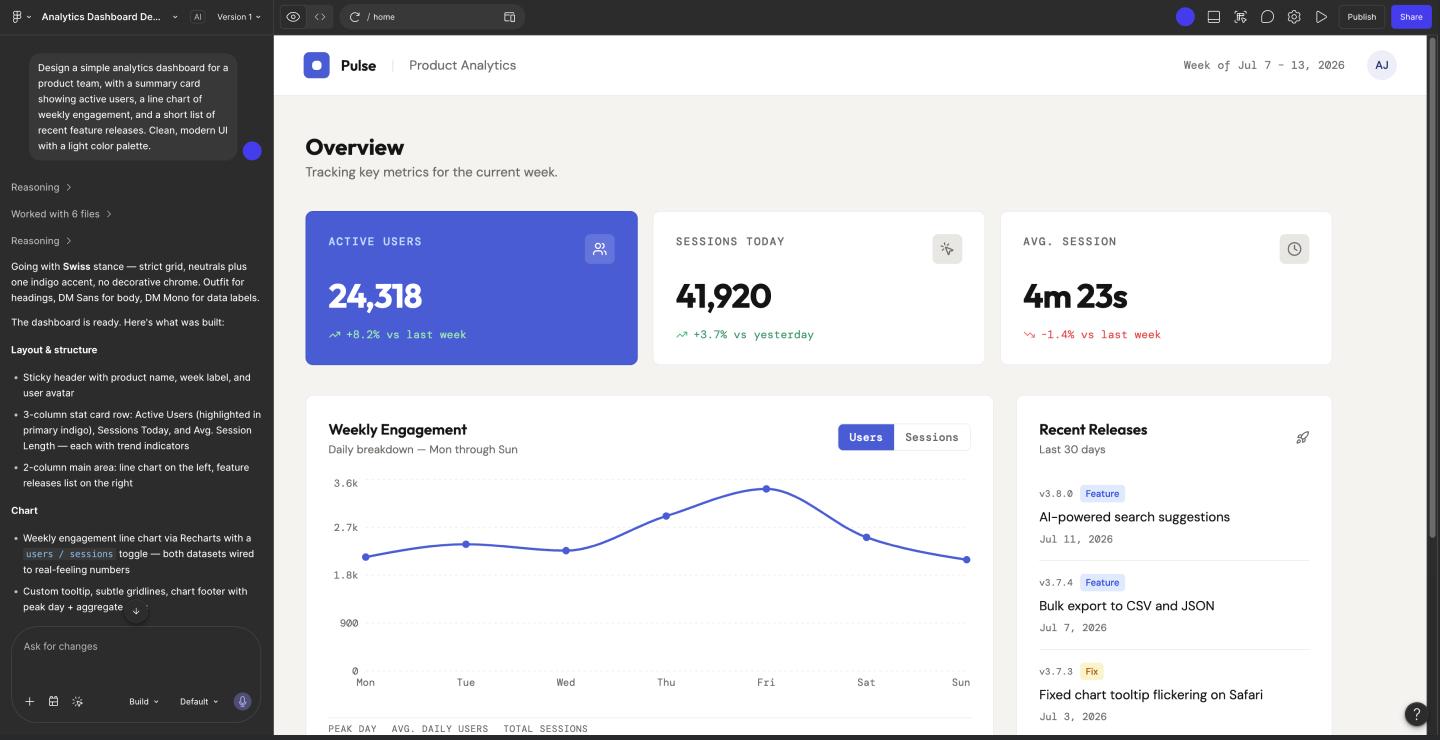
Bringing AI into your workflow doesn’t automatically make the process better. A few patterns tend to trip teams up early on:
Most of these mistakes trace back to treating AI as a shortcut around judgment, instead of a way to generate more material for judgment to work on. The tools have changed. The need for someone to decide what’s good hasn’t.
“The biggest mistake is feeding the AI vague, single-sentence prompts and expecting groundbreaking results, which only yields generic concepts,” says Platt. “Teams also falter when they treat AI output as a finished product rather than a highly malleable jumping-off point to refine directly on the canvas.”
The AI creative process is about building a workflow where your team can explore options fast, compare them clearly, and land on a direction everyone actually believes in. That’s the piece most teams are still figuring out, and it’s the piece Figma is built for.
Here’s how to put it all together:
Figma Design keeps every direction your team explores in one place, so comparing and choosing the right one is as easy as building it.
See how AI in design is changing the way teams work and how Figma tools make it easier to bring ideas to life.

Learn seven ways to use AI for product design and turn your ideas into working prototypes faster.

Explore five AI product design tools that help teams build faster, smarter, and more connected workflows.

Learn how vibe coding combines creativity, collaboration, and AI assistance to bring ideas to life faster.

Explore the AI design tools reshaping how teams work, from first sketch to final asset.

Learn what design thinking is, how it works across teams, and how to apply it with Figma.
Build faster with Figma's agent