

Connect a design library
Point the agent to your design library so generated logos use your real colors, typography, and tokens—not generic placeholders.
Skip to main content
Explore logo directions, iterate on ideas, and refine concepts with AI—directly in Figma Design. No switching tools, no rebuilding assets. Describe what you want and see it take shape.











Figma's agent helps you explore logo directions faster, using your real design context to generate concepts worth building on.

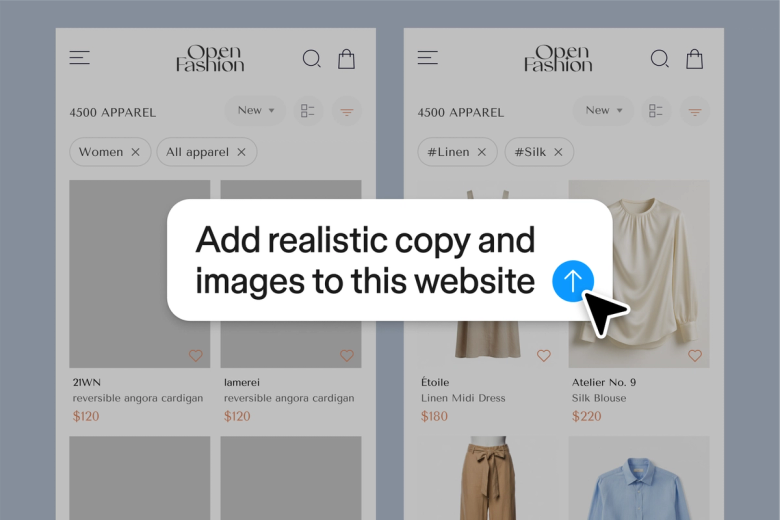
Describe a concept and the agent generates real logo options on your canvas. Run multiple prompts in parallel to explore different directions simultaneously—not one at a time, waiting and wondering.

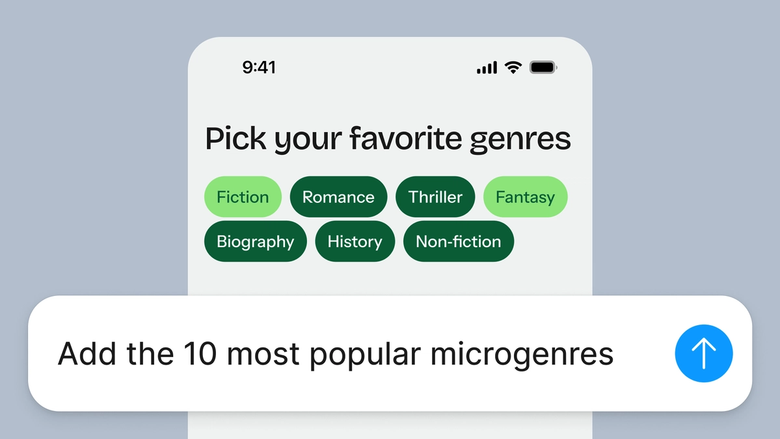
Skip the tedious setup of generating logos elsewhere and importing them back. The agent works directly on your canvas, so you spend less time on file management and more time refining the mark.

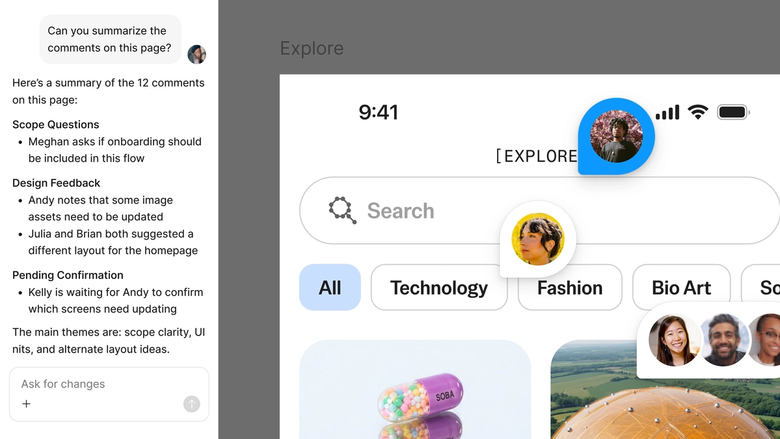
Every logo concept lives in the same file your team works in. Share a thread and they see the full prompt history—no separate handoff, no lost context, no wondering how you got there.
A closer look at what sets Figma's agent apart, built for the way design teams actually work.
Point the agent to your design library so generated logos use your real colors, typography, and tokens—not generic placeholders.


Run multiple logo directions at once. Explore a wordmark, an icon, and an abstract concept simultaneously without waiting between each.


Share your agent thread and teammates see every prompt, iteration, and decision. The full creative history stays with the work.


First pass not quite right? Adjust in the same thread or branch into a parallel one to try a different direction without losing progress.
Figma feels like a natural extension of my hand. I do my design ideation on the canvas, and now the agent takes it the last mile. With my design libraries connected, I can move from design to code faster than ever before.
Andy Madrick
Product Designer, Notion

Select Agents in the left side rail or hit CMD + Enter. Add a frame to your canvas to work in.
Tell the agent what you're looking for—style, mood, industry, abstract or literal. Point to your design library so it uses your real colors and tokens.
Check the generated concepts. Refine in the same thread, or start a parallel one to explore a completely different direction.
Prompt again until the concept is right. Everything stays editable, so you can fine-tune by hand or keep prompting.
Watch Figma's AI Agent in action and see how to put it to work in your own workflows.


Hands-on playground to explore Figma agent's capabilities — from bulk edits to feedback implementation — with step-by-step guidance built right in.
Learn how to use Figma agent in your design workflows with a step-by-step tutorial from the Figma team.
An AI logo generator helps you create logo concepts from a text description. You describe the style, mood, or direction you're after, and the AI generates visual options to explore. With Figma's agent, these concepts appear directly on your design canvas—ready to refine, iterate, or share with your team.
You provide a prompt describing what you want—industry, style, abstract or literal, color direction—and the AI interprets that into visual concepts. Figma's agent generates logos using your connected design library, so outputs reference your real colors, typography, and tokens instead of generic defaults.
Logos generated with Figma's agent are created within your Figma file and belong to your work. However, you'll want to refine any AI-generated concept to make it distinctly yours. The agent gives you a starting point to iterate on—treat generated logos as drafts to develop, not finished marks.
Start with a clear prompt describing the direction: industry context, style preferences, whether you want something abstract or literal. Connect your design library so the agent uses your real brand tokens. Then iterate—run parallel prompts to explore directions, refine in follow-up threads, and hand-polish the result on your canvas.
Figma's agent is available on all paid Figma plans. You'll find it in the left navigation bar in Figma Design. During the current open beta, it doesn't consume AI credits—so it's a good time to explore, experiment, and share your feedback with us.
Build faster with Figma's agent


