

Connect a design library
Reference your existing design system so generated briefs can cite real components, patterns, and constraints your team already works with.
Skip to main content
Turn project goals, constraints, and context into clear, actionable design briefs with Figma's agent—directly on your canvas. No separate doc, no back-and-forth to align.











Figma's agent helps you turn scattered requirements into focused briefs your whole team can act on—without leaving your design file.

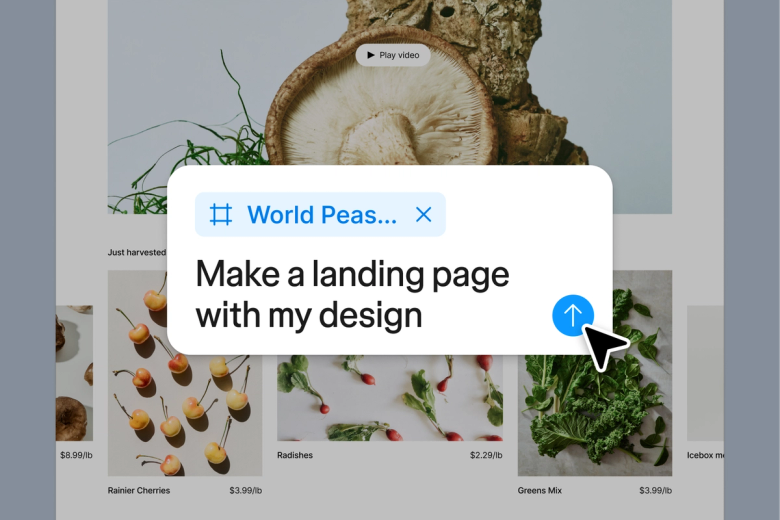
Generate multiple brief variations to explore different angles, audiences, or constraints. See options side by side on your canvas so you can compare approaches and align your team before diving into design.

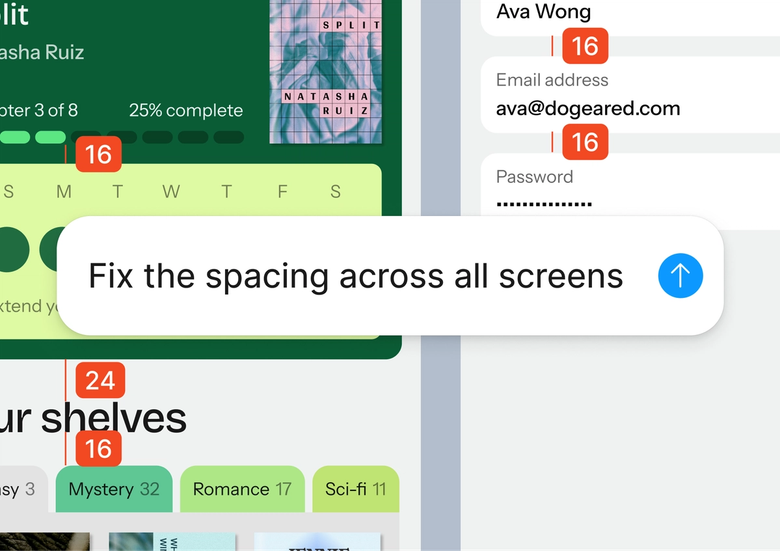
Skip the blank-page struggle. Describe your project context and let the agent draft a structured brief while you focus on the strategic thinking that actually moves the work forward.

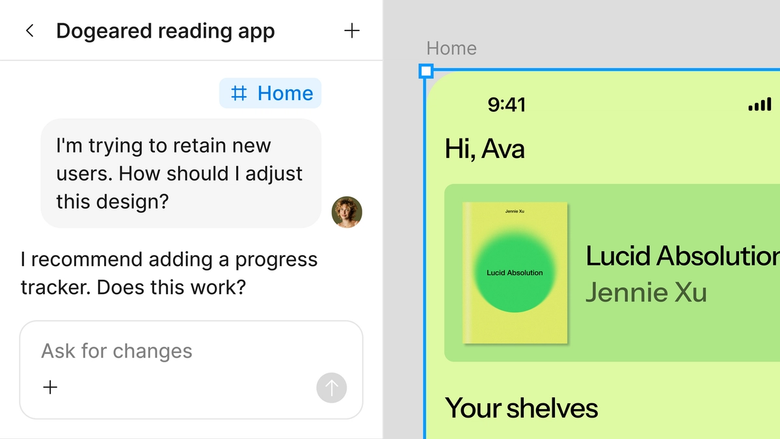
Your brief lives in the same file as your designs, so everyone sees the same context, goals, and constraints. No separate handoff, no lost documents, no version confusion.
A closer look at what sets Figma's agent apart, built for the way design teams actually work.
Reference your existing design system so generated briefs can cite real components, patterns, and constraints your team already works with.


Explore multiple brief directions at once—different audiences, scopes, or approaches—without waiting for one to finish before starting another.


Share a thread and your team sees the full prompt, context, and iteration history behind the brief. Everyone stays aligned from day one.


Turn your brief-writing workflow into a skill your team can trigger with a command—consistent structure, faster kickoffs, less reinvention.
Figma feels like a natural extension of my hand. I do my design ideation on the canvas, and now the agent takes it the last mile. With my design libraries connected, I can move from design to code faster than ever before.
Andy Madrick
Product Designer, Notion

Select Agents in the left side rail or hit CMD + Enter. Create a new frame to work in.
Tell the agent about your goals, audience, constraints, and timeline. The more context you share, the more useful your brief.
Check the generated brief on your canvas. Refine in the same thread or start a parallel one to explore a different angle.
Keep prompting until the brief captures what your team needs. It lives in your file, ready for everyone to reference as they design.
Watch Figma's AI Agent in action and see how to put it to work in your own workflows.


Hands-on playground to explore Figma agent's capabilities — from bulk edits to feedback implementation — with step-by-step guidance built right in.
Learn how to use Figma agent in your design workflows with a step-by-step tutorial from the Figma team.
An AI design brief generator helps you turn project context—goals, constraints, audience, timeline—into a structured brief your team can act on. With Figma's agent, you generate briefs directly on your canvas, so they live alongside your designs instead of in a separate document. This keeps everyone aligned from project kickoff through delivery.
In Figma Design, open the agent from the left side rail and describe your project context—what you're building, who it's for, any constraints or requirements. The agent generates a structured brief on your canvas. You can refine it with follow-up prompts or try parallel directions to explore different approaches before committing.
A strong design brief typically includes project goals, target audience, scope and constraints, success criteria, timeline, and any relevant brand or technical guidelines. Figma's agent can help structure these elements based on the context you provide, giving you a starting point you can refine with your team.
Figma's agent can draft a creative brief based on the project context you describe. It generates structured content directly on your canvas, which you can then refine through follow-up prompts or edit by hand. The goal is to accelerate your starting point, not replace your strategic thinking.
Figma's agent is available on all paid Figma plans. You'll find it in the left side rail in Figma Design. During the current open beta, it doesn't consume AI credits—so it's a good time to explore, experiment, and share your feedback with us.
Build faster with Figma's agent


