

Connect a design library
The agent understands your components, patterns, and standards—so feedback accounts for how your product actually works, not generic assumptions.
Skip to main content
Get feedback on usability, flow, and clarity directly in Figma Design. Figma's agent reviews your work from different user perspectives—no recruiting participants, no waiting for results.











Get usability insights on your canvas, where you can act on them immediately and keep building momentum.

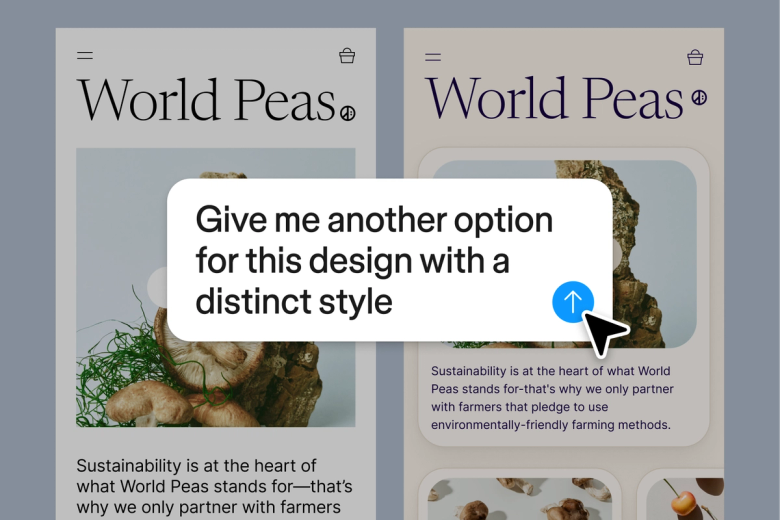
Figma's agent reviews your designs from multiple perspectives—first-time users, accessibility needs, task completion—so you can catch friction points early and refine before live testing begins.

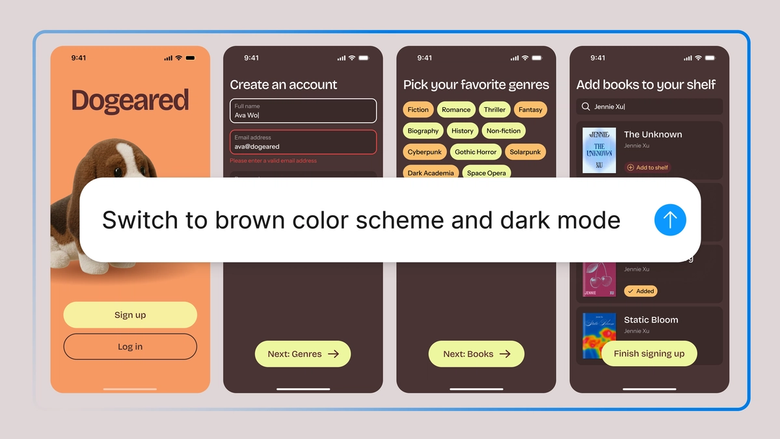
Skip the recruiting and scheduling. Get directional feedback on your flows, copy, and interactions in seconds, so you can iterate quickly and save formal testing for validation.

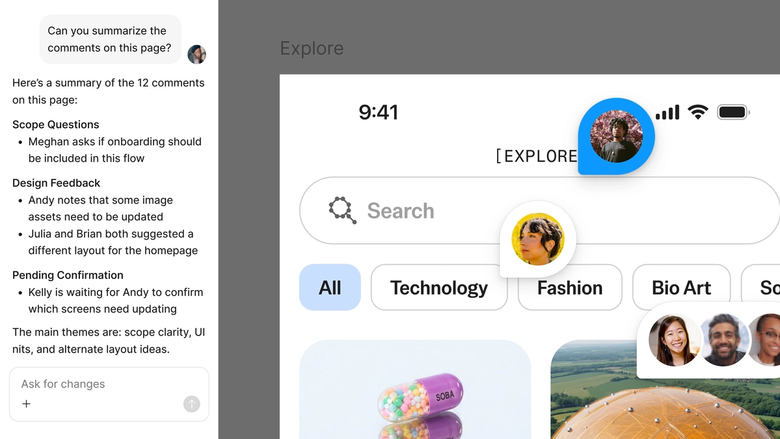
Feedback happens in the same file your team works in. Everyone sees the insights, the context, and the iterations—no separate report to share or findings to translate.
A closer look at what sets Figma's agent apart, built for the way design teams actually work.
The agent understands your components, patterns, and standards—so feedback accounts for how your product actually works, not generic assumptions.


Test multiple screens or flows at once. Run feedback prompts in parallel to review an entire journey without waiting between each one.


Share a feedback thread and your team sees the full prompt, context, and conversation. No summarizing findings in a separate document.


Package your testing prompts into reusable commands—run the same usability check across screens or make it a standard part of your review process.
Figma feels like a natural extension of my hand. I do my design ideation on the canvas, and now the agent takes it the last mile. With my design libraries connected, I can move from design to code faster than ever before.
Andy Madrick
Product Designer, Notion

Select "Agents" in the left side rail or hit CMD + Enter. Navigate to the screen or flow you want feedback on.
Tell the agent what you want reviewed—task clarity, navigation flow, accessibility, first-time user experience. Be specific about the perspective you need.
Read the insights on your canvas. Start a parallel thread to test a different screen or get another perspective on the same design.
Make changes based on the feedback and prompt again. The agent sees your updates and can confirm whether the issue is resolved.
Watch Figma's AI Agent in action and see how to put it to work in your own workflows.


Hands-on playground to explore Figma agent's capabilities — from bulk edits to feedback implementation — with step-by-step guidance built right in.
Learn how to use Figma agent in your design workflows with a step-by-step tutorial from the Figma team.
An AI user testing agent reviews designs and provides feedback from simulated user perspectives. Figma's agent can assess task flows, surface potential confusion points, and flag accessibility concerns—all directly on your canvas. It's designed to complement, not replace, testing with real users.
Figma's agent analyzes your designs based on the prompt you give it. You might ask for feedback on a checkout flow from a first-time user's perspective, or request an accessibility review of a navigation pattern. The agent returns insights you can act on immediately, right where you're designing.
AI feedback is best used as a complement to human testing, not a replacement. Figma's agent helps you catch obvious issues and iterate faster before you invest in recruiting and scheduling. Real user testing remains essential for validating assumptions and uncovering insights AI can't predict.
AI testing gives you faster feedback loops, so you can iterate more before formal research. It surfaces potential issues while the design is still easy to change. And because it happens in your Figma file, there's no context-switching or translating findings from a separate tool.
Figma's agent is available on all paid Figma plans. You'll find it in the left navigation bar in Figma Design. During the current open beta, it doesn't consume AI credits—so it's a good time to explore, experiment, and share your feedback with us.
Build faster with Figma's agent


