

Connect your design library
Generate prototypes using your real components, styles, and variables—so every interaction matches your design system from the start.
Skip to main content
Figma's agent helps you turn static designs into interactive prototypes—connecting screens, building flows, and wiring up interactions directly in your file. Describe it once, watch it come together.











Generate real, interactive prototypes using your design system—not placeholder wireframes you have to rebuild later.

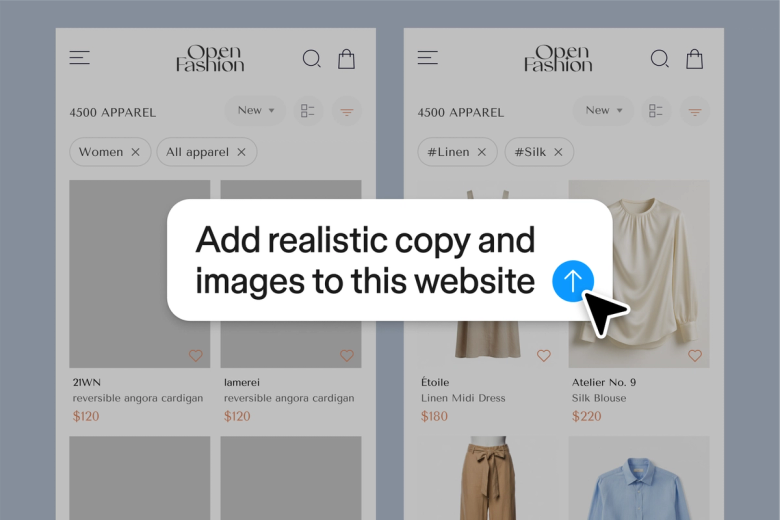
Describe the user journey and Figma's agent wires up the connections, transitions, and interactions across your screens. Explore branching paths and edge cases without manually connecting every frame.

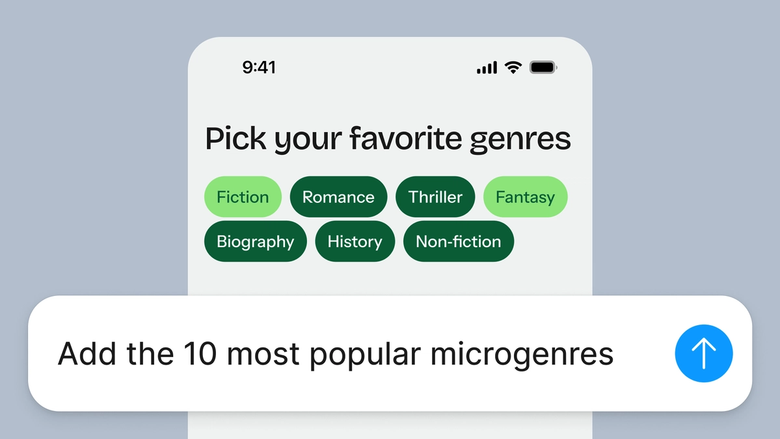
Hand off the repetitive wiring—linking buttons, setting transitions, duplicating flows for variants—so you can focus on the experience you're designing, not the mechanics of building it.

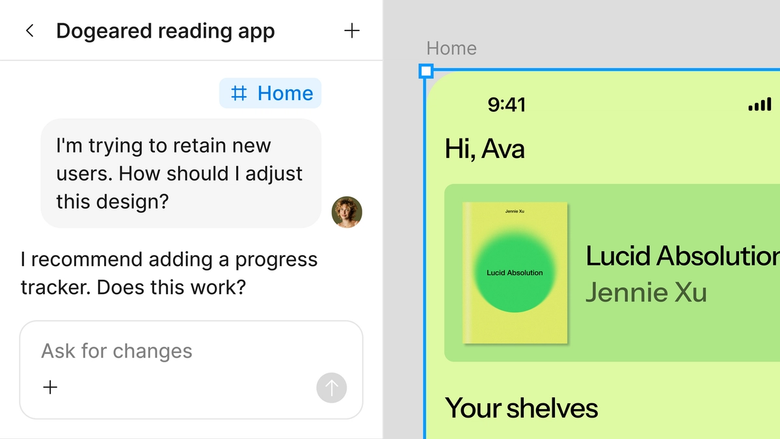
Prototypes live in the same file your team works in, so stakeholders see and click through the real thing. No exporting, no broken links, no separate handoff.
A closer look at what sets Figma's agent apart, built for the way design teams actually work.
Generate prototypes using your real components, styles, and variables—so every interaction matches your design system from the start.


Explore multiple flow directions at once. Start one prototype while another generates, and compare approaches side by side.


Share a thread and your team sees the full prompt, context, and iteration history behind the prototype. No separate walkthrough needed.


First pass not quite right? Adjust transitions, add screens, or change the flow in the same thread—or branch into a parallel direction.
Figma feels like a natural extension of my hand. I do my design ideation on the canvas, and now the agent takes it the last mile. With my design libraries connected, I can move from design to code faster than ever before.
Andy Madrick
Product Designer, Notion

Select Agents in the left side rail or hit CMD + Enter. Have your screens ready on the canvas or generate them first.
Tell the agent what journey to prototype—entry points, user actions, transitions. Point to your design library so it uses your real components.
Click through the interactive flow on your canvas. Refine in the same thread or start a parallel one to explore a different path.
Prompt again to add screens, adjust transitions, or wire up edge cases. Everything stays editable, so you can fine-tune by hand too.
Watch Figma's AI Agent in action and see how to put it to work in your own workflows.


Hands-on playground to explore Figma agent's capabilities — from bulk edits to feedback implementation — with step-by-step guidance built right in.
Learn how to use Figma agent in your design workflows with a step-by-step tutorial from the Figma team.
An AI prototyping agent helps you turn static designs into interactive prototypes by automating the connections between screens, setting up transitions, and wiring interactions. Figma's agent does this directly on your design canvas, so you describe the flow you want and it builds the working prototype right in your file.
You describe the user journey or interaction you want to prototype, and the agent connects your existing screens with the right transitions and triggers. It references your design library to use real components and styles. You can refine with follow-up prompts or run multiple directions in parallel.
Figma's agent automates repetitive prototyping work like wiring buttons to screens, setting transition types, duplicating flows for variants, and connecting branching paths. This frees you to focus on the experience design itself rather than the mechanics of linking frames together.
Open your file in Figma Design and select Agents in the left side rail, or hit CMD + Enter. Describe the flow you want to prototype and point the agent to your design library. Review the result on your canvas and refine with follow-up prompts until it's right.
Figma's agent is available on all paid Figma plans. You'll find it in the left side rail in Figma Design. During the current open beta, it doesn't consume AI credits—so it's a good time to explore, experiment, and share your feedback with us.
Build faster with Figma's agent


