

Connect your design library
Generate localized variants using your real components, tokens, and styles—so every market-specific design stays on brand and system-compliant.
Skip to main content
Translate text, adapt layouts for right-to-left languages, and prepare your UI for global markets—directly in Figma Design. No exporting to spreadsheets, no rebuilding frames by hand.











Figma's agent helps you adapt designs for global audiences without leaving the file where your team already works.

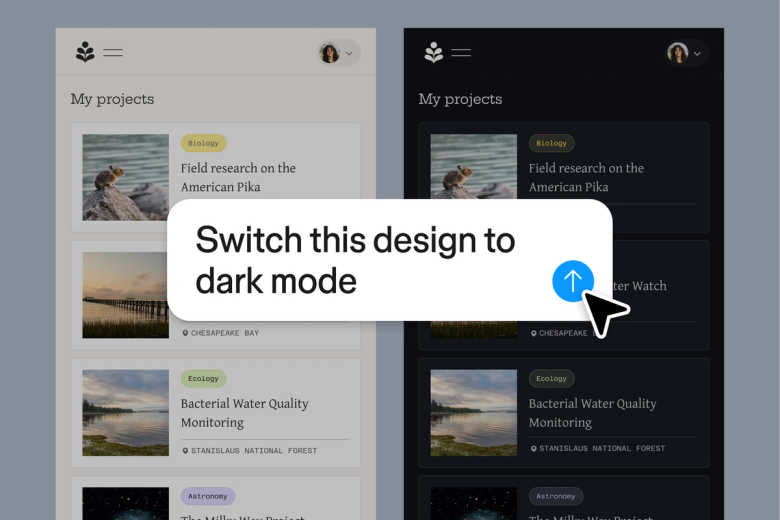
Figma's agent translates copy directly on your canvas, so you can see how translated text fits within buttons, cards, and layouts—catching overflow and spacing issues before handoff, not after.

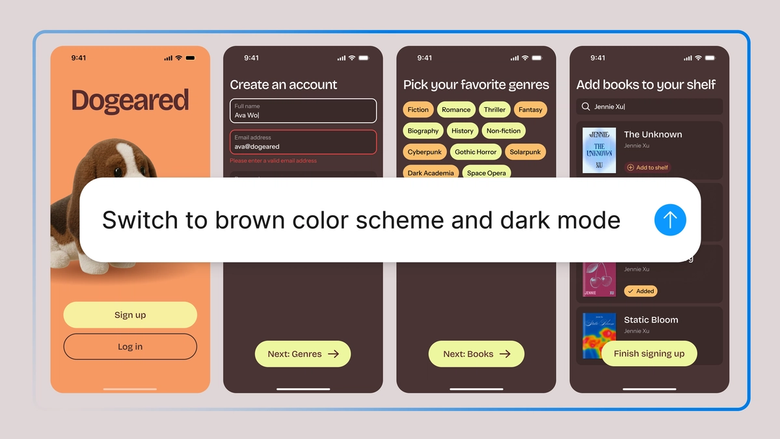
Switch layouts for right-to-left languages without manually mirroring every element. The agent restructures frames and repositions components while preserving your design system and spacing logic.

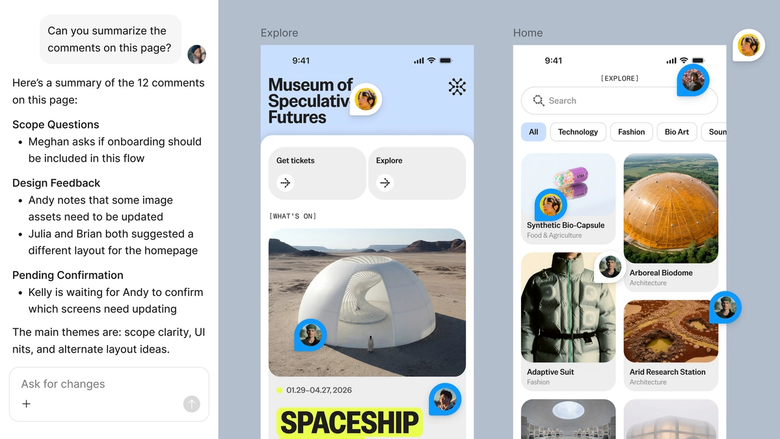
Localized variants live in the same file your team works in. When the source design changes, everyone sees the update—no version drift across scattered files or lost translations.
A closer look at what sets Figma's agent apart, built for the way design teams actually work.
Generate localized variants using your real components, tokens, and styles—so every market-specific design stays on brand and system-compliant.


Localize for multiple languages simultaneously. Run prompts for Spanish, Japanese, and Arabic at once instead of translating one at a time.


Share a localization thread and your team sees the full prompt history, language choices, and iteration context. No separate handoff document needed.


Translation not quite right? Adjust tone, formality, or terminology in the same thread—or open a parallel one to try a different approach.
Figma feels like a natural extension of my hand. I do my design ideation on the canvas, and now the agent takes it the last mile. With my design libraries connected, I can move from design to code faster than ever before.
Andy Madrick
Product Designer, Notion

Open your file in Figma Design and select the frame, component, or text layers you want to translate and adapt.
Tell the agent which language to target and any layout adjustments needed—like switching to right-to-left or adjusting for longer text strings.
Check the localized output directly on your canvas. Refine in the same thread or start a parallel one for another language.
Everything stays editable. Adjust translations by hand, prompt again for different phrasing, or localize additional frames as your design evolves.
Watch Figma's AI Agent in action and see how to put it to work in your own workflows.


Hands-on playground to explore Figma agent's capabilities — from bulk edits to feedback implementation — with step-by-step guidance built right in.
Learn how to use Figma agent in your design workflows with a step-by-step tutorial from the Figma team.
An AI design localization assistant helps you translate and adapt designs for different languages and markets without leaving your design tool. Figma's agent handles text translation, layout adjustments for right-to-left languages, and spacing fixes for longer strings—all directly on your canvas. This keeps localized variants in sync with your source design and eliminates the back-and-forth of exporting text to spreadsheets.
AI speeds up localization by translating text in context, so you immediately see how copy fits within buttons, cards, and other UI elements. Figma's agent can also restructure layouts for right-to-left reading directions and flag spacing issues before handoff. This means fewer surprises in development and faster turnaround for global launches.
Yes. Figma's agent can adapt layouts for right-to-left languages like Arabic and Hebrew, mirroring frames and repositioning elements while preserving your design system logic. You describe the target language and any specific adjustments, and the agent restructures the layout on your canvas—so you don't have to manually flip every component.
Select the frame or text layers you want to localize, then open the agent from the left side rail or press CMD + Enter. Describe the target language and any layout changes needed. The agent translates and adapts the design directly on your canvas, where you can review, refine, and iterate until it's ready for handoff.
Figma's agent is available on all paid Figma plans. You'll find it in the left navigation bar in Figma Design. During the current open beta, it doesn't consume AI credits—so it's a good time to explore, experiment, and share your feedback with us.
Build faster with Figma's agent


