

Connect a design library
Point the agent to your design system so generated slides use your real components, tokens, and styles—consistent with the rest of your work.
Skip to main content
Turn your design work into polished presentations with AI—directly in Figma Design. Generate slides that pull from your actual frames, components, and styles. No rebuilding in a separate tool.











Figma's agent generates presentation slides from your design canvas, so you spend less time recreating and more time telling the story.

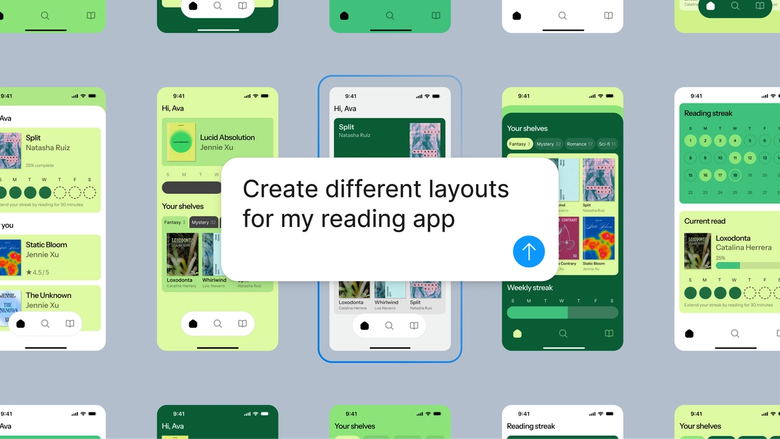
Figma's agent builds presentations using your actual canvas work—frames, components, and styles you've already created. No copying screenshots into another tool and losing the connection to the source.

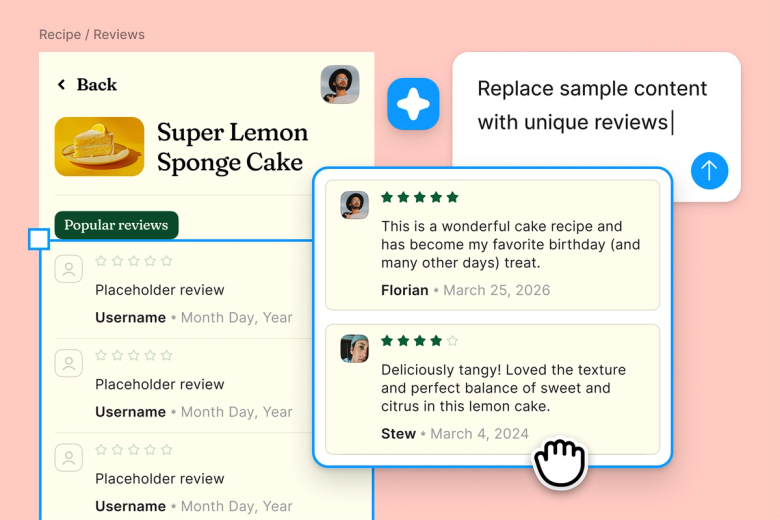
Hand off the tedious work of assembling slides, formatting layouts, and pulling in the right assets. The agent scaffolds the deck so you can focus on the narrative and polish.

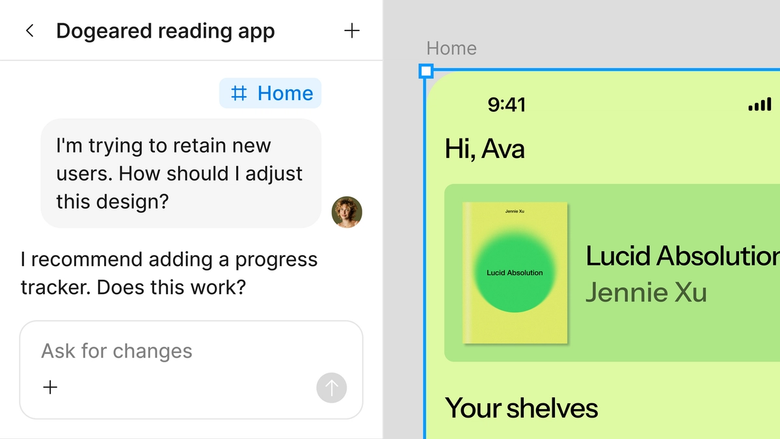
Presentations live in the same file your team already works in. Stakeholders see the latest designs, and feedback lands where you can act on it—no separate handoff needed.
A closer look at what sets Figma's agent apart, built for the way design teams actually work.
Point the agent to your design system so generated slides use your real components, tokens, and styles—consistent with the rest of your work.


Explore multiple presentation directions at once. Run parallel prompts to try different structures, layouts, or narratives without losing progress.


Share a thread and your team sees the full prompt history and context behind every slide. No separate documentation needed.


First draft not quite right? Adjust the structure, swap sections, or rework the narrative in the same thread—or branch into a parallel one.
Figma feels like a natural extension of my hand. I do my design ideation on the canvas, and now the agent takes it the last mile. With my design libraries connected, I can move from design to code faster than ever before.
Andy Madrick
Product Designer, Notion

Select Agents in the left side rail or hit CMD + Enter. Have your design frames ready on the canvas.
Tell the agent what you're presenting—a feature walkthrough, a design review, a stakeholder pitch. Point it to the frames you want to include.
Check the generated presentation on your canvas. Refine the structure, add context, or try a different direction in a parallel thread.
Everything stays editable. Prompt again to adjust the narrative, or fine-tune slides by hand until they're ready to share.
Watch Figma's AI Agent in action and see how to put it to work in your own workflows.


Hands-on playground to explore Figma agent's capabilities — from bulk edits to feedback implementation — with step-by-step guidance built right in.
Learn how to use Figma agent in your design workflows with a step-by-step tutorial from the Figma team.
An AI design presentation generator creates slide decks from your design work using natural language prompts. With Figma's agent, you describe the presentation you need—a design review, a feature walkthrough, a pitch—and it assembles slides directly from frames on your canvas. Everything stays connected to your source files.
Figma's agent reads your canvas context—the frames, components, and design system you're working with—and structures a presentation based on your prompt. It pulls in real design assets rather than placeholders, so the deck reflects your actual work without manual rebuilding.
Yes. Figma's agent generates slides using your design library components and styles, so the output matches your brand standards. The slides land on your canvas as editable frames, giving you full control to polish and refine before presenting.
Open the agent from the left side rail or press CMD + Enter. Describe the presentation you want and reference the frames you'd like to include. The agent generates slides on your canvas. Refine with follow-up prompts or edit by hand until it's ready.
Figma's agent is available on all paid Figma plans. You'll find it in the left side rail in Figma Design. During the current open beta, it doesn't consume AI credits—so it's a good time to explore, experiment, and share your feedback with us.
Build faster with Figma's agent


