

Connect your design library
Point the agent to your design system and it uses your real components, tokens, and styles—keeping every optimization on-brand and production-ready.
Skip to main content
Automate the repetitive tasks that slow you down—batch edits, layout adjustments, content fills—with an AI agent built directly into Figma Design. Describe what needs doing and move on.











Figma's agent accelerates your workflow by handling the tasks that eat your time, so you can spend more energy on craft and less on clicks.


Describe what to change across multiple frames, layers, or components, and the agent applies it all at once. No more selecting, adjusting, repeating—just one prompt and it's done.

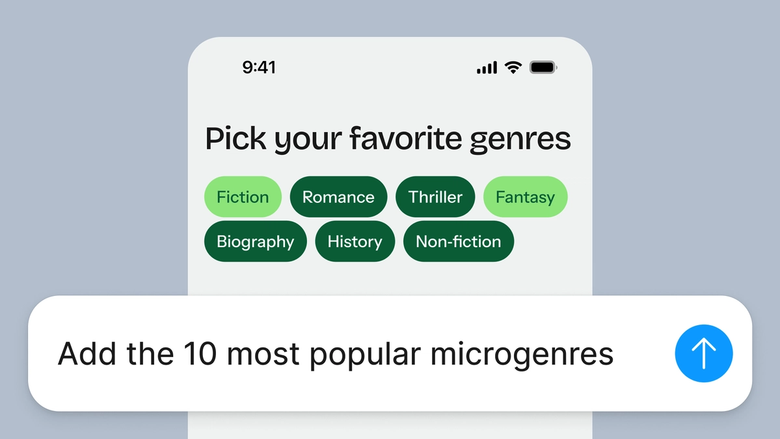
The agent runs right on your canvas in Figma Design, so you stay in flow instead of switching tools or waiting on exports. Your momentum stays intact.

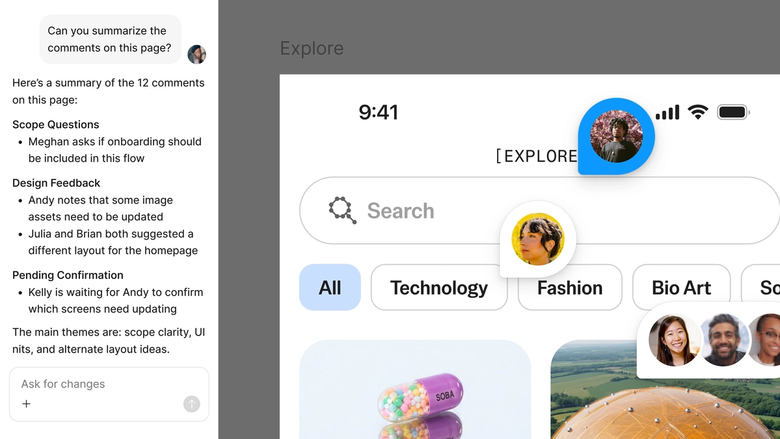
Every optimization happens in the shared file, so teammates see the latest version immediately. No syncing delays, no handoff friction, no wondering who has the current copy.
A closer look at what sets Figma's agent apart, built for the way design teams actually work.
Point the agent to your design system and it uses your real components, tokens, and styles—keeping every optimization on-brand and production-ready.


Start multiple optimizations at once and let them run simultaneously. Explore different directions without waiting for one to finish before starting the next.


Every optimization lives in a thread your team can access. They see the prompt, the context, and the full iteration history—nothing gets lost.


Turn your most-used optimization workflows into reusable commands. Run them again with a single prompt whenever you need them.
Figma feels like a natural extension of my hand. I do my design ideation on the canvas, and now the agent takes it the last mile. With my design libraries connected, I can move from design to code faster than ever before.
Andy Madrick
Product Designer, Notion

Select Agents in the left side rail or hit CMD + Enter. Add your design library so the agent uses your real components.
Tell the agent what to optimize—update spacing across all cards, swap icons in bulk, fill content throughout a flow. Be specific about what to change and what to keep.
Check the result directly on your canvas. Refine in the same thread or start a parallel one to try a different approach.
Everything stays editable. Prompt again for further optimizations, or fine-tune by hand. Turn repeated workflows into reusable skills.
Watch Figma's AI Agent in action and see how to put it to work in your own workflows.


Hands-on playground to explore Figma agent's capabilities — from bulk edits to feedback implementation — with step-by-step guidance built right in.
Learn how to use Figma agent in your design workflows with a step-by-step tutorial from the Figma team.
An AI design speed optimizer helps you work faster by automating repetitive tasks that typically slow down design workflows. This includes bulk edits, batch updates, content fills, and layout adjustments. Figma's agent handles these directly on your canvas, so you spend less time on tedious work and more on the design decisions that matter.
AI speeds up design by taking over manual, repetitive tasks. Instead of selecting layers one by one and making the same adjustment dozens of times, you describe the change once and the agent applies it everywhere it's needed. Figma's agent also runs prompts in parallel, so you can explore multiple directions simultaneously instead of waiting on each one.
Open Figma's agent from the left side rail or use the CMD + Enter shortcut. Describe the task you want to automate—batch edits, content fills, spacing adjustments—and the agent applies it across your file. You can run multiple prompts at once, refine with follow-ups, and save repeated workflows as reusable skills.
The main benefit is time. Tasks that used to take an hour of clicking can happen in a few prompts. Beyond speed, you stay in flow—no context-switching to other tools. And because everything happens in the shared file, your team sees updates instantly without waiting on exports or handoffs.
Figma's agent is available on all paid Figma plans. You'll find it in the left navigation bar in Figma Design. During the current open beta, it doesn't consume AI credits—so it's a good time to explore, experiment, and share your feedback with us.
Build faster with Figma's agent


