

Reference your design system
Point the agent to your design library so feedback accounts for your real components, tokens, and styles—not generic assumptions.
Skip to main content
Ask Figma's agent to review your work, critique layouts, and suggest improvements—directly in Figma Design. Real feedback on your real designs, no separate review tool needed.











Figma's agent reviews your work in context, referencing your actual layers, components, and design system—not a flat image export.


Figma's agent reviews your designs right on the canvas, so you can act on suggestions immediately. No exporting screenshots, no switching to a separate feedback tool, no rebuilding what you already have.

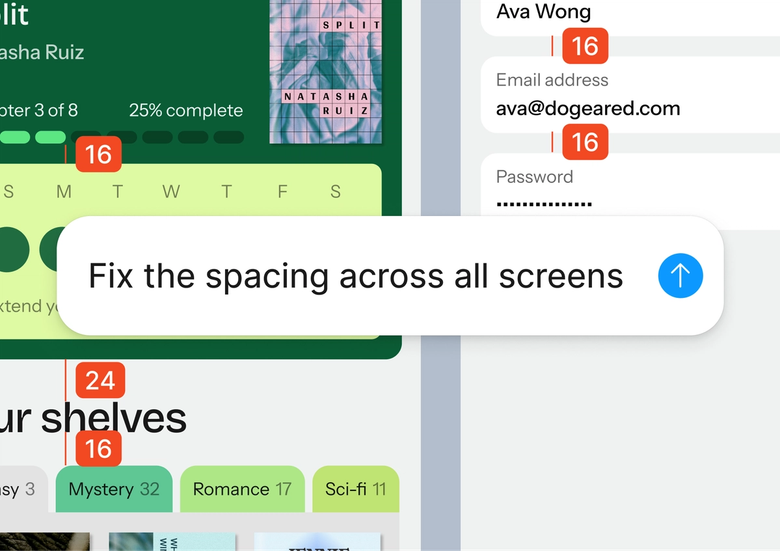
Get instant perspectives on layout decisions, accessibility concerns, or component usage without waiting for a teammate to become available. Use AI feedback to refine your thinking before the real review.

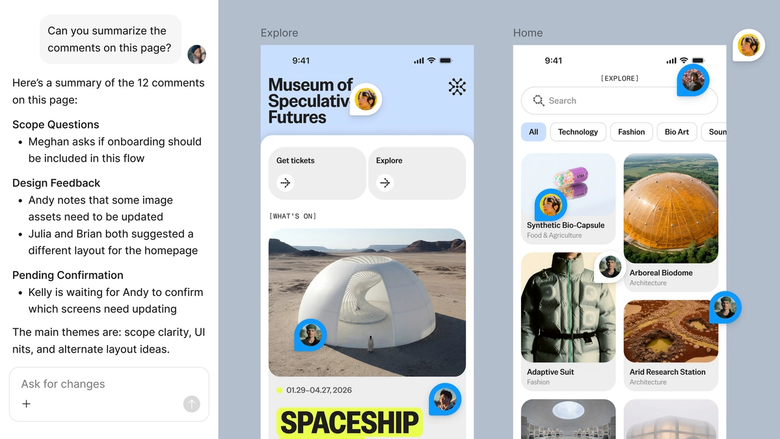
Feedback threads live in the same file your team works in. Everyone sees the critique, the context, and the iteration history—so nothing gets lost between review and revision.
A closer look at what sets Figma's agent apart, built for the way design teams actually work.
Point the agent to your design library so feedback accounts for your real components, tokens, and styles—not generic assumptions.


Run multiple feedback requests at once. Get critiques on different frames or explore alternative directions simultaneously without waiting.


Share a feedback thread and your team sees the full prompt, response, and iteration history. No separate handoff document needed.


Dig deeper on any suggestion. Ask for clarification, request a different perspective, or explore alternatives in the same thread.
Figma feels like a natural extension of my hand. I do my design ideation on the canvas, and now the agent takes it the last mile. With my design libraries connected, I can move from design to code faster than ever before.
Andy Madrick
Product Designer, Notion

Select "Agents" in the left side rail or hit CMD + Enter. Select the frame or component you want feedback on.
Describe what you want reviewed—layout balance, accessibility, component usage—and what perspective you need. Be specific about your goals.
Read the feedback on your canvas. Ask follow-up questions in the same thread or start a parallel one for a different angle.
Act on the suggestions directly in your file. Everything stays editable, so you can refine by hand or prompt again.
Watch Figma's AI Agent in action and see how to put it to work in your own workflows.


Hands-on playground to explore Figma agent's capabilities — from bulk edits to feedback implementation — with step-by-step guidance built right in.
Learn how to use Figma agent in your design workflows with a step-by-step tutorial from the Figma team.
An AI design feedback agent reviews your work and offers suggestions based on design principles, accessibility guidelines, and the context of your file. Figma's agent does this directly on your canvas, referencing your actual layers and components. It's useful for getting a quick gut check before a formal review or exploring how your design might be perceived.
Figma's agent analyzes the selected frame or component on your canvas, considering layout, hierarchy, spacing, and how elements relate to each other. You describe what kind of feedback you want, and the agent responds in a thread you can continue. Because it works on your real design file, the feedback is contextual rather than generic.
AI feedback is a useful starting point, but it's not a replacement for human review. Figma's agent can surface potential issues with layout balance, contrast, or component consistency, but it may miss nuances that require domain expertise or user research. Treat it as a collaborator that helps you think, not a final arbiter.
Select the frame or component you want reviewed, then open the agent from the left side rail or hit CMD + Enter. Describe what you're looking for—feedback on hierarchy, accessibility, or visual balance—and the agent will respond in context. You can ask follow-up questions or request a different perspective in the same thread.
Figma's agent is available on all paid Figma plans. You'll find it in the left side rail in Figma Design. During the current open beta, it doesn't consume AI credits—so it's a good time to explore, experiment, and share your feedback with us.
Build faster with Figma's agent


