

Connect to a design library
Generate and refine using your actual components, tokens, and variables—not placeholder UI you'll have to swap out later.
Skip to main content
Create specs, annotate decisions, and document components with AI—directly in Figma Design. Your documentation lives alongside your designs, always in sync with what you've actually built.











Generate specs, annotations, and handoff notes from your real canvas work, using your actual components and design decisions.


Figma's agent generates documentation using what's actually on your canvas—your components, tokens, and layout decisions. No recreating context or copying specs into a separate system.

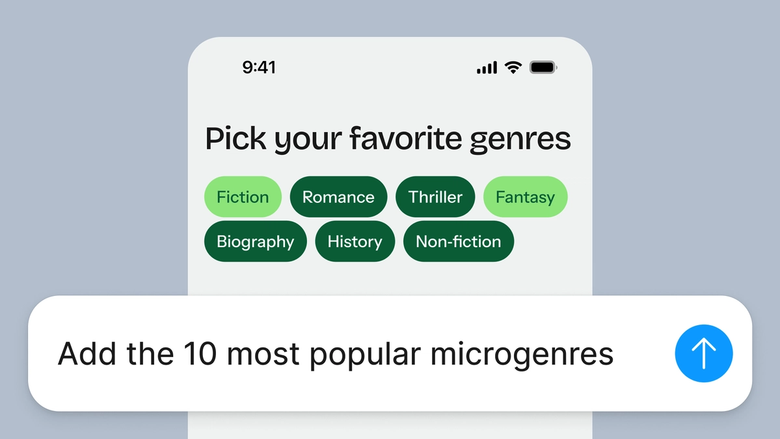
Hand off the tedious parts—writing component specs, annotating spacing, documenting states—and keep your focus on the design work that matters most.

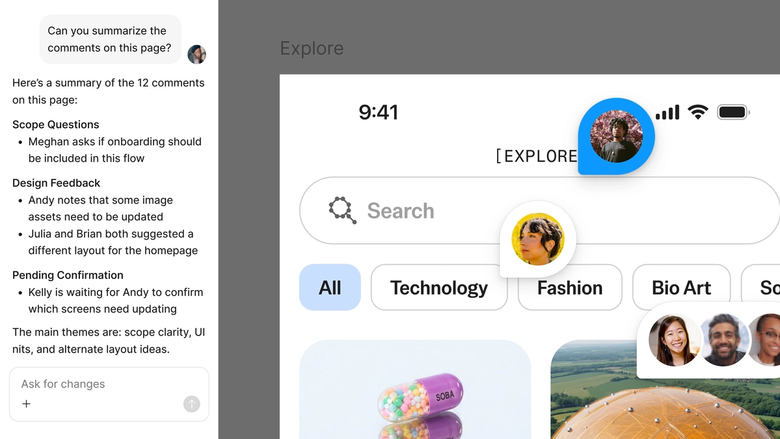
Documentation lives in the same file your team works in, so developers and stakeholders see the latest specs alongside the designs. Nothing gets lost in a handoff export.
A closer look at what sets Figma's agent apart, built for the way design teams actually work.
Generate and refine using your actual components, tokens, and variables—not placeholder UI you'll have to swap out later.


Run multiple prompts at once so you're evaluating directions in parallel, not burning time on each one in sequence.


Share a thread and your team sees the full prompt, context, and iteration history behind any design. No separate handoff needed.


Package your team's workflows and conventions into reusable /commands anyone can run on demand.
Figma feels like a natural extension of my hand. I do my design ideation on the canvas, and now the agent takes it the last mile. With my design libraries connected, I can move from design to code faster than ever before.
Andy Madrick
Product Designer, Notion

Open your file in Figma Design and select the component, frame, or flow you want to document.
Tell the agent what to generate—component specs, interaction notes, spacing annotations, handoff details. Be specific about the level of detail you need.
Check the generated documentation alongside your designs. Refine in the same thread or try a parallel one to explore a different format.
As your designs evolve, prompt again to regenerate specs. Everything stays editable and in sync with your latest work.
Watch Figma's AI Agent in action and see how to put it to work in your own workflows.


Hands-on playground to explore Figma agent's capabilities — from bulk edits to feedback implementation — with step-by-step guidance built right in.
Learn how to use Figma agent in your design workflows with a step-by-step tutorial from the Figma team.
An AI design documentation generator creates specs, annotations, and handoff notes from your actual designs. Figma's agent does this directly on your canvas, reading your real components, tokens, and layout decisions. The result is documentation that reflects what you've built—not a separate artifact that drifts out of sync.
Figma's agent analyzes the selected frames or components on your canvas and generates relevant specs based on your prompt. It references your design library, understands spacing and hierarchy, and outputs documentation you can refine with follow-up prompts. The documentation appears directly in your file, ready to share.
Yes. Figma's agent generates specs from your actual canvas work—component properties, spacing values, color tokens, and interaction states. Because it works natively in Figma Design, specs stay connected to the source designs and update as your work evolves.
Select the components you want to document in Figma Design, then prompt Figma's agent to generate specs, usage guidelines, or variant descriptions. Point it to your design library so it references your real tokens and naming conventions. Iterate with follow-up prompts until the documentation matches your system's standards.
Figma's agent is available on all paid Figma plans. You'll find it in the left navigation bar in Figma Design. During the current open beta, it doesn't consume AI credits—so it's a good time to explore, experiment, and share your feedback with us.
Build faster with Figma's agent


