

Connect to a design library
Generate and refine using your actual components, tokens, and variables—not placeholder UI you'll have to swap out later.
Skip to main content
Catch inconsistencies, check spacing, and verify design system compliance with an AI design QA agent built directly into Figma Design. Get feedback where you're already building—no separate review tool.











Figma's agent reviews your designs against real context—your components, your tokens, your canvas—so feedback is specific and actionable.

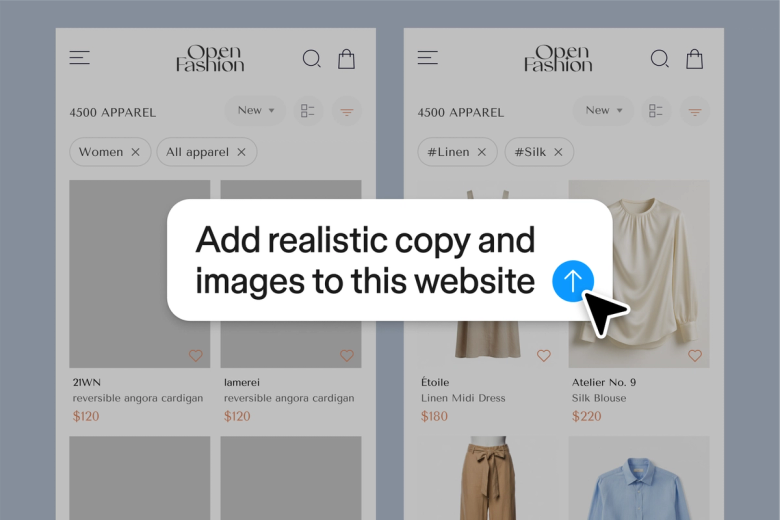
Figma's agent acts as your AI design QA agent, surfacing spacing inconsistencies, alignment issues, and design system violations directly on your canvas—so you can fix problems while you're still designing, not after handoff.

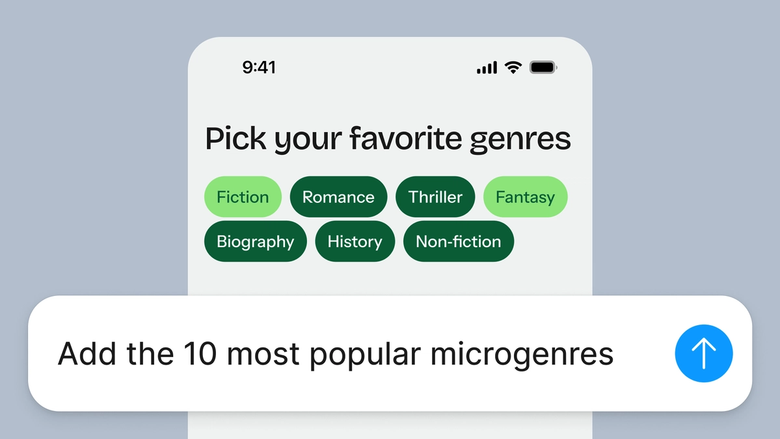
Skip the manual pixel-checking and component audits. Hand off the tedious QA passes to the agent and keep your focus on the design decisions that actually move the work forward.

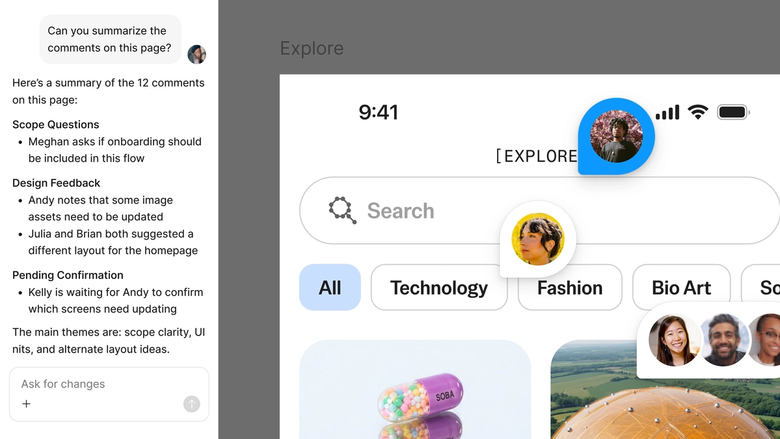
QA feedback lives in the same file your team works in, so everyone sees what needs fixing and can act on it immediately. No separate review documents or screenshot threads.
A closer look at what sets Figma's agent apart, built for the way design teams actually work.
Generate and refine using your actual components, tokens, and variables—not placeholder UI you'll have to swap out later.


Run multiple prompts at once so you're evaluating directions in parallel, not burning time on each one in sequence.


Share a thread and your team sees the full prompt, context, and iteration history behind any design. No separate handoff needed.


Package your team's workflows and conventions into reusable /commands anyone can run on demand.
Figma feels like a natural extension of my hand. I do my design ideation on the canvas, and now the agent takes it the last mile. With my design libraries connected, I can move from design to code faster than ever before.
Andy Madrick
Product Designer, Notion

Open your file in Figma Design and select the frame, component, or flow you want to QA.
Tell the agent what to look for—spacing consistency, alignment issues, design system compliance—and point to your library if needed.
Check the feedback directly on your canvas. Refine in the same thread to narrow scope or explore a parallel direction.
Make your fixes, then prompt again to verify. Everything stays editable, so you can iterate until it's right.
Watch Figma's AI Agent in action and see how to put it to work in your own workflows.


Hands-on playground to explore Figma agent's capabilities — from bulk edits to feedback implementation — with step-by-step guidance built right in.
Learn how to use Figma agent in your design workflows with a step-by-step tutorial from the Figma team.
An AI design QA agent automatically reviews your designs for inconsistencies, errors, and violations of design standards. It checks things like spacing, alignment, color usage, and component compliance—tasks that typically require manual review. Figma's agent does this directly on your canvas, using your actual design system as the reference point.
Figma's agent reviews your selected frames against your design library, tokens, and variables. You describe what to check—spacing consistency, alignment, system compliance—and the agent surfaces issues right on the canvas. Feedback appears in a shareable thread, so your team can see findings and act on them without leaving the file.
Figma's agent can check for spacing inconsistencies, alignment issues, incorrect component usage, color and typography violations, and deviations from your design system. You can scope each check with your prompt—focusing on specific elements or broader patterns. The more specific your prompt, the more targeted the feedback.
Yes. Figma's agent surfaces inconsistencies in spacing, alignment, color, and component usage without manual review. It references your design system to flag deviations from your established standards. You can run checks across multiple frames in parallel, making it faster to audit larger files or flows.
Figma's agent is available on all paid Figma plans. You'll find it in the left navigation bar in Figma Design. During the current open beta, it doesn't consume AI credits—so it's a good time to explore, experiment, and share your feedback with us.
Build faster with Figma's agent


