
AI in design: Transforming the way we create
Curious how AI in design is changing the way teams work? See how tools like Figma make it easier to bring ideas to life with real-world examples.
Skip to main content
Design basics
All your design work, in one place.

Most teams assume developer handoff friction is a communication problem. Someone didn’t leave enough comments, or the designer wasn’t available during implementation. But the friction is usually structural. Design decisions live in one place, the code that reflects them lives somewhere else, and nothing automatically connects the two.
Automated UI handoff changes that relationship. When it works well, developers have what they need before they think to ask for it, and specs stay current without anyone actively maintaining them.
Read on to learn:
Automated UI handoff is a live connection between design files and the development workflow, where components link to their code counterparts and specs update as designs change. Developers can pull what they need without waiting for a designer to package it up.
Design decisions become immediately visible and usable on the development side. When a designer updates a component, developers see the change in the same file they’re already working from, not a spec someone has to repackage and send over.
![Flowchart comparing manual and automated UI handoff paths, showing extra steps and rework loops in the manual process.]](data:image/png;base64,iVBORw0KGgoAAAANSUhEUgAAABQAAAAjCAYAAACU9ioYAAAACXBIWXMAABYlAAAWJQFJUiTwAAAHqElEQVR4nIWW+VNU2RWA589JyqlSJ1rOVMpoUsmUZtTJxEmiyYxrBseacWN03HdUxG0UUIHGptkUBGmg6e318l6/XtkbcGWVHUQau1lbur9UvxbRpKz8cN59de+53z3Lu+e8j/BJxCTsshKwGRix6glIZl45zIyJJgJ2AwHRxJjDTEAy8TKmY6lSdIMOM5NuG7PeOCMmH8UeUZ9E0G7kaUkBdXnZNN3V0HxPQ2OBWhmV98IcGgvV1Odl01hwh0fF+TwrLaSn6gHjskDkXWDYbWPQqMVfoMatuokn+xaurHQcmWn41Bl41bdxx+ZU6cp8TU4GDXnZ1GgyFXh3ZQmTsjAPnHSY6dQW4VcsUFGXmxUH3blNrSZLsSq21pCfTX1+tnJwDFSbm6XoxiwNikbF07iFLiujFh1DxnKGTHEZMJXTb65gwKpjSNLzwmFkWDIwbNMzLFQqOoNv9MdsBoXxXgxnvSKzHjuzXjuzPpFwo4vptjomepsY74vLZF8z0x31ylpMJ7Yn4hWV/e8lZQ46J5FamXB7A6HAM4ZGH9HV38DzgUaGA08IjT0j3NFApE5+D8R/A9+VSJ2Tmed+xoJtdA75aW5z0dLupmu4ibFgKzPdfiL1zv/Zx4eA0RoHM4+rCQ22MDzUTF9vgyKx9+Bgi7IWqXG89YgPulztUL6nGbeNCY+NUINM8KGbQIuLQLOLYIub8QZZ+ZhjOjHdSHUM7HgfGJYtvNSXMVBWRG9pIe2FObTl36GrKJfByhICNj0jop52Uyn+igJqSzXUavPw64t5aCqhy1rBxFyWY5YNa4uxHT1I0bYtFG3fyt1tmync/C3F2zfjTjqlHNZtrSBHfYl9KfvYef5Hdp7fxQ8X97L7UiI3MpJoNZcqFivATo0K1V/WceaTT0hZuYIrf/ojycuXk7R0CcXbNjFYdo8nphISLyey5Ke/suTA13x6aAOfHtzAb/av55szCXjLc5mdA7bnZHLri9UcX7iQ5JUrubJqFRdW/I6TixZR8O1GBkoLeWgo5vsLP/Kr3V+w8MDXfHbsG5Ye3siv967jq+NbcJblzAN772m4/+8tpK76nFtfriVj/VfcXLuW9NWrMCTu5kVlCR1CGWdTj7LqyL/487FNfHlqO2tObOHzw/9kz8U9NOoK4y7HAhk0V/EwIxN38hUc51IQz15EPncJb8o1WnNymLCbeCEbqazMIqXwPGfzznBKc4rTuac5X3CWwrI0eqTK+bs8ITnoKBWpUwv4VEa8WUaqVSYac630VEhMOx30+4yoPdn84LjAVuEUmw0n2GI6SYKYxC+em7R5dfPAoN2JP1/GeF1Ad0WP7qoB3RUDljQLT++7mHQ4aauu4pj3OsvERBZU7eTj8h0sKN/BQstuErzJ1Pu08y5PSE7aH7ioUdtxZ5lxZppwqwTqc0V6Kl1MO530+oxkelVsdySxUTjOP/RH2GA8yibxNBe96Tz16eaB006ZYaOb5+Vu2kodPL0v0lHmpKfSzUvBRdjt4KVPQPAVcdObyWVXGsnidS7Jqdzw3kZbna+ERHH5tdvGqGDj0T0Rj8qOnGFBzrDiyrJRkyPRUSYTEkW6PHpSvRlskE+zznqYNcafWSscYr18gtOeGzz2VcQtnJBM9FWZqFFb0F81UHFJh+5qLI56LKkCLXdFRgQLT5xajstXWSbsZYHuez7WxmO4yLSLBPkc9d4HcWDIbuCFWaCjTKK5UMJfICpjU6HEo3sy3ZUORi0CPbKOEpeGk45r/GxPZr/1PAdsyRyRLnPHlUWXryrucshuJGCxMKB30qX10FHmeivd5R4GjTKjVjNB2cygz8izhnKaH92l4bGGpkcFPPE/oK/GwJTPFi8O45KJYaOFJ0Vu3FlOxJtW7OkC0i0bNWo3raVOho0mppwCM34zr3pKGR7TMDCezdArNYH+YqZbjESrxTgw1lxeCiJPiry4s9xY0qwYr5uwptmovuOltSSWaQvTPoFQh5aB4B26ptPpmEqlcyqNvvEsxnpKeN1geVO+vCJTTgcjZje9FTLt9ww8zdPSWWymT+dk1OJiyikRbhQIDBTRNZ6OfziFmu4LNA6m0D6eyshIPjMtpvkCG/FKvJZMzJTnMJl9llD6IaY0FwlX3WXWaVEq8us3wM5QOvX9yXg6kqjrS6Y1eIMXc0DvXAtwCUS1GUR/SSByfBWRw38gcmoN0Vt7iRrywGNjts5GqLOM/qCK9okbPAtdV8aeUAZjvffnXaZaAusDorf3Ez74e8Z3LSG0awmTe5Yye2w15J4Bh55otUS4yaRsHgrmMDCpYiikJjBYxPRDA5G5pCgWGgqIXN7Kq93LeP7dItq2L6IvYTETicuJ3twLtgfxRlYtEvabmXxWqSRoorWScLOJaI39bfeLA013iVz7jtCez+hPWEx3wmIGdyxmYv8KIhkHwK6FdzpbtEYkUmsnUm0Hn6jELnZLYgmOAyUdUc0ZXp9cw3TiZ0ztW8b0T79l9tzfiBZfA6f5PeDbtvvmv3DGaSFoNzAlC2+AHjuYikB9guilTUTP/53o1e1QkAw2LXjj8fmQjItG+qpKGbNWvfPnEIPay6FcBSWpoMsBqer/wuLlz8KYTa9Y+B/e4MBQ7ldYSQAAAABJRU5ErkJggg==)
![Flowchart comparing manual and automated UI handoff paths, showing extra steps and rework loops in the manual process.]](https://cdn.sanity.io/images/599r6htc/regionalized/0ba2ae413f8de036e5100ea20e913acae541d810-1440x2544.png?w=1440&h=2544&q=75&fit=max&auto=format)
The most common failure point in manual handoff is version drift. A developer starts building from a spec, and by the time they’re mid-implementation, the design has moved on.
Naming mismatches compound the problem. A component called “Button/Primary/Large” in Figma and “PrimaryButton” in the codebase sounds like a minor inconsistency. But at scale, it creates problems. Developers spend too much time searching for the right component rather than building.
The deeper issue is structural. Designers and developers can look at the same file and see entirely different things. One sees a visual layout, the other sees a conditional, responsive component tree. Manual handoff forces developers to reverse-engineer design intent rather than working from a space built for implementation.
Automated UI handoff is a layered workflow. Dev Mode, Code Connect, and Figma’s MCP integration each solve a different part of the problem, and together they form a connected stack that runs from design files to deployed code.

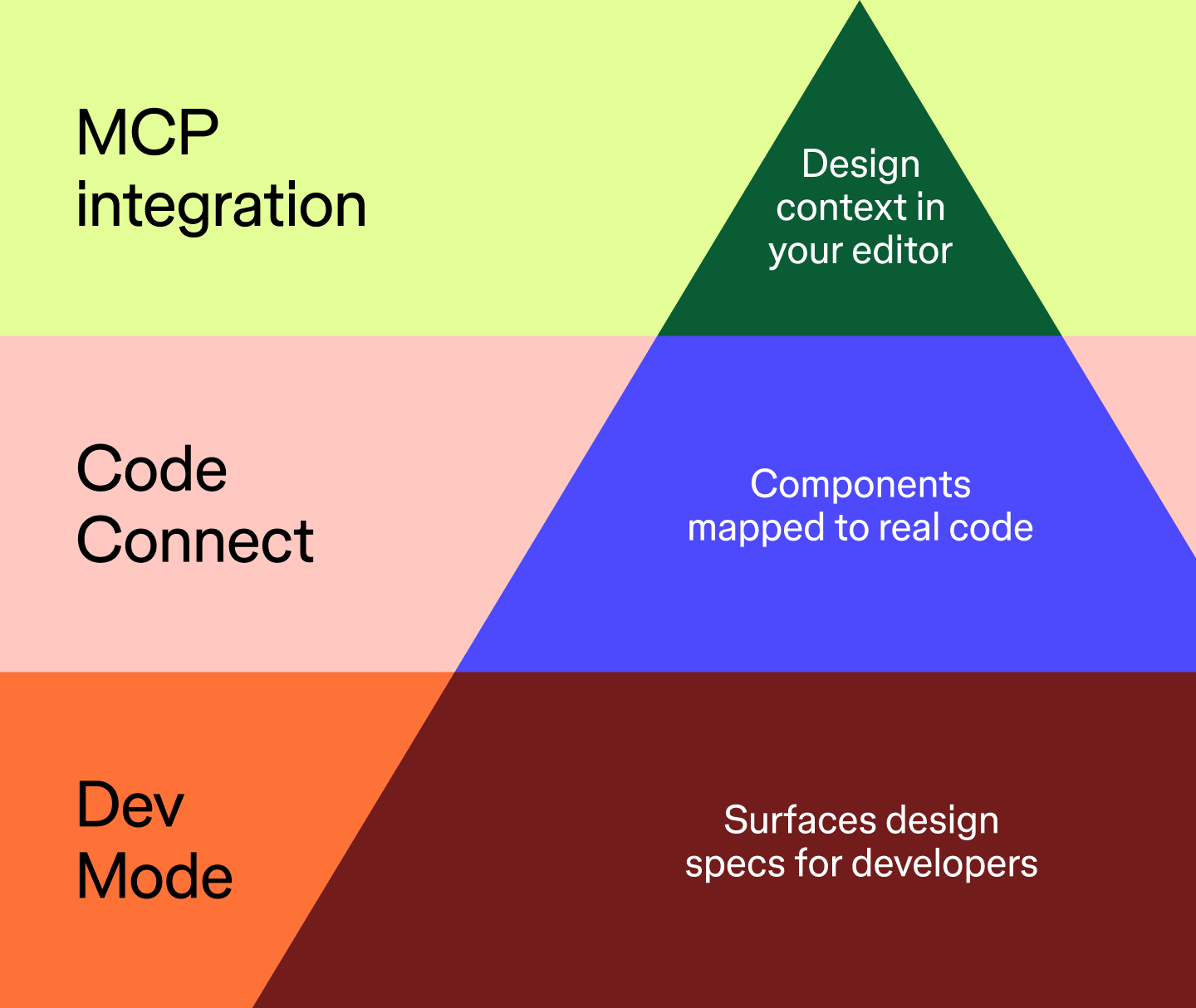
Dev Mode gives developers a dedicated view inside Figma for implementation. It filters down to what developers need to see, like component properties, measurements, spacing values, and code snippets.
Developers can open a file mid-sprint and find the spec they’re looking for without pulling a designer away from their work. Design intent lives in the file itself, where developers are already working. Over time, sync meetings tend to shift away from asset-hunting and toward higher-level conversations about behavior and edge cases.
Dev Mode gives developers direct access to design specs, component properties, and code snippets in Figma.
Dev Mode surfaces accurate specs, but the code snippets it generates are based on the design file rather than your codebase. Code Connect maps Figma components to their real-coded equivalents, so a developer inspecting a button component in Dev Mode sees the actual button from their own codebase. They can use it directly, with no interpretation needed.
Before Code Connect, a developer would copy autogenerated CSS properties and recreate the style from scratch. Now they see the exact import statement and component path from their own repository, with prop names that match the variants already defined in Figma. The workflow shifts from writing new code to mimic a visual to pulling an existing component straight out of the library.
The Figma MCP server changes where design context becomes available in the workflow. MCP (Model Context Protocol) is an open standard that lets AI coding tools connect to external platforms. With the Figma MCP server configured, an AI coding assistant can pull component specs and variables from a Figma design file and bring them into the developer’s environment.
In practice, a developer working in Cursor or VS Code can ask their AI assistant to implement a component and have it reference the Figma file for the exact specs. The connection also works in the other direction: developers can use their coding tools to write content back to the Figma canvas, keeping design and code in sync as both sides evolve.
For teams already using Dev Mode and Code Connect, MCP extends that connected workflow into the editor itself.
However you like to code, the Figma MCP server adds Figma context to your favorite agentic tools.
Automated handoff doesn’t look the same at every org. How much of the stack a team sets up depends on where they’re starting from.
Smaller product teams with a few designers and developers often find Dev Mode is the right first move. Developers get direct access to specs without a formal handoff process, and designers spend less time fielding implementation questions. The setup is lightweight, and the return is immediate.
For larger orgs with established design systems, the fuller stack pays off. Sansan, a Japanese business database company, overhauled its design-to-implementation process by adopting both the Dev Mode MCP Server and Code Connect.
Designers and developers shifted to a more iterative development cycle and moved through changes without the back-and-forth that typically slows larger teams down. That kind of result depends on one prerequisite: a design system organized enough for the tooling to reference. The setup investment is real, but it compounds as the team and the system grow.
Even teams with the right tools in place can run into the same avoidable problems. Here are a few patterns that come up consistently:
The setup is just the starting point. Automated handoff requires ongoing investment, and teams that treat it as a living part of their workflow will get more out of it over time.
Automated UI handoff works best when every layer of the workflow is connected. Component mappings need to stay current as designs change, and developers benefit from visibility earlier in the process than most teams give them. Figma tools are built to support that kind of intentional setup.
Here’s how to put them all together:
The Figma MCP server adds Figma context to your favorite agentic coding tools.
Curious how AI in design is changing the way teams work? See how tools like Figma make it easier to bring ideas to life with real-world examples.

Design tokens are the shared language your team needs to scale. Learn how to build a resilient hierarchy in Figma and bridge the gap between design and code.

Explore 12 inspiring design system examples from top companies and the Figma Community. See how teams build consistency, scale, and collaborate effectively.

Explore Web development trends defining 2026. Learn how AI-driven workflows, server-first performance, and new browser standards are reshaping how teams build.

AI design tools are reshaping how teams work, from the first sketch to the final asset. Explore 11 of the best tools for designers, marketers, and product teams.

Want to stay ahead of the curve? Learn about the latest Web design trends and how to apply them in Figma to build modern, user-friendly sites.