
AI for product managers: 13 top tools + practical tips
Learn how AI for product managers can transform your daily processes. Discover top tools + tips for using AI to streamline roadmapping and user research.
Skip to main content
Design basics
Share flows, gather feedback, and iterate fast with Figma.

AI prototyping for product managers is the practice of using natural language prompts to generate interactive, clickable user flows—without requiring design or coding skills. Tools like Figma Make help you visualize product logic and catch edge cases early so you can align your team before engineering starts.
You’ve just wrapped a sprint planning session, and somehow, everyone left with a different picture of what you’re building. One person sees a two-step checkout flow, while another expects a full account creation sequence. Explaining how a menu should slide out or where a button leads is hard with text alone. AI prototyping for product managers lets you build functional layouts from prompts, so you can walk the team through the logic without the lag time of manual design work.
Read on to learn:
Product prototyping used to be a late-stage hurdle. You’d spend weeks drafting product requirements documents (PRDs), hand them off, and wait for a designer to turn those bullet points into a layout. AI has compressed that timeline by generating visuals the moment you have an idea.
With AI tools for product managers, you can click through your logic before the project kickoff. Jiayan Yu, Product Marketing Manager at Figma, explains that having a high-fidelity draft on day one helps teams “align faster on what they’re actually building, catch issues before engineering starts, and then validate ideas with something that feels real.”
There are a lot of AI prototyping tools out there, but few are built with product teams in mind. Since prototypes are replacing PRDs for many teams, Figma Make lets you build a working prototype from a simple text prompt. Here’s how to go from idea to interactive flow in five steps.

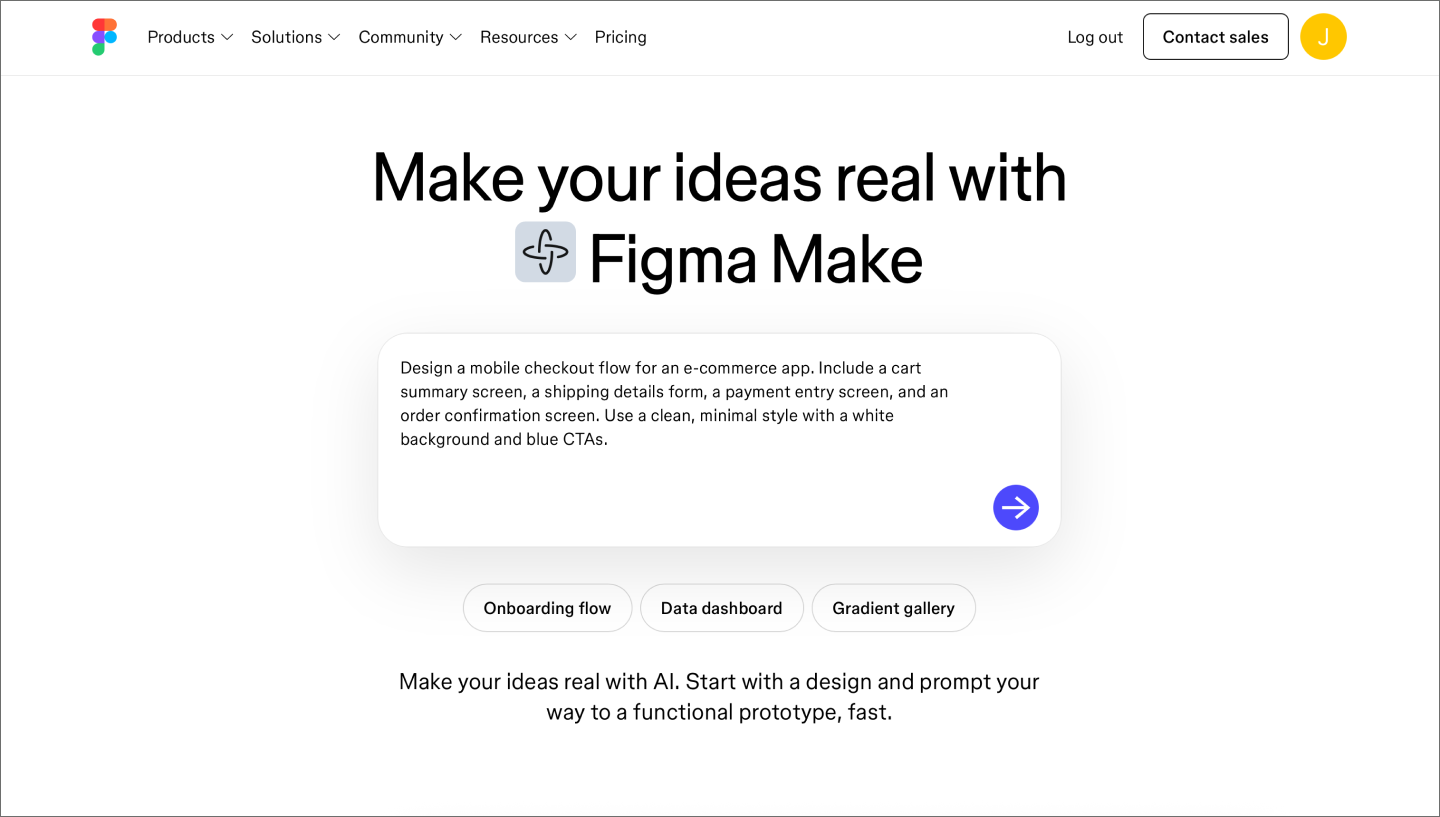
Before opening the tool, define the journey you want to map. Focus on one path—maybe it’s a checkout sequence or an onboarding flow. Describe it as if you’re explaining the screens to a teammate. Mention key interactions, the device type, and any visual style. The more detail you put into your first prompt, the less back-and-forth you’ll need after.
If your team uses a component library in Figma Design, paste those components into the prompt box. Figma Make matches their style and spacing so the prototype feels like your product from the start.

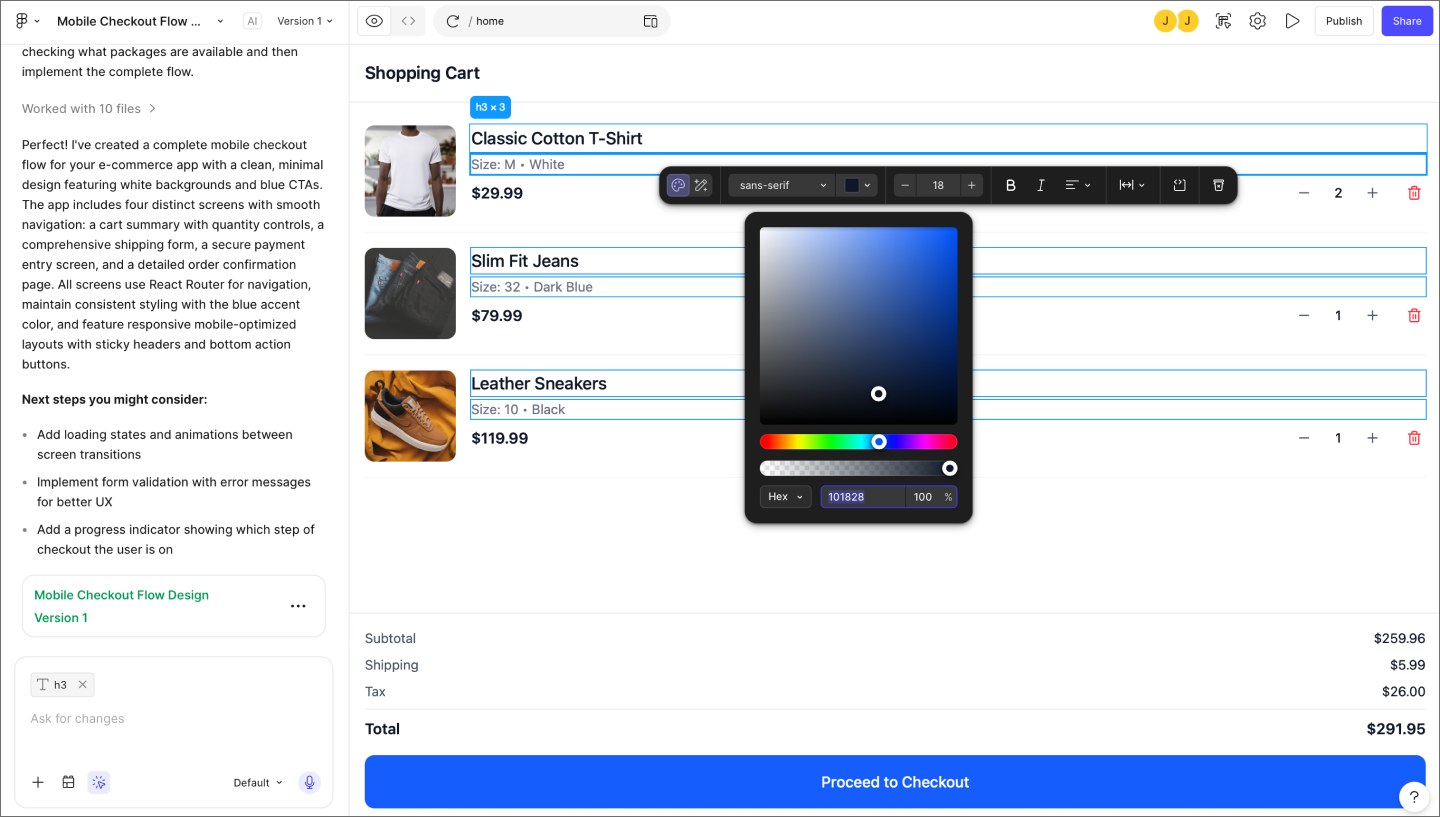
The first version is a starting point for you to react to. To match your product logic, you’ll likely need a few rounds of refinement. You can use the point and edit tool for manual adjustments like color and typography, but for larger structural shifts, iterative prompting is more efficient.
The quality of your follow-up depends on the specificity of your instructions. Adding required elements like a booking summary or a toggle for travel insurance gives the AI a clear map. You can see how a few specifics change the output:
Focusing on one change at a time keeps the flow on track and makes it easier to catch logic errors before they get baked in. This phase is about clarity, not perfection. As Yu explains:
When PMs use Figma Make early, they’re not trying to produce a polished design. They’re getting the first draft of the idea into a tangible form. That gives designers something to react to, refine, and improve rather than starting from a blank canvas.

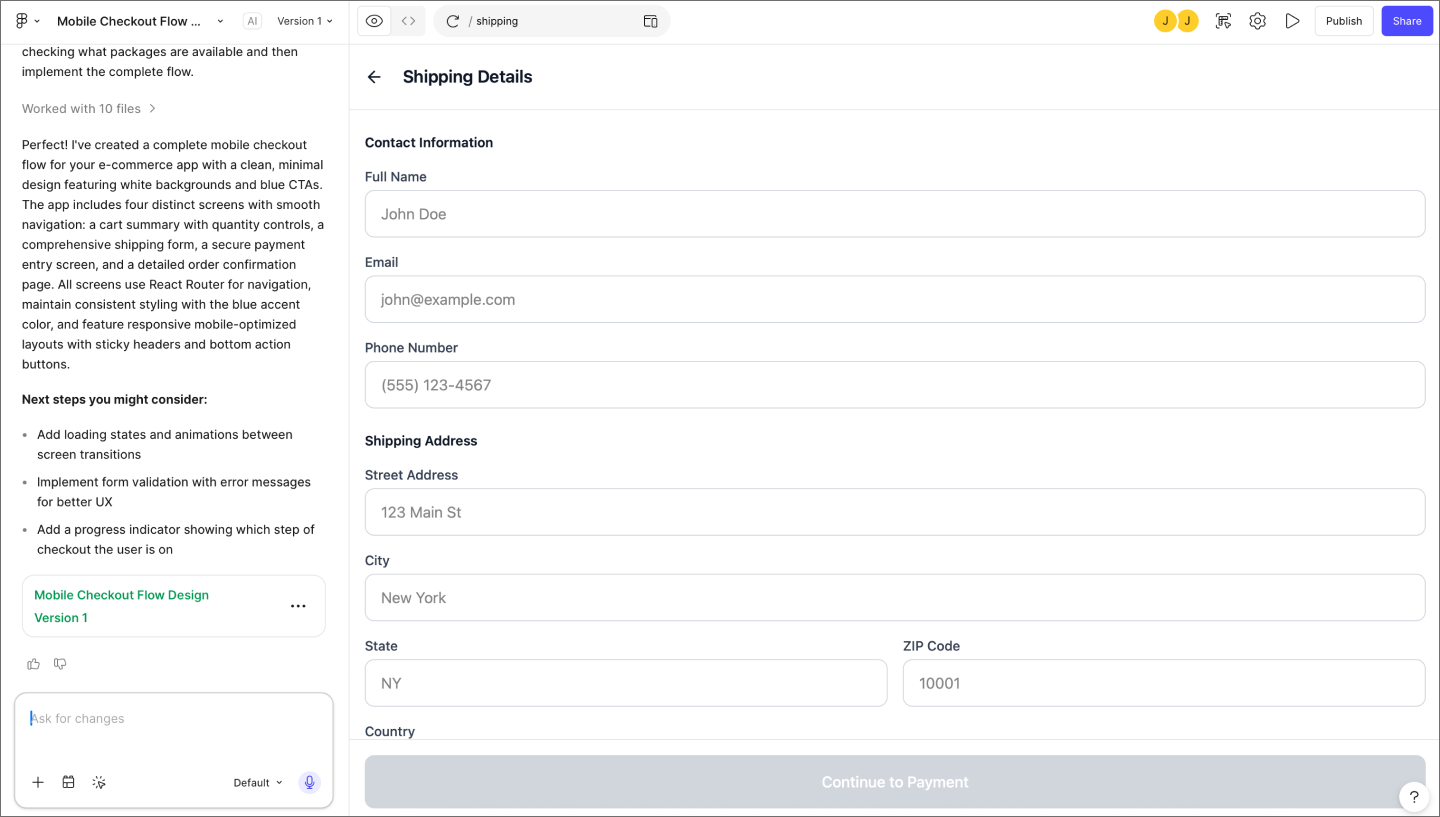
Depending on your prompt, Figma Make will build basic interactions right out of the box, like buttons that navigate between screens. Your checkout flow is already clickable, so you can start walking through the user journey right after your first generation.
This is the time to look for friction. Click through every screen to see if the transitions feel natural. When a button leads to a dead end or a step feels out of order, you’ve found a logic gap to fix before the build begins. For more complex motion, move your screens into Figma Design and use Smart Animate for production-ready transitions.

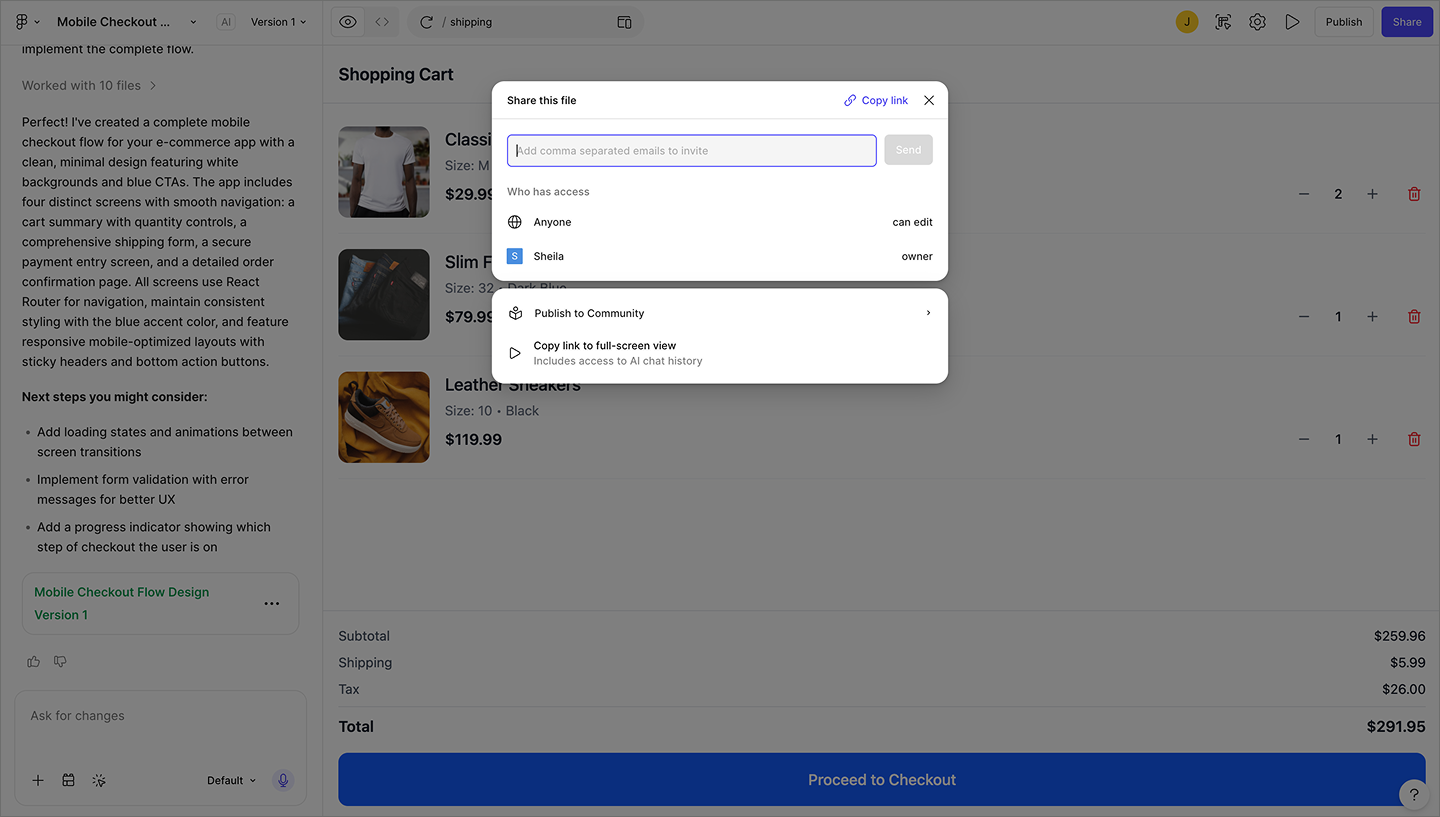
Once your flow is clickable, share it. Figma Make lets you send a link directly to stakeholders so they can tap through the prototype themselves. From there, collaborators can leave comments pinned to the screen or element they’re reacting to, keeping all feedback in one place and in context.
As Yu points out, the real “aha” moment is when you stop walking through a static deck and start sharing a working flow. It moves the conversation past “What does this mean?” and lets the team focus on whether the direction is right for the user.

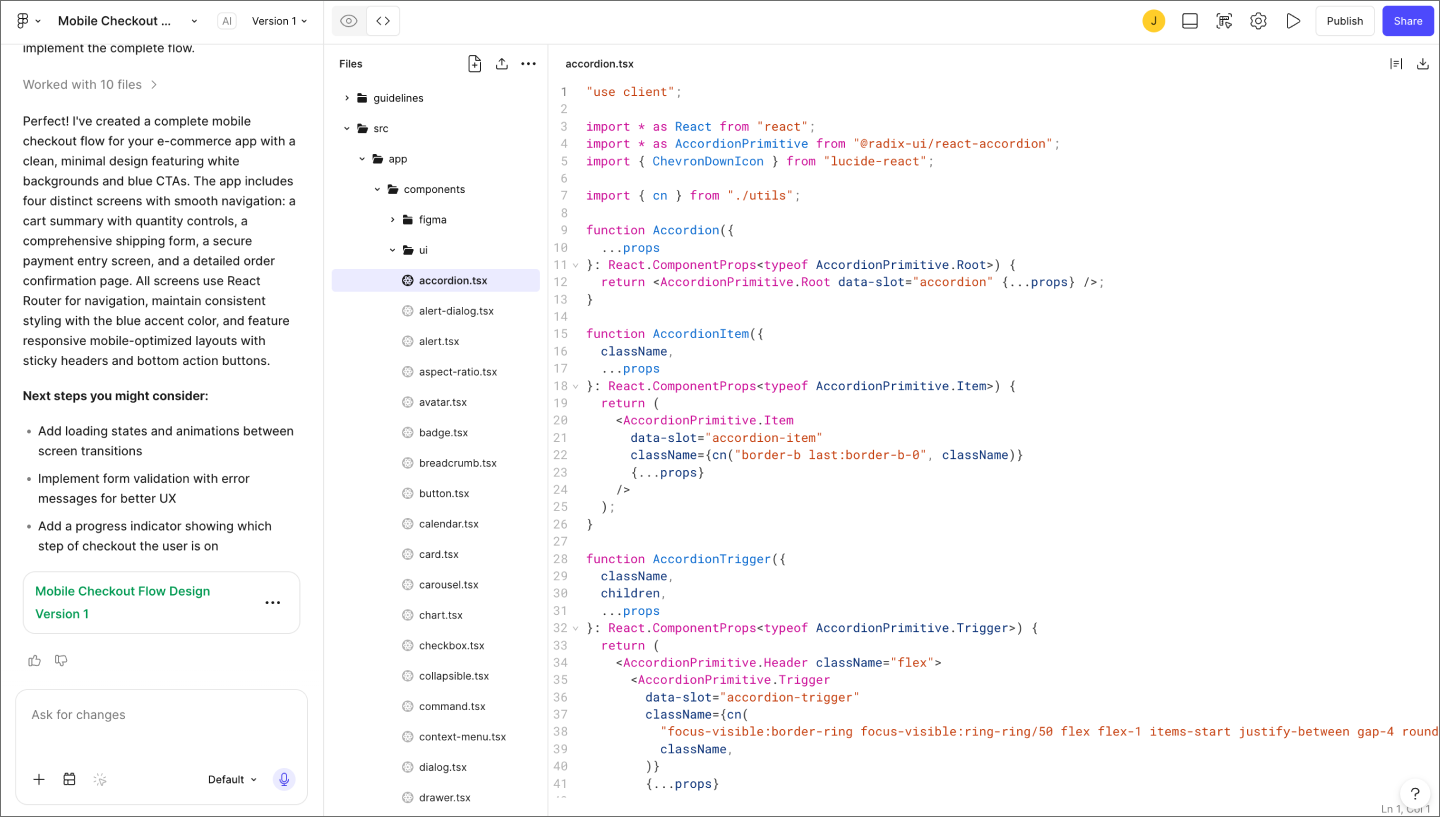
When the flow is ready for production, the code panel gives developers access to the file structure and component details. If your team uses Figma Design, Dev Mode provides the precise layout measurements and styling details needed to accurately build the experience.
Because everything lives in the same file your team has been collaborating in, developers are working from the same source of truth you aligned on in earlier steps. That shared context cuts down on back-and-forth questions and helps the team move from an approved flow to a shipped product faster.
Turn your product ideas into clickable, shareable flows without waiting for a design handoff.
Prompting a first draft gets you onto the canvas quickly, but the real work starts when you begin pressure-testing the logic. These tips help you move past basic prompts to build flows that feel like a real product.
AI is a fast way to build the UI patterns we see every day. Standard elements like login screens or settings menus follow predictable structures that the model understands well. Using AI for these repetitive layouts lets you spend your time on the product logic.
That said, some features still need a hands-on approach. If you’re building a custom interaction or unique brand experience, refining a prompt can take longer than drawing the screen itself. Moving these components to Figma Design is usually the fastest way to get what you want.
Prototyping can get messy when you’re iterating fast. If you move a primary button on the first screen, you usually want that change reflected on every other page in the flow. Keeping these details aligned prevents distractions during a walkthrough and makes the experience feel cohesive.
If you’re working in Figma Design, the multi-edit feature lets you handle these repetitive updates at once. Selecting a layer on one frame allows you to pick up every matching element across the rest of your screens. You can adjust the placement or style of a component once and see the update happen across the entire project.
Prototypes usually focus on the path where everything goes right. In reality, users encounter empty dashboards and failed payments just as often as a successful checkout. Prompting for these variations helps you find logic gaps before the flow reaches engineering.
Visualizing edge cases helps you decide how to handle friction early. Yu notes that, since these states are often where the product experience breaks down, visualizing them early provides engineers with much clearer requirements. It helps the team validate edge cases well before launch, avoiding the last-minute gaps that usually stall a project.
Effective AI prototyping for product managers moves the focus from drawing boxes to refining logic. Using AI for the initial layout lets you test a journey before the momentum fades. We hope this guide gives you a clearer picture of how AI prototyping fits into your product workflow. When you’re ready to build your first flow, we’d love for you to try Figma.
Here’s how you can get started:
Figma Make builds interactive, shareable prototypes using simple text prompts.
Learn how AI for product managers can transform your daily processes. Discover top tools + tips for using AI to streamline roadmapping and user research.

Learn how to master the stages of the product development process, from concept to launch, and how FigJam can help in this step-by-step guide.
Build faster with Figma AI